Patient menu
After navigating to the patient you want to follow up (via the Patient list), the Patient menu is divided into four categories: Overview, Program, Follow up and Diary.
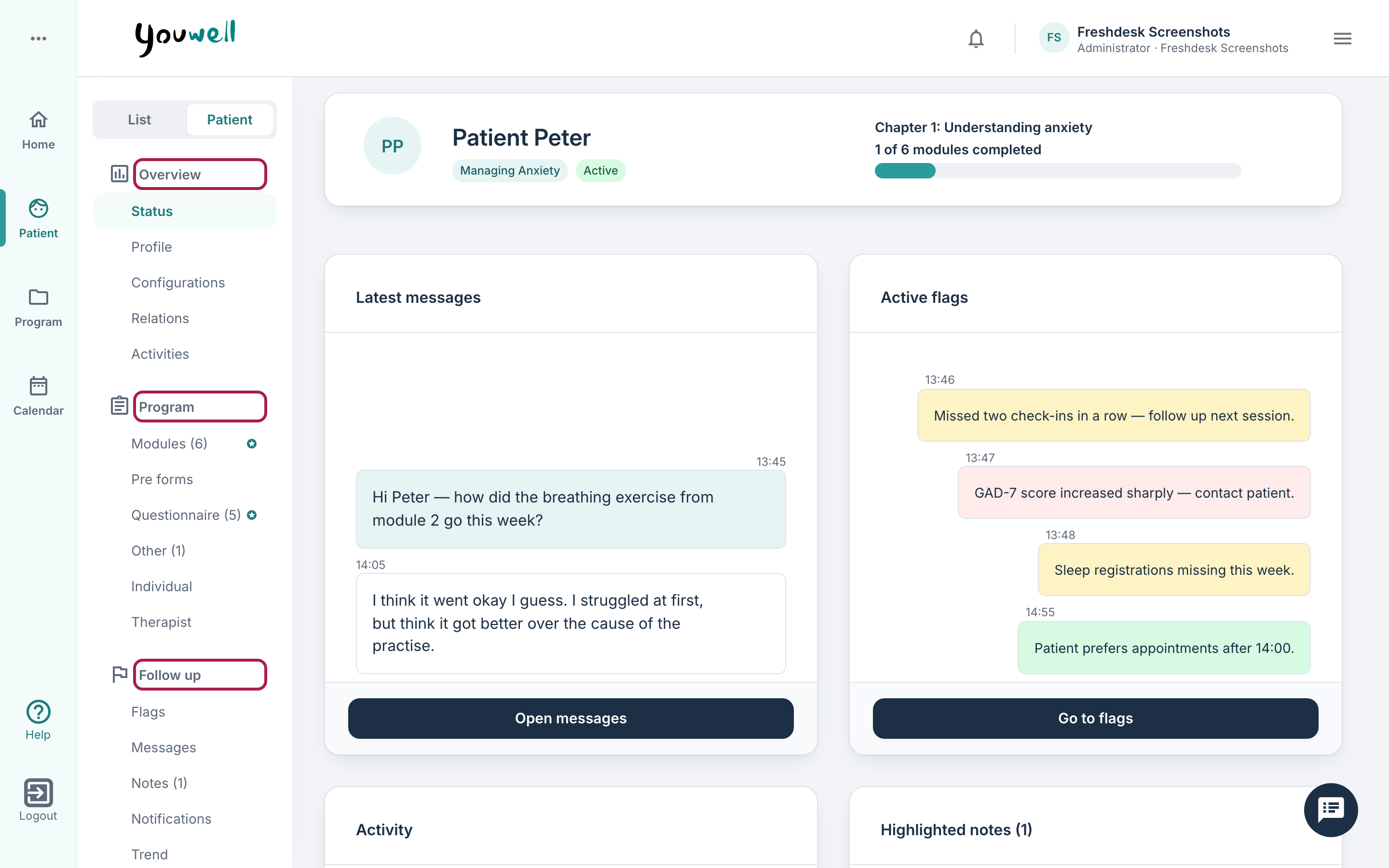
Under Status, the patient’s dashboard is displayed, presenting some graphs and insights around logins and system use.
Profile is used to view and update the patient’s information.
Relations shows other people who have access to log in to the patient application, to view either all or parts of the content in the program.
Modules provides an overview of the modules the patient has been assigned.
Pre-forms describes questionnaires that are assigned as a prerequisite for access to the rest of the program.
Questionnaires presents questionnaires and questions that are answered by the patient during the program period.
Other shows other content that is available to the patient through the menu or other navigation.
Individual presents individually tailored content for the patient.
Therapist provides an overview of questionnaires that are answered by the practitioner/therapist or other external resources.
Flags presents responses that have been flagged, as well as flags related to follow-up and other events.
Messages provides an overview of the communication with the patient via the chat tool.
Appointments provides an overview of planned appointments of various types with the patient.
Notes presents notes and attachments related to the patient.
Notifications shows which notifications have been (attempted) sent to the patient.
Diary fields vary somewhat depending on the program the patient has been assigned and the functions that are enabled under the program profile.
Regardless of which subpage is being viewed: at the top the name, current program, picture and module the patient is working with are displayed.

Status
When a patient is opened, the Status page is displayed. This is divided into four areas or tiles: Latest messages, Trend, Activity and Active flags. Below is an example of how the Status page can look if all four areas are enabled.
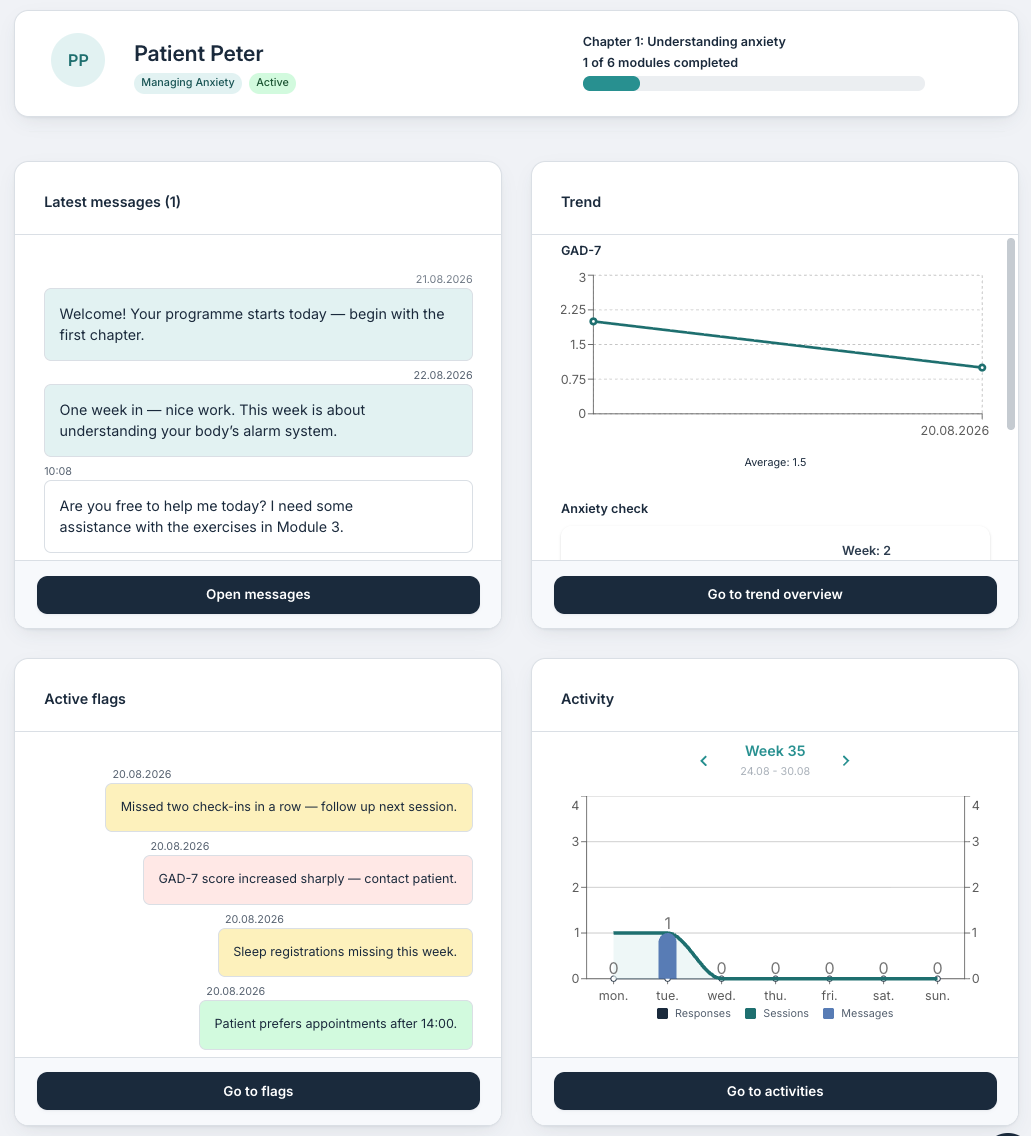
It is possible that not all four tiles are visible as in the example above; the tiles that are presented depend on activity from the patient and outstanding matters related to follow-up. The Status page displays the tiles that are relevant to the specific patient (unless the administrator on the account has specified that tiles should always be shown).
Latest messages provides an insight into communication with the patient via the chat function. It is possible to open messages to read more and see the latest message. More information about messages can be found here: Patient page: Messages.
Trend is displayed if the program has progression graphs enabled and the patient has submitted responses linked to the graphs. It is possible to go to the Trend tab for further view. More information about creating progression graphs can be found here: Program settings: Progression graphs.
Active flags displays flags that are set up on the patient, either automatically or by the practitioner. It is possible to go to Flags for related information, or to see further details.
Activity shows a line chart indicating the patient’s activity in the patient application, including responses, logins and messages. You may hover the pointer over different days for more detailed information, and it is possible to use arrows to navigate from week to week.
Was this article helpful?
That’s Great!
Thank you for your feedback
Sorry! We couldn't be helpful
Thank you for your feedback
Feedback sent
We appreciate your effort and will try to fix the article