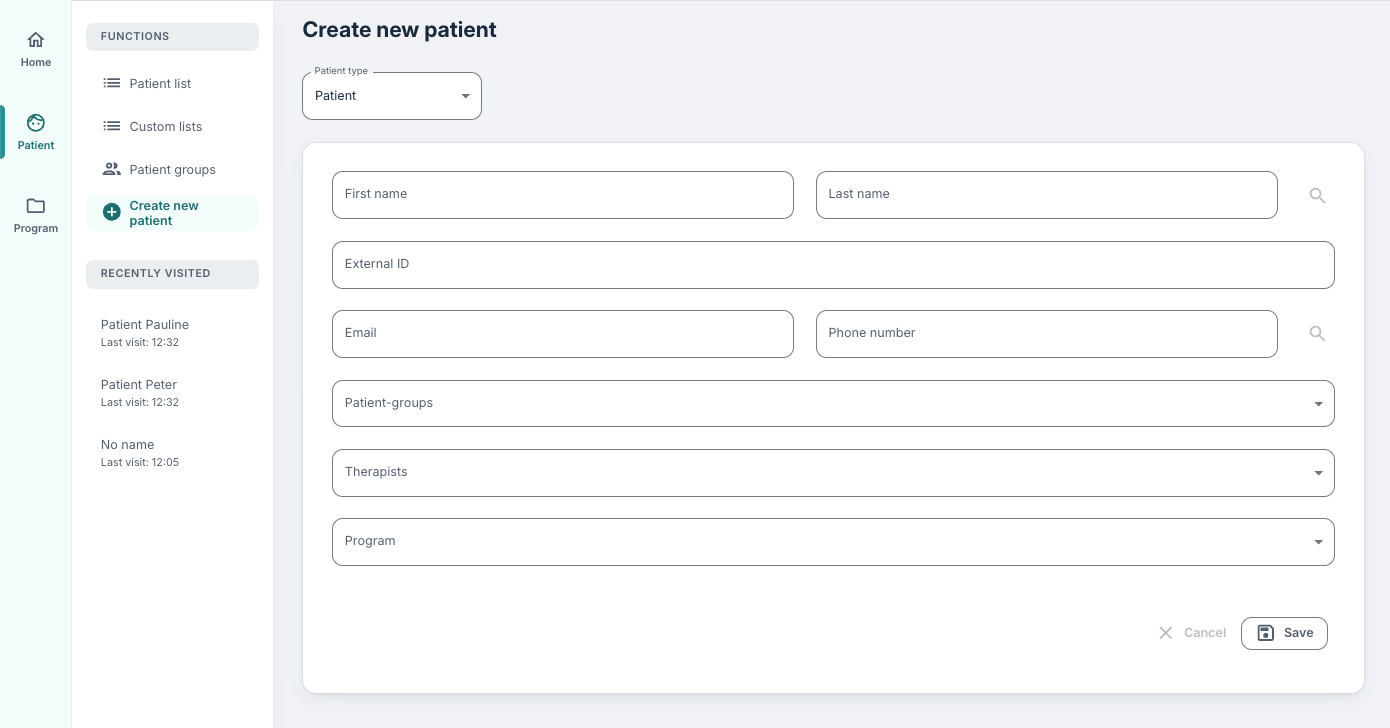
As a clinician, or administrator, you may want to create new patients who are to begin receiving digital treatment and be assigned a programme. The form for doing this can be found under Patient in the main menu, and then + Create new patient.
In this form, the following information can be filled in:
| Field | Type | Description |
|---|---|---|
| First name | Mandatory | First name of the patient that will be displayed for them, and for the clinician in the Patient list. |
| Last name | Mandatory | Last name of the patient that will be displayed for them, and for the clinician in the Patient list. |
| Person number | Mandatory (if the ID portal is activated) | If the ID portal is activated for your organisation, you can enter the patient’s national identity number (it should be 11 digits) so that the patient can log in to the patient application. |
| External ID | Optional | Here you can enter codes or IDs that you have from other systems if you want to be able to map patients in the Youwell system with other systems. |
| Mandatory | Enter the patient’s email address. They will use this to log in if the ID portal is not set up. | |
| Study participant ID | Optional | Used in cases where an account has studies set up and wants to link to an external study ID for the patient. |
| NPR number | Optional | Enter the NPR ID number for the patient if you use the NPR system internally. |
| Phone number | Mandatory (if the ID portal is not used) | Enter the patient’s mobile number. If the ID portal is used for login, this will be a mandatory field. The phone number entered here is used to send the patient notifications by SMS. |
| Sex | Optional | Select gender for the patient if relevant. |
| Birth date | Optional | Enter the patient’s date of birth if relevant. |
| Height / Weight | Optional | Enter additional information here if you want to record these measurements in the system. |
| Patient groups | Optional | Select a group to which the patient will belong. |
| Therapists | Mandatory | Select which clinicians and therapists the patient will be registered under. All clinicians/therapists entered here will have access to the patient’s profile. If nothing is selected here, the person creating the patient will be assigned by default. |
| External resources | Optional | Here you can select some external clinicians/therapists if this is set up on your account. |
| Program | Optional | Assign the appropriate programme for the patient. When you select a programme, you will be presented with more options. Note that only one programme can be assigned at a time. This can also be assigned later after the patient is created.* |
| Program profile | Optional | Select the relevant programme profile for the patient. If you are unsure what is meant by profile, read here: Program profiles. |
| Set start date for program | Optional | Enter the date when the patient is to begin their programme. Note that this date is used as the basis for all other calculations of offset days. |
| Send welcome message | Optional | Here you can choose whether the patient is to receive a standard welcome message or not. |
*To select a program after the patient is created, you can go to Program on the patient page and then start a treatment program.
When you have filled in all the fields you want, you can click Save, then the patient is set up and a welcome email is sent if this was selected. The patient will now be available to the assigned clinician, and they can go in and assign programmes, modules, forms, send messages, as well as perform all actions that are available under Patient list.
Search for existing patients
It is also possible for clinicians to search for existing patients from this page. The clinician may want to add a patient to their patient list so that they can begin to follow them up.
In such cases, the search function next to name/national identity number/phone/email can be used to search for a patient. Then the relevant patient is selected, and a justification for adding the patient is entered before saving.
Was this article helpful?
That’s Great!
Thank you for your feedback
Sorry! We couldn't be helpful
Thank you for your feedback
Feedback sent
We appreciate your effort and will try to fix the article