Relations is a tool where the clinician can add persons who are given read access in the patient application. This means that relatives or others can see all or parts of the content that the patient is working with. A typical example is parents who want insight into the programme their child is following.
From the Relations tab the clinician can also see when these persons have logged into the patient application.
Access
Under Access it is possible to add and manage who gets access.
- It is common to click the plus symbol to add a new person.
- It is common to fill in Name, Person number (if ID-porten is used), Email, Phone number and Role.
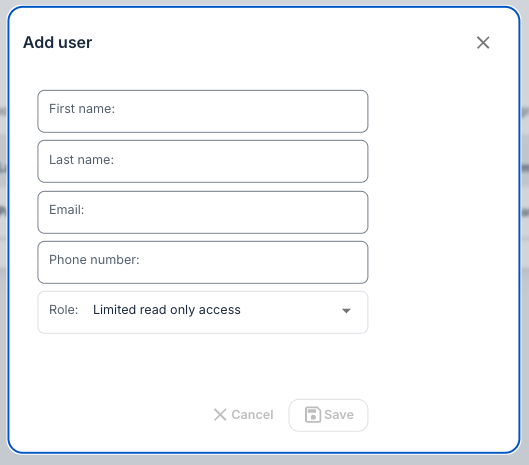
Roles
There are three different roles with different levels of access:
- Limited read only access
- Read all
- Read and write access
When Save is selected, the user will be added and shown in the list of persons with access.
- The pen symbol can be used to edit a user.
- The Delete button can be used to remove a user.

Access log
Here an overview is shown of when persons with access have logged into the patient application. The log is shown as a list, sorted by time.

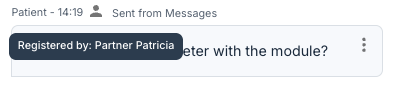
If a relation has sent a message to the clinician or answered a questionnaire on behalf of a patient, this is marked with a person icon. It is possible to hover the mouse over the icon to see who submitted the answer/message.

Comparison of roles
Function / Access | Limited read only access | Read all | Read and write access |
|---|---|---|---|
| Read enabled modules | ✅ | ✅ | ✅ |
| Respond to tasks in modules | ❌ | ❌ | ✅ |
| Read messages from clinician | ❌ | ✅ | ✅ |
| Write messages to clinician | ❌ | ❌ | ✅ |
| Respond to questionnaires on behalf of the patient | ❌ | ❌ | ✅ |
| Read Health registrations | ❌ | ✅ | ✅ |
| Update Health registrations | ❌ | ❌ | ✅ |
| See scheduled appointments | ❌ | ✅ | ✅ |
| See My favourites | ❌ | ✅ | ✅ |
Was this article helpful?
That’s Great!
Thank you for your feedback
Sorry! We couldn't be helpful
Thank you for your feedback
Feedback sent
We appreciate your effort and will try to fix the article