As an administrator (or mercantile) it is possible to create and manage patient groups. Navigating to Patient and then Patient groups provides an overview of all the groups and shows the option to create a new patient group.
What are patient groups used for?
Patient groups are used largely for visual sorting and categorisation of patients, so that different lists can be displayed based on when the patient starts (for example month 1, month 2), which clinicians the patient belongs to, or which patients may have a need for additional follow-up etc.
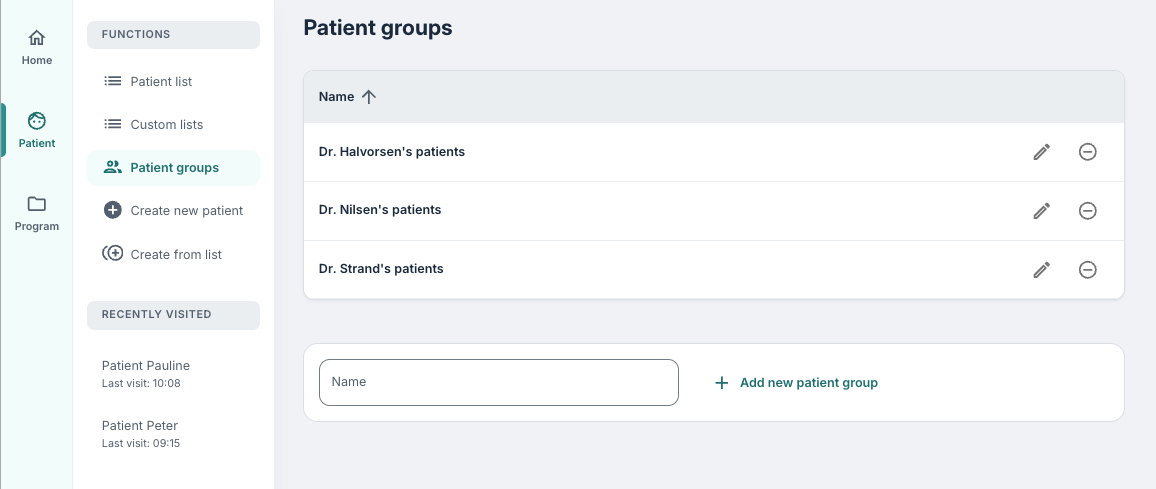
When Patient groups is selected, a list of existing groups is displayed. With administrator access it is also possible to create a new group. The patient group can be assigned to the patient when they are created in the platform.
Create new patient group
The name of the patient group can be entered, and then + Add new patient group can be used to add the group to the list.

When the group is added to the list, the name can be edited by using the pencil symbol.
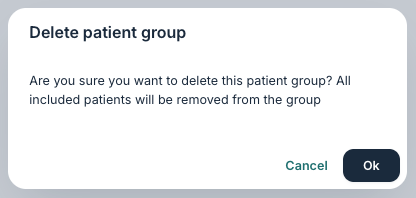
To remove a patient group the minus sign can be used, and a popup window is displayed as illustrated. In the popup window it is stated that patients who are linked to the group are removed from the group when it is deleted.
Was this article helpful?
That’s Great!
Thank you for your feedback
Sorry! We couldn't be helpful
Thank you for your feedback
Feedback sent
We appreciate your effort and will try to fix the article