When logging in as a clinician, the Dashboard page is shown under Overview. It is possible to see which patients need follow-up soon, and there are some shortcuts and buttons on the page to go directly to relevant subpages in the platform.
CONTENTS
Pasient status
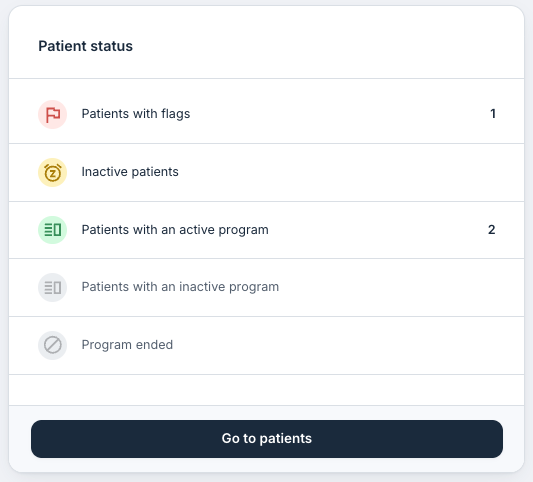
This tile provides a summary of the number of patients in various categories, and it is possible to click on the different lines to go to Patient list with the given filter already applied.
Patients with flags are patients where an event or a flag has been registered. Inactive patients have not been active in the last 7 days. Patients with an active program have been assigned a programme and are in an active programme period. Patients with an inactive program have read-only access to the programme, and do not have the possibility to answer questions in modules or send messages. Patients with Program ended no longer have access to the programme.
It is possible to select “Go to patients” to go to the Patient list where you can browse and see more details about specific patients.
Unread messages
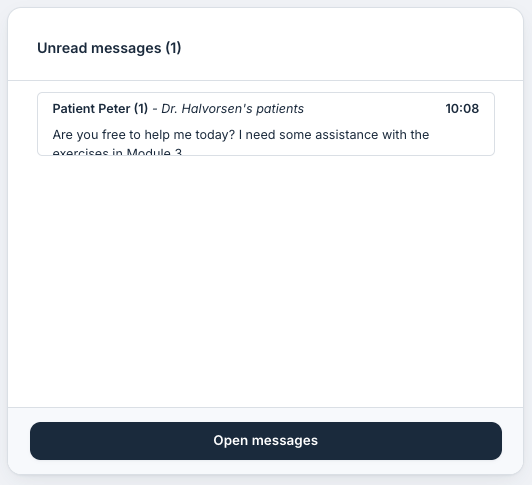
Here you see a list of unread messages that have been sent to clinicians by the patients. The patient’s name, number of unread messages and date are shown. A preview of the actual message that was sent in is also displayed.
When selecting “Open messages”, the chat window opens so that the messages can be viewed in more detail. More information about messages is found here: Patient pages: Messages.
Patient appointments
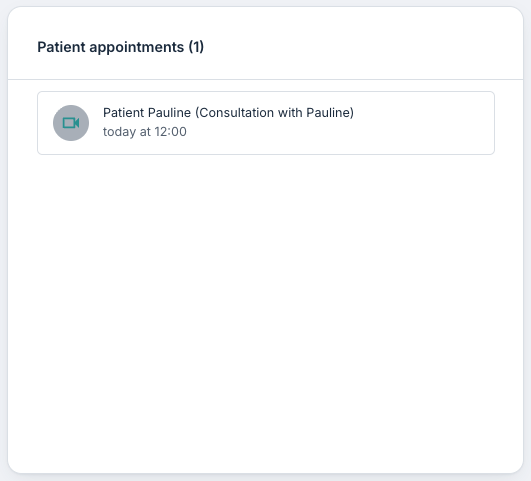
This tile gives an overview of upcoming appointments that have been set up between the clinicians and their patients. Here the number of planned appointments is shown, including a list with the name of the patient concerned, the title of the appointment, date and time. The symbol next to each line indicates what type of appointment it is (for example video, in-person or telephone).
More information about appointments is found here: Patient pages: Appointments.
Flags
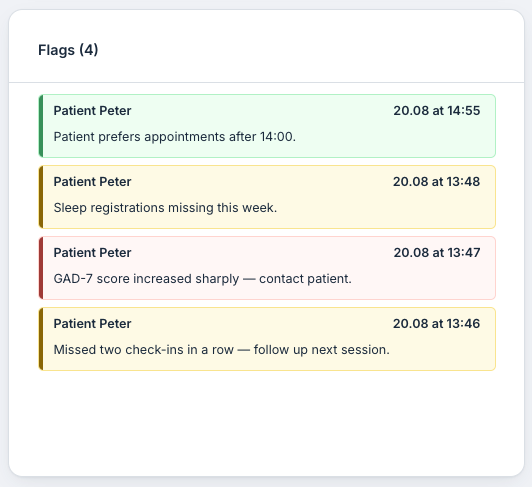
This tile shows flags that have been registered among the patients in the organisation. Flags that are registered as a result of a questionnaire or a health registration are marked in yellow, while flags that are set on messages, modules or entered manually are shown in red.
The relevant patient is shown, the time stamp, any manually-entered text, and an indication of the relevant questionnaire or registration which triggered the event.
More information about flags is found here: Patient pages: Flags.
Time distribution
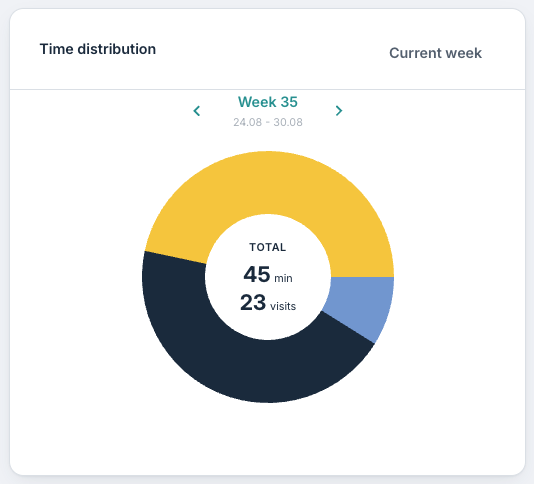
The pie chart provides an insight into which patients the clinicians spend the most time on. The three patients with the most time spent on them are recorded in the chart here, and an “Other patients” category is also shown. When the mouse pointer is held over the different segments, you can see which patient it concerns, and how many minutes and visits which have been recorded for this patient.
The chart shows the total number of hours and number of visits in the last week. It is possible to use the arrows to scroll back and forth to see different time periods. There is also a Current week button at the top to return to the current week.
Work status
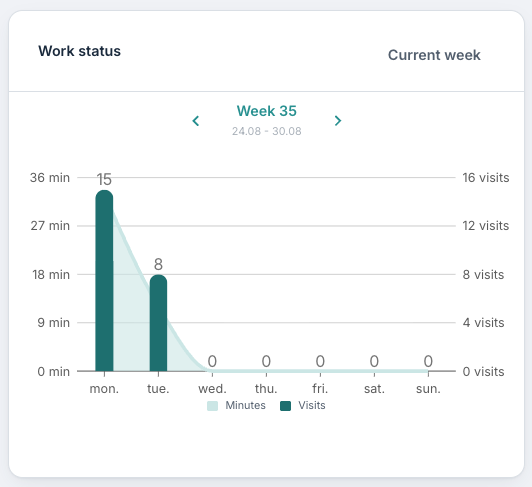
This graph shows activity, with information about how many minutes have been spent in the platform (on the left Y-axis) and number of visits (on the right Y-axis). This is divided by day (on the X-axis). It is possible to scroll through the different weeks using the arrows.
When the mouse pointer is held over the different days, information is shown about how many minutes and number of visits in the platform per day.
Was this article helpful?
That’s Great!
Thank you for your feedback
Sorry! We couldn't be helpful
Thank you for your feedback
Feedback sent
We appreciate your effort and will try to fix the article