If you have administrator access in the system, you will have access to the Settings tab under Home. Here it is possible to configure various rules and settings for the whole organisation. This page is divided into two sections: Configurations and Text templates.
Under the Configurations tab, it is possible to adjust various settings related to the patient application, notifications, content, and system behaviour. Below follows an overview of the different areas that can be customised.
CONTENTS
- Overriding settings at organisation level
- Therapist
- Notifications and flags
- Program settings
- Youwell settings
- Experimental features
Overriding settings at organisation level
When going through the various settings on this page, you will notice that as you adjust and activate certain toggles and buttons, this will mark the setting as Organization as opposed to Default.
Default settings are the standard settings which are in place across the whole installation, also known as the tenant. Making adjustments for this organisation will then override these general settings for the given organisation you are working in.
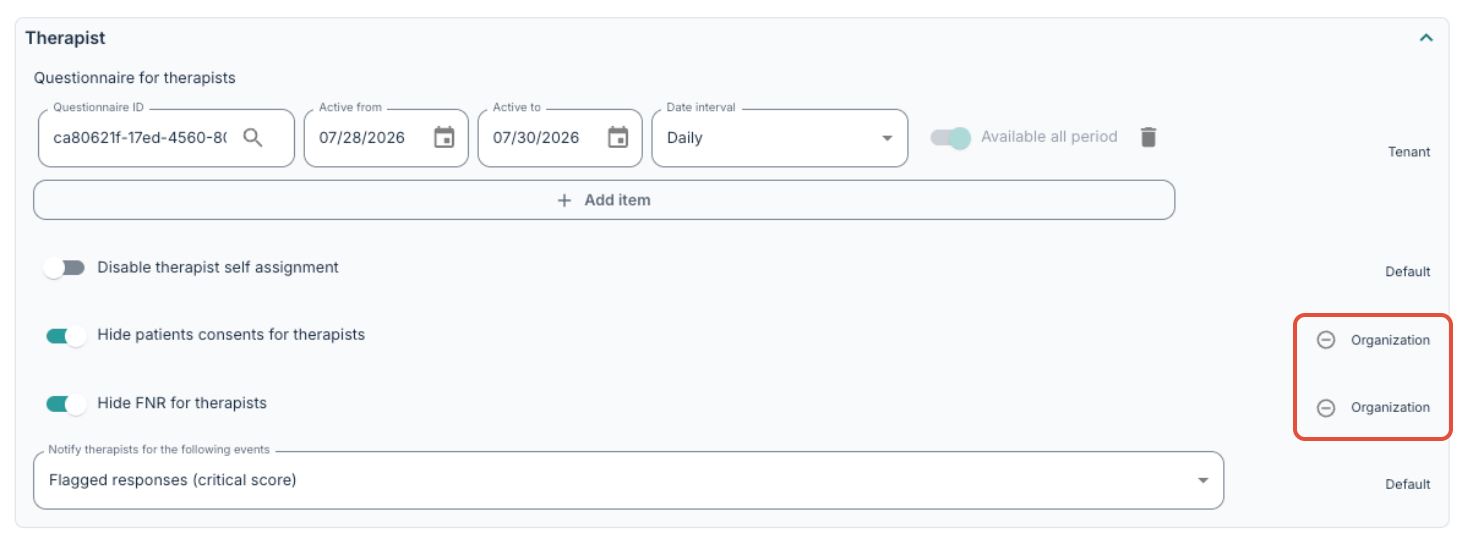
If you make an adjustment and later wish to return the setting to the default mode, you can use the minus symbol.
Further to this, it is possible to adjust some settings on a Program and Program profile level if you want to be more specific. You can read more about this here: Program Settings: Setup and here: Program profile settings.
Therapist
Here you can choose questionnaires that can be assigned to clinicians. These will appear under the Therapist sub-page .
The questionnaire ID can either be entered directly, or you can use the magnifying glass to search for the correct questionnaire.

You can define the active period by setting Active from and Active to, or by selecting Available all period. If the questionnaire should repeat, you can configure Date interval and Interval days.
The following toggles are also available:
| Setting | Description |
|---|---|
| Disable therapist self assignment | Prevents therapists from assigning patients to themselves. |
| Hide patients consents for therapists | Hides patient consent information from therapists. |
| Hide FNR for therapists | Hides Norwegian ID number (FNR) from therapists in the interface. |
Please contact support if you would like more detailed information about how these settings function.
Under Notify therapists for the following events, you can choose:
- Flagged response (critical score)
- Message
- Event created
- Event updated
- Event deleted
- Event reminder
This determines which situations trigger notifications to clinicians.
Notifications and flags
Here you can activate Allow duplicate flags, and specify when notifications should be delivered via Earliest time for sending notifications and Latest time for sending notifications. This applies to standard notifications, for example when new content or a new questionnaire has been published.
Timezone for sending notifications can also be selected and is by default set to CEST.
The message sent to the patient for missing medication registration can be customised under Send notification to patients with missing medication-registration.
You may enter a number under Flag patients that have been inactive for (x) number of days to automatically add a flag when a patient has been inactive. The field can be left empty if inactive patients should not be flagged.
Default language for notification templates determines which language text templates will be delivered in cases where a patient's language setting is not yet define (for example when a programme is newly started).
Calendar Event Change Notifications will be visible if you are using the Calendar tool. These notifications control when automated reminders will be delivered to patients and therapists. You can read more about this here: Notification and reminder settings.
Program settings
These settings typically relate to views in the patient application and communication with patients.
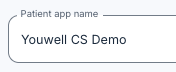
Under Patient app name, you can enter the name displayed for patients in the top left corner when logging into the patient application.
It is also possible to choose a Patient app logo as an alternative to the name in the header. If both are added, the logo overrides the name.
 |  Display in the new patient app design (from 2026) Display in the new patient app design (from 2026) Display in the earlier patient app design (pre-2026) Display in the earlier patient app design (pre-2026) |
| Setting | Description |
|---|---|
| Patient name in the app | Whether the patient's name displays by the welcome message or not. You can select First name only, Full name or Do not show name. |
| Sender name | Defines who is shown as the sender of system e-mails. |
| Sender name short (max 11 chars) | Defines who is shown as the sender of system text messages (SMS). |
| Patient dialogue | Can be set to On, Off, or One-way and refers to use of the Messages tool for patients: whether Messages are completely activated, deactivated or whether only therapists can send messages. |
| Link to privacy policy | Link displayed in the footer of the patient application. |
| Link to universal design report | Link displayed in the footer of the patient application. |
| Patient browser session timeout (minutes) | Defines how long a patient remains logged in via browser. Recommended value: 30 minutes. |
| Patient app session timeout (minutes) | Defines how long a patient remains logged in via the app. Recommended value: 259200 minutes. |
| Max days before re-login required | Defines how often a patient must re-authenticate with BankID in the Youwell app. Recommended value: 180 days. |
| Allow patient to delete themselves | Allows patients to delete their own user profile. |
| Allow patients to create their own user | Allows patients to self-register if relevant for the programme. |
| Main elements title | Assigns title/name to module-section in the patient app (in older patient application design only). |
| List of available labels | Create labels that can later be assigned to elements and questionnaires. Useful for data extraction and reporting. |
| Calendar tags | Used in certain projects to link shortcut buttons on the patient app homepage to a filtered calendar view. |
| Allowed languages in patient app | Defines which translation options are available to patients. This applies to standardised texts in the patient application, such as those in the hamburger/sidebar menu. If nothing is selected, all languages will be available, otherwise you can specify languages by inputting no (Norwegian Bokmål), nn-no (Norwegian Nynorsk), sv (Swedish), dk (Danish), de (German) and en (English). |
Youwell settings
If you wish to add custom links in the menu in the platform, these can be entered under Custom links in menu.
Portal app name and Portal app URL refer to the Youwell platform itself and the link and name provided. It is recommended to keep the standard values unless otherwise discussed with Youwell support.
Portal session lifetime (minutes) defines how many minutes of inactivity are allowed before a user is logged out. For example, with a value of 30 minutes, a user can work actively in the platform for any length of time, and will only receive a logout warning once they have been inactive for 30 minutes. They will then have 1 minute to respond before being automatically logged out.
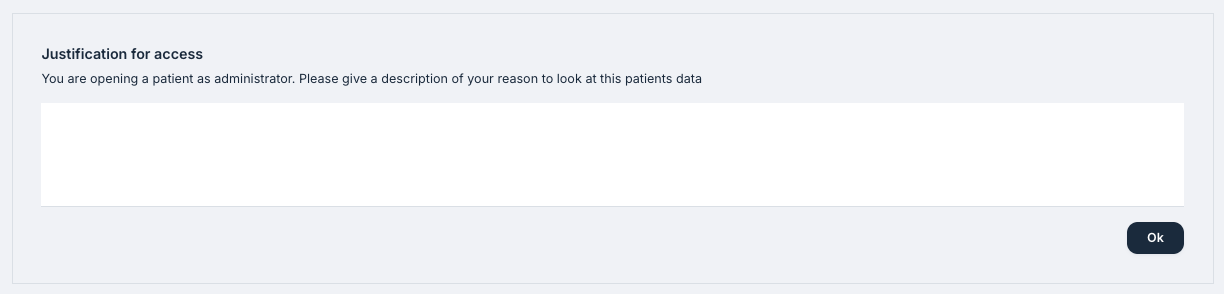
If Enable admin declaration is activated, a pop-up declaration is shown when the administrator opens a patient:
| Setting | Description |
|---|---|
| Therapist consent | Allows selection of a content page to collect therapist consent. When activated, therapists must provide explicit consent before certain actions or access are granted. |
| Default search in responses | Defines whether search is enabled by default when viewing patient responses. |
| Allowed modes for bulk creation of patients | Controls which patient types are available when using the Create from list tool (e.g., anonymous, identifiable). |
| Show only selected tiles on dashboard | Allows administrators to define which dashboard tiles clinicians see. If none are selected, all relevant tiles are shown by default. |
| Deactivate journal-notes | Disables the Notes functionality. Clinicians cannot create or view notes when activated. |
| Allow deletion of notes | Determines whether clinicians can delete notes after creation. |
| Deactivate all appointment-functionality | Disables Appointments functionality, preventing booking and management of appointments. |
| Deactivate video-chat | Disables video consultation functionality. |
| Enable periodical notification about checking for surplus information | Sends recurring reminders to clinicians to review stored data for surplus information. |
| Wearables data retention days | Defines how many days wearable/device data is stored before automatic deletion. |
| Show journal note legal information | Displays legal or regulatory guidance related to journal notes. |
| Hide work status tile | Hides the work status tile from the dashboard. |
| Allow email for patients | Allows patient email addresses to be registered and used. |
| Phone number not required | Makes phone number optional during patient registration or profile setup. |
| Show fields for height and weight | Activates height and weight fields as part of patient creation form/patient profile page. |
| Show fields for gender and age | Activates gender and DOB fields as part of patient creation form/patient profile page. |
| Allow login with one-time login code | Enables passwordless login using a one-time code sent to the registered contact method. |
| Registration code validity days | Defines how many days a registration/invitation code remains valid. |
| Disable the ability to send chat messages as SMS | Prevents option for chat messages from being delivered as SMS. Messages will only be available inside the platform. |
| Enable information banners | Activate Information banners tool, allowing for the creation and publishing of info-banners. |
Experimental features
This section provides an overview of newer features currently in Beta testing mode. You may activate these features for testing purposes. Please note that functionality in this section may still be under development and not fully complete.
Contact support if you would like more information about any experimental feature and how it works. We will be happy to advise you!
Was this article helpful?
That’s Great!
Thank you for your feedback
Sorry! We couldn't be helpful
Thank you for your feedback
Feedback sent
We appreciate your effort and will try to fix the article