CONTENTS
- What is the Youwell app?
- Downloading the app
- Navigating the app
- The Home screen
- Messages
- Settings
- Next steps for rolling out the app
What is the Youwell app?
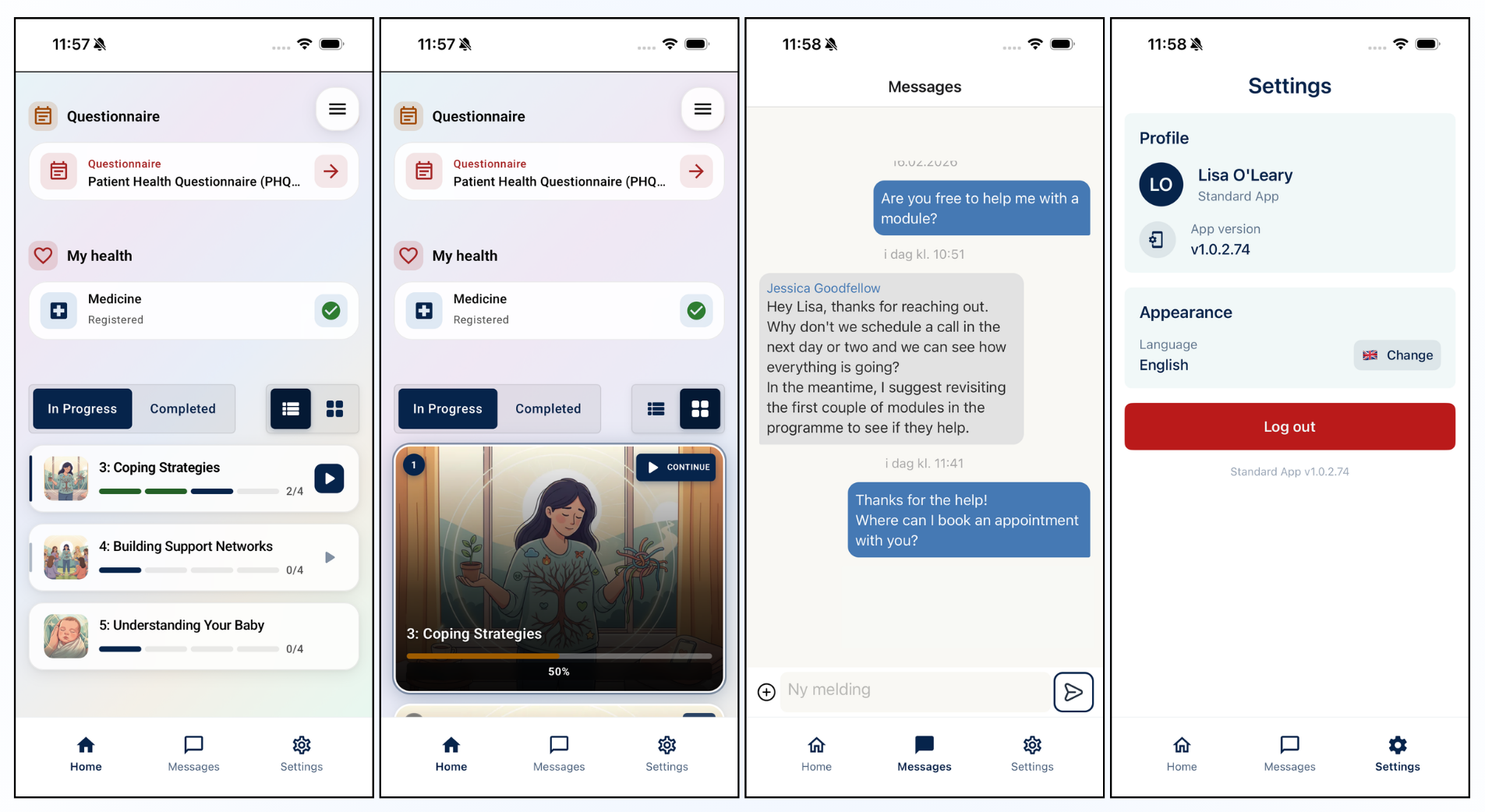
The Youwell app is the native mobile version of the Youwell web app, available for Android and iOS. It gives users access to all the same features as the web application, in a format optimised for a phone or tablet.
The native mobile app may be more convenient for users as it does not require a BankID login each time it is used, but can instead use the device's built-in biometric login.
The app is a shell app, meaning its content is powered by the Youwell web app. This ensures that everything available on the web is also available in the app, and content assigned to a patient will automatically be available in the app as well as in the web application.
Downloading the app
To download the app, a patient can search for Youwell in the App Store (iOS) or Google Play (Android) to locate and download it.
Once the app is opened, the user will see a list of organisations. They can select the relevant organisation for the programme they are enrolled in, and then proceed to log in according to that organisation's login process. This will typically be via BankID.
After logging in, the user will usually receive a prompt asking whether they would like to activate biometric login for future access. If accepted, the user can then use the biometric method (e.g. Face ID or fingerprint) registered on their device to access the app. If biometric login does not work on a given occasion, other methods such as a PIN or pattern may be used, depending on the device. The user will also be prompted to set an app PIN which can work as a fallback or in situations where no pre-configured biometric or PIN login is present on the device.
Content creators and admin users are able to define how long patients can log in without having to re-confirm their BankID login. The default is set to 180 days, which is an industry standard. Please get in touch with support if you are considering changing this setting.
If the app is inactive for 5 minutes, authentication will be required upon reopening.
Navigating the app
Bottom menu bar
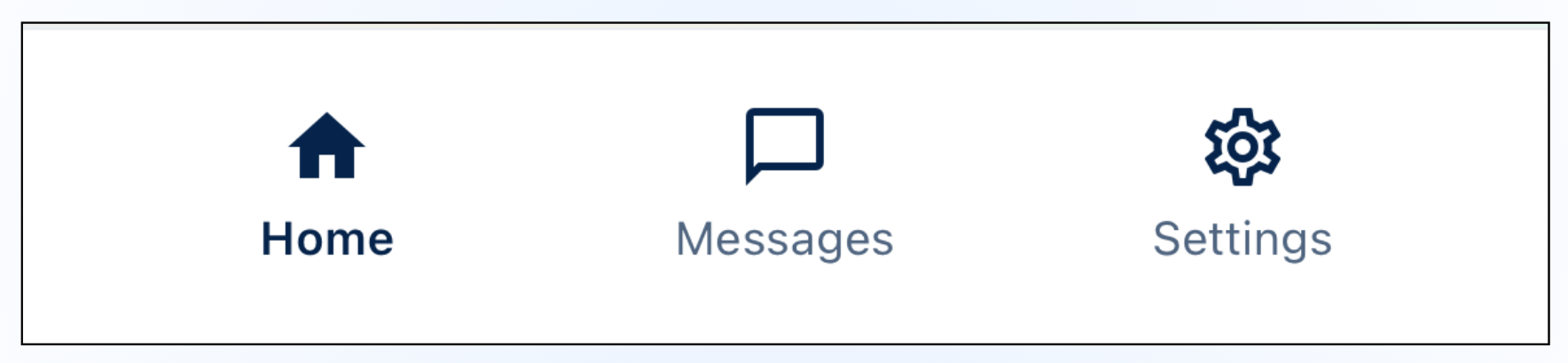
The bottom of the screen contains the main navigation:
- Home: Navigates to the landing page and refreshes the content.
- Messages: Opens the Messages tool, similar to the chat window in the web app.
- Settings: Access to app information and settings such as language preferences.
Hamburger menu (☰)
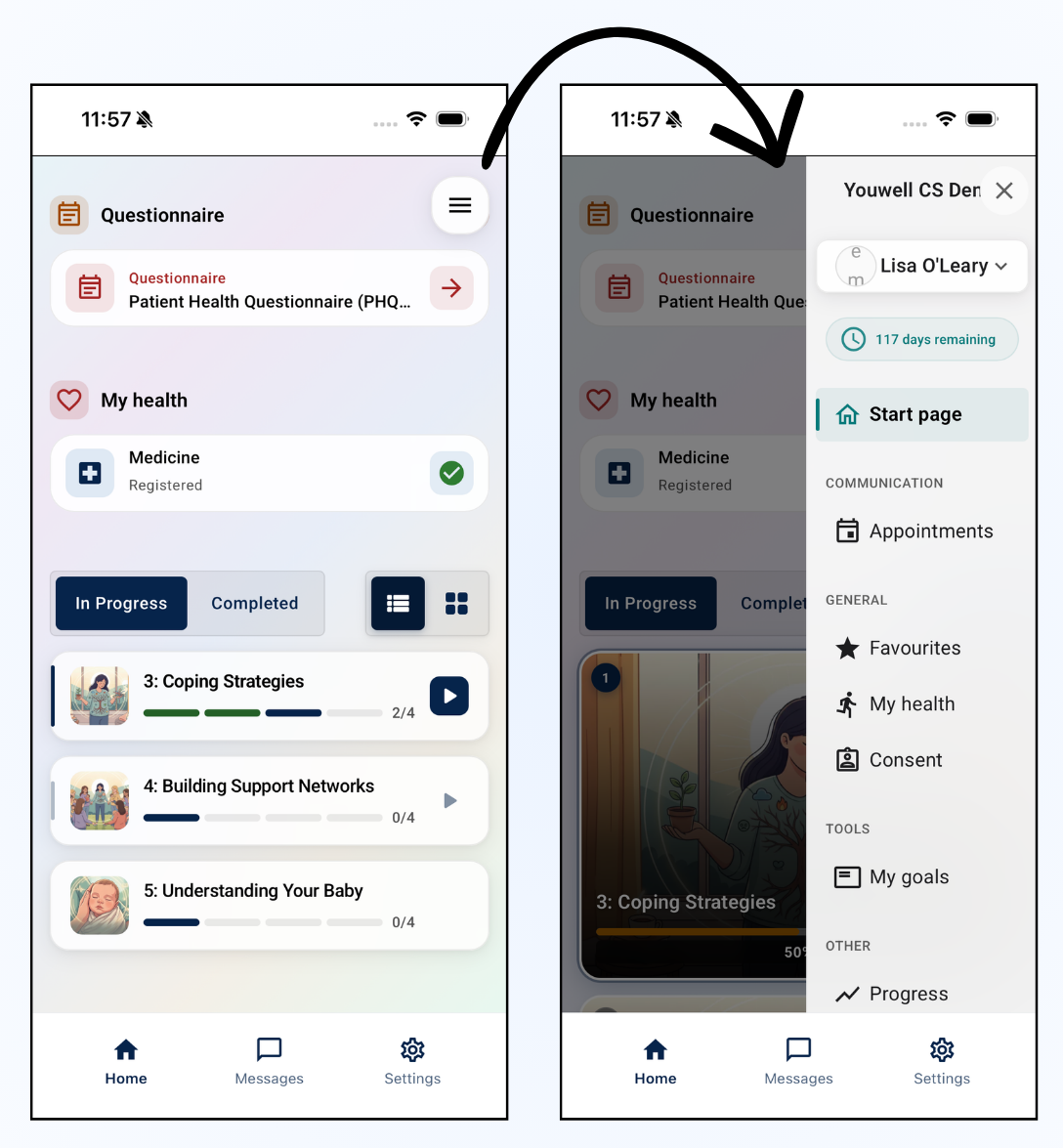
Tapping the ☰ icon in the top-right corner gives access to all other tools and sections of the app, including additional programme pages, resources, appointments, consent forms, and more. This works very similarly to the hamburger menu in the web app.
The Home screen
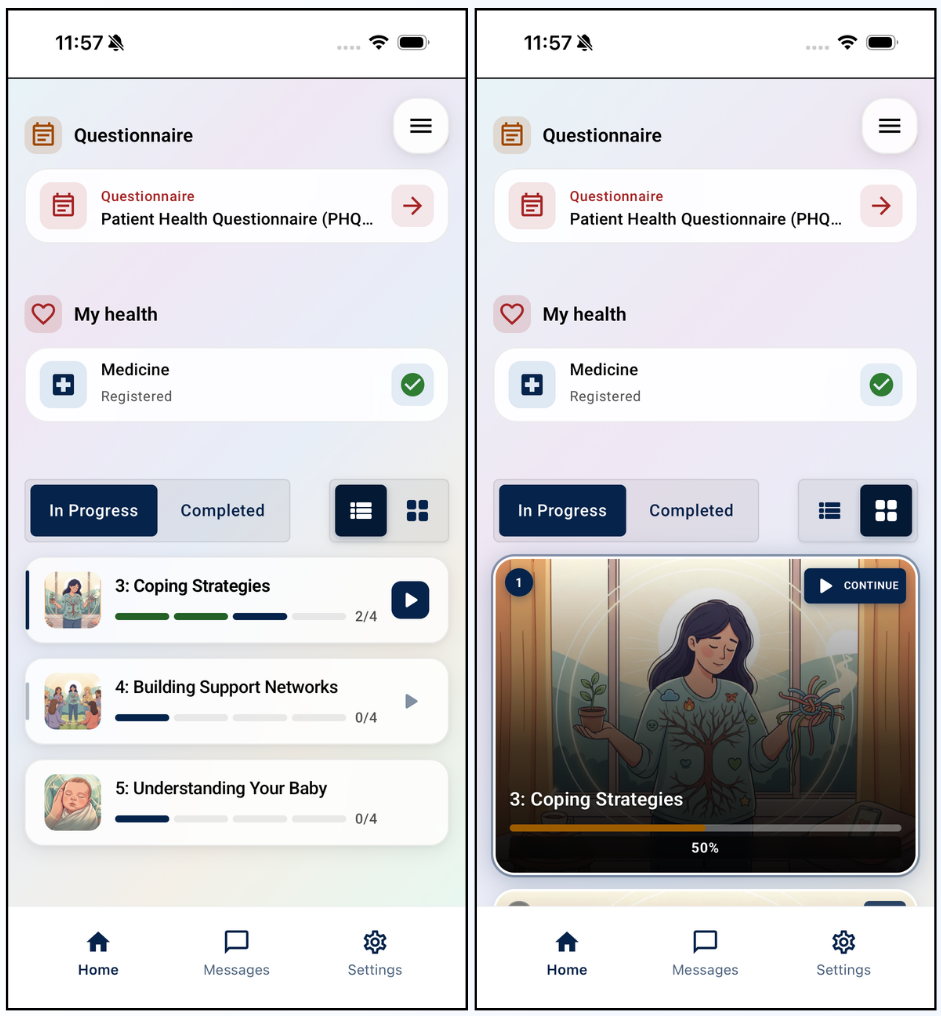
When using the app, users will often start from the Home screen, also referred to as the landing page. Here they may find a header image (if one is in use), along with widgets at the top of the page for any items that require attention or follow-up, such as questionnaires to be completed, upcoming appointments, or missing health registrations.
Below this, the user will see a list of modules in their programme, divided into In progress and Completed categories, so they can easily track their progress. By selecting a module, they can navigate to the last page they accessed and continue the programme from there.
Modules can be displayed in a list view or card view, depending on what the user prefers. The user will also be able to see their progress through the various modules by referring to the progress bar displayed on each card.
Messages
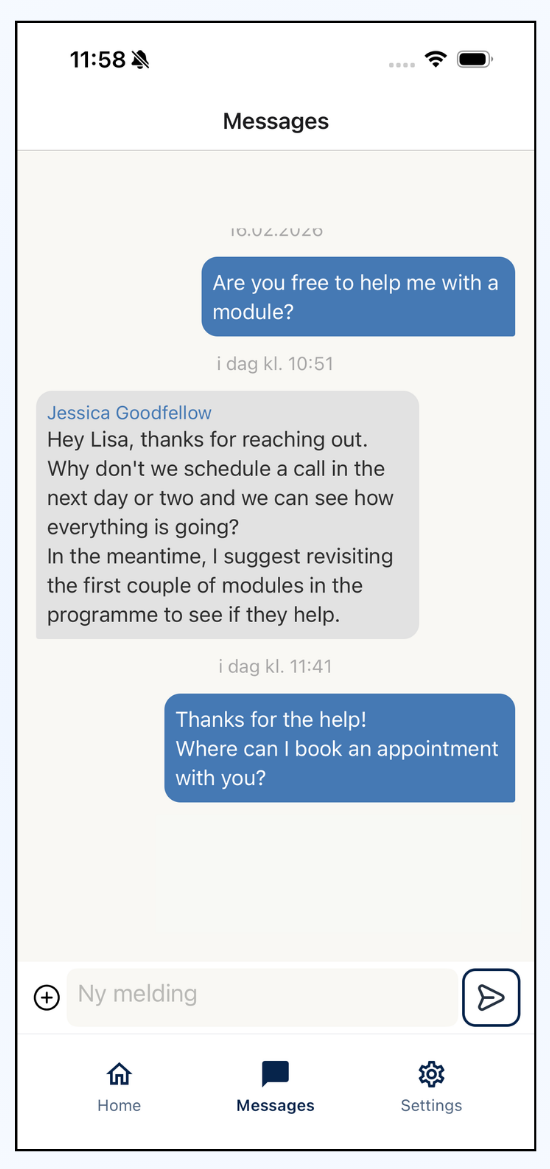
Users can navigate to the Messages-chat tab in the menu at the bottom of the screen to view and send messages to the therapist. This tool will only be active if Messages are enabled for the given programme.
Settings
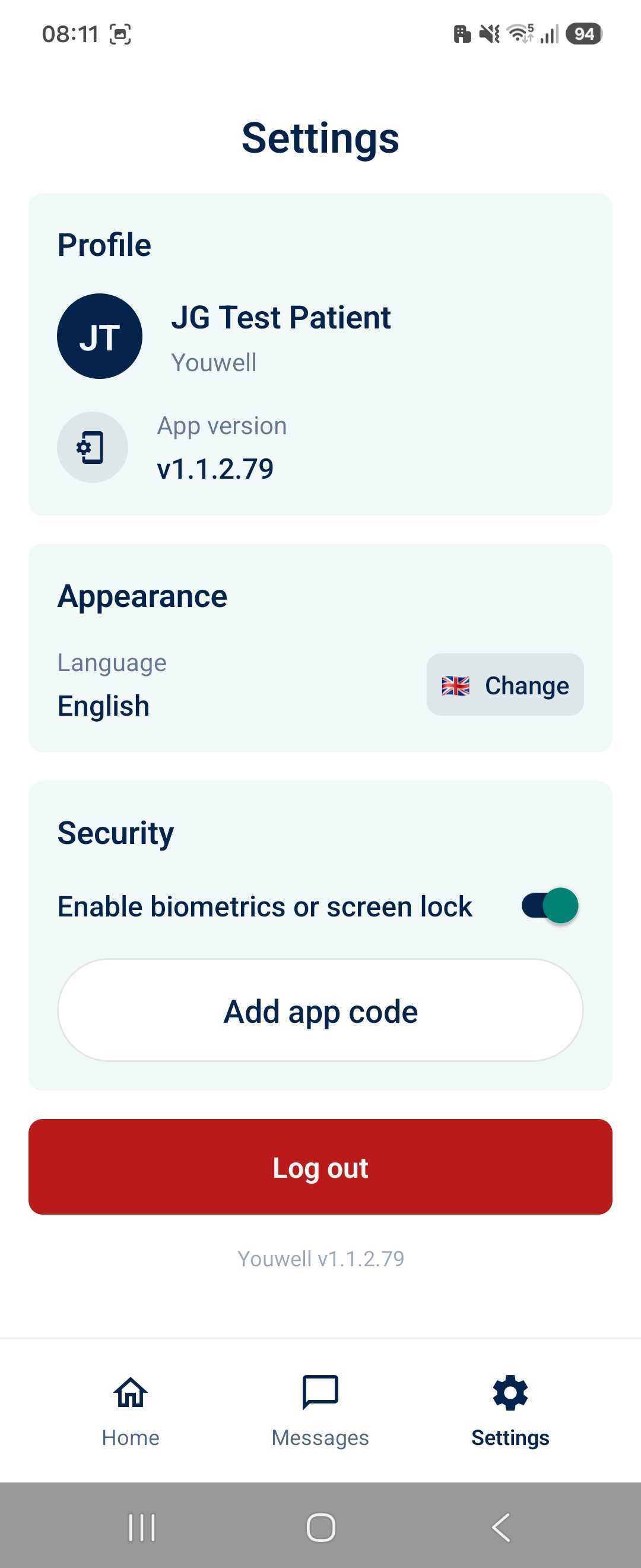
The final tab in the bottom navigation menu is the Settings tab where the user can see their app version, profile name and they can configure language settings for the app. They can also add or adjust their app code from this page. This is also where the user can Log out from the app.
Next steps for rolling out the app
If you would like to start encouraging use of the Youwell app for your patients, please contact the admin user on your account. Admin users should get in touch with support via the standard channels if they want to start rolling out the app. We in Youwell will need to configure some things in order to activate the installation in the app.
Was this article helpful?
That’s Great!
Thank you for your feedback
Sorry! We couldn't be helpful
Thank you for your feedback
Feedback sent
We appreciate your effort and will try to fix the article