Use these help pages to find answers to your questions and to receive training in the functions in the system. It is possible to search for some keywords, and if there are any errors or challenges with the platform or any applications, a support case can be submitted to our team.
To get started with the Youwell platform, it is relevant to be aware of which type of role has been assigned in the system. The user's role determines which accesses, functions and tabs are visible after logging in. For more information on different users and roles in the Youwell platform, see the article: Different Roles and Accesses.
Refer to the System Admin in the Organisation
As a “Step 0” to get started, it is best to refer to the person in your organisation whom has responsibility for the Youwell platform and its implementation. This user can provide information on where you can login and which login method may be relevant, and if there are questions about system use it may be useful to contact them. The system owner is typically the first contact person for questions and errors, and they can escalate cases further to Youwell Support if needed.
Logging In
You may log in with the link that has been assigned by the account administrator. Many users use the ID portal, for example with BankID. For users with email and password login, the administrator will usually have sent this in advance.
If the email or password has not been received, or has been lost, there is a “Forgotten password?” function to receive a new temporary password.
Your Homepage
In the example below, a clinician has logged into the platform.
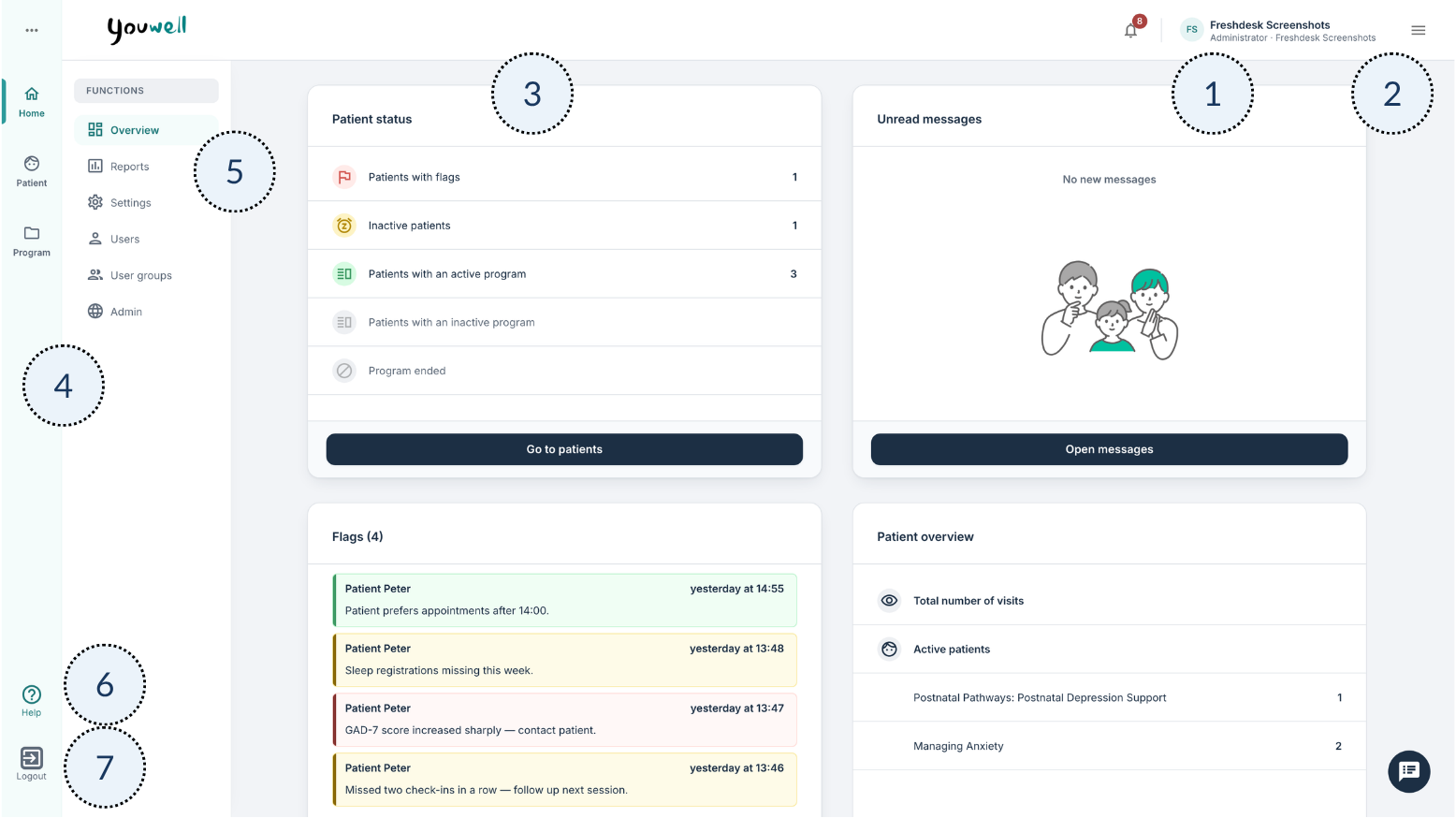
This overview shows areas that users with the clinician role (also referred to as therapists) typically see in the system:
- The name of the profile is visible, and here it is possible to view the profile and update the password if email and password login is used.
- The hamburger menu provides access to profile information, other users on your account, logout options and language selection.
- The dashboard shows an overview of the patients being followed up, and the tiles show information and updates that may be relevant. The tiles can vary between accounts depending on which functionality is activated.
- The main menu shows panels for navigation between different parts of the platform, such as Home, Patient and Program, depending on which accesses have been assigned.
- The sub-menu shows different settings, functions and tools in the system.
- There is access to the Knowledge Base where relevant articles and user guides can be searched for.
- There is a way to log out of the account.
In the following example, you can see how a researcher’s homepage can appear.
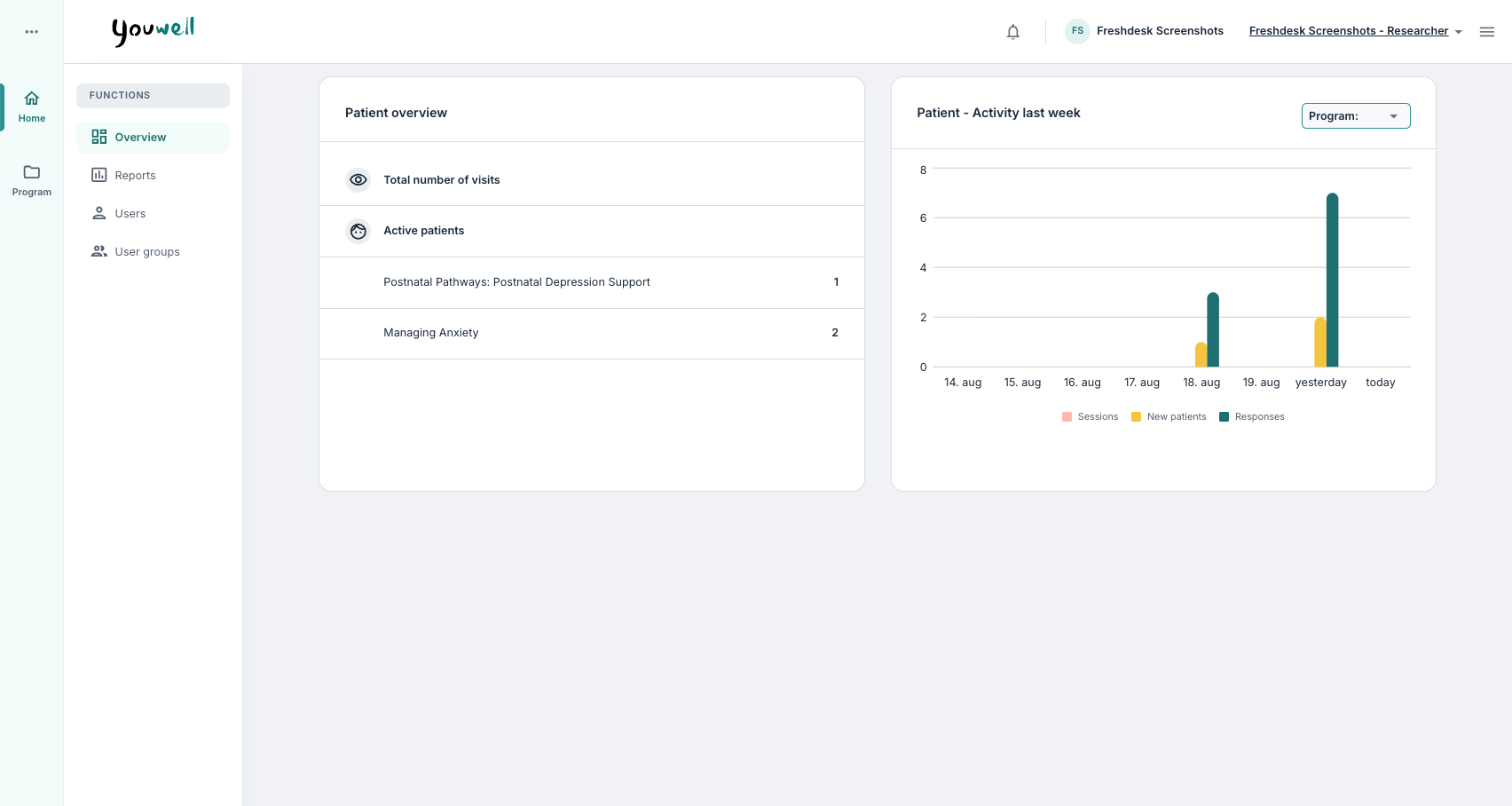
The researcher role provides access to Home and Program in the main menu, but not Patient. The researcher role typically also has access to a Reports tab that may not be visible to a clinician.
Next Steps
After becoming familiar with the homepage and main menu, it is recommended to begin with the following articles:
- Different Roles and Accesses – provides an overview of the roles and accesses in your organisation (relevant for all).
- Get Started with a New Programme – describes how a new programme is developed in the CMS tool (relevant for content creators and administrators).
- Create New Patients – describes the process of adding new patients (relevant for administrators and clinicians).
- Patient Page: Overview – provides insight into the patient overview (relevant for clinicians).
Good luck with your training!
Was this article helpful?
That’s Great!
Thank you for your feedback
Sorry! We couldn't be helpful
Thank you for your feedback
Feedback sent
We appreciate your effort and will try to fix the article