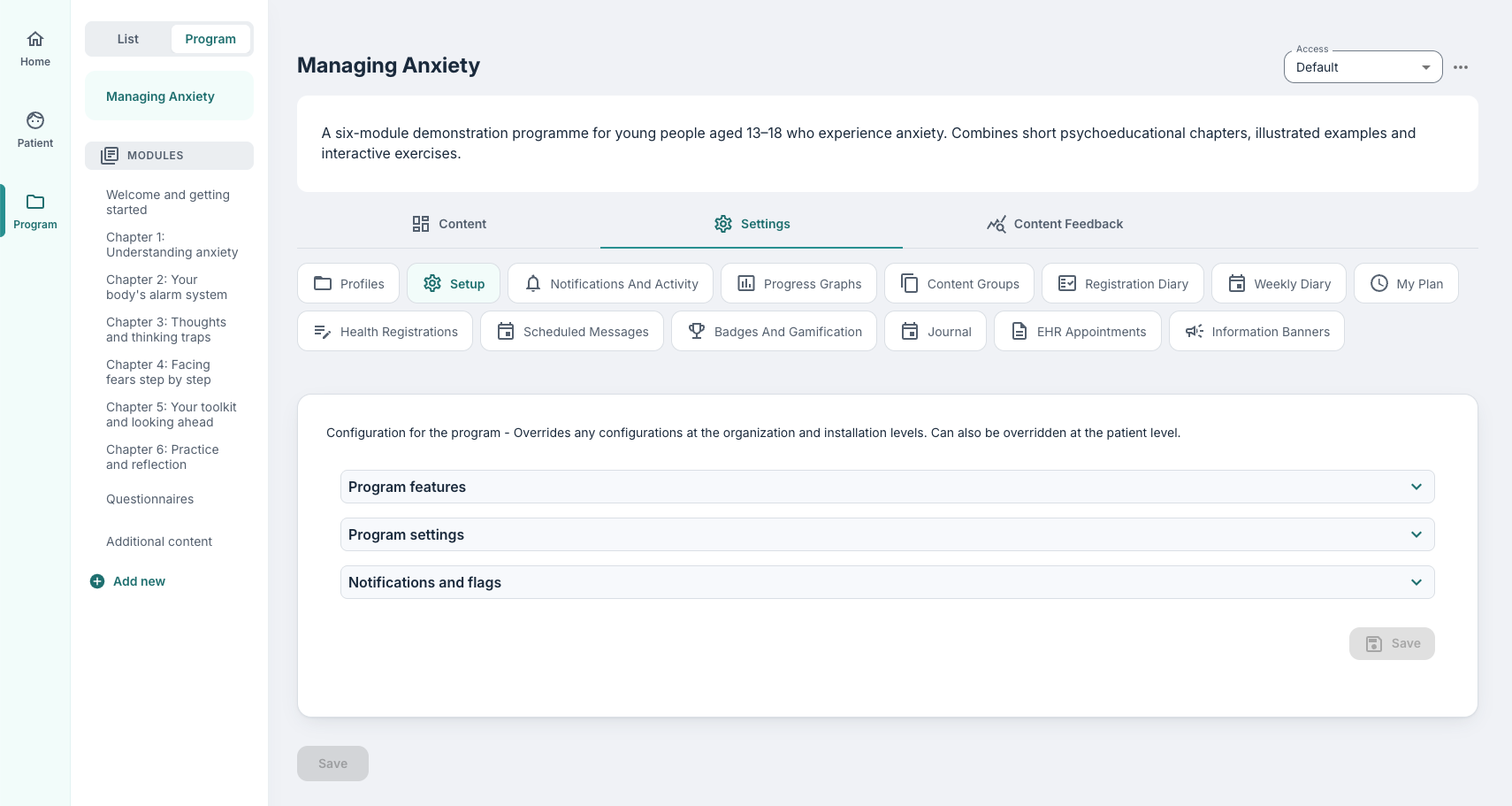
This tab under the program settings menu allows you to adjust and customise certain configurations at a programme level. There may well be some settings implemented at an organisation or installation level, however you may find that you wish to override these and make specific adjustments for patients assigned this programme.
CONTENTS
Overriding settings at program level
When going through the various settings on this page, you will notice that as you adjust and activate certain toggles and buttons, this will mark the setting as Program as opposed to Default or Organization.
Default settings are the standard settings which are in place across the whole installation, also known as the tenant. Making adjustments for this program will then override these general settings and those given for the organisation you are working in.
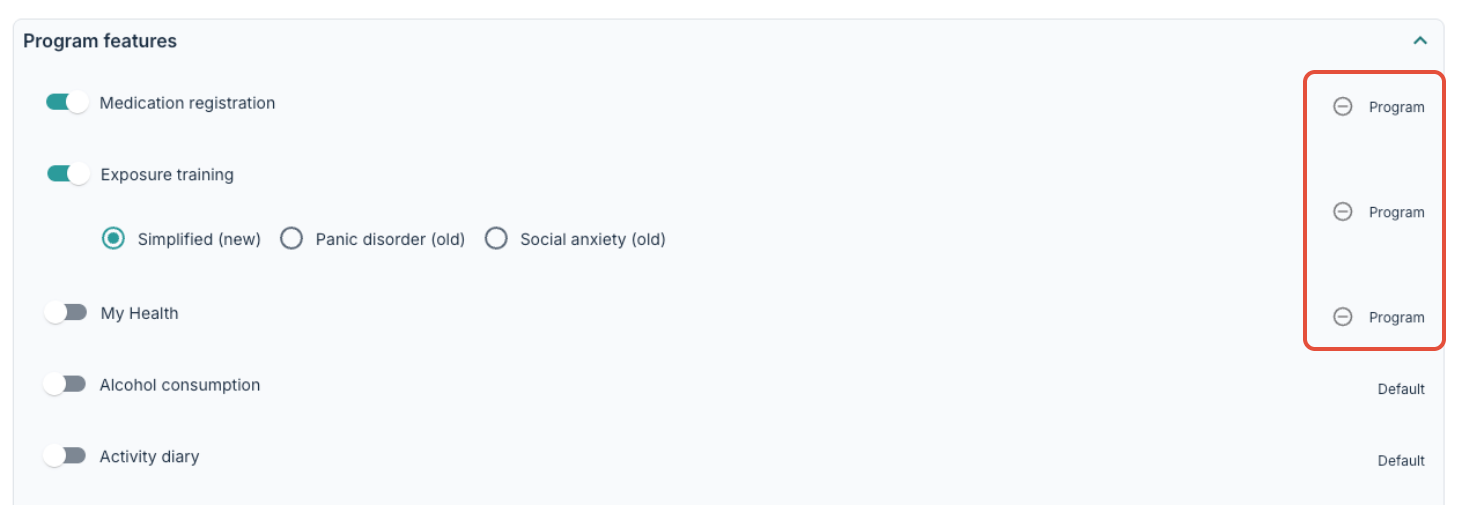
If you make an adjustment and later wish to return the setting to the default mode, you can use the minus symbol.
Further to this, it is possible to adjust some settings on Program profile level if you want to be more specific. You can read more about this here: Program profile settings.
Program features
Under the Program features drop-down menu, you can select to activate a number of additional tools and features for registering various elements of health measurements.
You can read more about various program features which are available to activate from this tab here: Program settings: Features & Health registrations.
Finally you might find some Additional program settings activated if you have other tools and functionality designed for your use.
Program settings
These settings typically relate to views in the patient application and communication with patients.
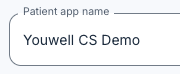
Under Patient app name, you can enter the name displayed for patients in the top left corner when logging into the patient application.
It is also possible to choose a Patient app logo as an alternative to the name in the header. If both are added, the logo overrides the name.
 |  Display in the new patient app design (from 2026) Display in the new patient app design (from 2026) Display in the earlier patient app design (pre-2026) Display in the earlier patient app design (pre-2026) |
| Setting | Description |
|---|---|
| Patient name in the app | Whether the patient's name displays by the welcome message or not. You can select First name only, Full name or Do not show name. |
| Sender name | Defines who is shown as the sender of system e-mails. |
| Sender name short (max 11 chars) | Defines who is shown as the sender of system text messages (SMS). |
| Patient dialogue | Can be set to On, Off, or One-way and refers to use of the Messages tool for patients: whether Messages are completely activated, deactivated or whether only therapists can send messages. |
| Link to privacy policy | Link displayed in the footer of the patient application. |
| Link to universal design report | Link displayed in the footer of the patient application. |
| Patient browser session timeout (minutes) | Defines how long a patient remains logged in via browser. Recommended value: 30 minutes. |
| Patient app session timeout (minutes) | Defines how long a patient remains logged in via the app. Recommended value: 259200 minutes. |
| Max days before re-login required | Defines how often a patient must re-authenticate with BankID in the Youwell app. Recommended value: 180 days. |
| Allow patient to delete themselves | Allows patients to delete their own user profile. |
| Allow patients to create their own user | Allows patients to self-register if relevant for the programme. |
| Main elements title | Assigns title/name to module-section in the patient app (in older patient application design only). |
| List of available labels | Create labels that can later be assigned to elements and questionnaires. Useful for data extraction and reporting. |
| Calendar tags | Used in certain projects to link shortcut buttons on the patient app homepage to a filtered calendar view. |
| Allowed languages in patient app | Defines which translation options are available to patients. This applies to standardised texts in the patient application, such as those in the hamburger/sidebar menu. If nothing is selected, all languages will be available, otherwise you can specify languages by inputting no (Norwegian Bokmål), nn-no (Norwegian Nynorsk), sv (Swedish), dk (Danish) and en (English). |
Notifications and flags
Here you can activate Allow duplicate flags, and specify when notifications should be delivered via Earliest time for sending notifications and Latest time for sending notifications. This applies to standard notifications, for example when new content or a new questionnaire has been published.
Timezone for sending notifications can also be selected and is by default set to CEST.
The message sent to the patient for missing medication registration can be customised under Send notification to patients with missing medication-registration.
Finally, you can enter a number under Flag patients that have been inactive for (x) number of days to automatically add a flag when a patient has been inactive. The field can be left empty if inactive patients should not be flagged.
Was this article helpful?
That’s Great!
Thank you for your feedback
Sorry! We couldn't be helpful
Thank you for your feedback
Feedback sent
We appreciate your effort and will try to fix the article