Under a program profile, you will have the option to override certain Program and Organization settings. This is in place in order to help you adjust the program profile offering so that it best suits the target group.
You may for example wish to limit the Messages functionality for patients with this program profile, whilst the feature ordinarily is activated for other profiles. Another example couple be notification timings, which you want to adjust for this specific profile. Using the Override program setup tool helps you to make these kinds of adjustments on specific profiles.
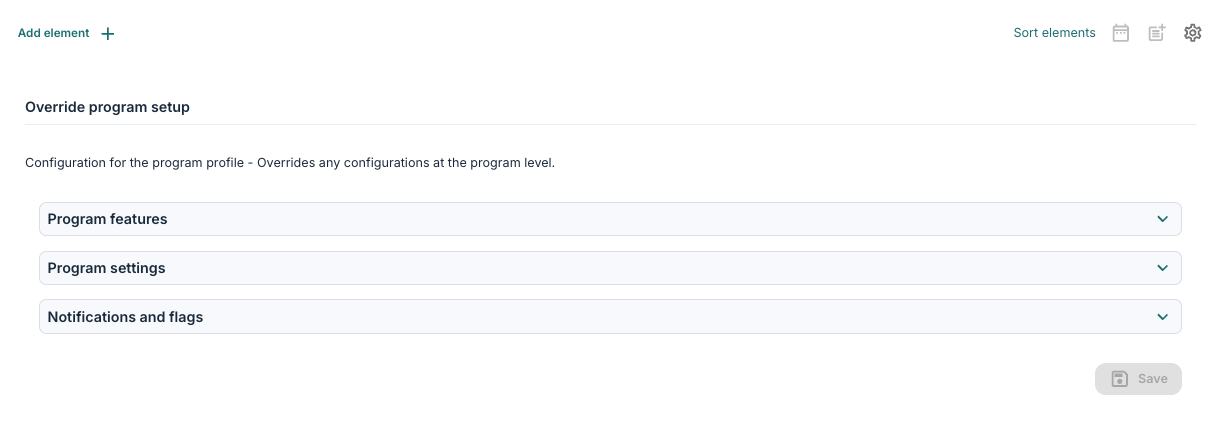
Underneath a program profile, you will find a cog symbol which is where you may access the Override program setup tool. This has three sections: Program features, Program settings and Notifications and flags.
Adjusting the toggles and settings here will mark the setting as applying to the ProgramProfile rather than Program or Organization or Default. This way you can see which settings are profile specific and which are configured at other levels.
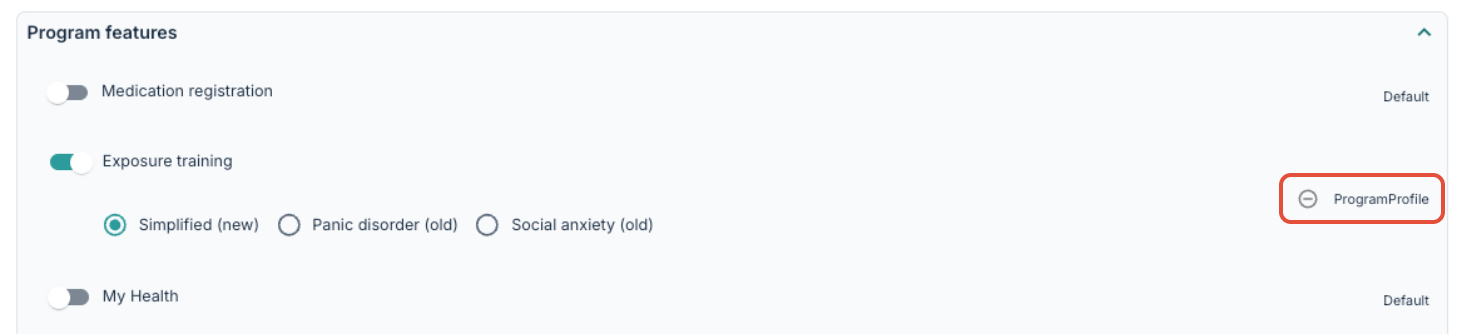
The settings on this page are the same as can be found under the Setup tab for the programme, so read this help page if you would like to learn more about the settings available here: Program Settings: Setup.
Was this article helpful?
That’s Great!
Thank you for your feedback
Sorry! We couldn't be helpful
Thank you for your feedback
Feedback sent
We appreciate your effort and will try to fix the article