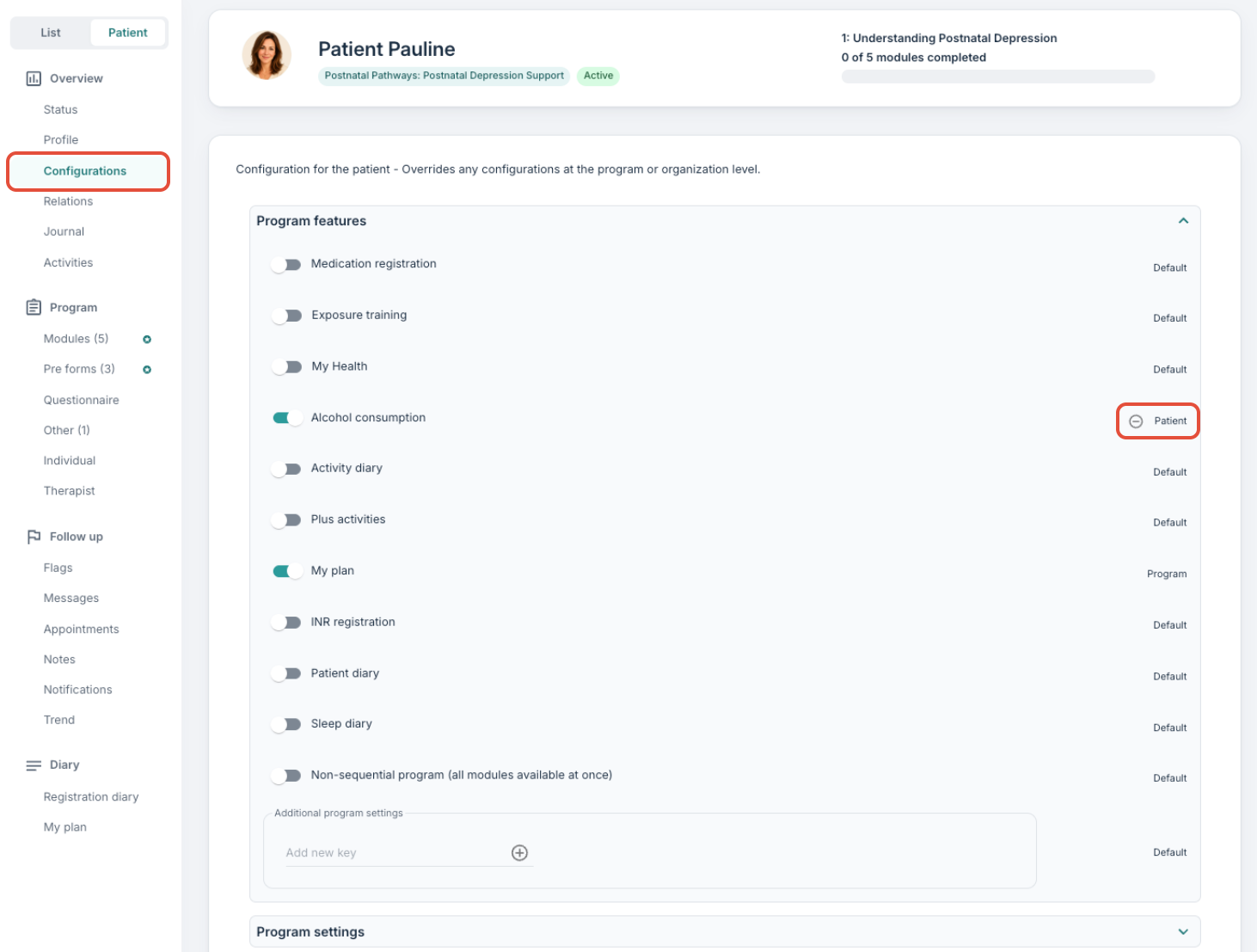
Under the Configurations tab on a patient page, you can adjust and override certain settings for an individual patient. This is useful when a specific patient needs to deviate from the settings applied at the organisation, programme, or programme profile level, a typical example is activating or deactivating Patient dialogue (the Messages tool) for a single patient without changing the setup for everyone else on the same programme.
CONTENTS
Overriding settings at patient level
When going through the various settings on this page, you will notice that as you adjust and activate certain toggles and buttons, this will mark the setting as Patient as opposed to Default, Organization, Program or Program profile.
Settings cascade in the following order, with each level overriding the one above:
- Default — the standard settings across the whole installation (tenant).
- Organization — settings applied to your organisation. (See Settings: Configurations)
- Program — settings applied to a programme. (See Program Settings: Setup)
- Program profile — settings applied to a specific profile within a programme.
- Patient — settings applied to this individual patient. This is the most specific level and takes precedence over all others.
If you make an adjustment and later wish to return the setting to the level above (Program, Organization, or Default), you can use the minus symbol to remove the patient-level override.
We recommend only overriding at patient level when you genuinely need to make an exception for that individual. For changes that should apply to multiple patients, use the Program or Organization level instead (or request help from your organisation admin) so the setting remains easy to maintain.
Program features
Under the Program features drop-down, you can activate or deactivate additional tools and features for this patient, for example health registrations, activity diary, or other measurement tools available on your installation.
Activating a feature here will make it available to this patient even if it is not activated on the programme, and deactivating it will hide the feature for this patient even if it is active on the programme.
For an overview of the different program features available, see Program settings: Features & Health registrations.
Program settings
These settings typically relate to views in the patient application and communication with this patient. The full list mirrors the settings available on the Program level. The most common patient-level overrides include:
| Setting | Description |
|---|---|
| Patient dialogue | Can be set to On, Off, or One-way. Controls the Messages tool for this patient specifically: whether messages are fully activated, deactivated, or whether only the therapist can send messages. |
| Allowed languages in patient app | Restrict which translation options are available to this patient in the patient application. |
The full list of available settings and their descriptions can be found in Program Settings: Setup.
Notifications and flags
Here you can adjust notification and flag behaviour for this patient specifically. This includes:
- Earliest / Latest time for sending notifications — the delivery window for standard notifications (e.g. new content or a new questionnaire) for this patient.
- Timezone for sending notifications — override the default time zone if this patient is in a different region.
- Flag patients that have been inactive for (x) number of days — set an individual inactivity threshold, or leave empty to disable inactivity-flagging for this patient.
Settings adjusted here will override those defined at the Program, Organization or Default level for this patient only.
Was this article helpful?
That’s Great!
Thank you for your feedback
Sorry! We couldn't be helpful
Thank you for your feedback
Feedback sent
We appreciate your effort and will try to fix the article