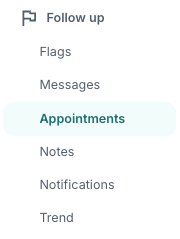
When the patient has started the program, there may be a need for closer follow-up with the clinician, especially if the patient has difficulties or has flagged that extra help is desired. Once navigating to the relevant patient, you may use the Appointments tab to view appointments and associated information.
Creating a new appointment
Under Schedule a new appointment a popup window is displayed with fields that can be used to set up an appointment.
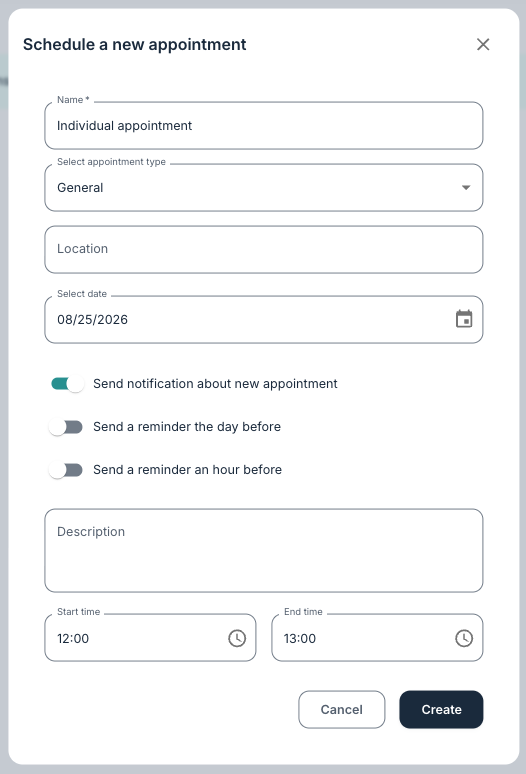
In the popup window, the fields for the appointment can be filled out. The appointment can be given a descriptive Name, and the type of appointment can be selected under Select appointment type:
- General: Commonly used for standard appointments, often with physical attendance.
- Video: Used for a digital conversation via a video meeting service.
- Attendance: Indicates that the meeting is physical at the clinician or health clinic.
- Phone call: Used when conversation takes place by telephone.
When selecting General or Attendance it is possible to enter the Location. For Phone call a telephone number for the patient to call can be entered. For Video the default video provider will be used as configured (and this is configured at installation-level).
It is also possible to add settings for notifications and a Description. Select date can be used to find a date, and a time can be entered under Start time and End time. When the appointment is created, and if Send notification about new appointment is enabled, the patient will receive a message about this.
It is worth noting that information entered under Name, Location and Description is visible to the patient in the patient application.

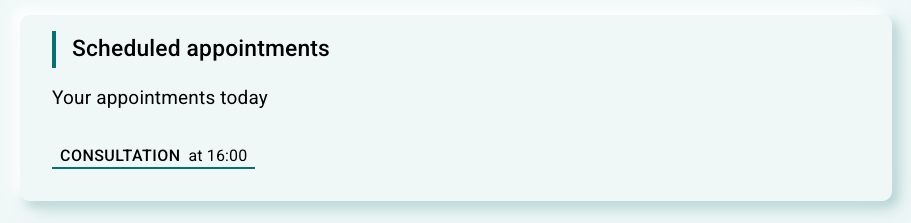 View from the patient application home page, earlier design (pre-2026). 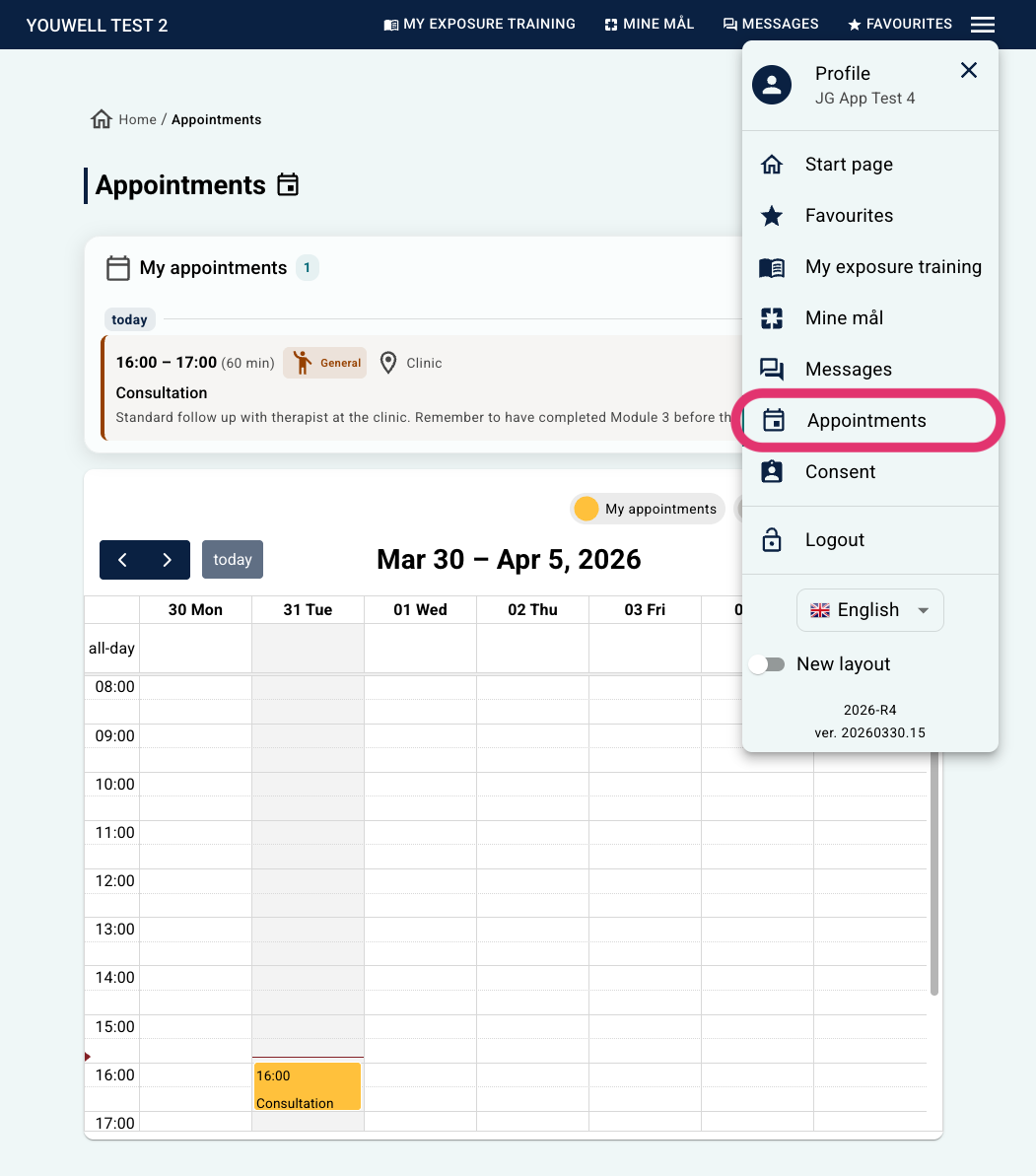 View from the Appointments page in the patient application, earlier design (pre-2026). View from the Appointments page in the patient application, earlier design (pre-2026). | 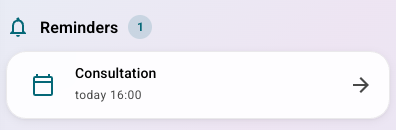 View from the patient application home page, new design from 2026.
View from the Appointments page in the patient application, new design from 2026. |
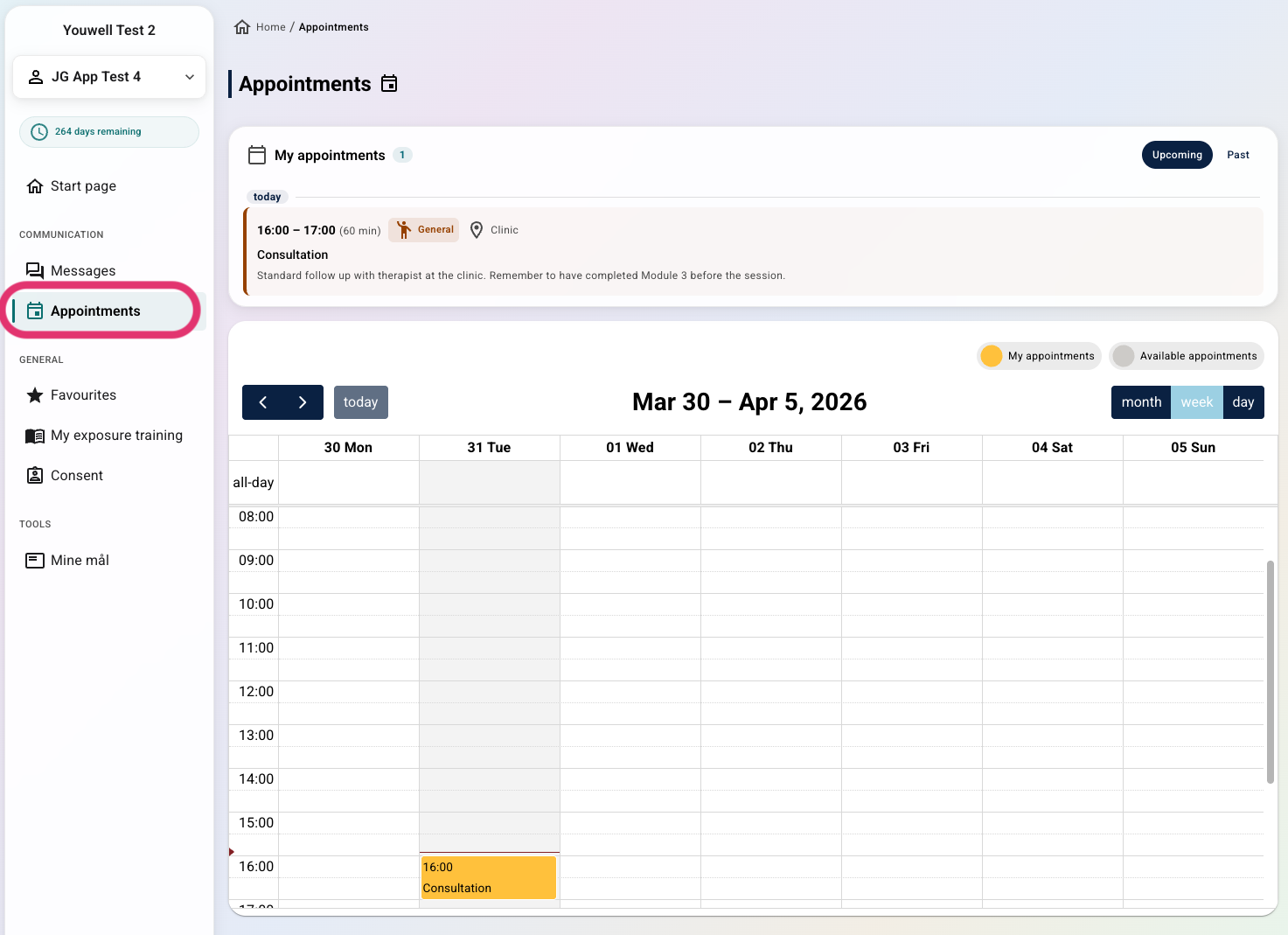
The patient will also see some popup notifications whilst in the app to remind them of any coming appointments, 1hr, 30 mins, 15 mins, 5 mins, 2 mins and 1 min before the scheduled start time.
Video meetings
For appointments that are scheduled as video meetings, it is possible for both the clinician and the patient to use Join call at the specified time to enter the meeting.
 |  |
If the link is used before the specified time, a message may be displayed that the meeting is not available yet. At the specified time a new tab opens and the user enters the video conferencing solution without the need for an extra login from either the patient or clinician.
Appointments overview
Under Appointments in the menu a list of past and upcoming appointments is displayed. For upcoming appointments the edit icon on the right can be used to enter a new time. In this overview only the date and time can be adjusted.
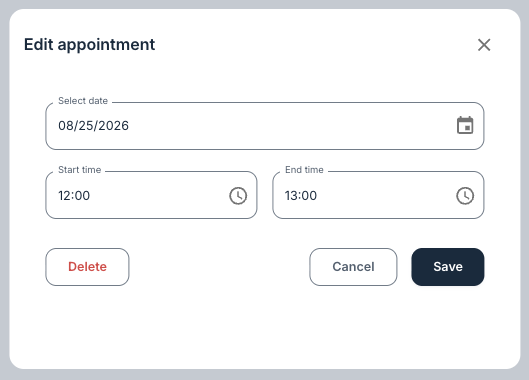
Changes that involve switching the appointment type, for example from a video meeting to a physical meeting, are best solved by deleting the appointment and creating it again with the desired type.
Was this article helpful?
That’s Great!
Thank you for your feedback
Sorry! We couldn't be helpful
Thank you for your feedback
Feedback sent
We appreciate your effort and will try to fix the article