The Calendar area in the Youwell portal brings all of an organisation's appointments (group sessions, individual meetings and staff-only bookings) into a single view for clinicians and patients. This article explains the main ideas so the rest of the calendar articles make sense. If you are setting up the Calendar for the first time, this is a good place to start.
The Calendar area can be activated via the New calendar toggle under Experimental features in Settings.

If you would like help to get started or assistance activated the tool, get in touch with Youwell support.
The three main ideas
- Appointment — a single planned activity at a point in time, such as a consultation, a group session or a video call. An appointment can reach one patient or many.
- Linked resources — how an appointment finds its audience. An appointment may be linked to therapists, groups, patients, programmes or programme profiles.
- Template — a reusable plan of appointments that can be applied again and again, for example a standard course of sessions every patient in a programme should receive.
What is new in this version
The new calendar replaces the previous group-session calendar with a broader model. Existing calendars and their appointments are preserved when the new solution is activated; however, we suggest getting in touch with support should you have any questions migrating to this new version.
- Appointments are no longer tied to a single calendar or patient. They are targeted through Linked resources, so the same appointment can reach a therapist group, a programme profile and named patients at once.
- Every appointment has a Requirement field (Mandatory or Optional) that controls whether patients need to register and whether a maximum number of participants applies.
- Consent is configured per appointment, not per calendar.
- Appointments can repeat and be edited across a series.
- Reminder timing is configured centrally at organisation level (see Notification and reminder settings).
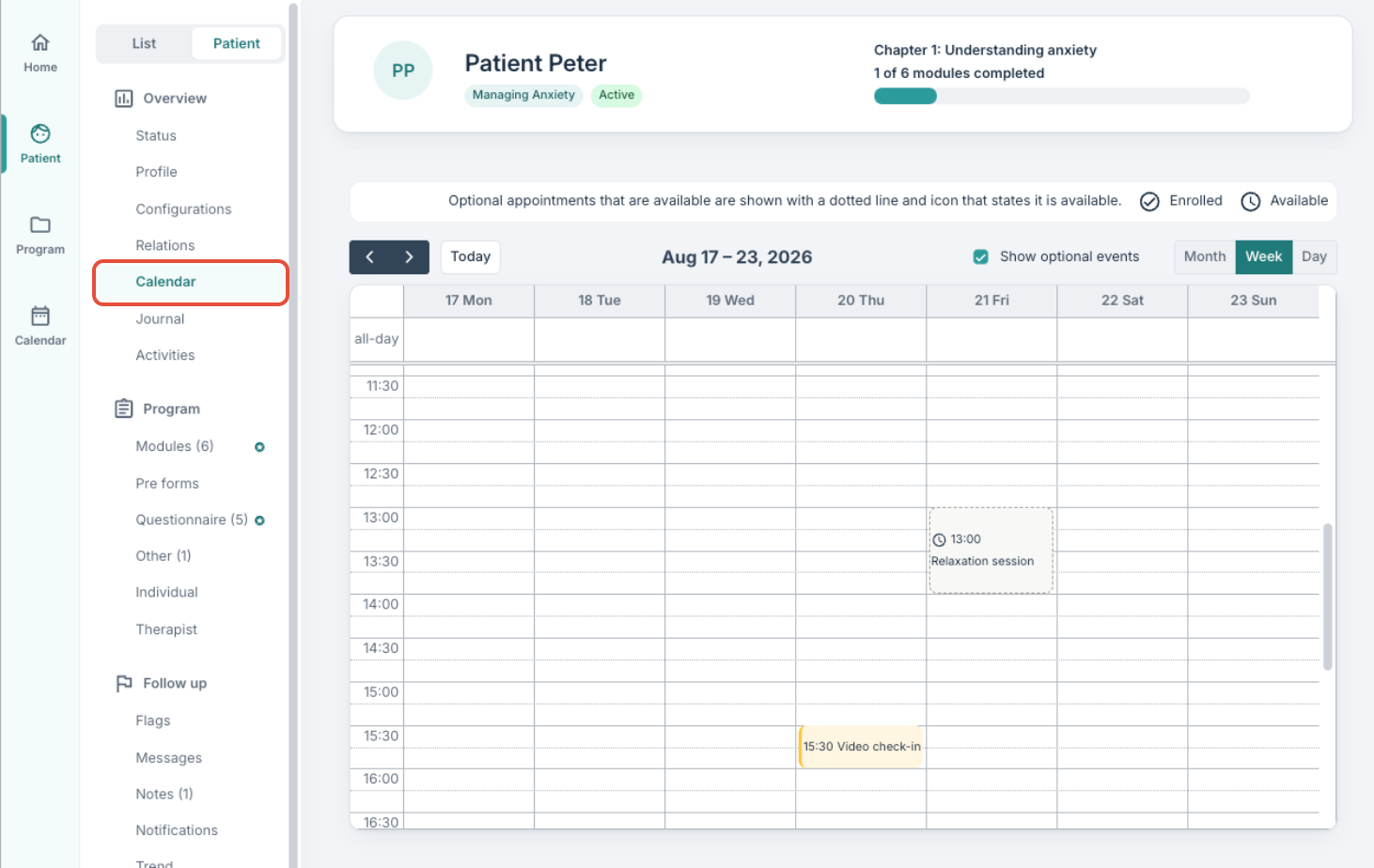
- The previous Appointments tab on a patient profile is replaced by a new Calendar view, displaying all the patient's available appointments.
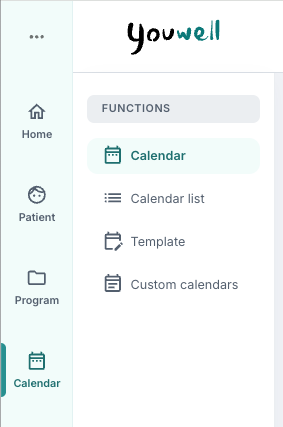
Main Calendar tab
Once enabled, the Calendar tab appears in the main portal navigation. It contains three sub-areas:
- Calendar — the day/week/month view where appointments are created and managed.
- Template — reusable sets of appointments.
- Custom calendars — reusable resource groupings used to target appointments.
Types of appointment
Different appointment types can be created:
- General — a physical meeting at a defined location.
- Attendance — a physical meeting at a defined location.
- Video — a digital meeting held through the configured video provider. Patients join directly from their appointment in the patient app.
- Phone call — a phone call at a specified time.
The type is set when the appointment is created and cannot be changed afterwards. If a mistake is made, it is best to delete the appointment and create a new one with the correct type.
Was this article helpful?
That’s Great!
Thank you for your feedback
Sorry! We couldn't be helpful
Thank you for your feedback
Feedback sent
We appreciate your effort and will try to fix the article