A video appointment includes a video call that both staff and patients can join directly from Youwell. Video appointments are held through the video provider configured for the organisation. If you unsure which video provider this is for your organisation, you can get in touch with Youwell support.
CONTENTS
Creating a video appointment
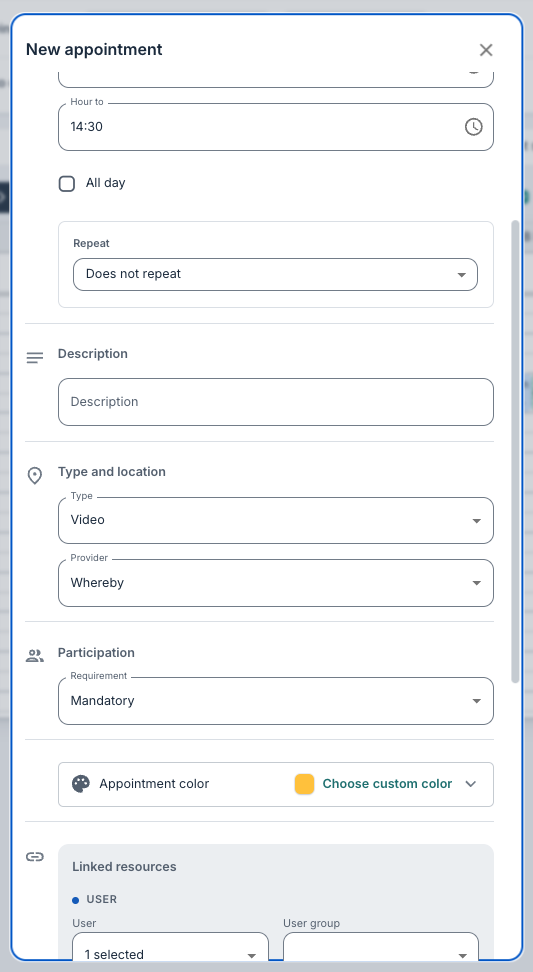
When creating an appointment, you can select Video as the Type. A unique meeting link will then be generated for the appointment upon saving. If your organisation has more than one video provider configured, you may choose the provider from the Provider dropdown; otherwise the default provider is used.
Note that the Location field is not used for video appointments. Aside from this, you can complete the usual details for the booking, including name, date, time, duration, requirement and linked resources.
Rescheduling video appointments
Video appointments can be moved like other appointments, including dragging a recurring video appointment to a future date. After rescheduling, you can check that the new time is correct and you should see that the Join call-button still shows (see below).
Starting or joining the call as a clinician
Select Join call in the popover on the day of the appointment to open the video meeting.
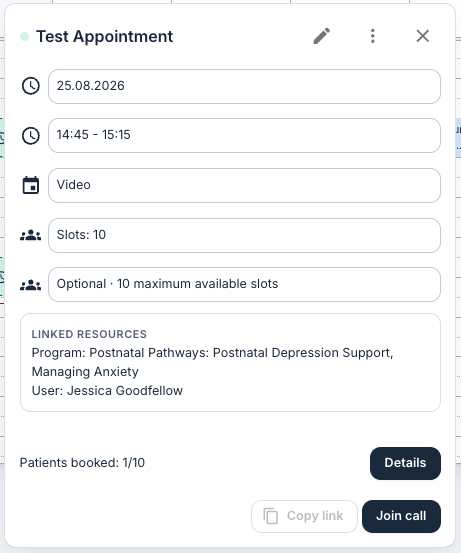
The Join call button appears in the relevant calendars after creation of the appointment, however the meeting link will only be made active roughly one hour before the meeting starts. Attempting to join the call before this time will result in an error message "This conversation has not startet yet".
Sharing the meeting link
You can also use the Copy link in the popover to copy the meeting URL to your clipboard. The link can be pasted into an external calendar entry or shared with a participant who is not in Youwell. This link gives the same access to the meeting room as the clinicians would otherwise have via Join call.
You you should not need to send the URL to patients for them to join the call. They will have access directly via the patient app.
How patients join
Patients join from their appointment in the patient app. The Join call button becomes available shortly before the scheduled start time.
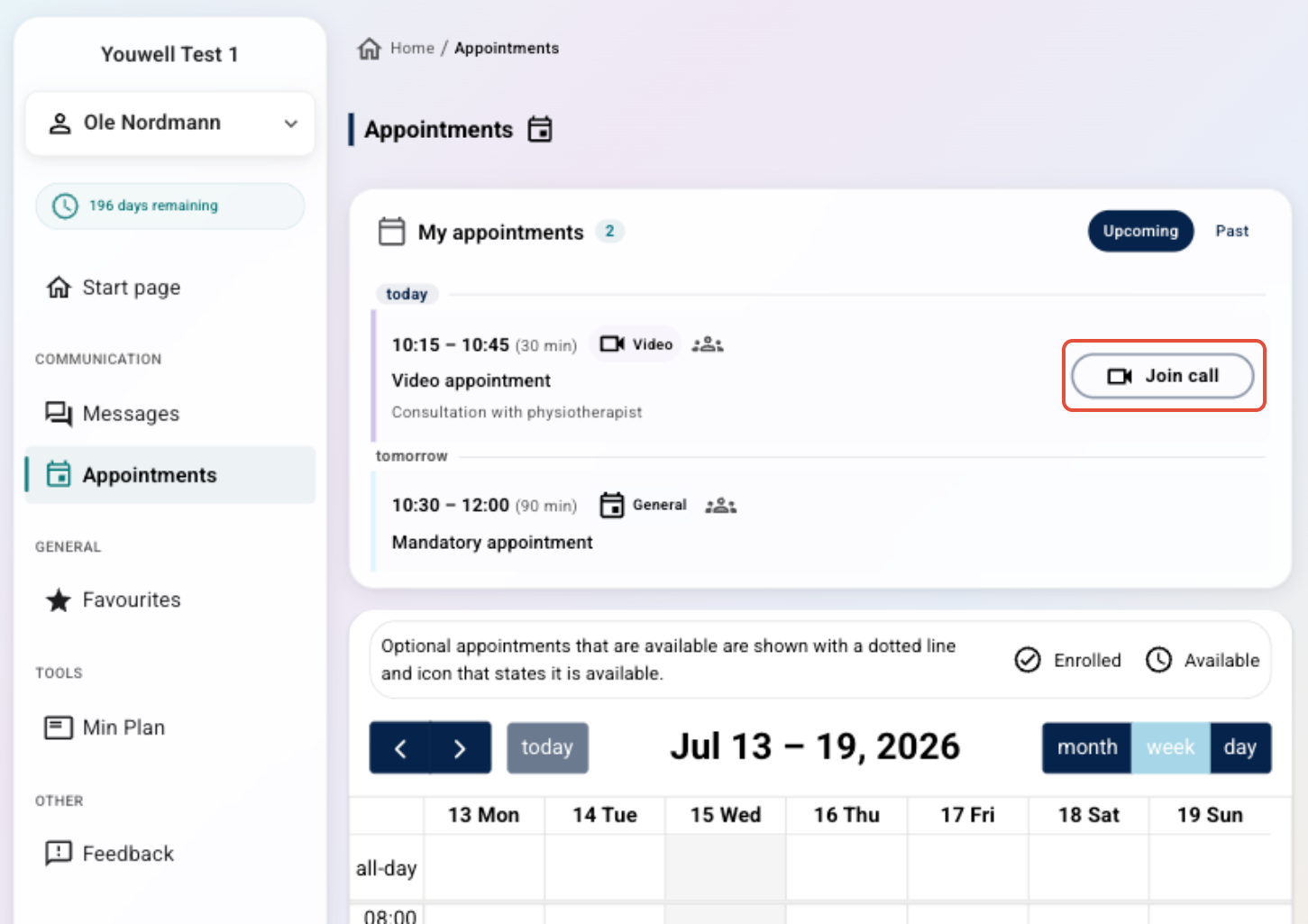
For mandatory video appointments the patient sees the appointment automatically; whereas, for optional ones the patient must first register. If the appointment has consent configured, the patient must answer any required consent questions first as the Join call button is disabled until consent is given.
Was this article helpful?
That’s Great!
Thank you for your feedback
Sorry! We couldn't be helpful
Thank you for your feedback
Feedback sent
We appreciate your effort and will try to fix the article