CONTENTS
- Mandatory appointments
- Optional appointments
- Registering and de-registering patients
- Switching between mandatory and optional
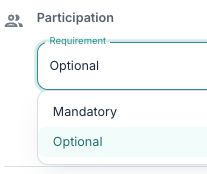
Every appointment created can be set to Requirement: Mandatory or Optional. The choice controls whether patients need to register, how many can attend, and how the appointment is shown. You set it when creating the appointment, and the appointment form adjusts so you can see the following relevant fields.
Mandatory appointments
A mandatory appointment is a fixed part of the patient's plan. It is automatically added to the calendar of every linked patient, meaning there is no maximum number of participants, and patients cannot cancel or opt out from the patient app.
It can be useful to set scheduled follow-ups, structured group sessions with a fixed cohort, and any appointment where attendance is planned rather than chosen as Mandatory appointments. They are shown to patients in the appointment's calendar colour with a solid border.
Optional appointments
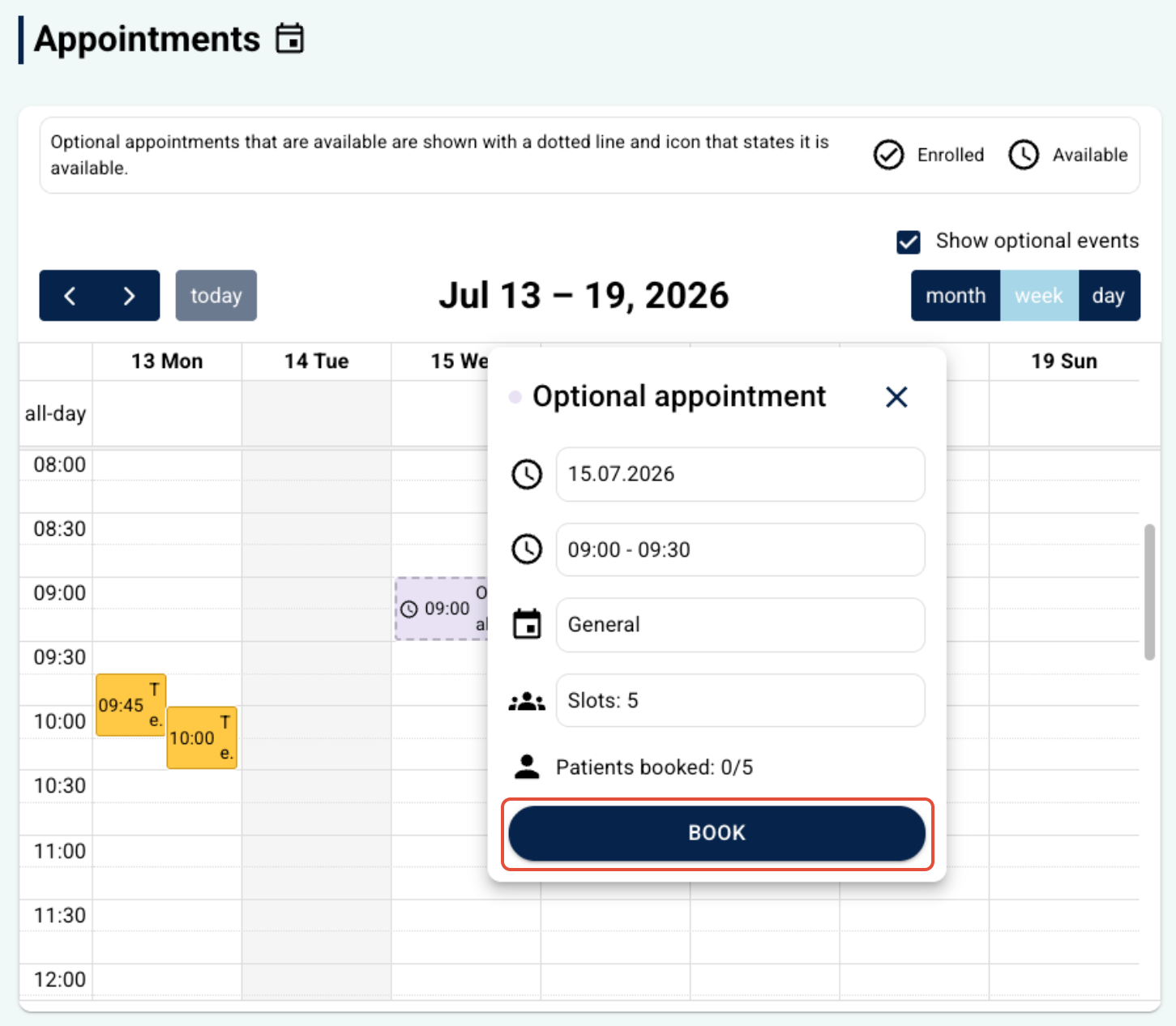
An optional appointment is offered to the linked patients, but each patient chooses whether to register or not. Two additional fields apply if this is selected in the form:
- Maximum available slots — the total number of patients who can register. You can leave this blank for no limit, or choose a value between 1 and 400. For a single-patient optional appointment, keep the slot count at one.
- Booking closes — the point at which registration is no longer possible: at the end of the appointment, when the appointment starts, 1 hour before, or 1 day before.
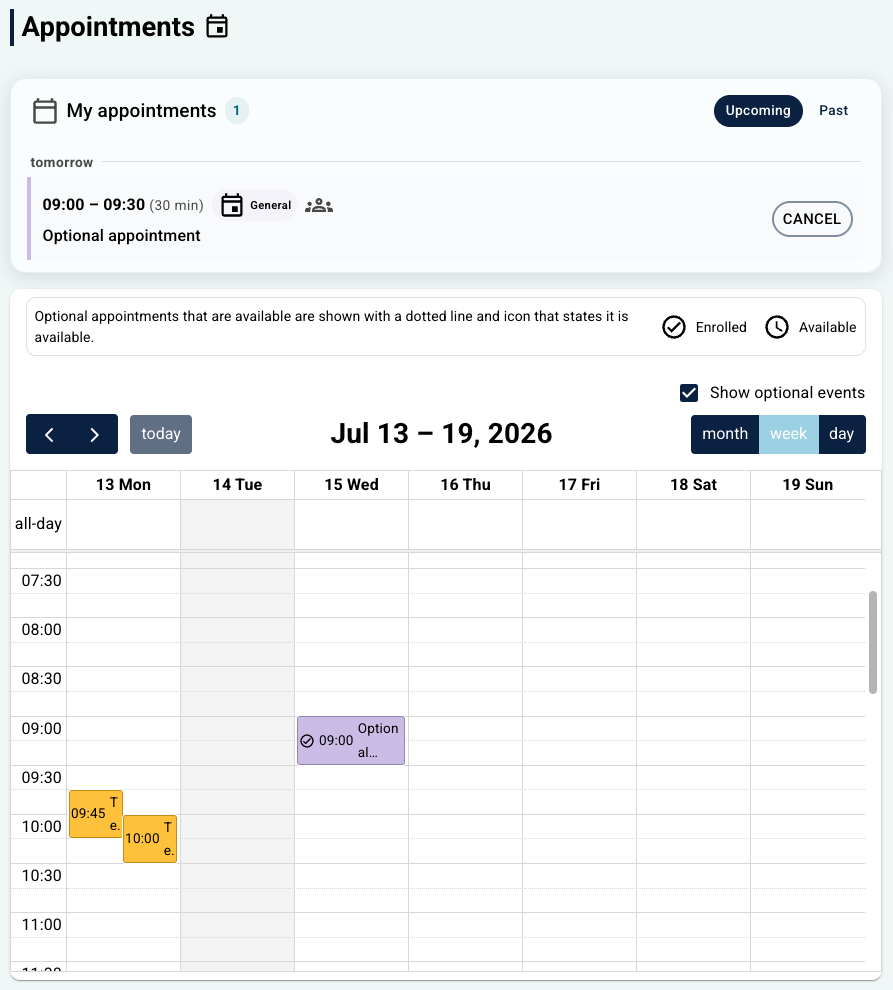
You could use optional appointments for open drop-in slots, elective group sessions, and any workflow where patient choice matters. They are shown with a dashed border and a muted grey background in the patient app until the patient registers, after which the appointment moves to the calendar colour. The responsible clinician is always required on both types.
 |  |
Registering and de-registering patients
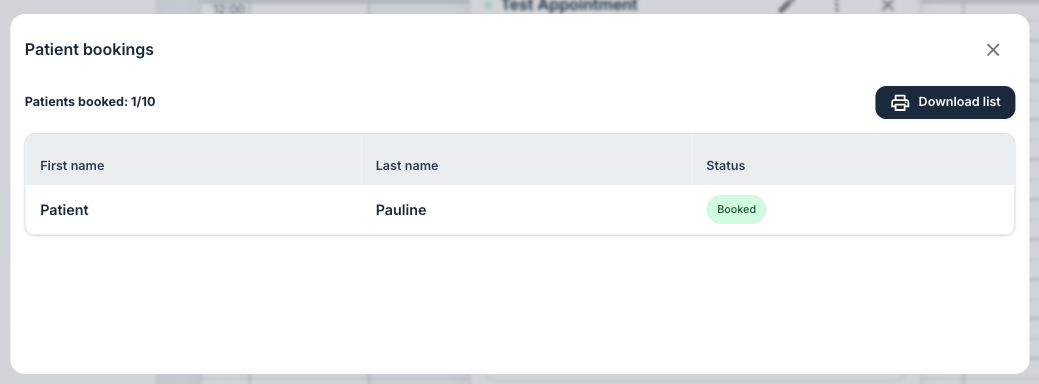
Patients register and cancel from the patient app. From the portal, a clinician can register or de-register a specific patient by opening the appointment's Details panel from the calendar popover.

Switching between mandatory and optional
The Requirement can be changed on an existing appointment. Switching from optional to mandatory enrols every patient in the linked resources and clears the slot and booking-close fields; switching back makes those fields available again.
Was this article helpful?
That’s Great!
Thank you for your feedback
Sorry! We couldn't be helpful
Thank you for your feedback
Feedback sent
We appreciate your effort and will try to fix the article