CONTENTS
What is a text template?
Text templates are the wording of the automatic notifications the platform sends out: by SMS, email or push notification. Each template is used for a specific situation (a new message, a password reset, an appointment reminder, and so on) and you may adjust the standard text if you wish. Changes can be saved when you have finished writing the new template.

When starting with templates, you will first select a Language to configure:
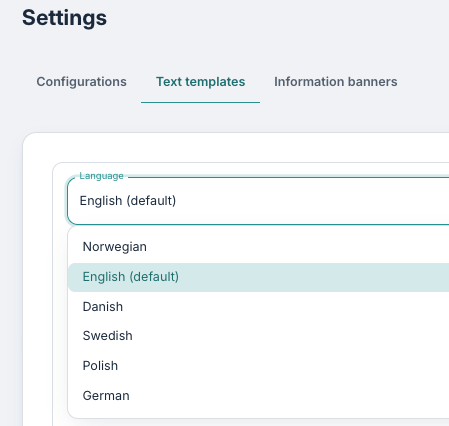
You will then be able to Select text template to override the standard templates for the given language. Selection of your organisation's standard language is found under Notifications and flags under Configurations.
A few things worth knowing:
- Placeholders in {curly braces} such as {appName}, {programName}, {senderName}, {appUrl} or {date}, are filled in automatically when the message is sent. You don't type these in; the system replaces them with the real values.
- Double slashes // indicate line breaks. If you rewrite a template, you can add these to insert a line break. In the table below, we have displayed the text templates as they would appear in an SMS with line breaks.
- Templates can be customised per organisation. The text shown below is the default (in Norwegian). An organisation can change the wording to suit its own tone and language.
- Some go to patients, others to staff (therapists/admins) or to a guardian. The "Notes" column below says who receives each one.
- Patient reminders are usually only sent during daytime hours (a configured time window), so patients aren't disturbed at night. A few important messages such as login PIN, password reset, critical flags are always sent immediately.
Overview
| Category | Standard text template (Norwegian) | Notes / Explanation |
|---|---|---|
| notification.AppointmentChanged | Hei! Timen for planlagt avtale er endret til {date}. Med vennlig hilsen {senderName} | Sent to the patient when an existing appointment's date or time is changed. |
| notification.AppointmentDailyReminder | Hei! En påminnelse om din avtale {date}. Med vennlig hilsen {senderName} | Sent to the patient as a reminder one day before an appointment. |
| notification.AppointmentHourlyReminder | Hei! En påminnelse om din avtale {date}. Med vennlig hilsen {senderName} | Sent to the patient as a reminder one hour before an appointment. |
| notification.CheckForSurplusInformation | Hei! Dette er en påminnelse om å sjekke overskuddsinformasjon for dine avsluttede pasienter. Med vennlig hilsen {senderName} | A reminder to the therapist to review surplus information for their completed/discharged patients. |
| notification.CriticalScore | Hei! En pasient har utløst et flagg i {appName}. Logg inn på {appUrl} for å følge opp Med vennlig hilsen {senderName} | Sent to the therapist when a patient triggers a critical flag (for example a high-risk questionnaire score). Sent immediately. |
| notification.Custom | Hei! Du har ny aktivitet i {appName}. Logg inn på {appUrl} for å følge opp Med vennlig hilsen {senderName} | A free-text message sent from an external/integrated system; the wording comes from that system, not from this template. This text is also used as a generic fallback ("you have new activity") when no specific template fits. |
| notification.EhrAppointmentQuestionnaire | Hei! Du har en kommende avtale den {appointmentDate}. Vennligst logg inn i pasientappen for å følge opp og fullføre nødvendige steg før avtalen: {patientAppUrl} Med vennlig hilsen {senderName} | Sent to the patient ahead of an EHR appointment, reminding them to log in and complete the necessary steps (e.g. a questionnaire) before the appointment. How many days before is set per programme. |
| notification.Feedback | Hei! Det er kommet inn nye tilbakemeldinger fra {appName}. Logg inn på {appUrl} for å se. Med vennlig hilsen {senderName} | Sent to the therapist when a patient submits new feedback. |
| notification.GuardianConsent | Hei! Vi trenger ditt samtykke. Logg inn på {appUrl}/ext/consent for å se og godkjenne. Med vennlig hilsen {senderName} | Sent to a guardian / contact person, asking them to log in and approve consent on a patient's behalf (e.g. a parent consenting for a child). |
| notification.InactivityReminder | Hei! Dette er en påminnelse om å logge deg inn i {appName} for å fortsette med programmet. Logg inn på {appUrl} for å fortsette. Med vennlig hilsen {senderName} | Sent to the patient when they haven't logged in for a set number of days (the inactivity threshold). |
| notification.Message | Hei! Du har mottatt en ny melding i {appName}. Logg inn på {appUrl} for å lese meldingen. Med vennlig hilsen {senderName} | Sent to the patient (or therapist) when they receive a new message in chat. |
| notification.MissingMedicationRegistration | Hei! Dette er en påminnelse om at du mangler en registrering i {appName}. Logg inn på {appUrl} for å fortsette. Med vennlig hilsen {senderName} | A reminder to the patient that a medication registration is still missing. |
| notification.MissingRegistration | Hei! Dette er en påminnelse om at du mangler en registrering i {appName}. Logg inn på {appUrl} for å fortsette. Med vennlig hilsen {senderName} | A reminder to the patient that a health registration is still missing. |
| notification.NewAppointment | Hei! En ny avtale er opprettet for deg {date}. Med vennlig hilsen {senderName} | Sent to the patient when a new appointment is booked for them. |
| notification.NewContent | Hei! Du har fått tilgang til nytt innhold på {appName}. Logg inn på {appUrl} for å se. Med vennlig hilsen {senderName} | Sent to the patient when new content (a questionnaire, task or module) becomes available to them; either added manually or released via the programme profile settings. |
| notification.NewResponses | Hei! Du har ny aktivitet i {appName}. Logg inn på {appUrl} for å følge opp Med vennlig hilsen {senderName} | Sent to the therapist when a patient submits new questionnaire/form answers. |
| notification.NotSet | Hei! Du har ny aktivitet i {appName}. Logg inn på {appUrl} for å følge opp Med vennlig hilsen {senderName} | A placeholder used when no notification type has been set. Falls back to the generic "you have new activity" wording. (You won't normally need to edit this.) |
| notification.PatientEvent | Hei! En pasient har registrert en hendelse. Logg inn på {appUrl} for å følge opp. Med vennlig hilsen {senderName} | Alerts staff (by SMS to the clinic's alert number) that a patient has reported an event/incident that needs follow-up. |
| notification.PatientRegistration | Hei! Du har nå fått tilgang til å registrere deg i {appName}. Logg inn på {appUrl} for å komme i gang! Med vennlig hilsen {senderName} | Sent to the patient inviting them to register in the app. |
| notification.PatientScheduleActivity | Hei! Dette er en påminnelse om kommende aktivitet i kalenderen din | A reminder to the patient about an upcoming activity in their calendar. |
| notification.Registration | Hei! Du har nå fått tilgang til å registrere deg i {appName}. Gå til {appUrl}/login/register2/{token} for å komme i gang! Med vennlig hilsen {senderName} | Sent to the patient with a link to register / sign up. |
| notification.Reminder | Hei! Dette er en påminnelse om å logge deg inn i {appName} for å fortsette med programmet. Logg inn på {appUrl} for å fortsette. Med vennlig hilsen {senderName} | A general reminder to the patient to log in and continue with their programme. |
| notification.ResetToken | Hei! Du har bedt om å få tilbakestilt ditt passord {timestamp} (UTC) Dersom dette ikke var deg, kan du se bort i fra denne meldingen. Vennligst klikk følgende lenke for å ta deg til nettsiden hvor du kan tilbakestille ditt passord. {appUrl}/login/resetPassword/{token} Med vennlig hilsen {senderName} | Sent to the user with a link to reset their password; triggered by "forgot password". Sent immediately. |
| notification.TwoFactorPin | Hei! Din pinkode for innlogging i {appName} : {pin}. Med vennlig hilsen {senderName} | Sent to a portal user (staff) with the PIN code needed to complete login (two-factor authentication). Sent immediately. |
| notification.VerificationCode | Hei! Din verifiserings-kode for {appName}: {verificationCode}. Med vennlig hilsen {senderName} | Sent to the patient with a code to verify their email address during sign-up. |
| notification.WelcomeNewContactUser | Hei! Velkommen til {appName}! Du er tilknyttet som kontaktperson for en deltaker i {appName}. Gå til {appUrl} og logg på for å se mer. Brukernavn: {recepientEmail} Passord: {password} Med vennlig hilsen {senderName} | A welcome message with login details (username + password) for a contact/guardian linked to a patient. |
| notification.WelcomeNewUser | Hei! Velkommen til {appName}! Vi har nå opprettet en bruker til deg. Gå til {appUrl} og logg på med: Brukernavn: {recepientEmail} Passord: {password} Med vennlig hilsen {senderName} | A welcome message with username and password for a new portal user (therapist/admin). |
| notification.WelcomeNewUserLevel4 | Hei! Velkommen til {appName}! Vi har nå opprettet en bruker til deg. Gå til {appUrl} og logg inn for å komme i gang Med vennlig hilsen {senderName} | A welcome message for a new portal user who logs in with a national ID (ID-porten/MitID etc.); no password is included, since they sign in via the ID provider. |
| notification.WelcomeToProgram | Hei! Du har nå fått tilgang til treningsprogrammet {programName}. Logg inn på {appUrl} for å komme i gang! Dersom du ikke har mottatt innloggingsinformasjon kan du velge 'glemt passord' i innloggingsbildet for å motta dette. Med vennlig hilsen {senderName} | Sent to the patient when they're given access to a new programme. Tells them how to log in, and to use "forgot password" if they haven't received login details yet. |
| notification.WelcomeToProgramLevel0 | Hei! Du har nå fått tilgang til {programName}. Gå til {loginLink} for å komme i gang! Med vennlig hilsen {senderName} | Sent to a guest/anonymous patient when given access to a programme; uses a direct access link instead of a username/password login. |
| notification.WelcomeToProgramLevel4 | Hei! Du har nå fått tilgang til treningsprogrammet {programName}. Logg inn på {appUrl} for å komme i gang! Med vennlig hilsen {senderName} | Sent to a patient who logs in with a national ID when given access to a programme. |
The Level0 / Level4 variants (Welcome to Program, Welcome New User) exist because patients/users sign in different ways: standard login, guest/direct link (Level 0), or national-ID login (Level 4). The platform automatically picks the right one. If you are unsure which one applies for your organisation, you may contact support.
Dynamic fields
The text in the template can be edited, and the same format that is used in the templates should be applied. All dynamic fields are written with {curly brackets} and in the same format as indicated below:
- {appName}
Dynamic field: Name of the patient application. - {appUrl}
Dynamic field: Link to the patient application. - {date}
Dynamic field: Date. (Used for messages about appointments). - {loginLink}
Dynamic field: Link to login page for the patient application. - {password}
Dynamic field: Password. (Used for sending out new temporary passwords). - {pin}
Dynamic field: PIN code for login. (Used for two-step verification). - {programName}
Dynamic field: Name of the program. - {recepientEmail}
Dynamic field: E-mail used for login. (Used for sending out new logins). - {senderName}
Dynamic field: Sender name. - {timestamp}
Dynamic field: Time stamp. (Used for when the password was reset). - {verificationCode}
Dynamic field: Verification code. (Used for sending verification code to the app).
Was this article helpful?
That’s Great!
Thank you for your feedback
Sorry! We couldn't be helpful
Thank you for your feedback
Feedback sent
We appreciate your effort and will try to fix the article