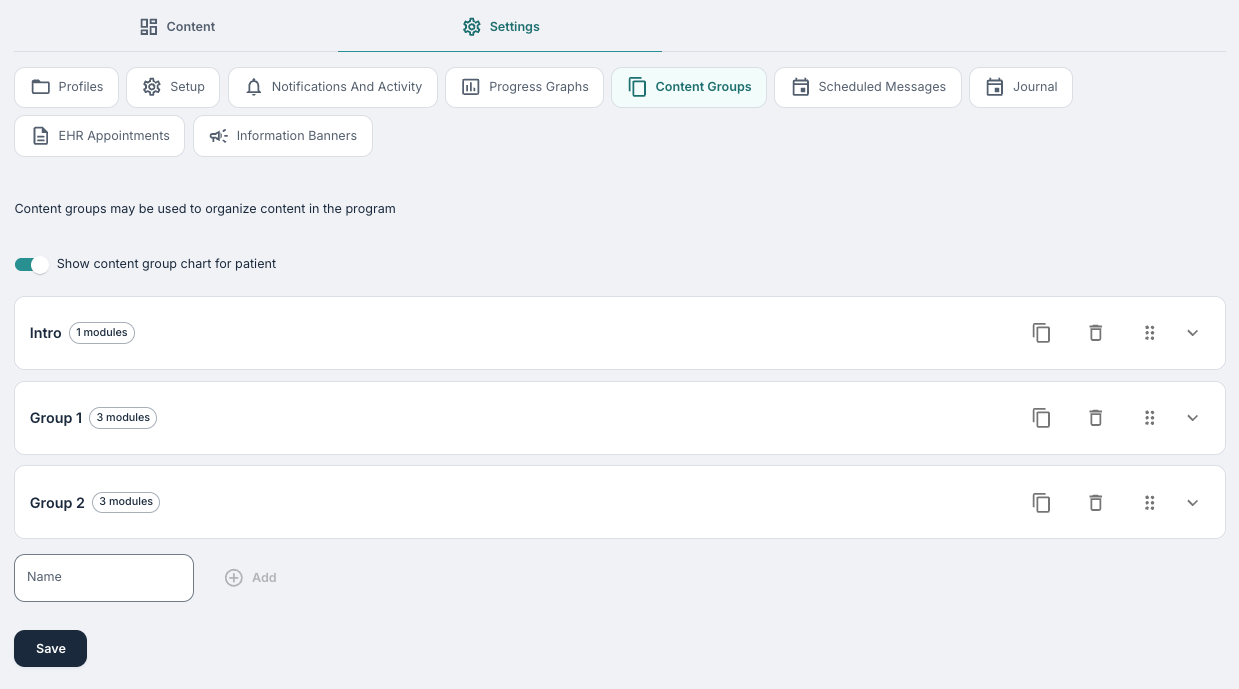
Here it is possible to categorise and group various modules from the programme. This allows for easier assigning of modules directly by therapists or in the programme profile.
CONTENT
Creating new groups
You can create a new content group by including a Name and selecting Add, and then you may add modules to the group. A group should optimally have one or more modules included, and you can alway reorder the modules and remove modules afterwards.
Once saved, you will additionally be able to view and assign modules to content groups from the module page directly:
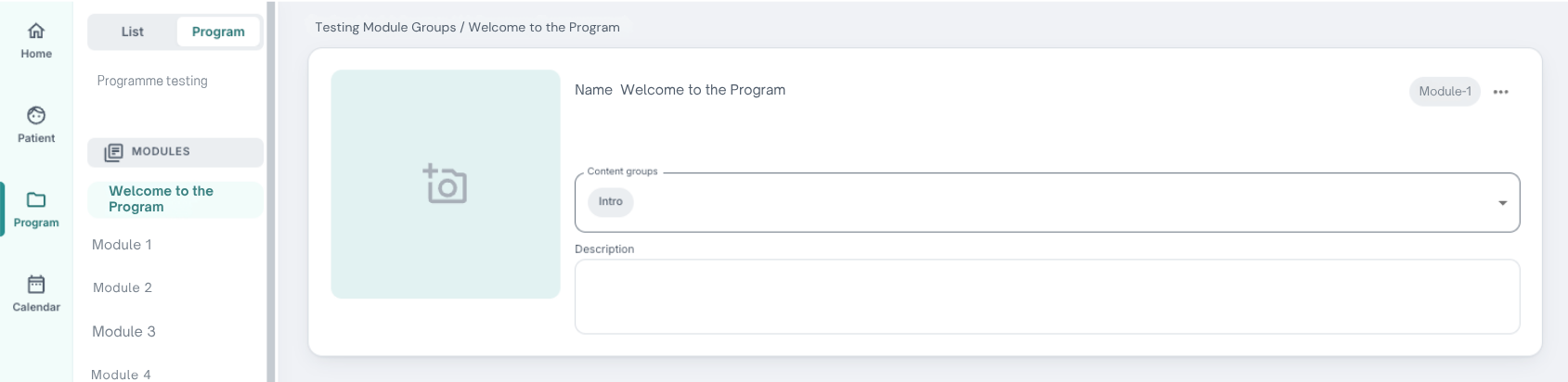
Patient page view
If a programme containing modules in a content group is assigned to a patient, the content group will be shown clearly under the Modules page. Here the clinician will be able to adjust settings on the group as a whole, as well as for individual modules within the group.

Clicking on a certain group will expand the view and allow you to see and adjust settings on specific modules. The same possibilities apply here as with 'regular' modules, where you can adjust availability, scheduling and labels amongst other things. Any modules not contained within a group will be displayed separately as normal.
When a clinician selects Add module on the patient Module page, they will then be able to select entire groups (under Content groups) to add or individual modules (under Modules):
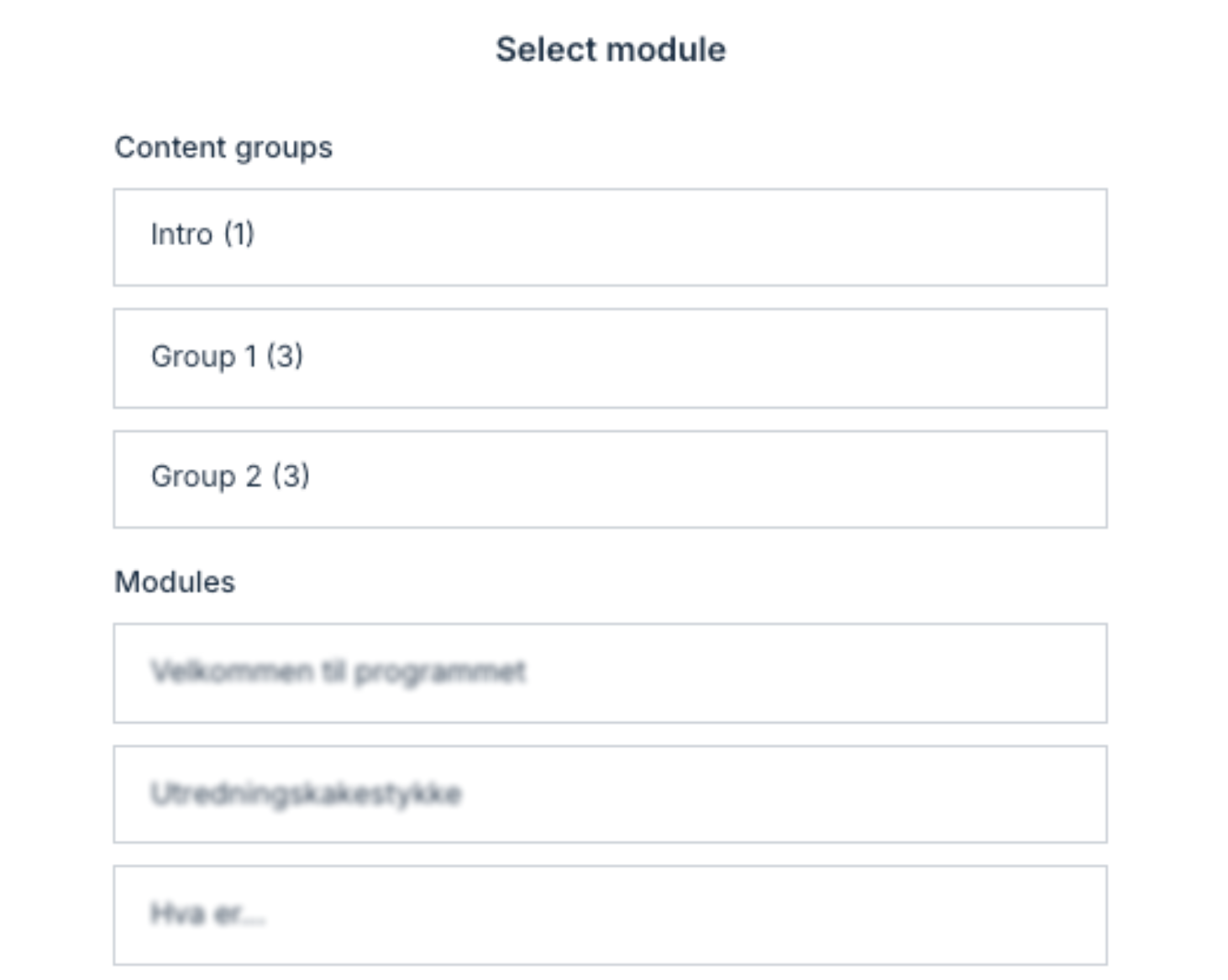
When adding a content group, the number of modules within the group is indicated.
Content Group Chart
An additional option when using content groups is to activate a pie chart display which will be visible for patients and therapists. When the Show content group chart for patient toggle is activated, the module groups will be visualised as segments within a pie chart which are clickable:
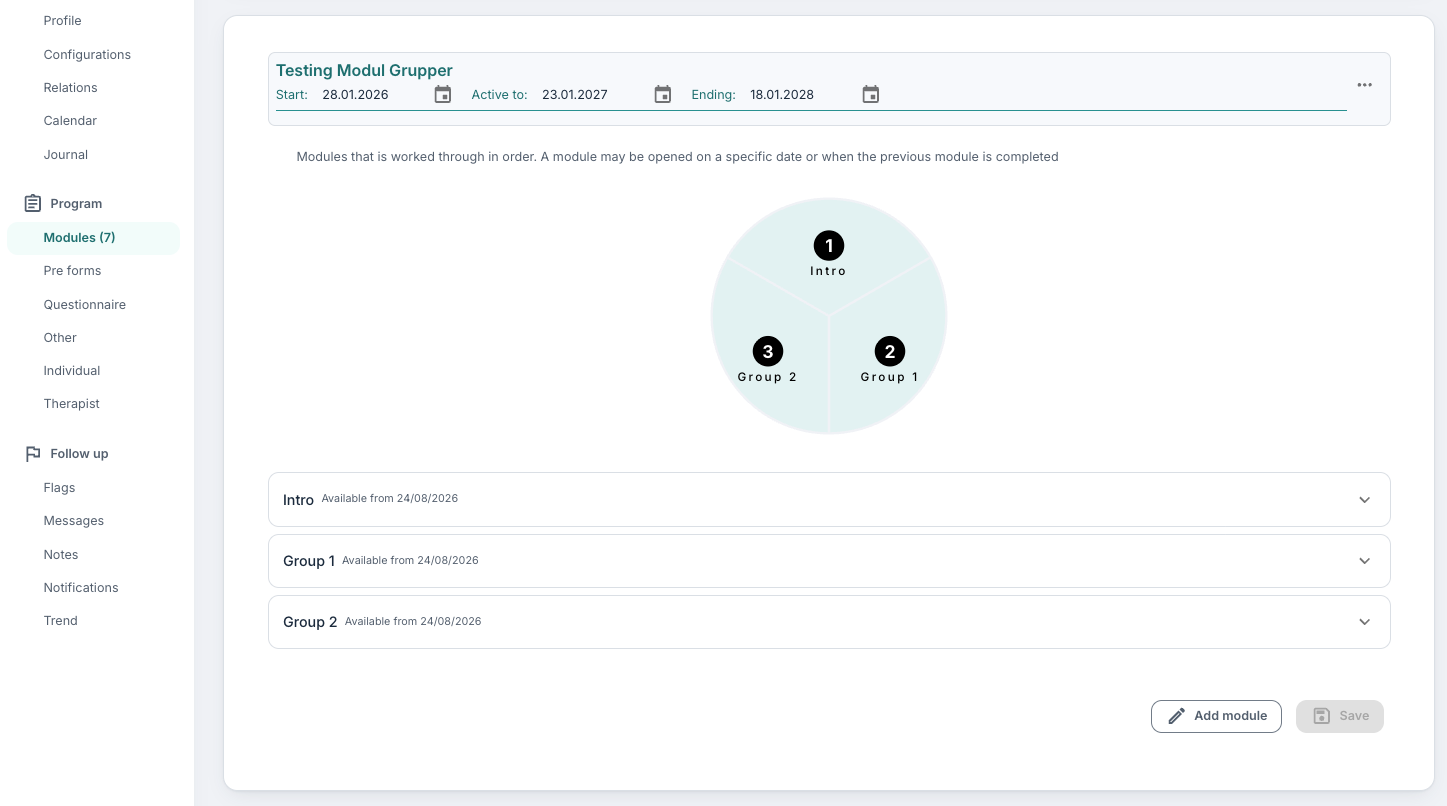
Selecting a content group will highlight the segment and display the relevant modules within the group. This will display similarly for the patient, where they can select the different segments to view the modules contained within (in both the earlier and newer patient application design):
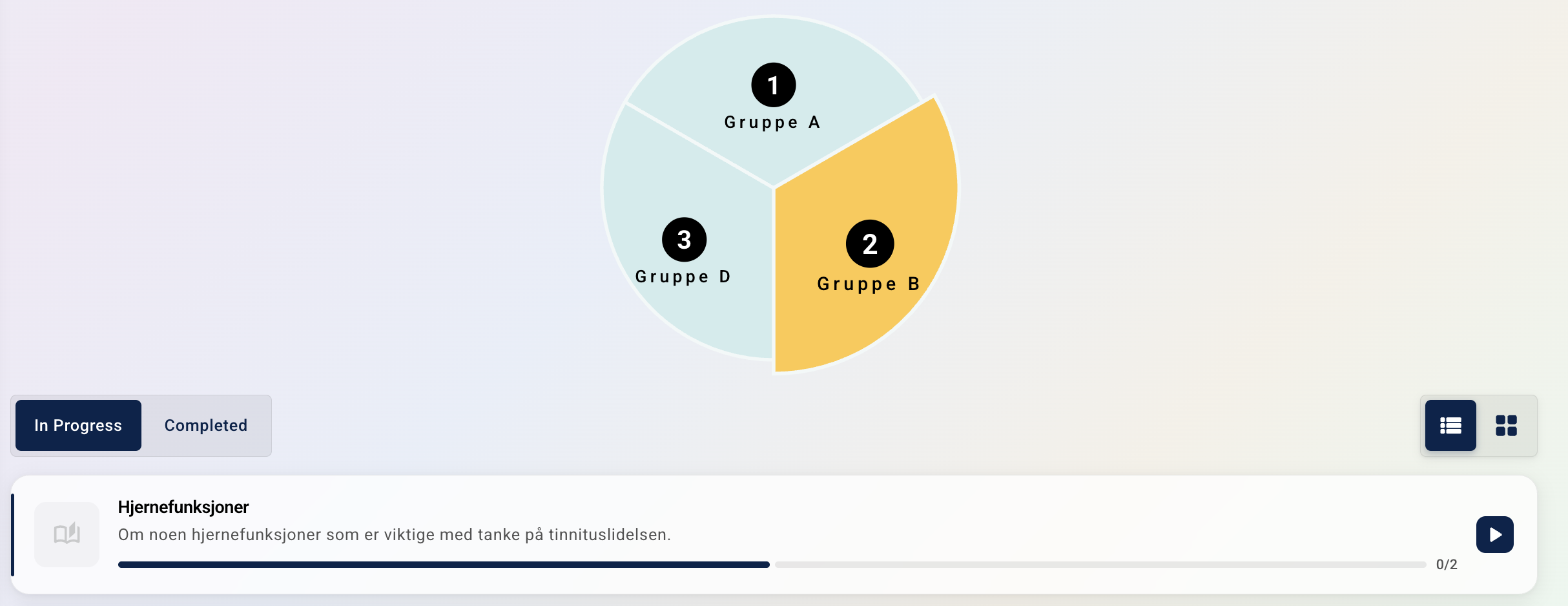
This view allows you to create a visual segmentation between different areas of the treatment programme and/or chapters which the patient will work through. The chart view is dynamic, so adding new segments and removing others will adjust the view accordingly.
Was this article helpful?
That’s Great!
Thank you for your feedback
Sorry! We couldn't be helpful
Thank you for your feedback
Feedback sent
We appreciate your effort and will try to fix the article