This article describes the Content Feedback feature, which makes it possible to collect structured, anonymous feedback from patients at the end of each module.
CONTENTS
What is Content Feedback?
Content feedback is a feature that automatically adds a short, optional questionnaire to the end of each module in the patient app, without the need to build this directly into your programme. Patients are asked to rate and comment on the content they have just completed, giving the clinical and content team insight into how the programme is experienced by patients that are actively using it.
The questionnaire covers four areas: how likely the patient is to recommend the content to others (a type of NPS), how useful the content was, whether it was well explained, and an open field for any additional comments. All responses are anonymous and the results are aggregated in a dashboard in the platform.
The feature is turned off by default and can be enabled in the programme settings, under Program features > Enable NPS feedback on assigned modules before it becomes available to patients. Be aware that only modules created after the setting is activated will include the feedback questionnaire. Pre-existing modules will not be affected by the toggle. If the setting is not visible to you, the feature may not be active for your organisation. You may contact Youwell support for assistance.
Patients' view of the Feedback Form
When a patient completes the last chapter in a module, and uses the Continue button, the feedback screen appears automatically. The entire flow is optional, meaning the patient can tap Complete at any point to exit the screen, including before answering anything.
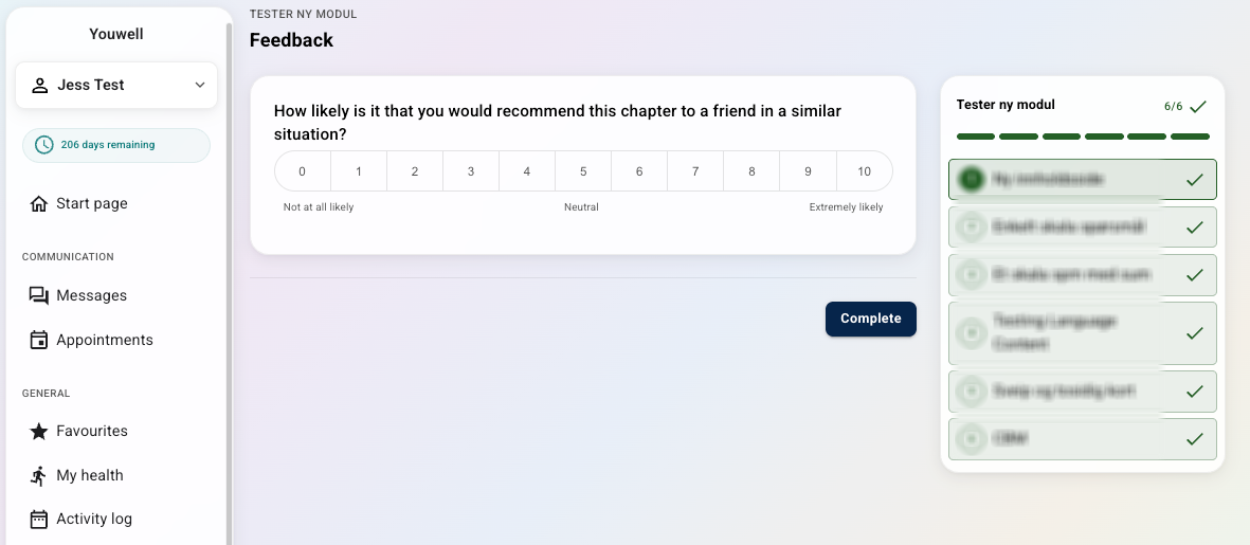 Example of feedback form in new patient app design (from 2026). Example of feedback form in new patient app design (from 2026). | 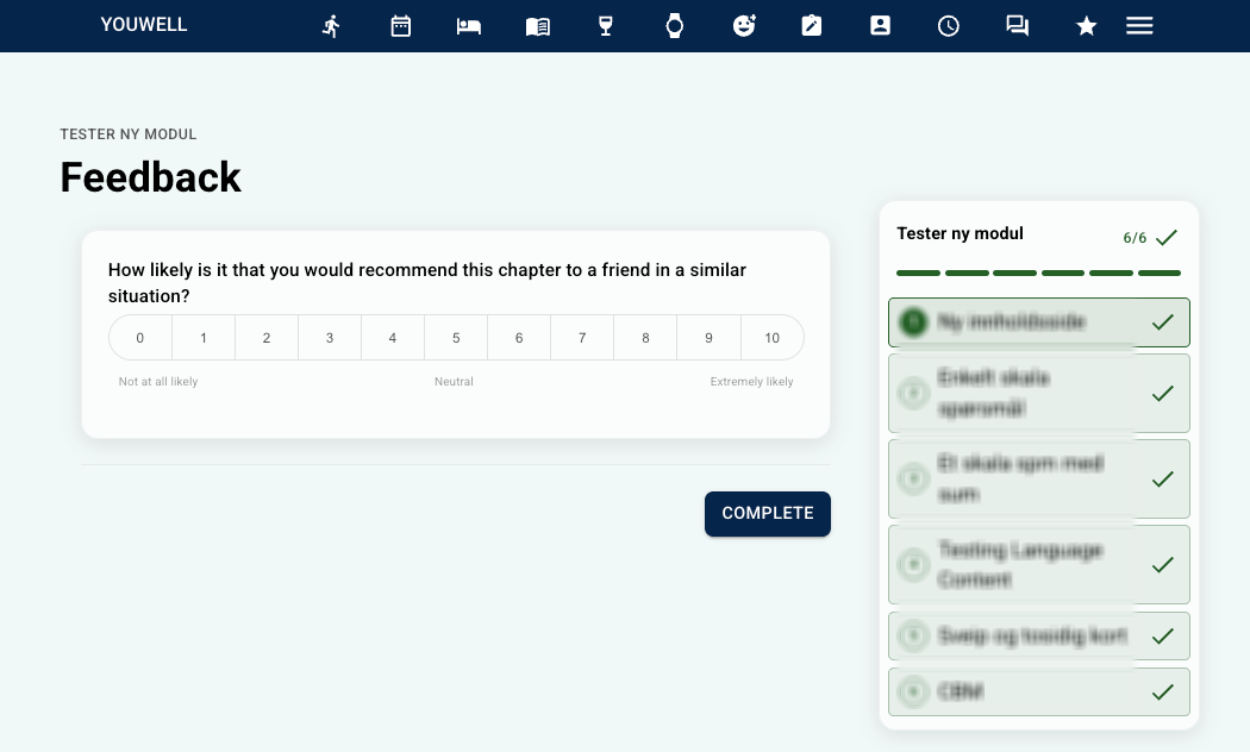 Example of feedback form in previous patient app design (pre-2026). Example of feedback form in previous patient app design (pre-2026). |
The flow works as follows:
Step 1 — Recommendation score: The patient is shown a single question: "How likely is it that you would recommend this chapter to a friend in a similar situation?". They can answer on a scale from 0 to 10.
Step 2 — Invitation to answer more: If the patient selects a score, a prompt appears: "May we ask you a few more questions?".
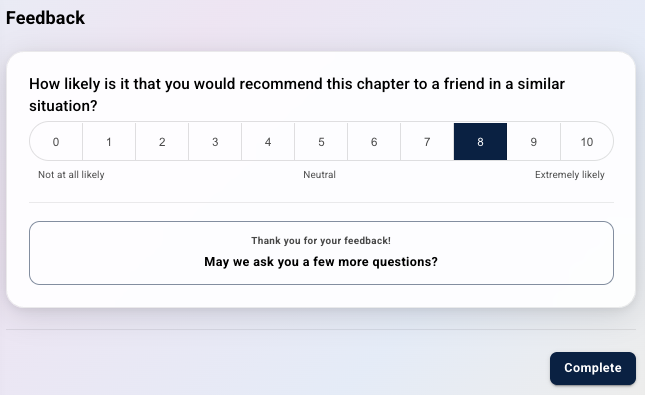
If the patient accepts, three further questions are displayed on the same screen:
- "How useful was the content in this chapter?" (scale 0–10).
- "Was the content explained in a good way?" (No / Somewhat / Yes) — if the patient answers No or Somewhat, a follow-up text field appears: "What could have been explained better?".
- "What could be improved in this chapter?" (free text, optional).
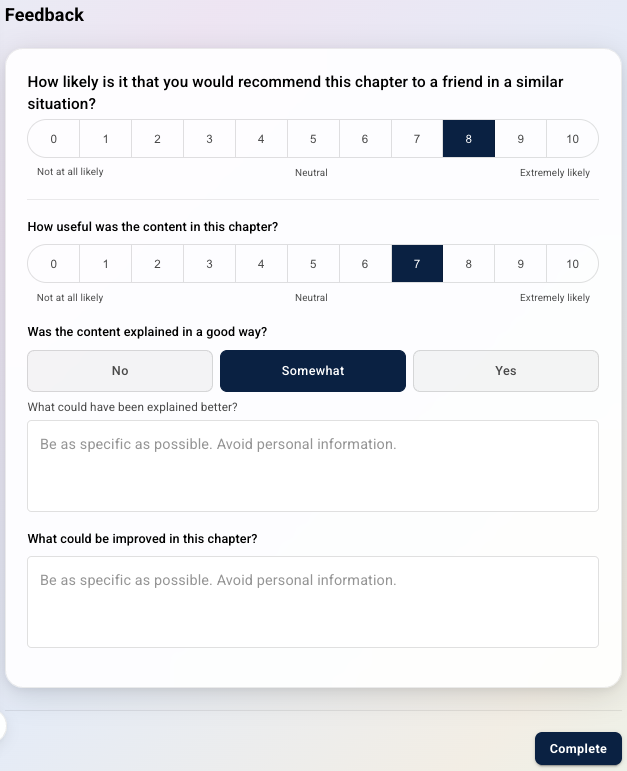
The patient can answer any combination of these and tap Complete at any time to submit. They will then be returned to the start screen in the patient app and can continue to use the tools available there. Once the patient has submitted their feedback, this cannot be adjusted, viewed or resubmitted.
Content Feedback Dashboard
Accessing the dashboard
Content producers, admins and therapists can access the feedback dashboard within the programme view, using the Content Feedback tab.
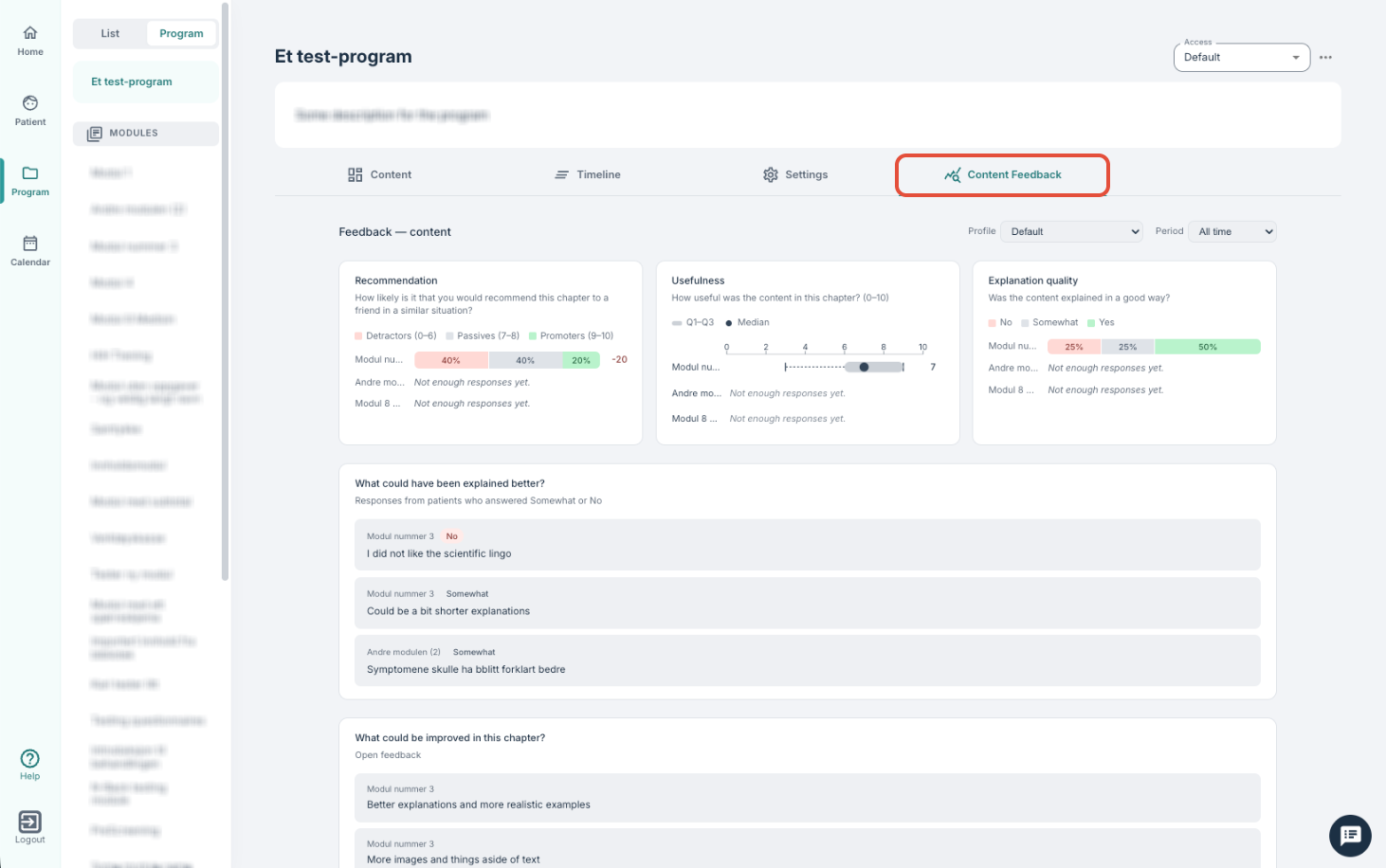
To filter and view results they can select a certain programme Profile and/or a time Period. The dashboard then displays aggregated responses per module.
Results for a given module are only displayed once at least 4 responses have been collected. If fewer than 4 patients have completed the chapter, the dashboard shows the message: "Not enough responses yet — come back when more patients have completed this chapter." This is to ensure patient anonymity.
The dashboard counts unique patients, not total submissions. If a patient has submitted feedback more than once for the same chapter, only their most recent response is included.
What the dashboard shows
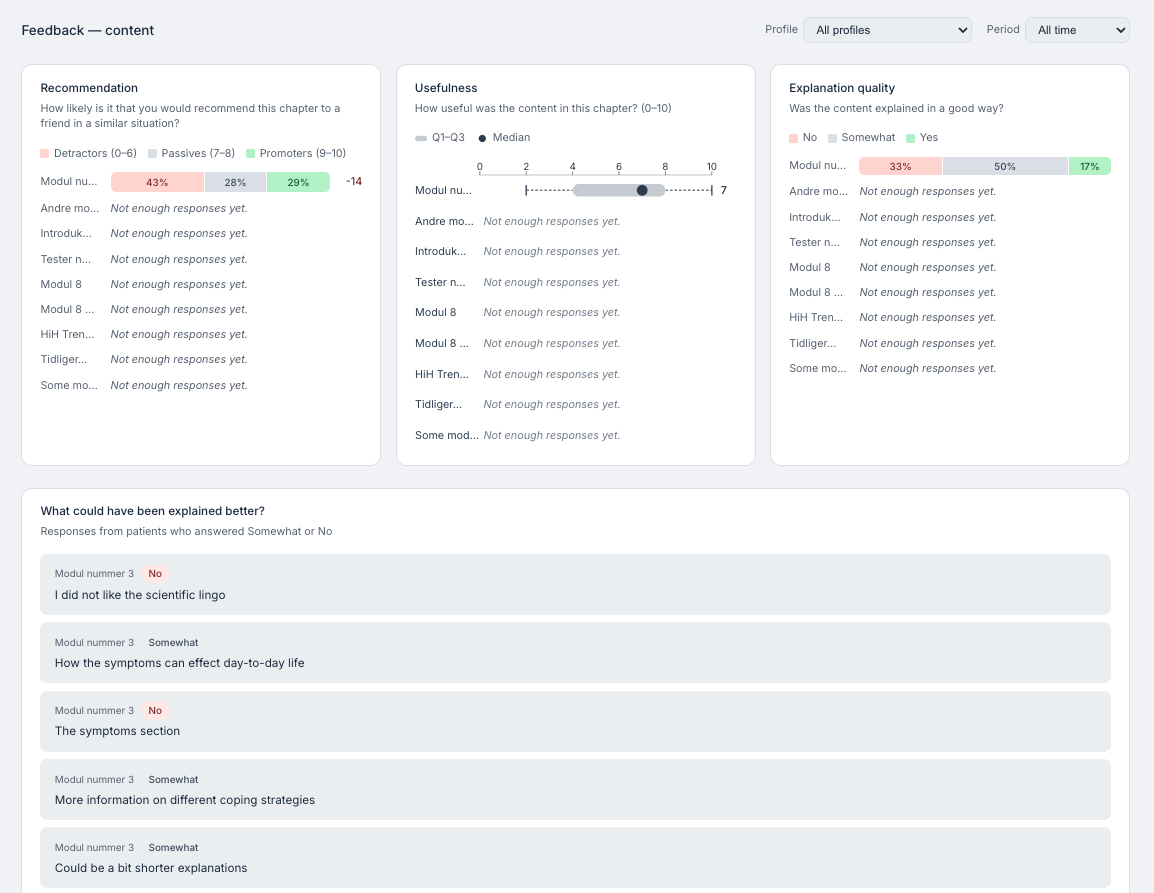
Results are organised per module and displayed across four components:
- Recommendation (NPS): A horizontal stacked bar chart showing how scores are distributed across three groups: Detractors (0–6), Passives (7–8), and Promoters (9–10). The total number of responses is also displayed.
- Usefulness: A box plot showing the distribution of usefulness scores (0–10). The box plot displays the median, the interquartile range (the middle 50% of responses), and the full range of scores, giving an indication of both the average experience and how consistently patients rated the content.
- Explanation quality: A horizontal stacked bar chart showing the breakdown of responses across the three answer options (No / Somewhat / Yes), including percentage labels.
- Written replies: Patient responses to the two open text fields are displayed as individual response cards, divided into the categories of comments on what could have been explained better, and general suggestions for improvement. These can be read directly in the dashboard.
Next steps
This tool provides valuable insight into how patients are experiencing the content as they work through the modules in the programme. This can therefore be a very useful to help you improve and continually update your programme content so that it is addressing any improvement points or concerns raised by patients throughout.
We suggest as a best practice to wait to make adjustments until you have a few feedback responses sent in, so that you make the relevant adjustments based on a larger selection of feedback.
Was this article helpful?
That’s Great!
Thank you for your feedback
Sorry! We couldn't be helpful
Thank you for your feedback
Feedback sent
We appreciate your effort and will try to fix the article