On all elements it is possible to use States with conditions to control whether the element is shown or not, based on answers the patient has entered in earlier questions and questionnaires.
A typical example is a question around worsening of the patient's illness or symptoms recently, where you want to collect more information based on whether the patient answers “Yes”. The following diagram shows such a typical flow in this situation:
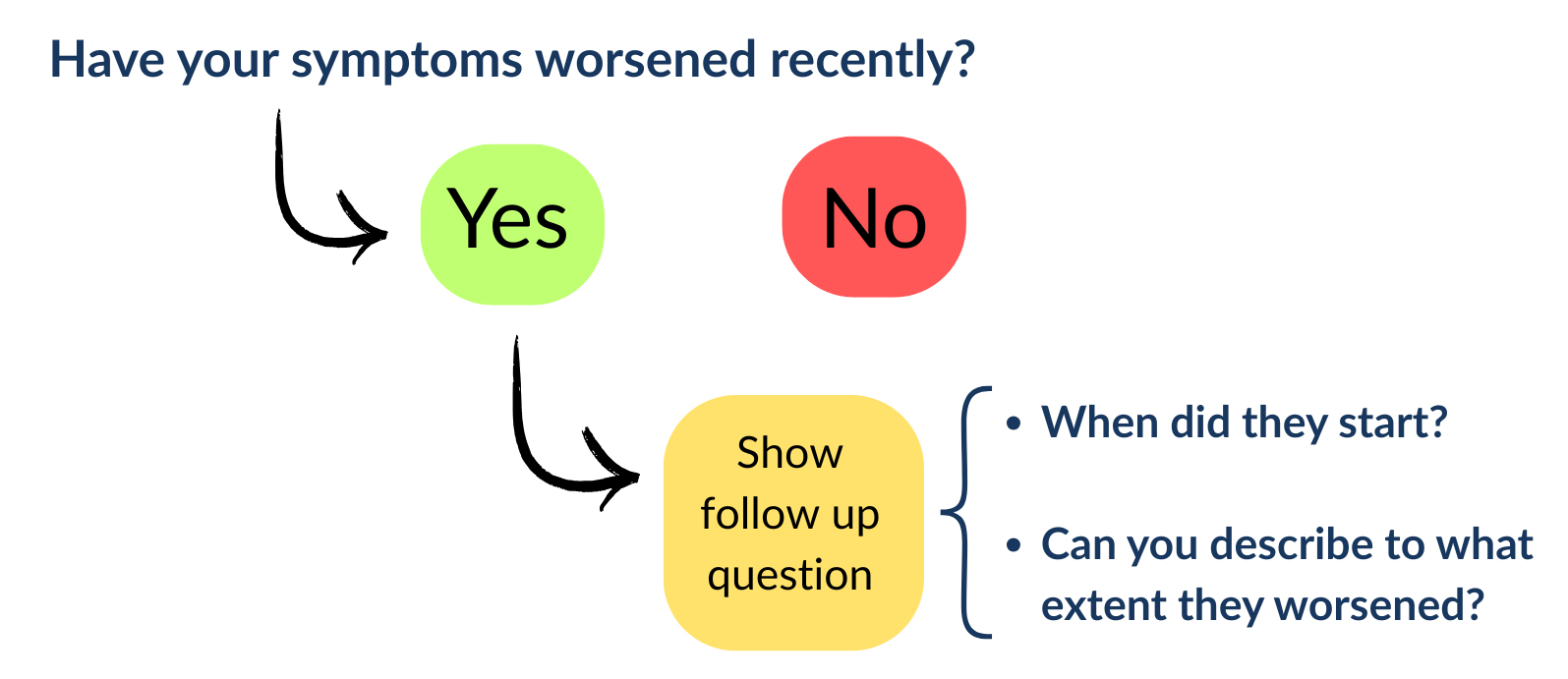
This is a scenario where more questions can be added if the patient answers “Yes” to the first question.
Adding a new conditional state
In the menu inside a default element there is the function to add States with conditions.
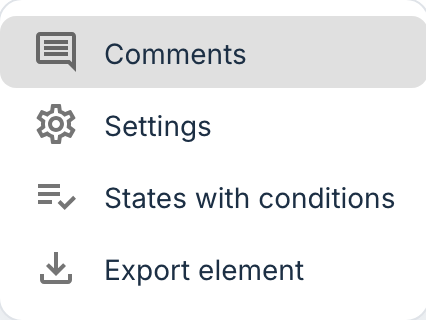

Under Add new state it is possible to choose between Visible or Hidden.
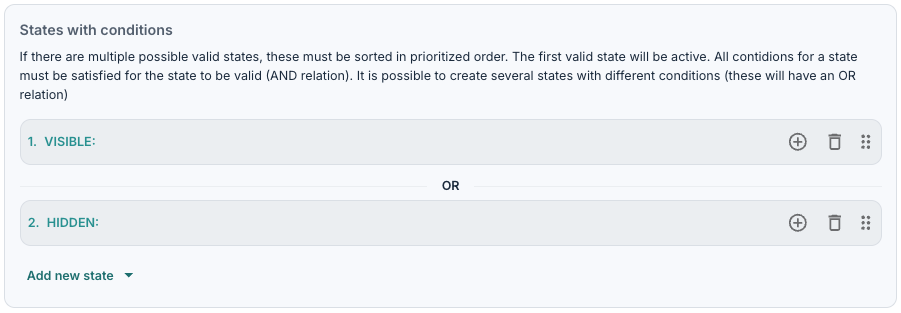
Visible describes that the element is shown when the conditional state is fulfilled, and Hidden describes that the element is not shown in such cases. To create a new state, you can use the plus symbol, and a popup window gives the possibility to find the correct module, questionnaire or additional content that contains the question you wish to link to the element.
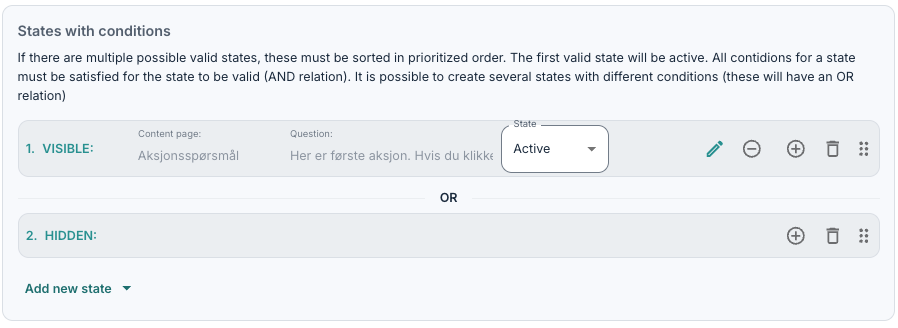
In the above example, a button question has been chosen such that if the patient clicks the button, this element will be shown, otherwise it will be hidden.
Order and logic
The order of the different states affects how the system evaluates aand priorities the rules. The system will try to find the first state that matches in the order that is set. The arrows next to each state can be used to change the order.
It is also possible to add an AND relation to describe a more specific condition. More rules under the same point can be added using the plus symbol.

If more states of the same type are added, this functions as an OR relationship.

A typical setup will often begin with some visible states and end with some hidden states.
Button question
A typical use case is a button question that shows more information when the patient presses the button. In this example the first state is set so that when the button is “Active”, the element will be made visible. When the button is “Inactive”, the element is hidden.
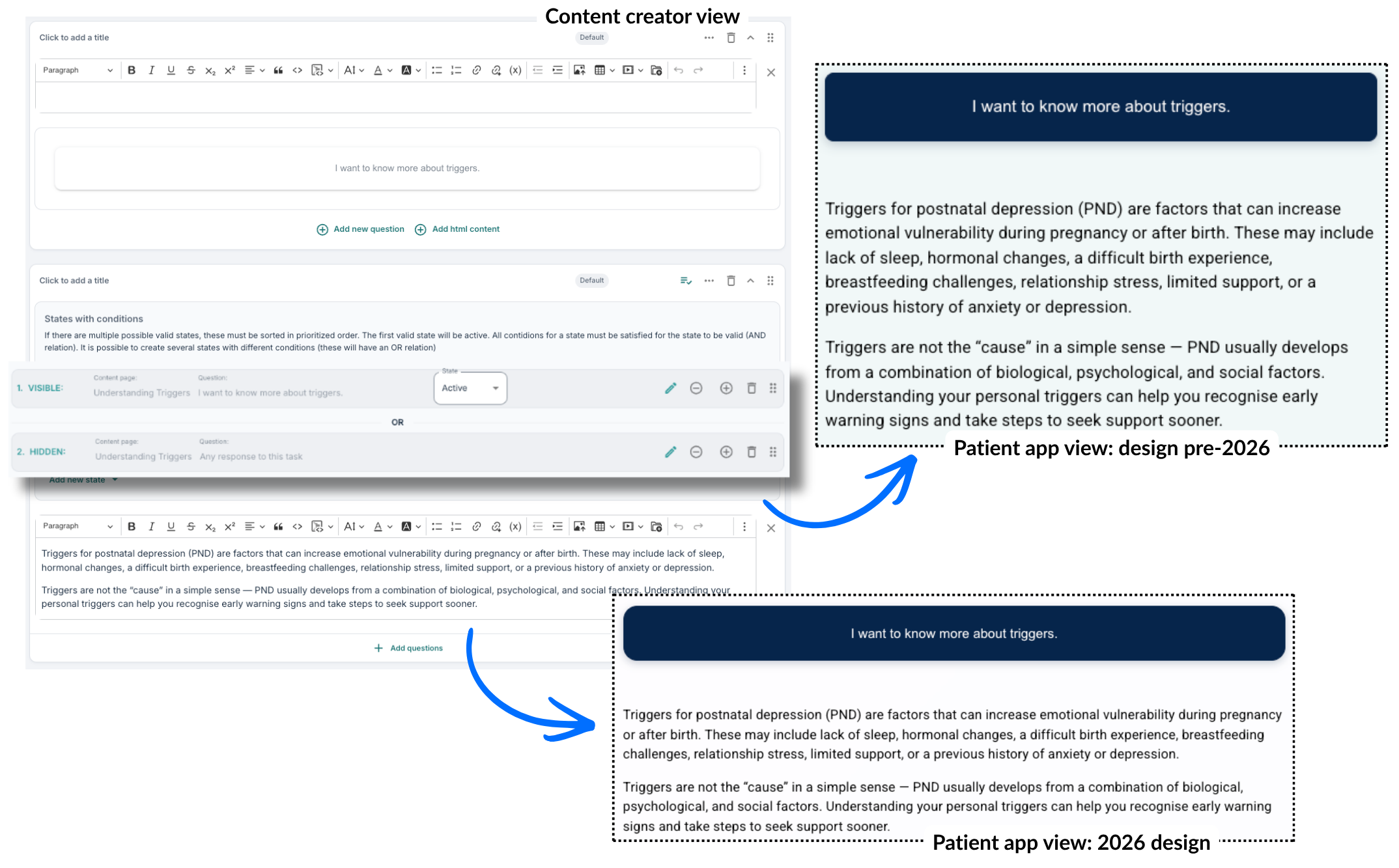
Conditional states can also be used in this way on elements within Additional content to show extra content, for example videos, articles or images, based on whether the patient wants more information about a topic.
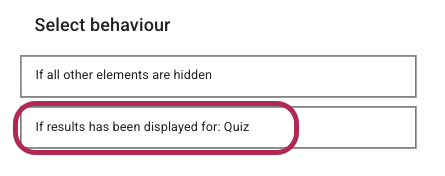
In addition, conditional states can be useful to give the patient some feedback, like a bit of praise, when they have answered a quiz element. Typically this will be created by adding the correct answers from all the questions in the quiz plus If the results has been displayed rule.
Was this article helpful?
That’s Great!
Thank you for your feedback
Sorry! We couldn't be helpful
Thank you for your feedback
Feedback sent
We appreciate your effort and will try to fix the article