When you create a new questionnaire, there are several different question elements and tables that can be used, and it can feel a little overwhelming to know where to start or what is appropriate to choose. Here is an overview of the different options that exist so that it is possible to select a format for the questionnaire that suits what you want to create.
If you want an overview of all possible elements that can be used, below you can find links to:
First, it can be useful to consider how the patient can answer the questions in the questionnaire as this will influence the format you choose. For example, they can choose a number between 1 and 10, use free text, or a combination of text, scoring and scale depending on what is relevant for the questionnaire.
Combining different elements
One questionnaire content page can contain several types of elements and questions. A pre-questionnaire can typically ask about the patient’s age, employment status and other general background questions before moving on to questions about symptoms. In such a questionnaire there can be a combination of free text questions, scale-questions or tables that give the patient the opportunity to give a score on various statements.
Different types of tables
Questionnaire with multiple scale questions (Default element)
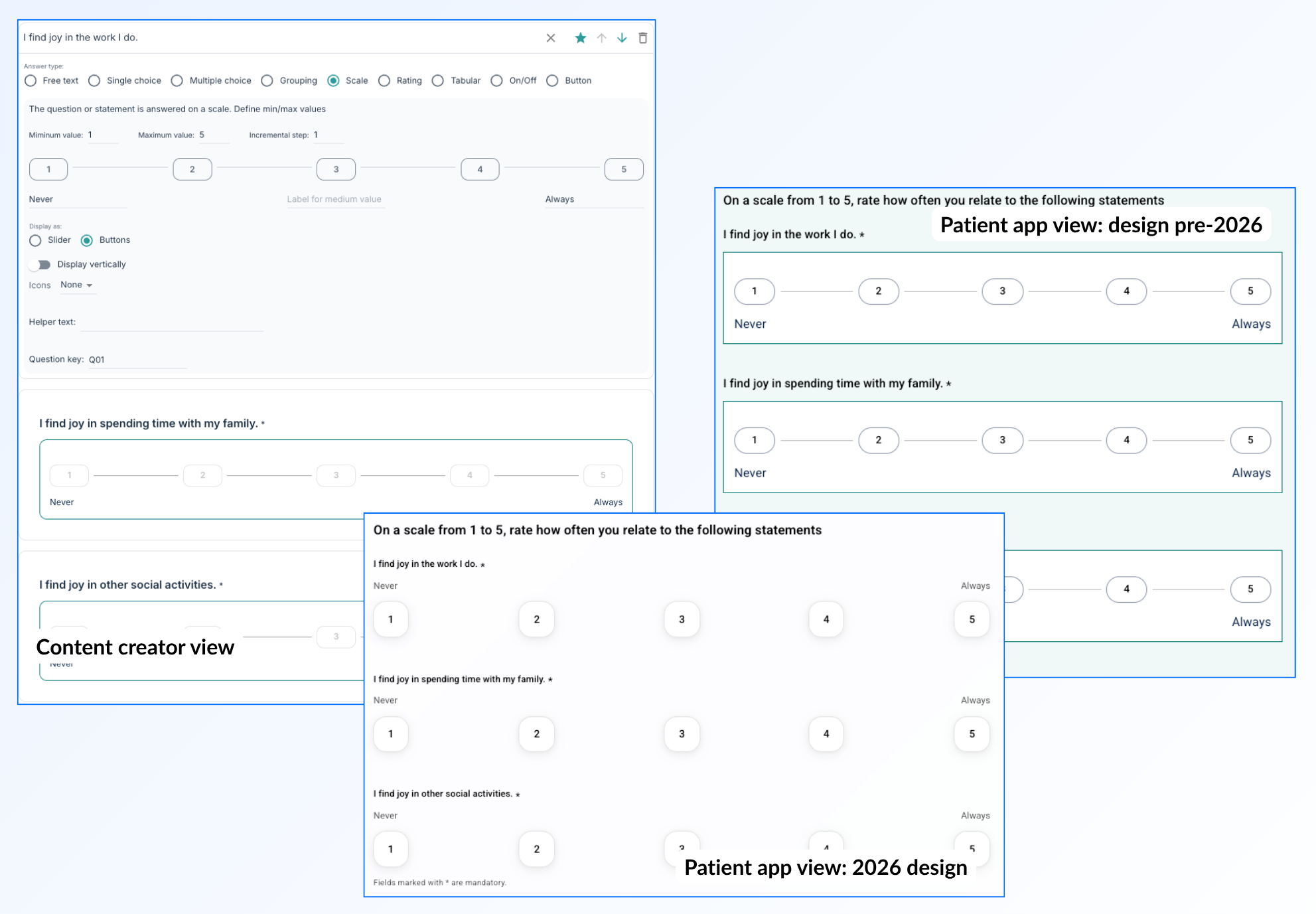
One way to present a list of different questions or statements is with a series of scale questions. The patient then gets a list of questions where different scores on the scale are available for each question. Such a presentation can vary from one question to another and can provide a basis for Summations.
In this case a standard element is used with a scale question type.
Questionnaire with free text (Question element)
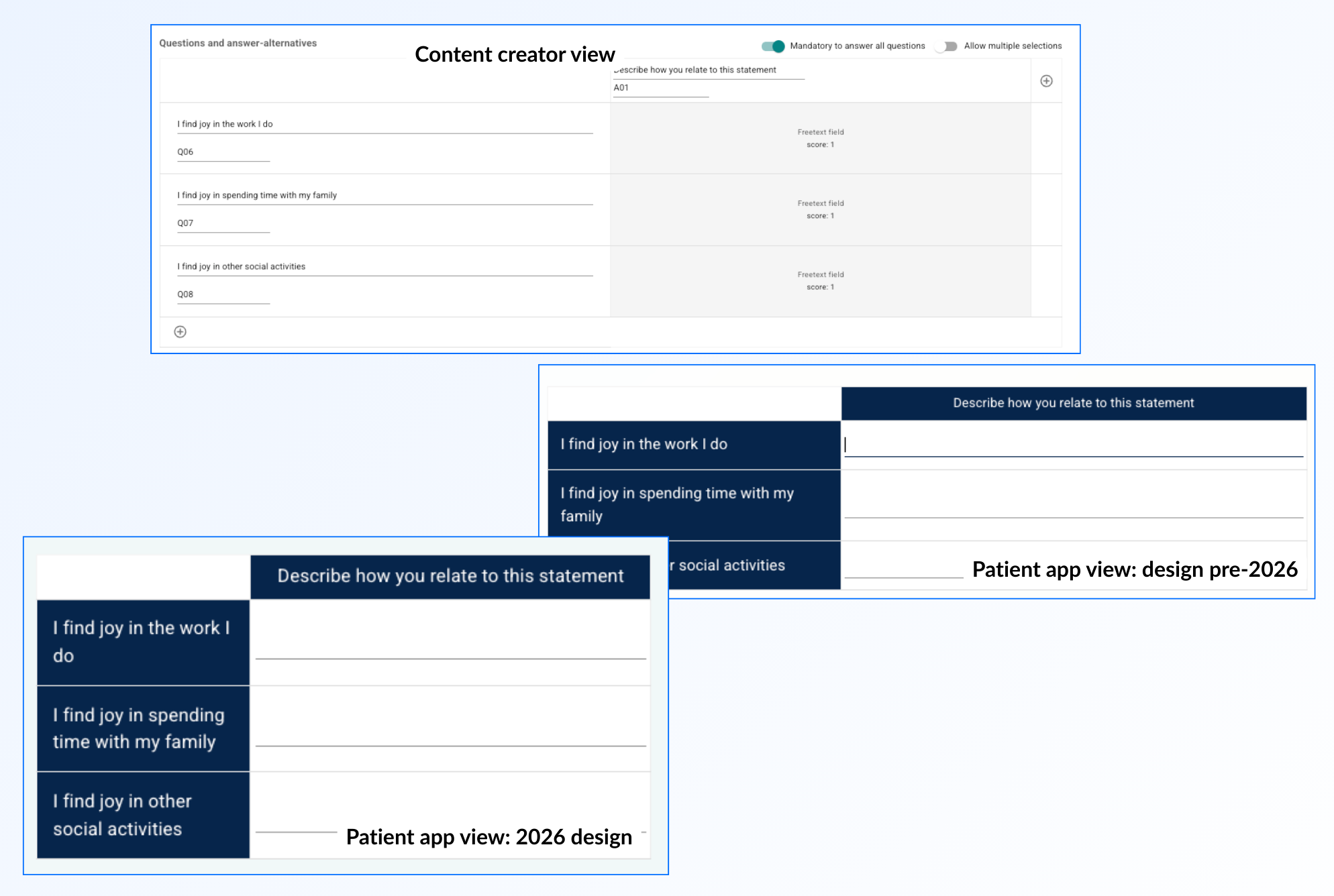
If the questions are organised in a table and it is desirable that the patient can enter text, a questionnaire element can help with this. Here the questions or statements can be written in the rows, and it is possible to add column names to structure the responses. More columns can be added if needed, but usually one column for the free text field is sufficient.
This is done by changing the status for the cells so that they are set to free text, and it is also possible to adjust scoring settings in the same view.
Questionnaire with scoring (Question element)
If it is relevant to allow the patient to give different scores to a series of statements, a questionnaire element can also be used for this. The questions or statements can be listed in the rows, and then the number of columns can be adjusted so that they represent a scale or degree of rating for each item. This gives a structured layout where the patient can indicate how often various symptoms are experienced or similar assessments.
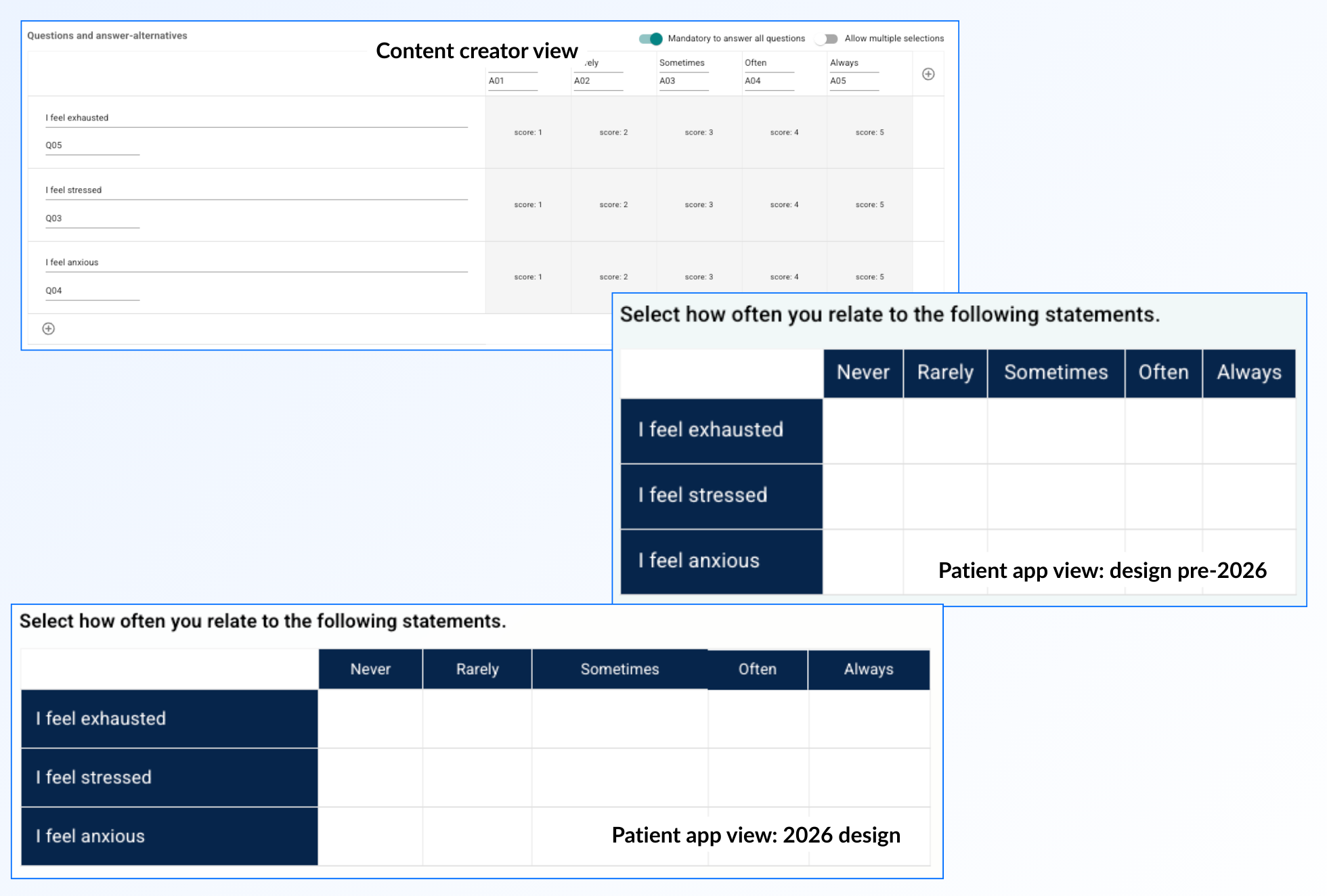
In this approach the scale is shown as columns, and it is possible to customise how each cell should handle the scoring.
Tabular (Default element)
Another option is a table, which is a standard way to list various questions. In this case a default element can contain the table with question text in the rows and columns that indicate where the patient can give their response. This provides a clear structure for simple questions and answers for the patient.
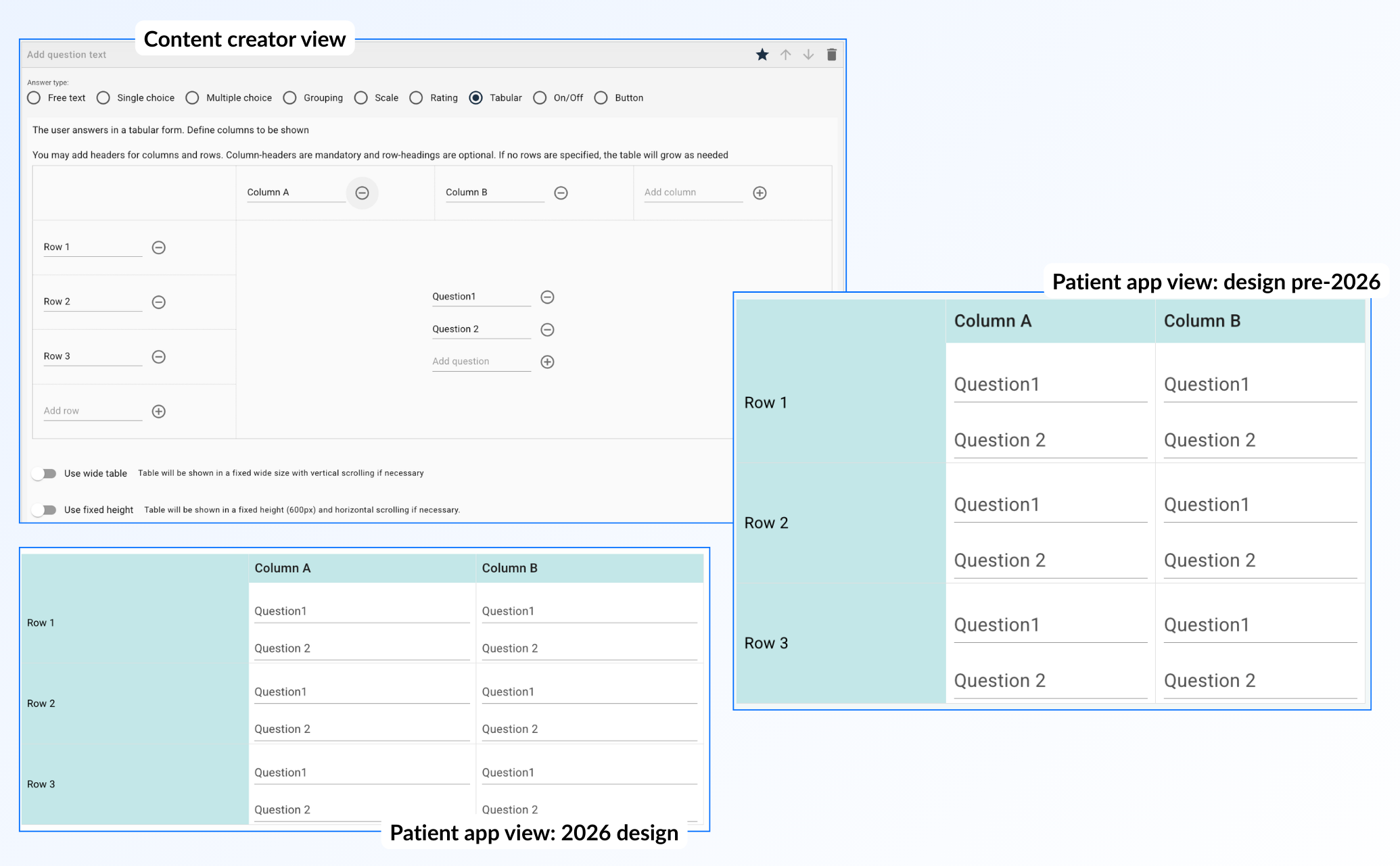
Table questions do not support summaries, and this applies both to the table in the standard element and within a question element (Collapsible table).
Collapsible table (Question element)
A collapsible table is similar to a regular table, but with an extra function where questions can be opened and closed by the patient. This is shown as a dropdown list where the text in each row represents the questions, and the column names are displayed as different columns in each opened section. Such a solution can be relevant for long lists of questions, where the patient can choose which parts should be expanded for responses.
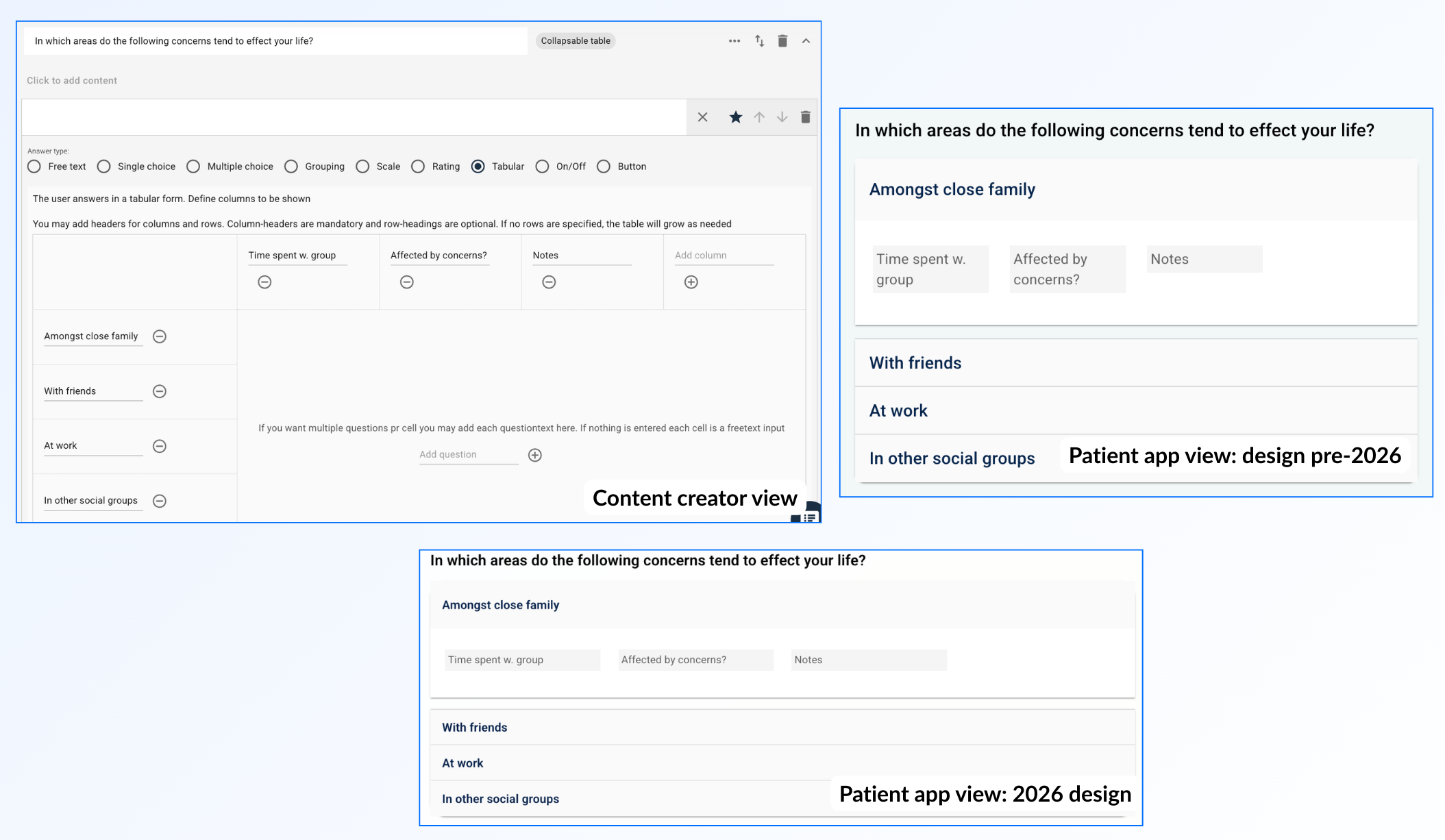
It can be relevant to use this type of table for long lists of questions as questionnaire elements often provide a slightly clearer structure for the patient.
Was this article helpful?
That’s Great!
Thank you for your feedback
Sorry! We couldn't be helpful
Thank you for your feedback
Feedback sent
We appreciate your effort and will try to fix the article