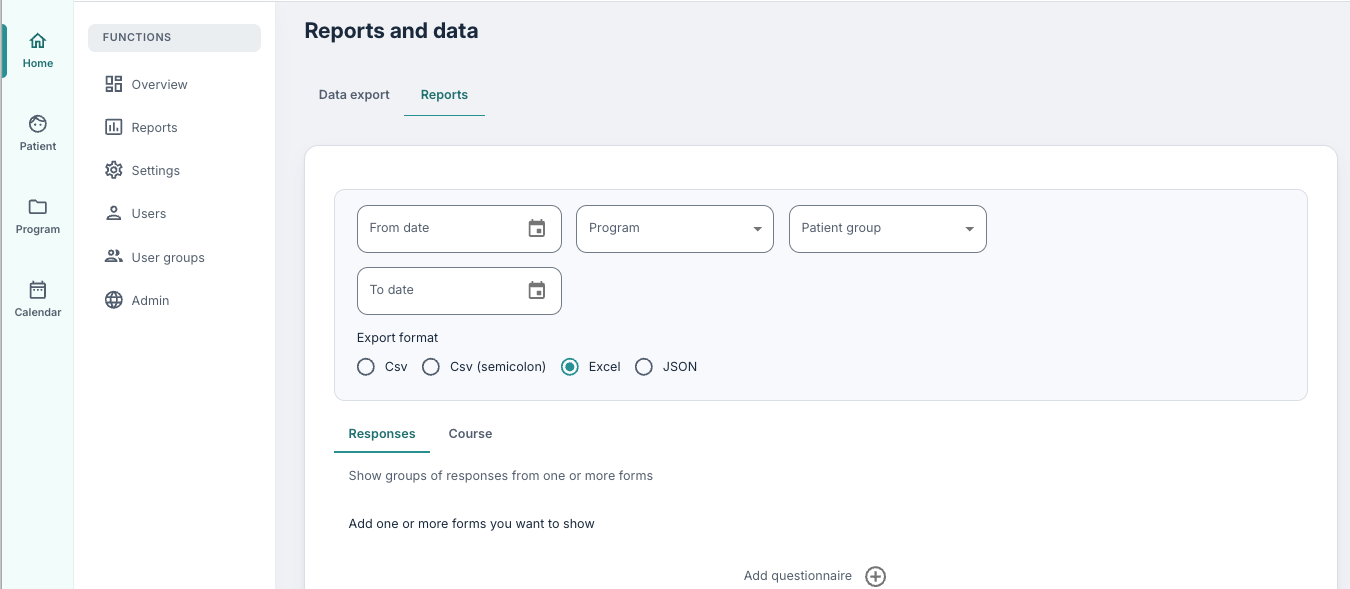
The Reports function is a place where it is possible to retrieve some data extracts (under Data Export), and also where it is possible to generate some charts for visualisation of responses from patients (under Reports). This tab is available for users with the administrator role, manager role or researcher role.
This article contains a walkthrough of the Reports tab, including how it is possible to create new reports, how filters can be used, and what the visualisations show.
CONTENTS
Filters
To retrieve a chart for visualising responses, navigate to Reports and then Reports. Use the filters at the top of the page to adjust the settings for the chart:
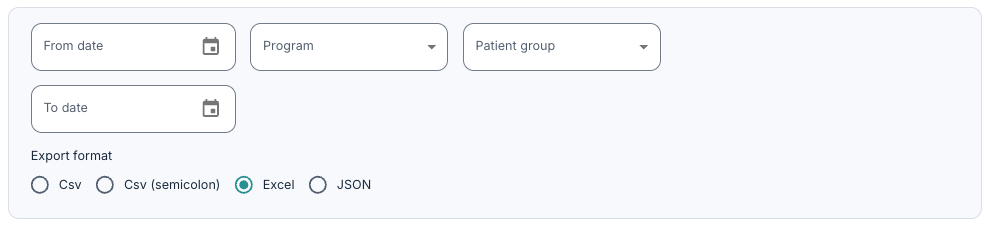
You can enter the dates that are included in the chart under From date and To date, and select a specific Program or Patient group if that is relevant. All programs, patient groups, on all dates are included by default if nothing else is specified here.
Responses
Under Responses it is possible to click the plus symbol next to Add questionnaire to find the form that is to be displayed. You can select the program the questionnaire is stored under, and then go into the modules, for example Questionnaires, and select the form there.
Then a chart will be shown based on the filters and the form that is selected. It is possible to add more charts by using the plus symbol again, and when display of a chart is no longer wanted, the minus symbol can be used to remove it.
By default, the chart displays the number of responses and the number of patients that are included in the view.
A summary is also shown with the overall average result, minimum value and maximum value to the right of the chart.
Here is an example with a form where the patients have entered a score or rating based on several statements:
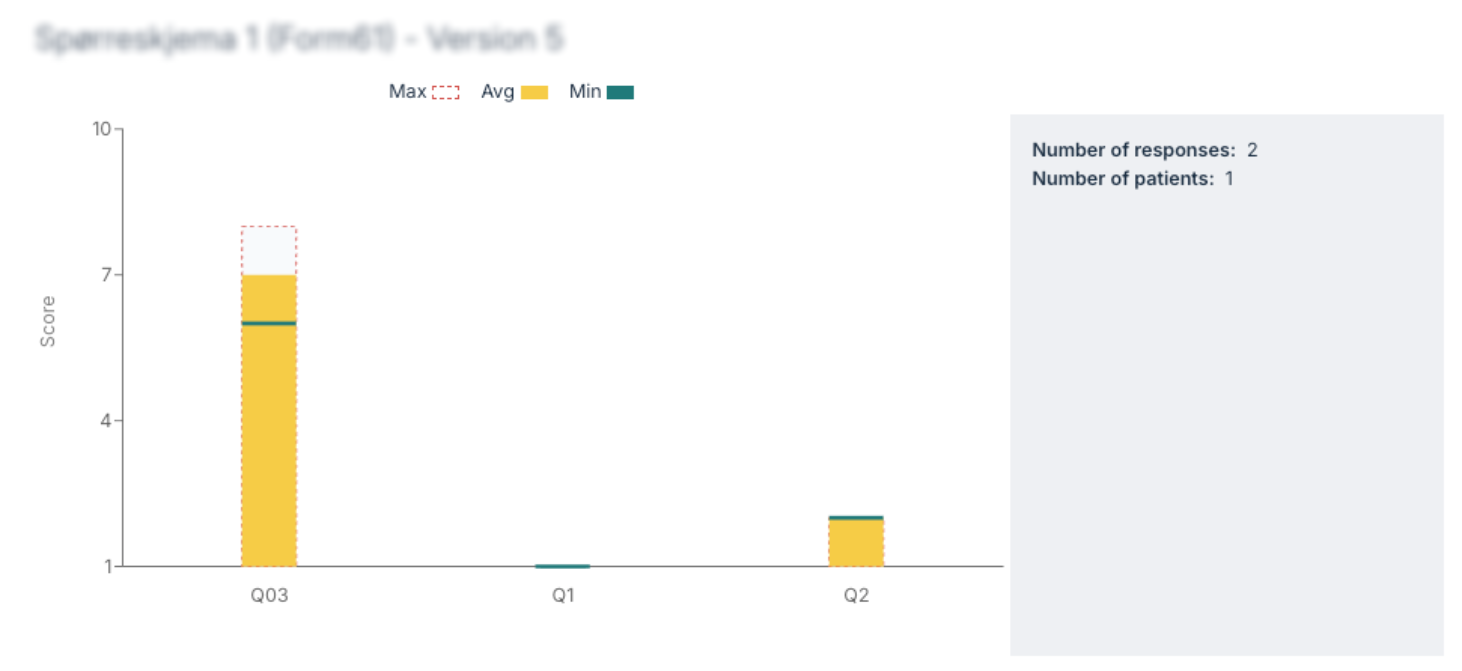
The different statements/situations are listed on the X-axis, and the values that the patients have entered are measured on the Y-axis. It is also indicated what is recorded as minimum and maximum, as well as average. By moving the mouse pointer over the different columns in the chart a small popup with the values for the current question is shown.
Labels
When element labels are used (for example “week1”, “week2” or “post-mapping”), it is possible to filter by these at the top where it says Filter results by selected labels.
Summations
When the question or questionnaire has a summary associated, a chart is automatically displayed that describes both individual results and the result from the summations. You can read more about summations here: Summations.
For summary charts the label for the different forms is on the X-axis, and the total value (the value after the calculations) is on the Y-axis.
Course
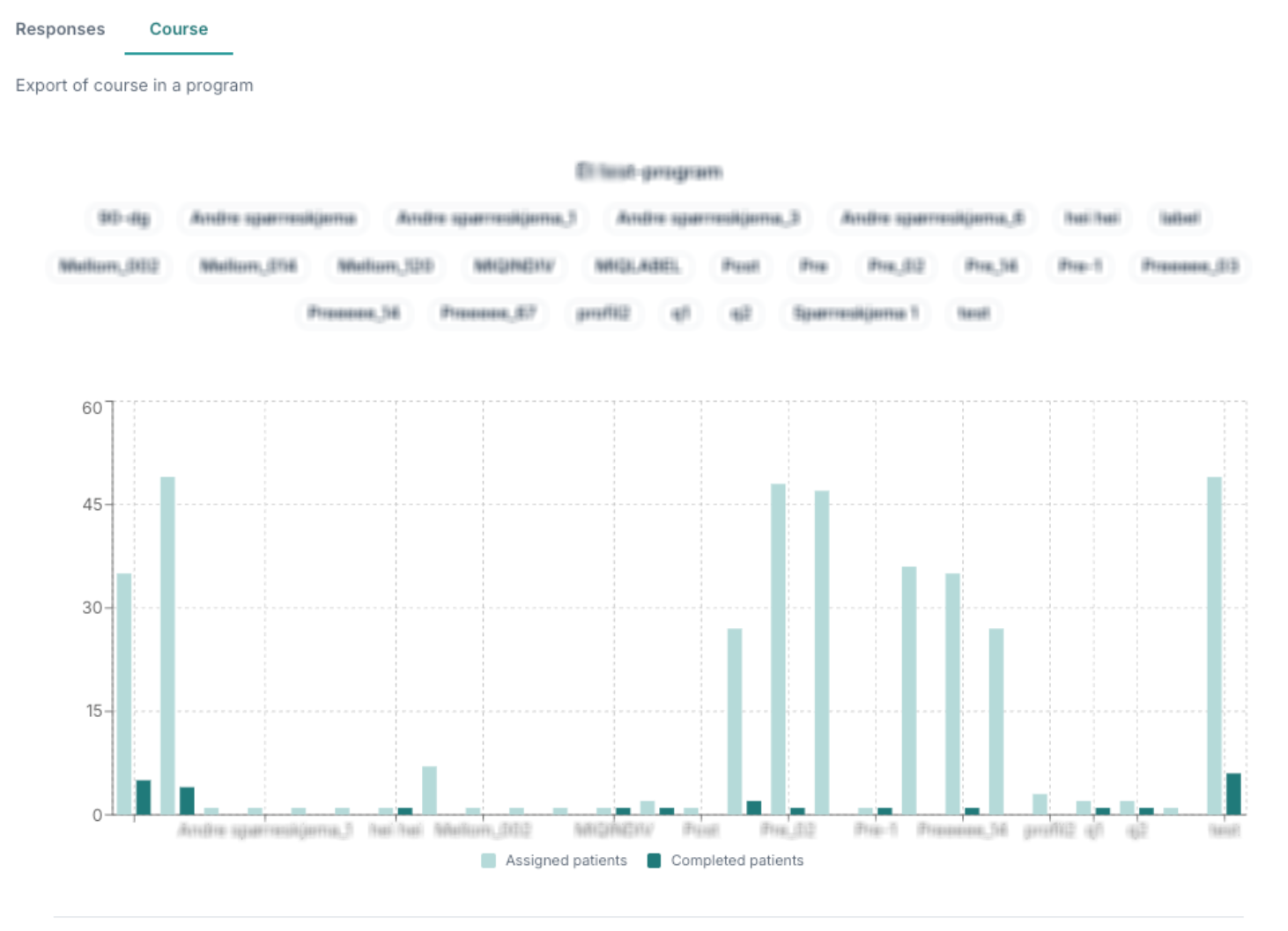
Under Course it is possible to see grouping of responses on one or more questionnaires. This is used to illustrate how many forms or content pages have been sent to the patients and how many have answered them.
For a correct display to arise, the same questionnaire should be entered with different labels at the different times throughout the program. This means that the patients answer the same questionnaire (or several different questionnaires) several times during the program, and that the labels are used to categorise them.
The filters at the top can be used to select date, program and patient group. Here it is not necessary to select a specific questionnaire, but rather an entire program to see the number of patients who have been allocated the content and the number who have completed it. Allocated patients are marked in yellow, and completed patients are marked in blue. The X-axis shows the tags on the forms, and the Y-axis shows the number of patients.
Download overview
From this page it is possible to download the overview and show a list of the patients who have not completed the content:

When Download overview is used, a CSV version of the chart is downloaded. The file shows each patient as its own row, and contains the time when the patient was allocated the content and when any completion occurred. The content is categorised and sorted according to labels in the same way as in the chart.
When the content has more questions (for example in a questionnaire with many questions or a content page with several individual questions), it will also show the number of questions that have been answered/completed in relation to the number of patients who were allocated the content.
Show patients who has not completed
By clicking this button, a list, sorted by the labels, is shown over patients who have not completed the content.
Was this article helpful?
That’s Great!
Thank you for your feedback
Sorry! We couldn't be helpful
Thank you for your feedback
Feedback sent
We appreciate your effort and will try to fix the article