It is possible to add questionnaires and questions within modules, or set up separately on their own. This article describes why it may be useful to include questions and questionnaires in a programme, the different types of question elements available, and where and how they can be placed in a programme.
CONTENTS
- Why include questions and questionnaires in a programme?
- Question keys and IDs
- Placement of questions and questionnaires
- Questions on default elements
- Question elements
Why include questions and questionnaires in a programme?
Question elements and questionnaires allow the clinician to gather insight, information and data from the patient. They are typically used to structure the follow-up of the patient, for example by presenting some questions at the beginning of a programme and later comparing with questions from the end of the programme.
It is a way for both the clinician and the patient to assess how the programme is progressing, what challenges the patient may have, whether there might be a need for further follow-up, or whether the programme has had any impact.
New responses from the patient will be visible to the clinician on their patient page: Patient page: Pre-forms & Questionnaire.
Question keys and IDs
When creating questions and questionnaires, keys are typically assigned automatically to support follow-up and reporting on responses afterwards. It is possible to use your own system for question keys, however by default questions will receive IDs that start with “Q”, and content pages or questionnaires will receive IDs that start with “Form”. You can read more about this here: Question keys and form IDs.
Placement of questions and questionnaires
It is possible to create questions within modules, as part of content, or on their own under Questionnaires in the Program menu.
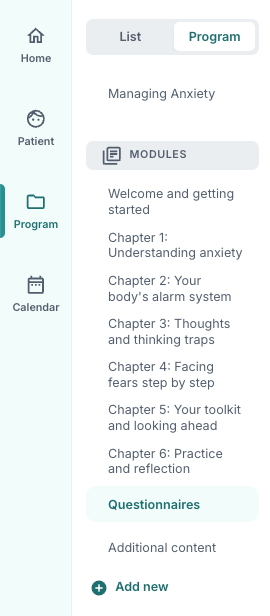
If they are placed under Questionnaires, it may later be easier to move them when viewing the programme structure and programme profile, while questions on standard elements or question elements set up within a module are often more fixed.
It is possible to create both question elements and standard elements with associated questions on the Questionnaires tab and inside modules.
Questions on default elements
To create questions on default elements there is a function to add a new question under the element concerned. The question then becomes part of the element it is added to.
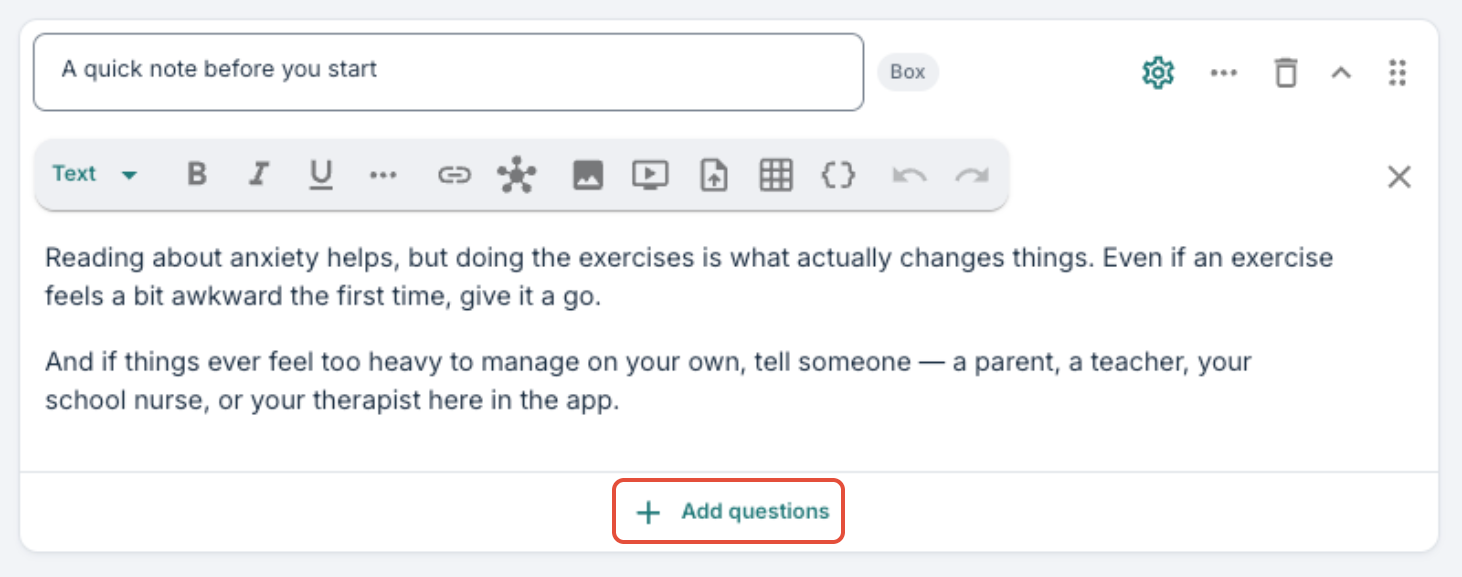
There are different formats for questions, including free text, single choice, multiple choice, scale and button.
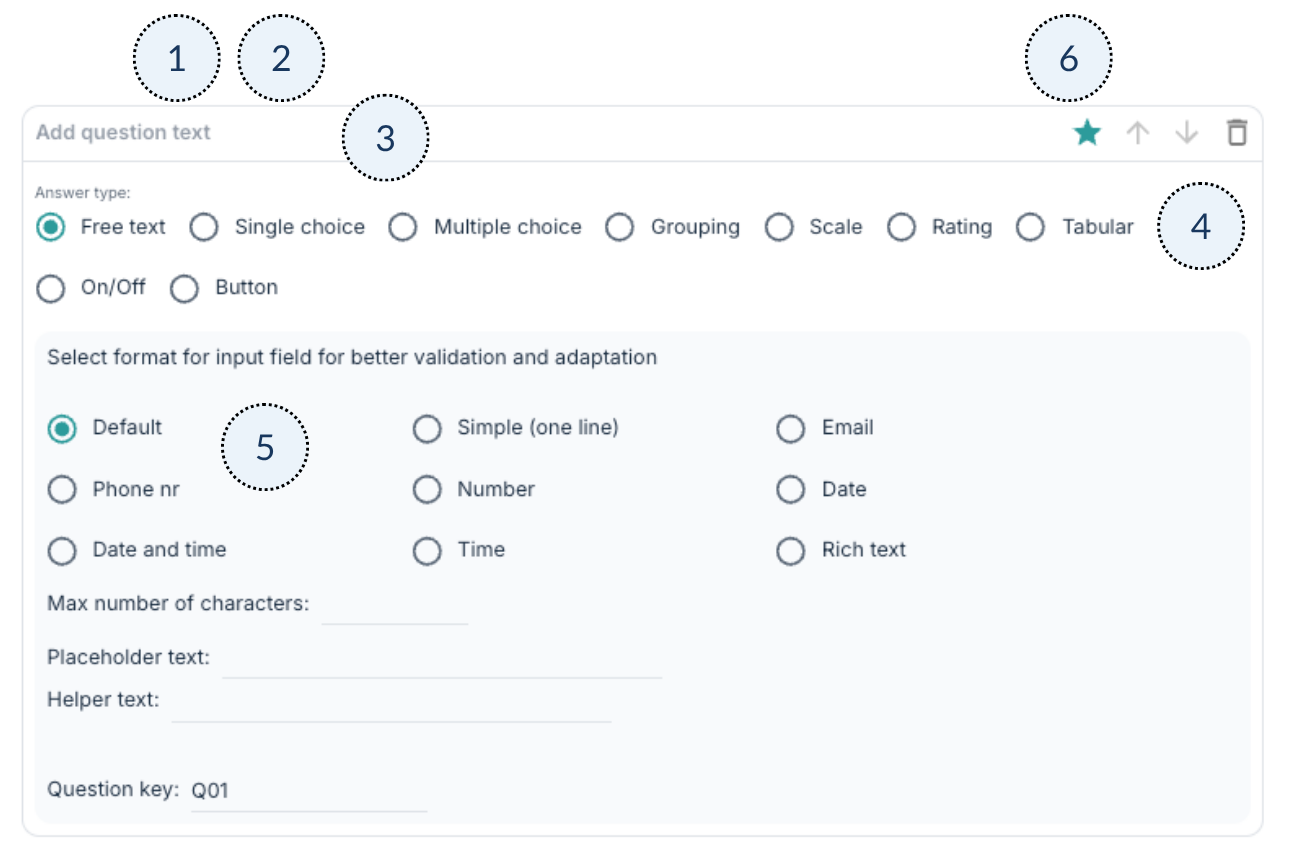
- Heading: Typically the title of the element (optional).
- Content text: Descriptive text that gives more context to the question (optional).
- Question text: The question itself.
- Answer type: The relevant answer type for the question.
- Formatting: Depending on the answer type there may be different settings to customise how answers are presented to the patient.
- Additional settings: For example options for mandatory questions and the ability to move the content in the desired order.
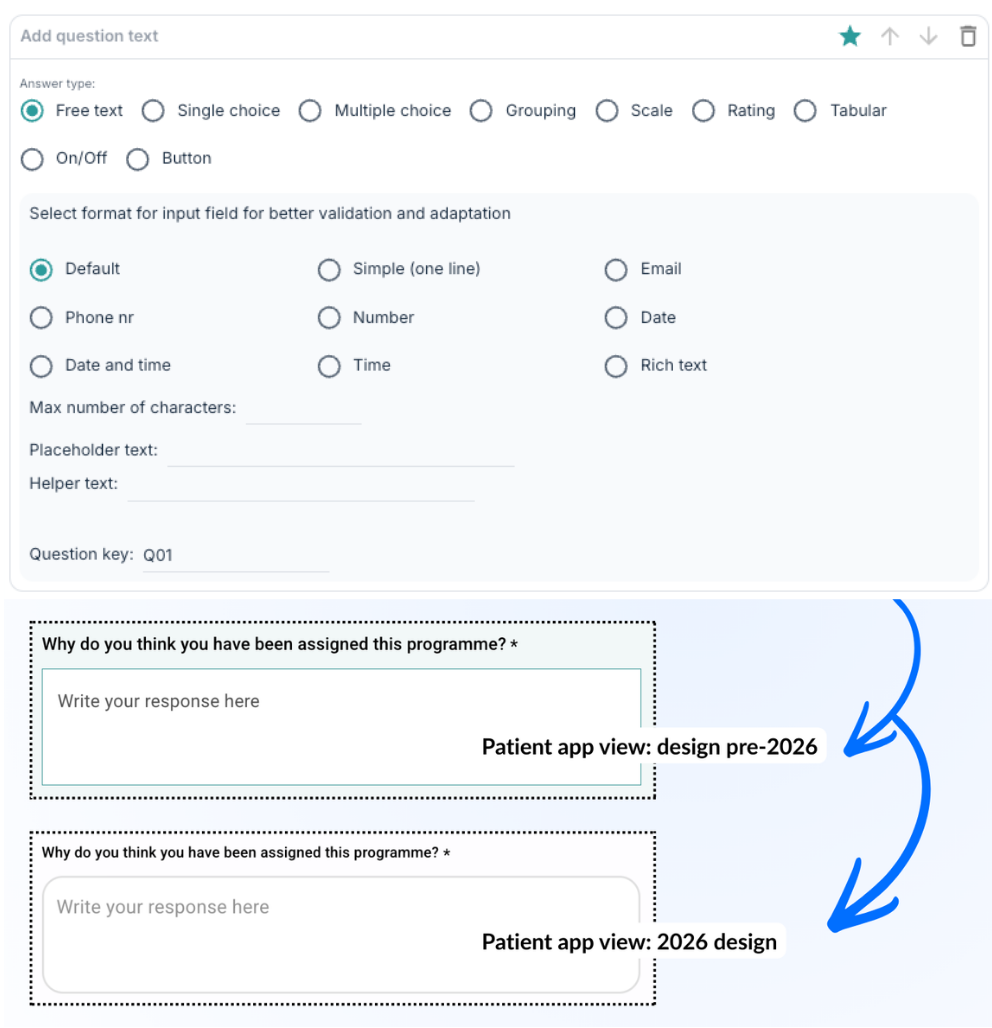
Free text
With free text the patient can enter their own text, with formats that can include date, time, email or number.
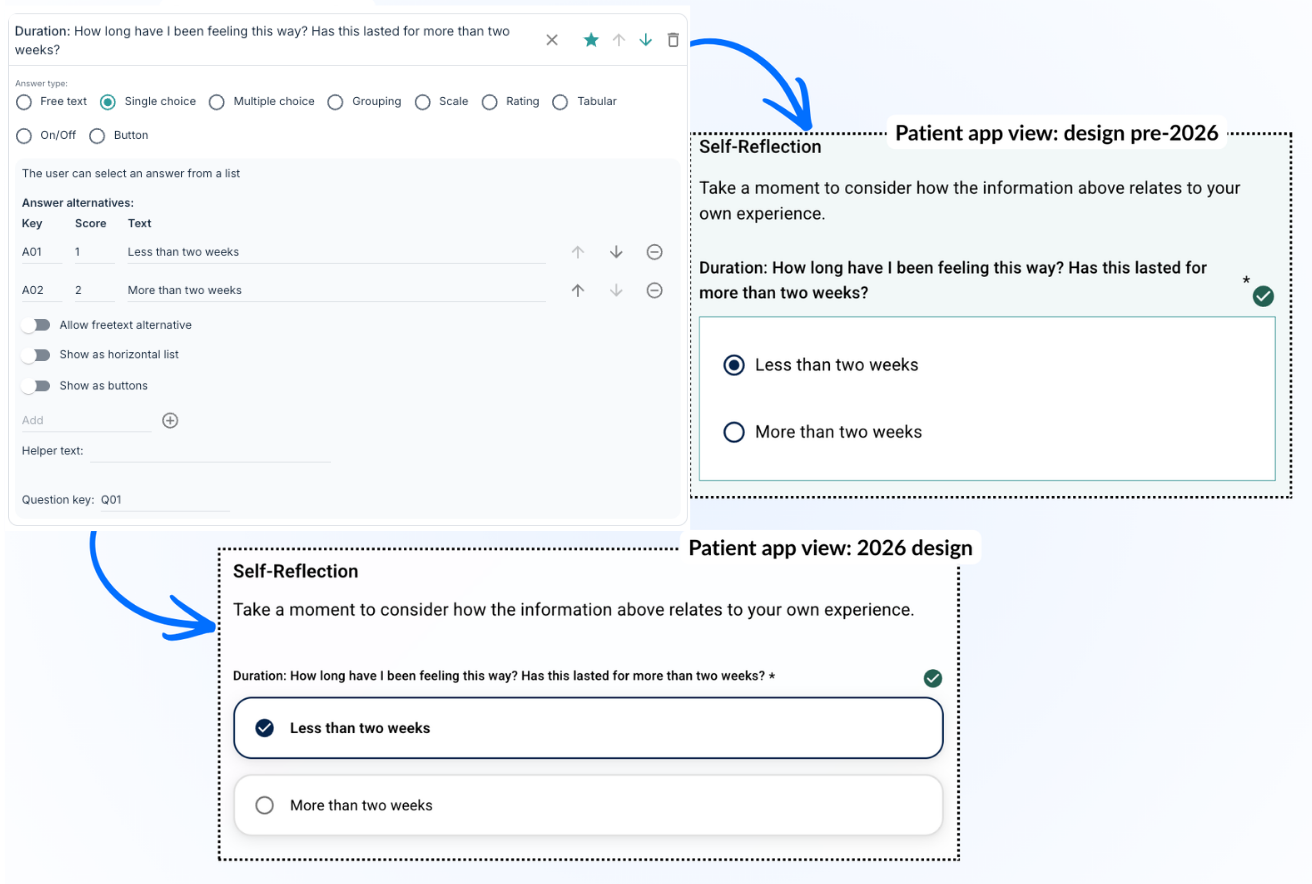
Single choice
Using single choice makes it possible to specify answer options that the patient can select from. It is also possible to display the options in a specific format, for example as a horizontal list.
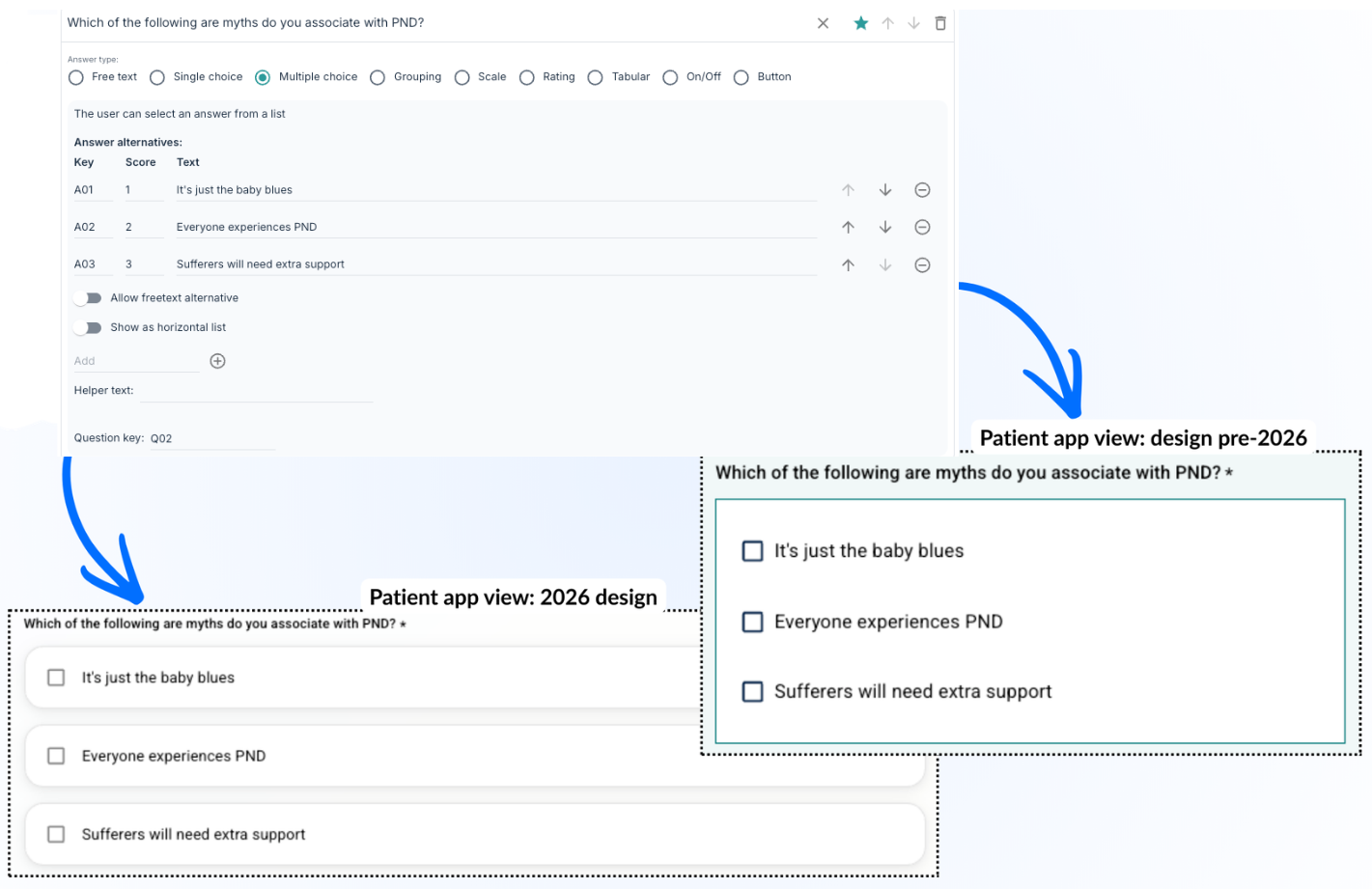
Multiple choice
Multiple choice is similar to single choice but allows the patient to select multiple alternatives simultaneously.
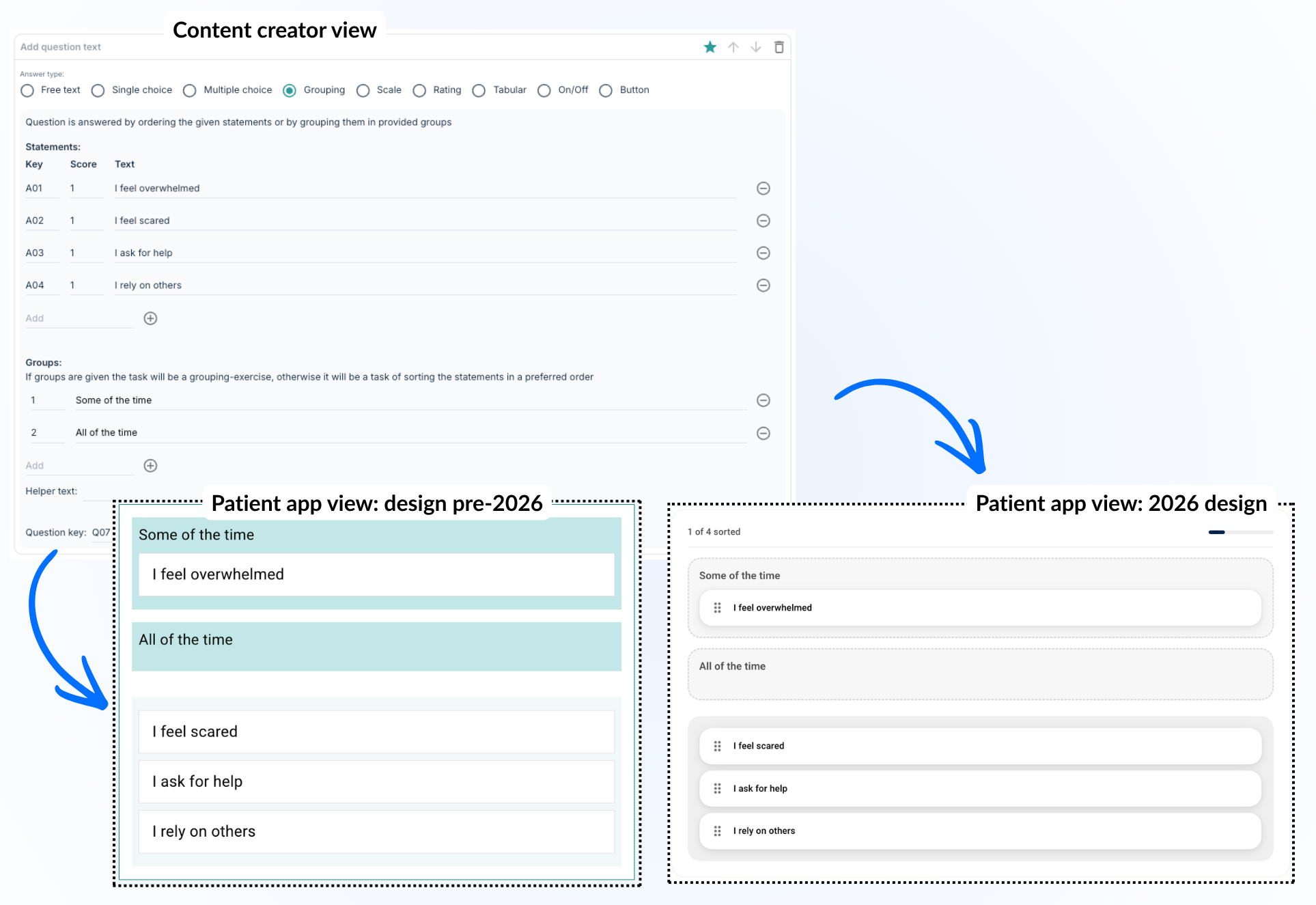
Grouping
Grouping can be used to set up tasks where the patient sorts different alternatives into groups that make sense in the given context.
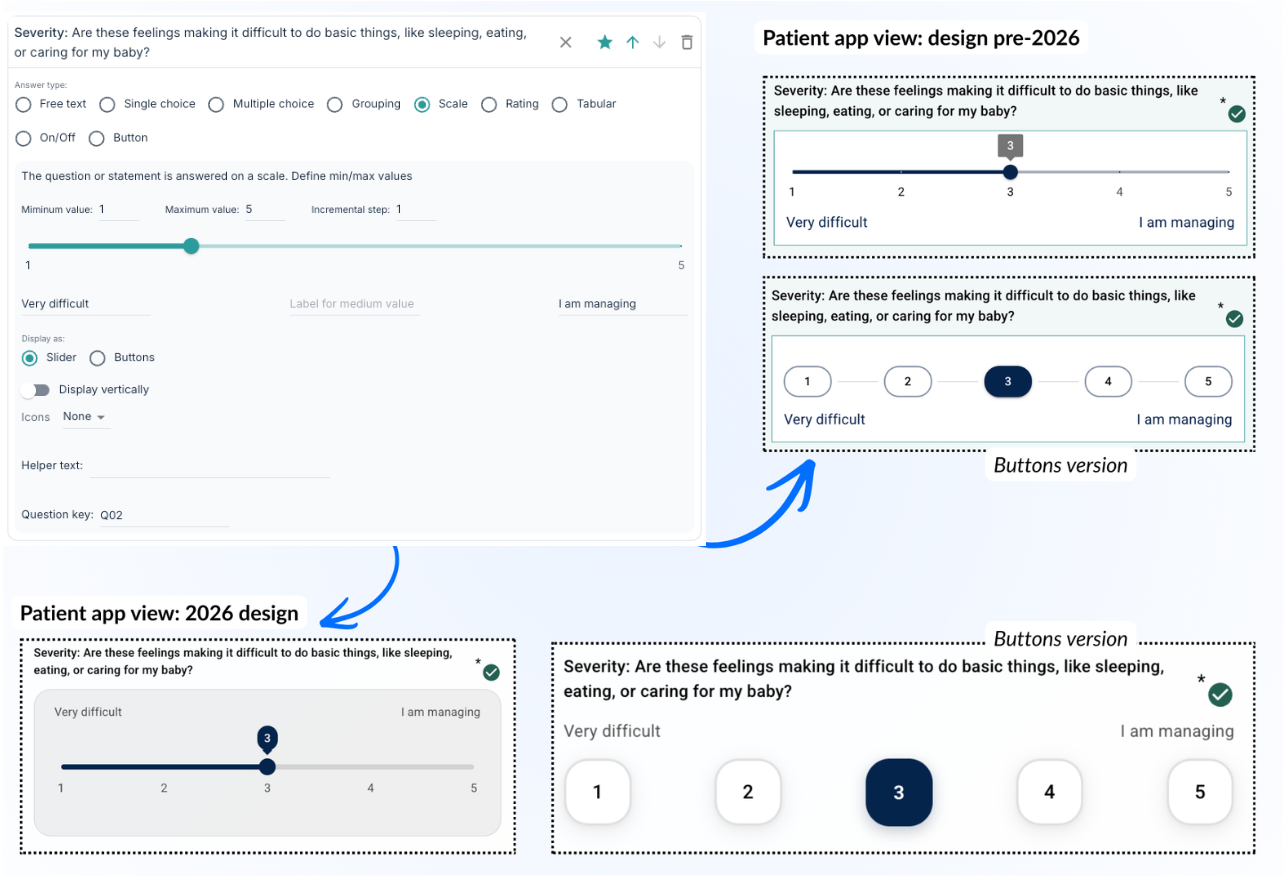
Scale
By choosing a scale for the answer type the patient can respond to a question or statement by selecting a value between a minimum and maximum value. This can be displayed using a slider or buttons.
Rating
You can select a rating question which activates certain icons along a scale, similarly to the Scale question-type. You will notice the option to input different icons and the maximum value.
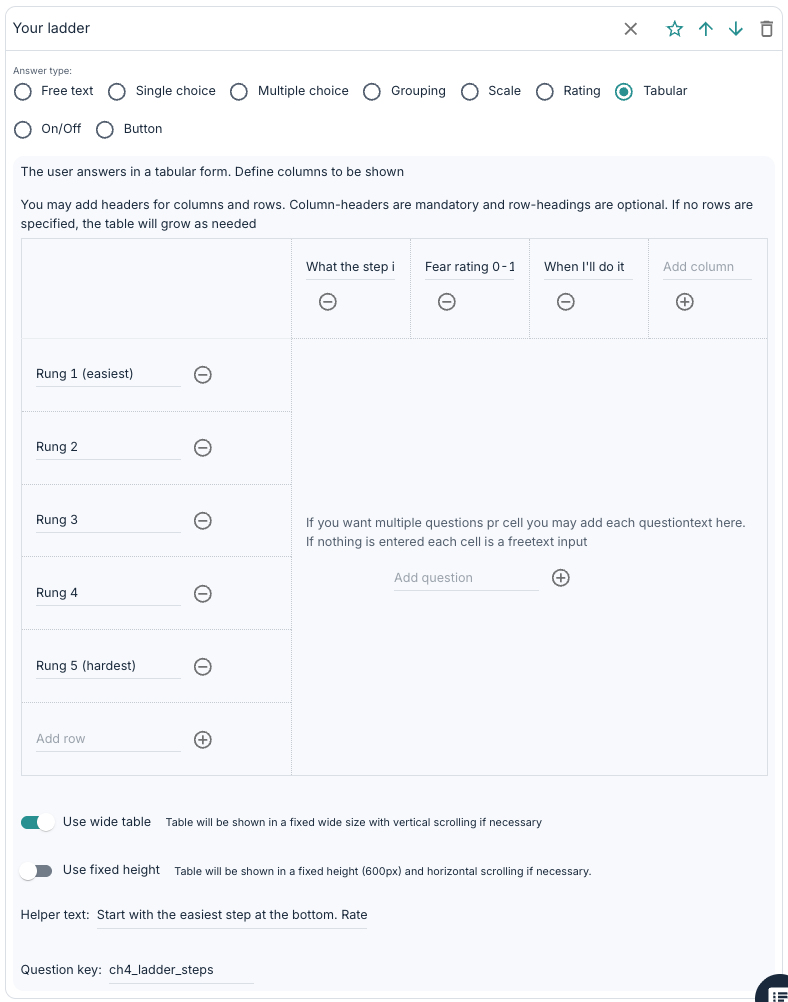
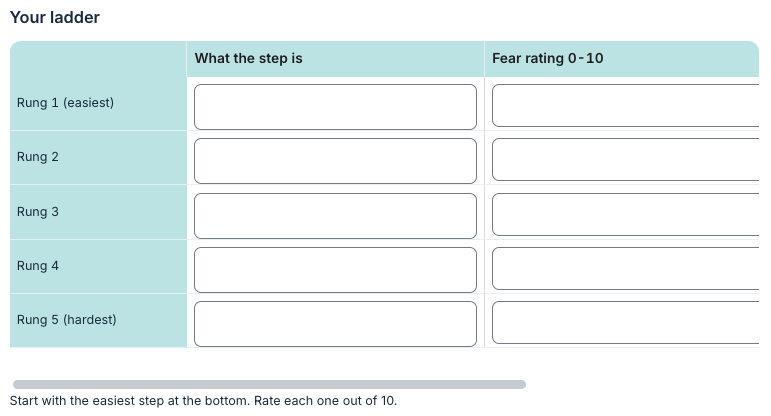
Tabular
Table as an answer type provides the possibility for responses in a table format, with column headings and rows that can be defined. If no rows are defined the table can extend as needed.
 |  |
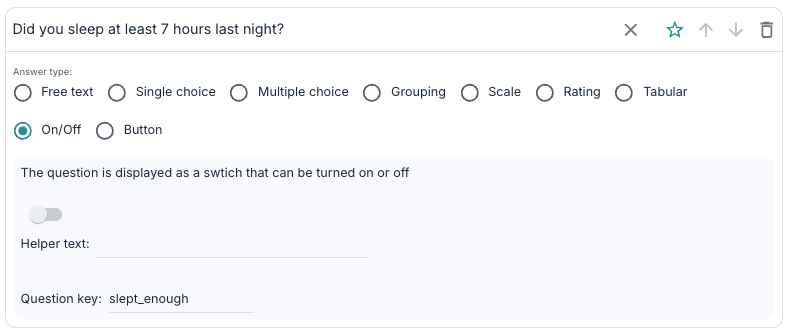
On/Off
On/Off questions provide a simple way for the patient to indicate whether a statement is applicable or not, for example by toggling a switch.
 |  |
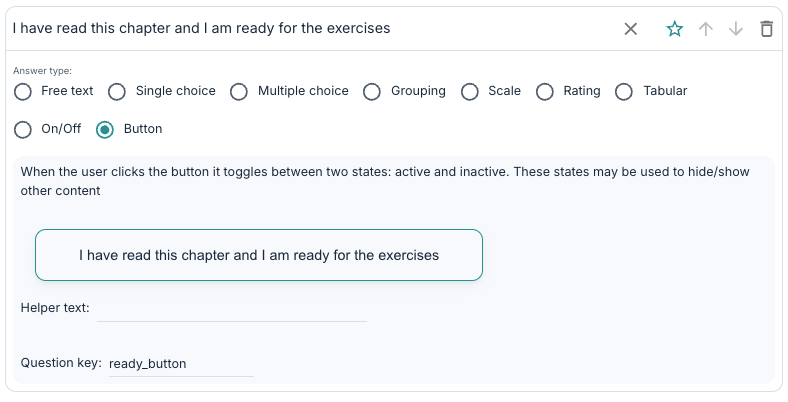
Button
Button questions provide a way for the patient to activate or deactivate an answer using a button, often used together with conditional display options to determine which elements are shown next.
 |  |
Question elements
Questionnaire
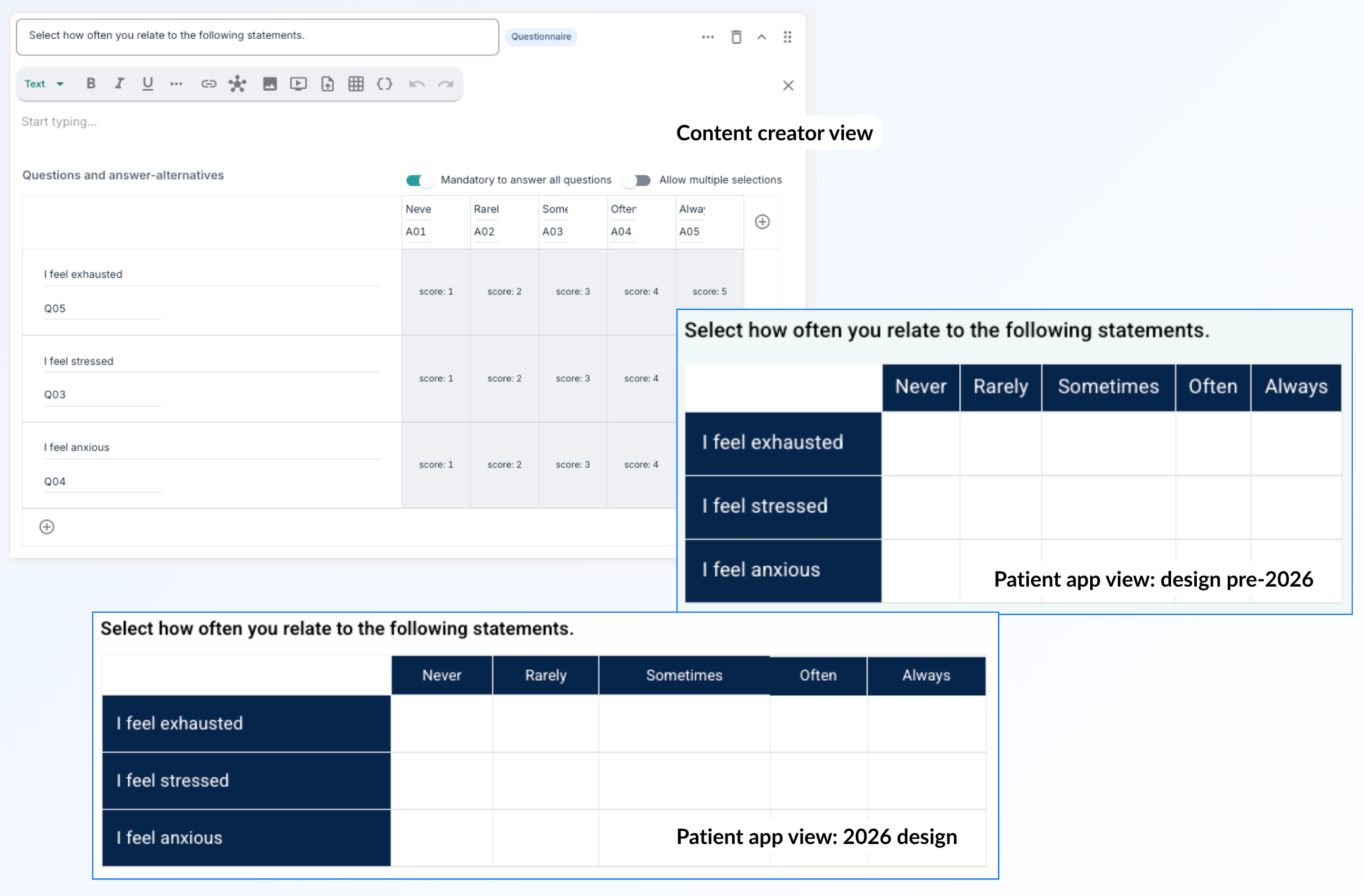
With a questionnaire it is possible to set up a table that the patient can use to assign a score to different questions or statements. Different values the patient can choose from can be placed at the top, and a list of questions or statements can be added down the table. It is possible to customise whether all questions are mandatory to answer and whether the patient can select multiple answers for the same question.
Quiz
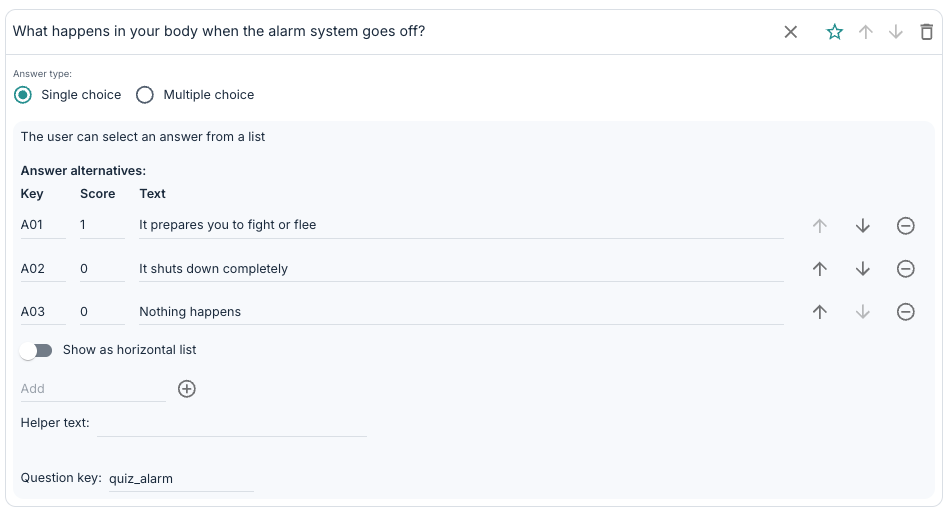
A quiz element allows the inclusion of answer options that can be marked as correct or incorrect, and the patient can then view their result afterwards. It is possible to choose either single choice or multiple choice based on whether there is only one or several correct answers for the question.
To mark an answer as correct the value “1” can be entered for correct answers, and “0” for incorrect answers.
 | 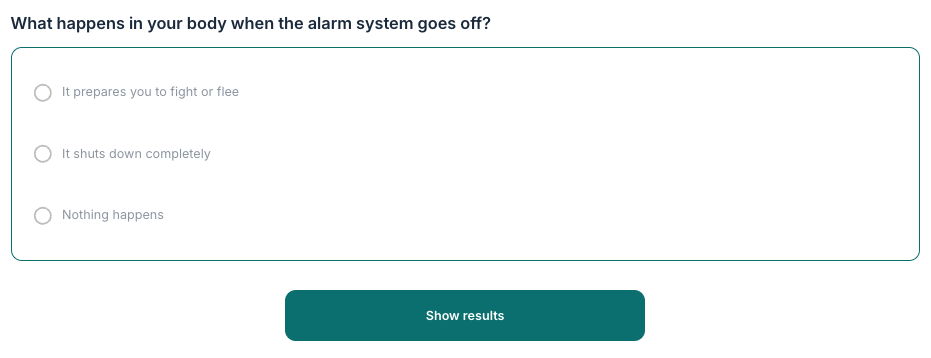 |
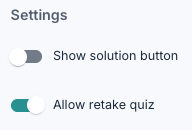
Under Settings you can activate a Show solution button for the patients, and a Allow retake quiz option which controls whether an overview of correct answers will display and whether a patient can submit their quiz multiple times, respectively.
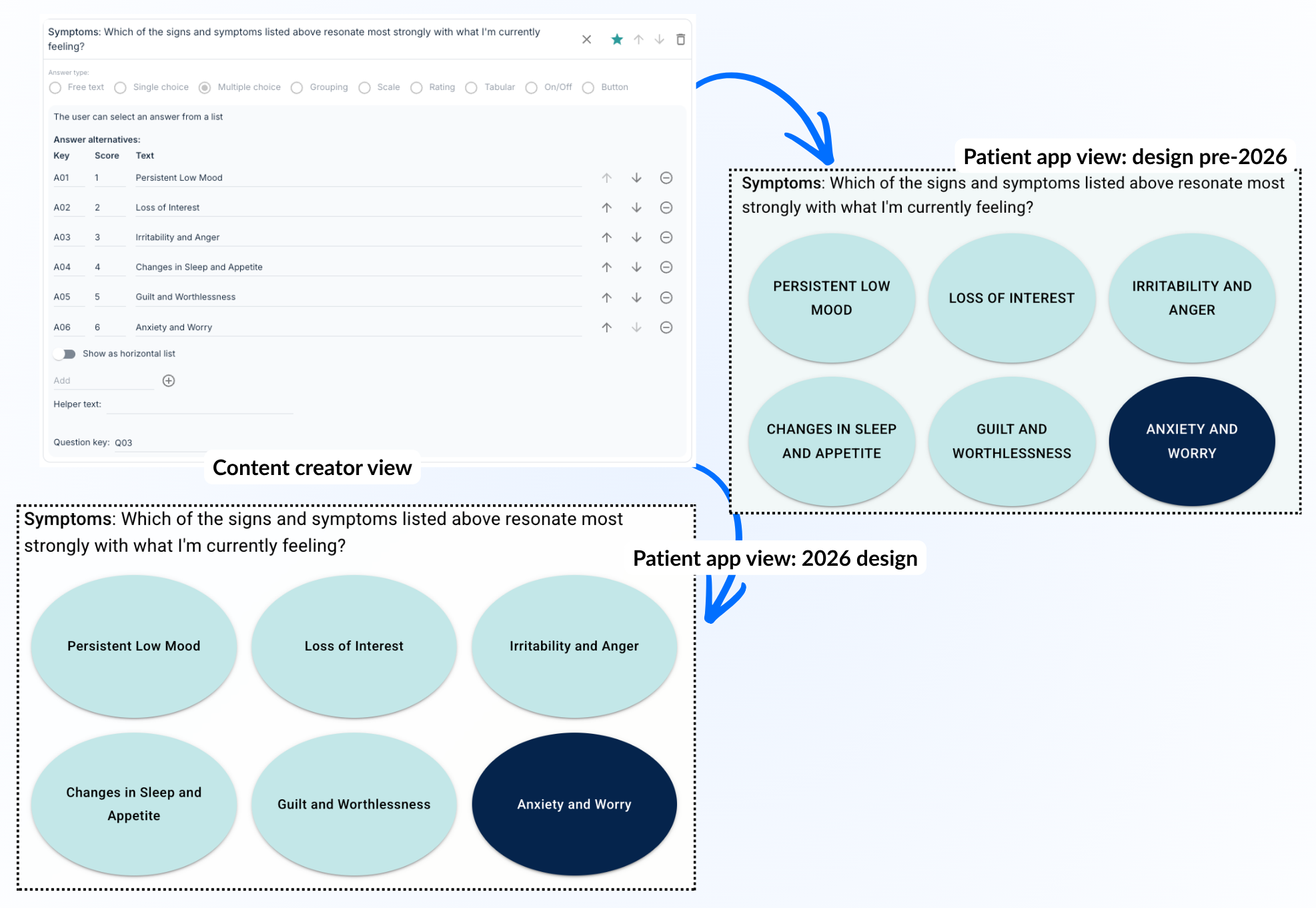
Bubble-choice
This is a way to present a multiple choice question where the patient can mark several possible answers using bubbles displayed for example in a horizontal list.
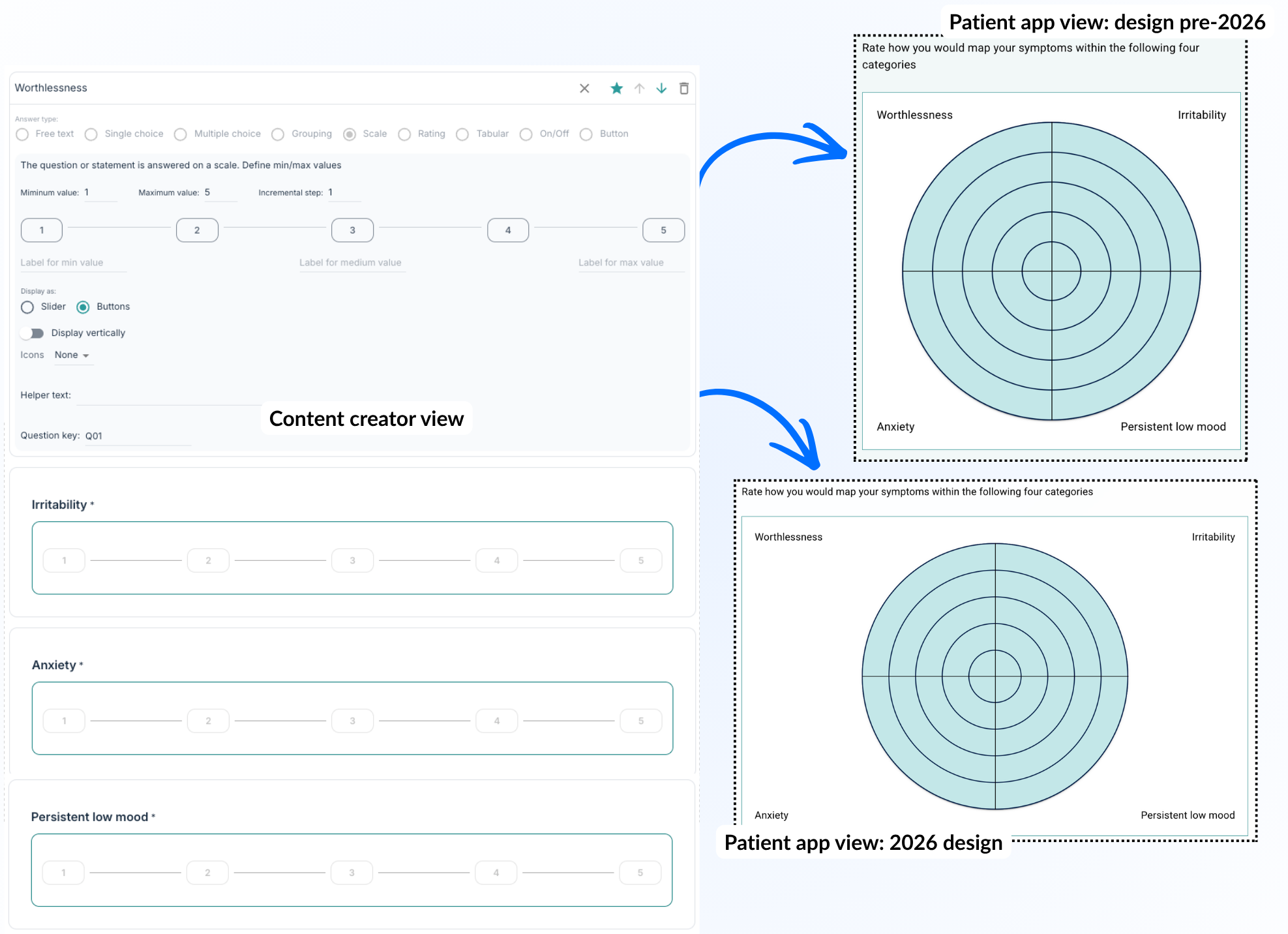
Bulls eye
A bullseye question element provides an opportunity to map the patient’s feelings or response within a circle divided into segments. This gives a visual representation of a scale where the patient can choose a value within a specified range for several categories.
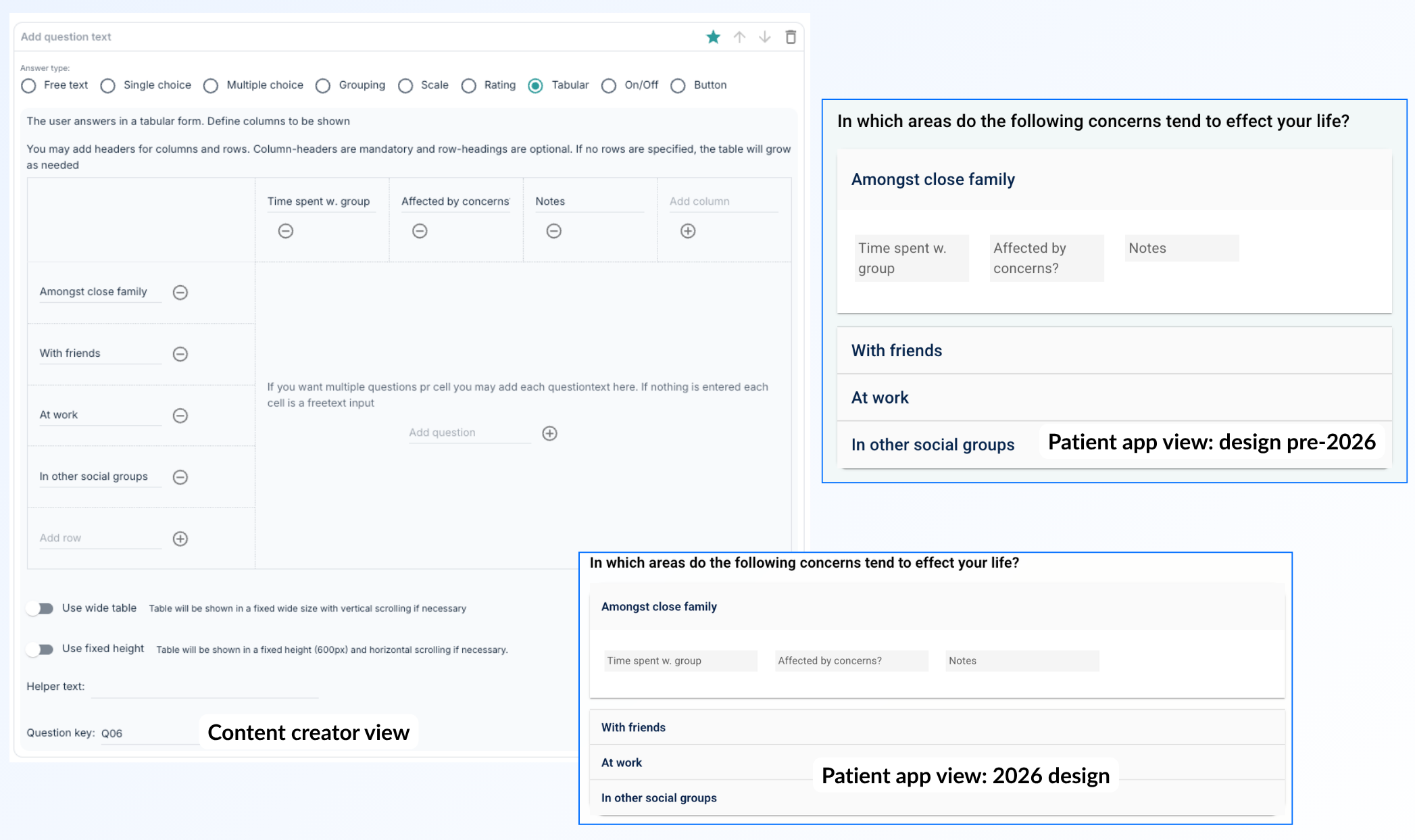
Collapsable table
If many questions are to be posed at the same time while avoiding a large list, a collapsible table may be used. It allows the patient to open each row to answer the questions instead of showing the entire list directly.
Was this article helpful?
That’s Great!
Thank you for your feedback
Sorry! We couldn't be helpful
Thank you for your feedback
Feedback sent
We appreciate your effort and will try to fix the article