All modules and content pages will contain standard or default elements as these form the basis of the program. It is via default elements that it is possible to add text, images, videos, etc. This article shows the different types of standard elements that exist and how they typically appear to the patient.
CONTENTS
Default
Here is an example of a typical default element that contains text and an image.
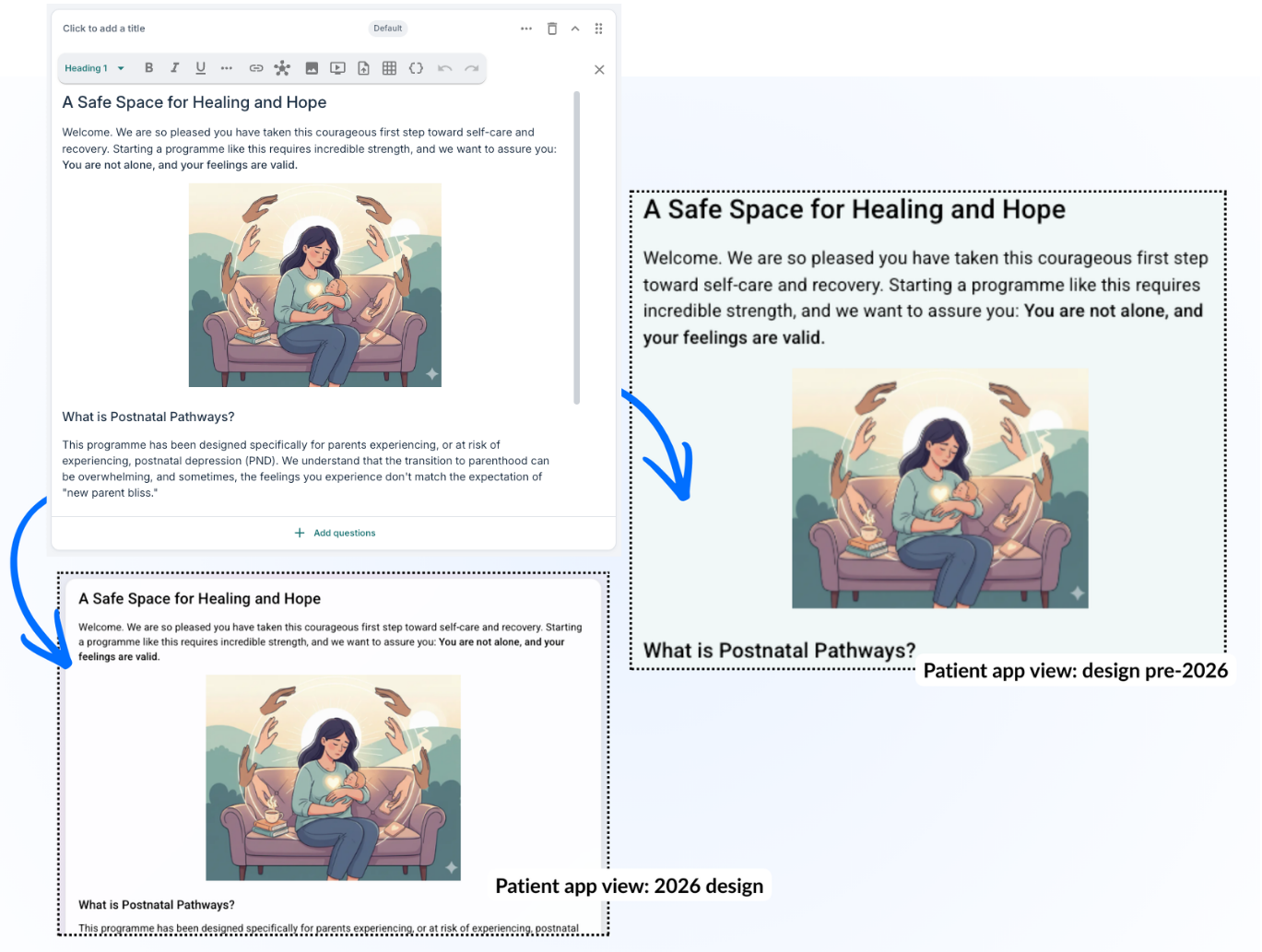
The rich formatting function can be used to insert images, links, videos, quotes, different types of font, tables and more.
Variables
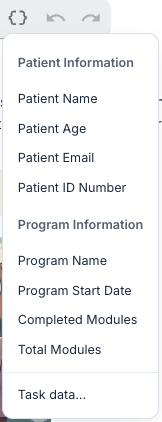
It is also possible to enter variables to add dynamic content. You can use the { } icon in the CMS tool to add the variables:
Box
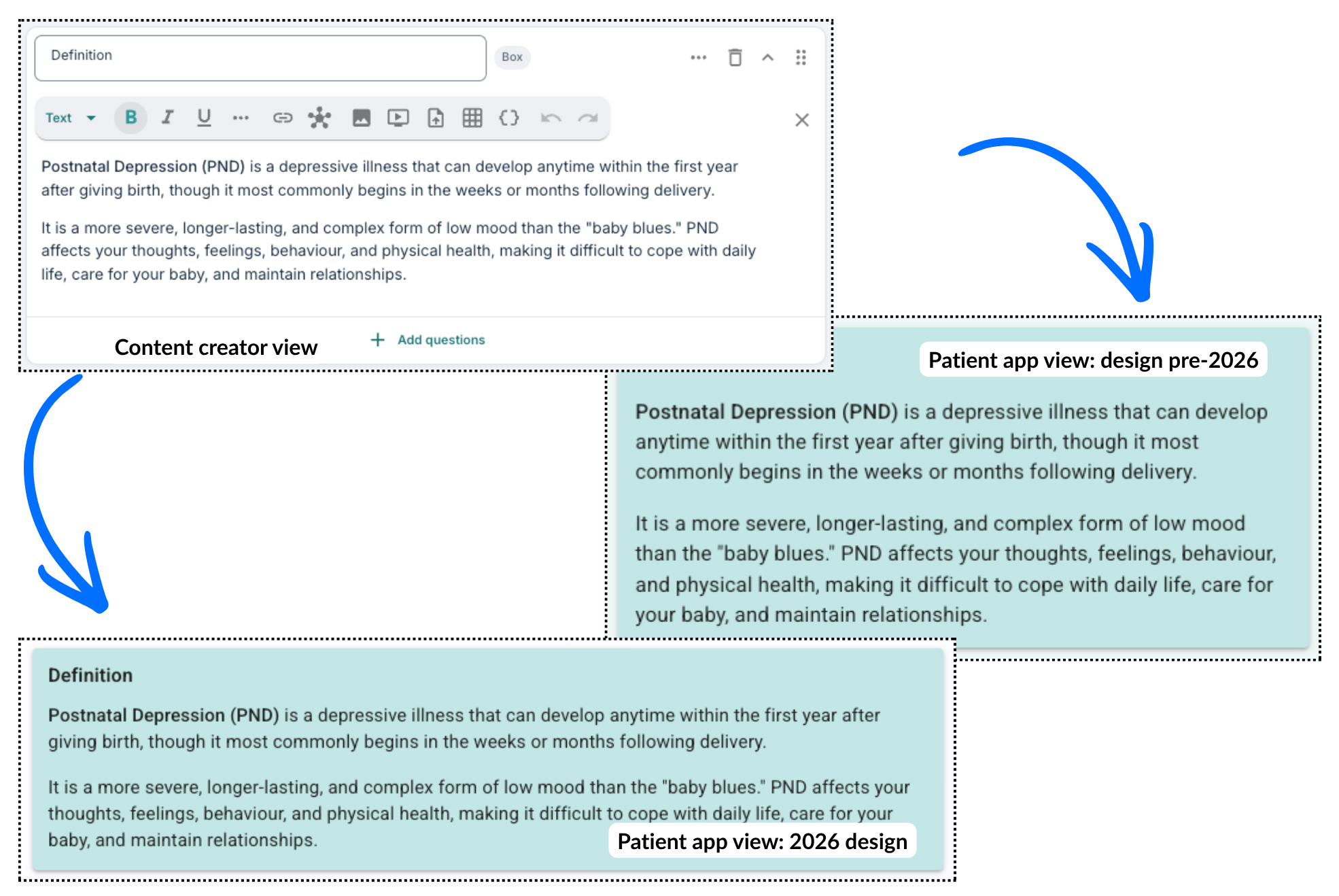
This displays the content in a box with a blue background so that it stands out more on the page.
It is possible to adjust the background colour to a different shade if desired. You can go to Settings and then Color settings to select an alternative colour:
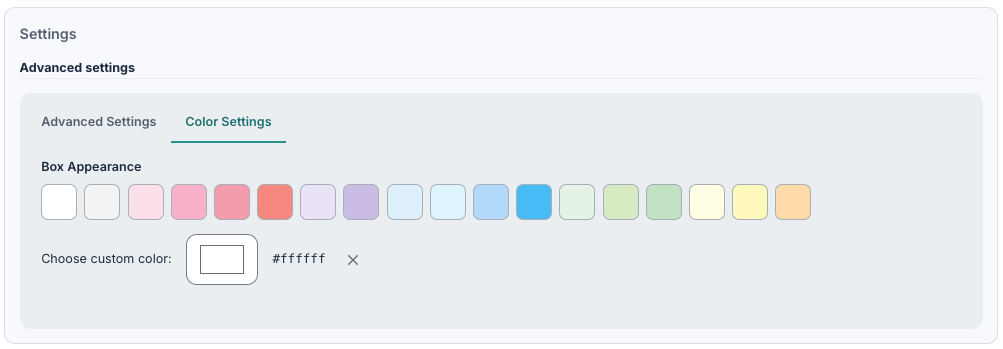
Please note that any selections made here should comply with accessibility (Universal Design) guidelines, so it is worth keeping that in mind when making any changes.
Card
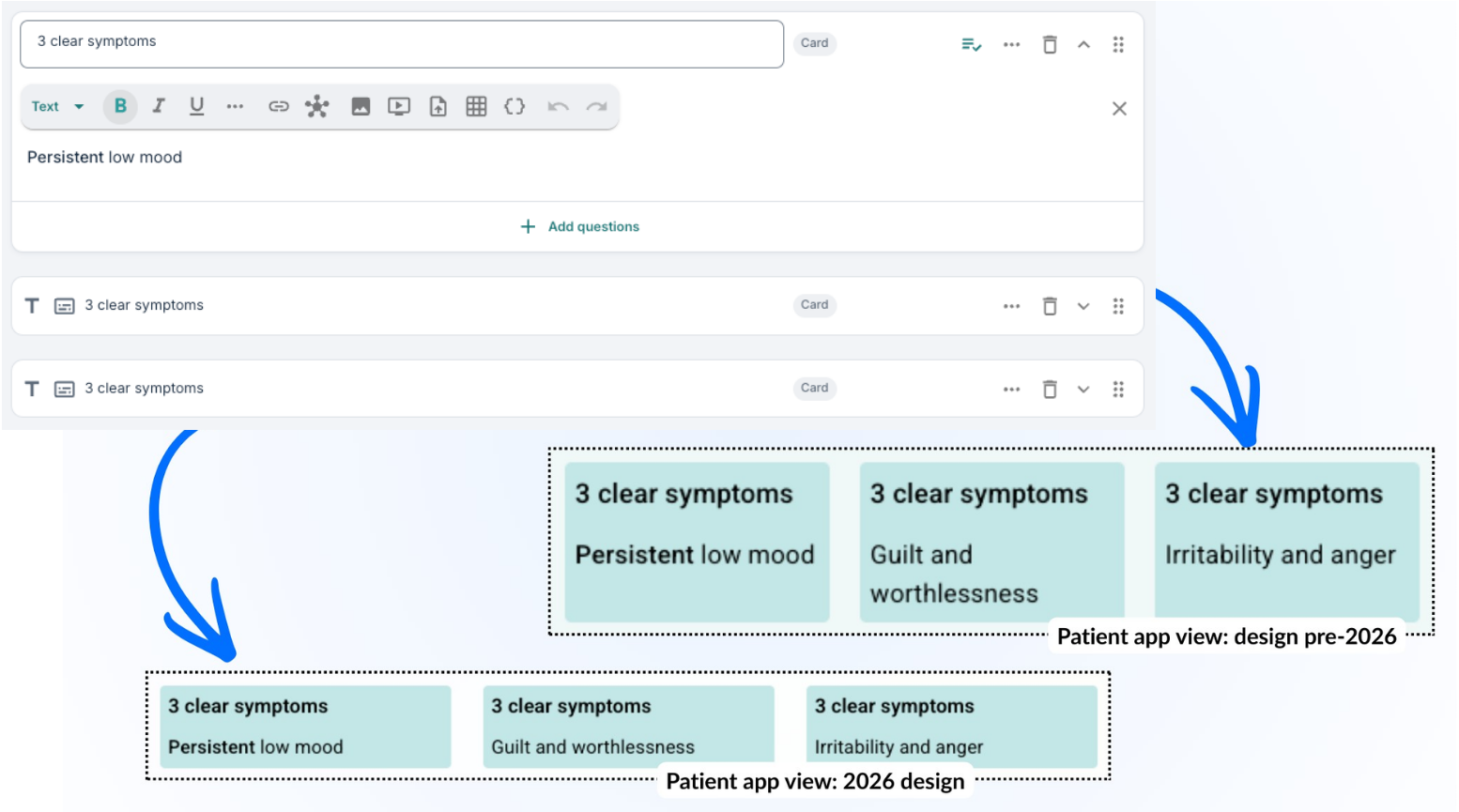
This resembles the box element but is designed for a little less text. Up to three cards can be displayed in the same row.
Read more
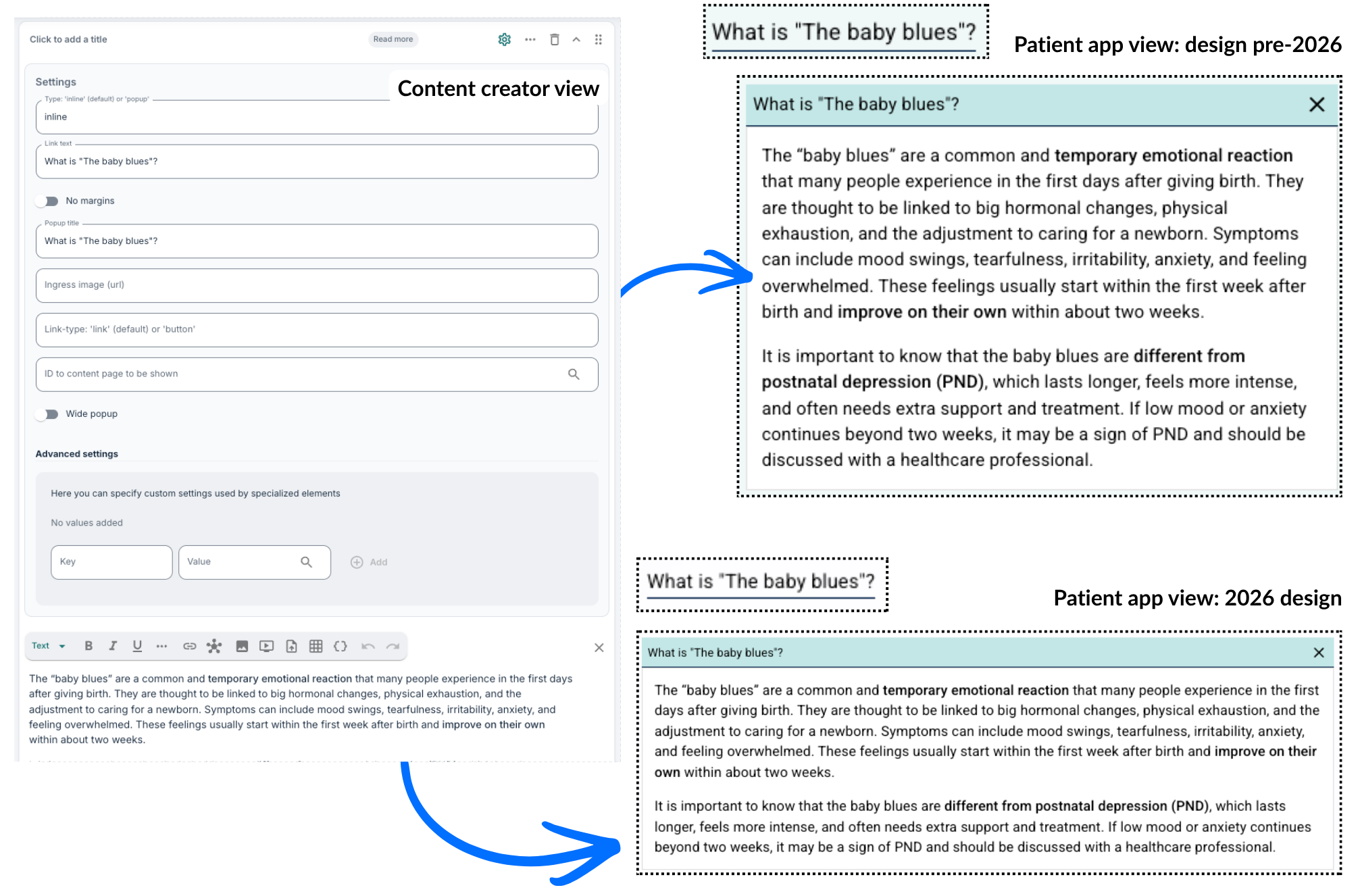
Here you may create a small popup that the patient can use to find out a bit more. It is possible to use Settings to adjust how the link and popup appear.
Linked response
With this function it is possible to show the patient some of the responses they have submitted previously. This is typically used to give them the opportunity to look back at some previous thoughts and information they have sent in.
It can, for example, be used to help assess whether their health has improved or become worse since last time. It is possible to enter a description text if desired, and then adjust which responses are shown via Settings (cog icon). The search function can be used to find the correct content page and then the correct question element to be displayed.
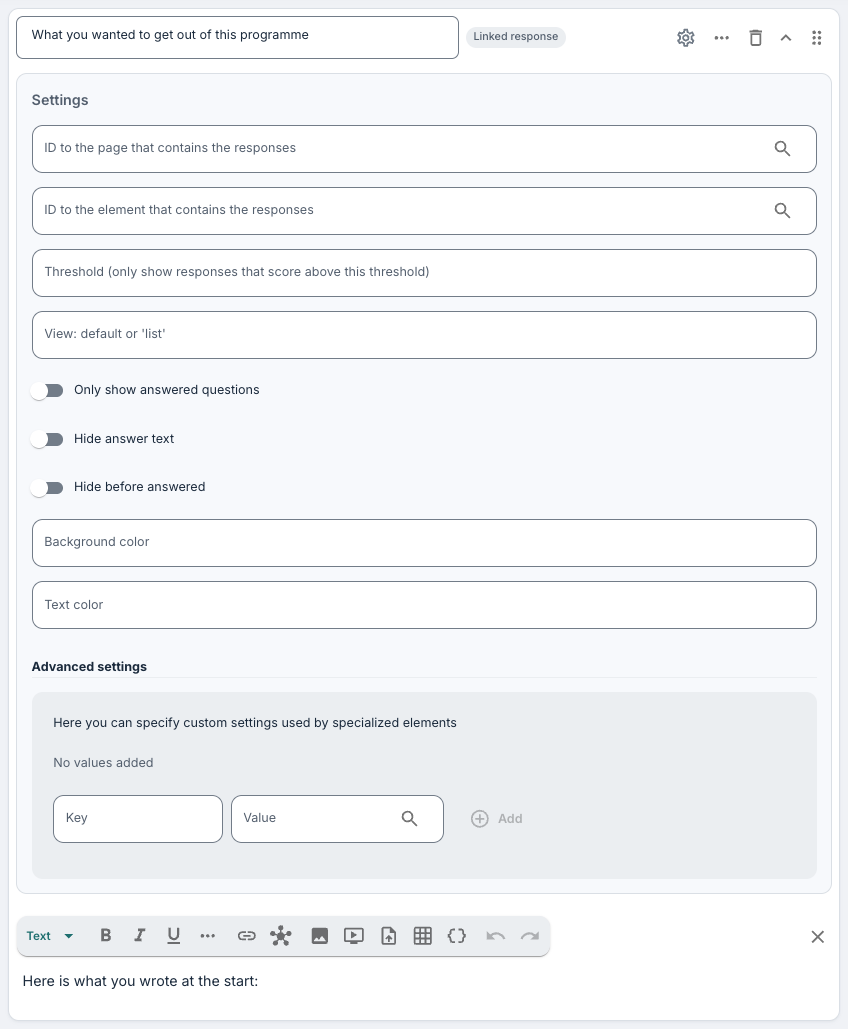
It is also possible to choose to display the response in a list format by setting View to list under Settings. You will also find some additional settings which can be adjusted:
- Only show answered questions - Ensures any questions or statements not answered will be skipped, so only those answered will be shows.
- Hide answer text - Ensures only question text will display and ignores previously registered responses.
- Hide before answered - Ensures the whole question component remains hidden until an answer is submitted.
Swipe card
With swipe cards it is possible to create a small collection of text, images, etc., which will be displayed in a carousel block for the patient, where they can swipe through or use the arrows to go through the content.
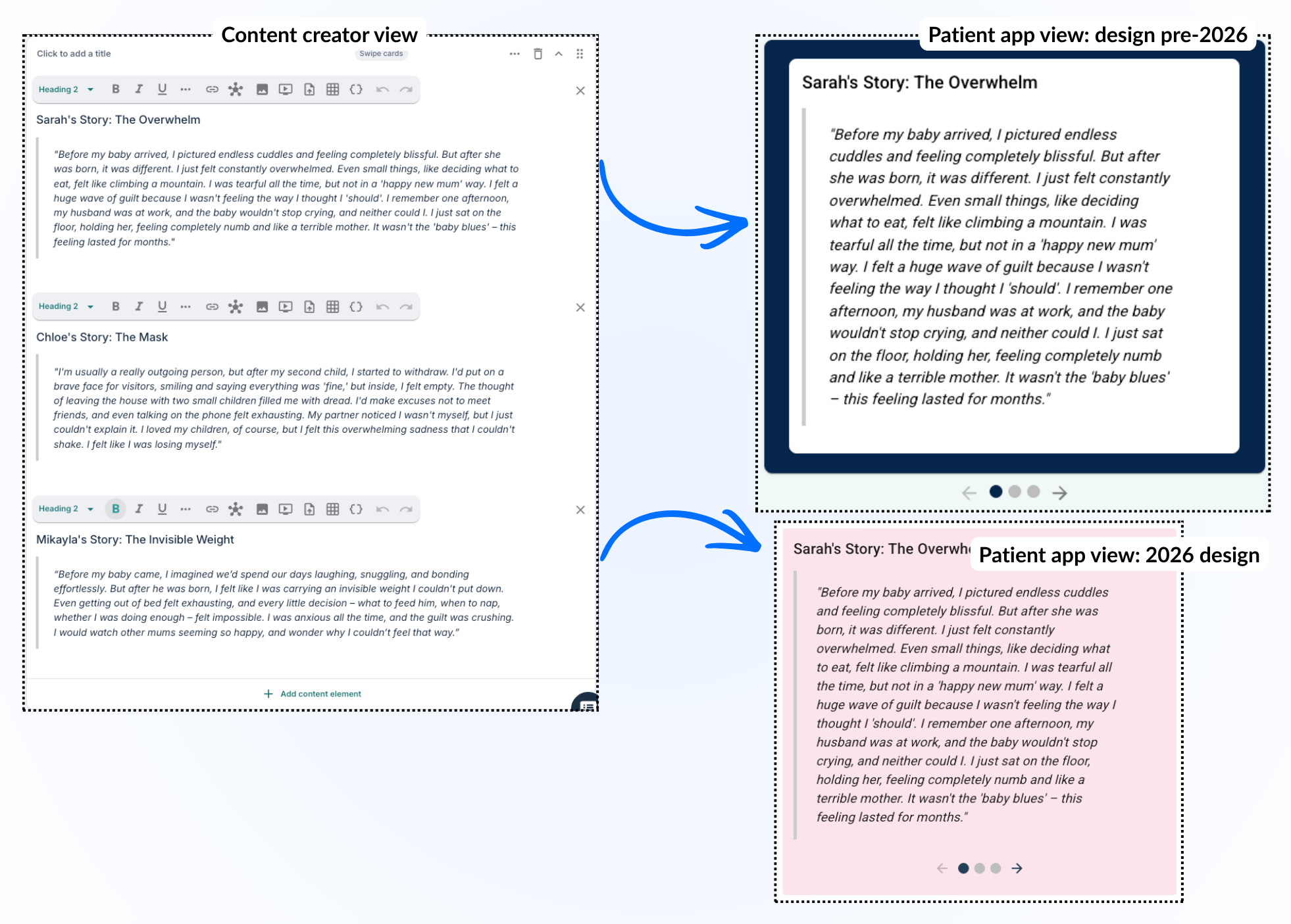
In the new patient app design, you can select the card colours, just as with the Box element type.
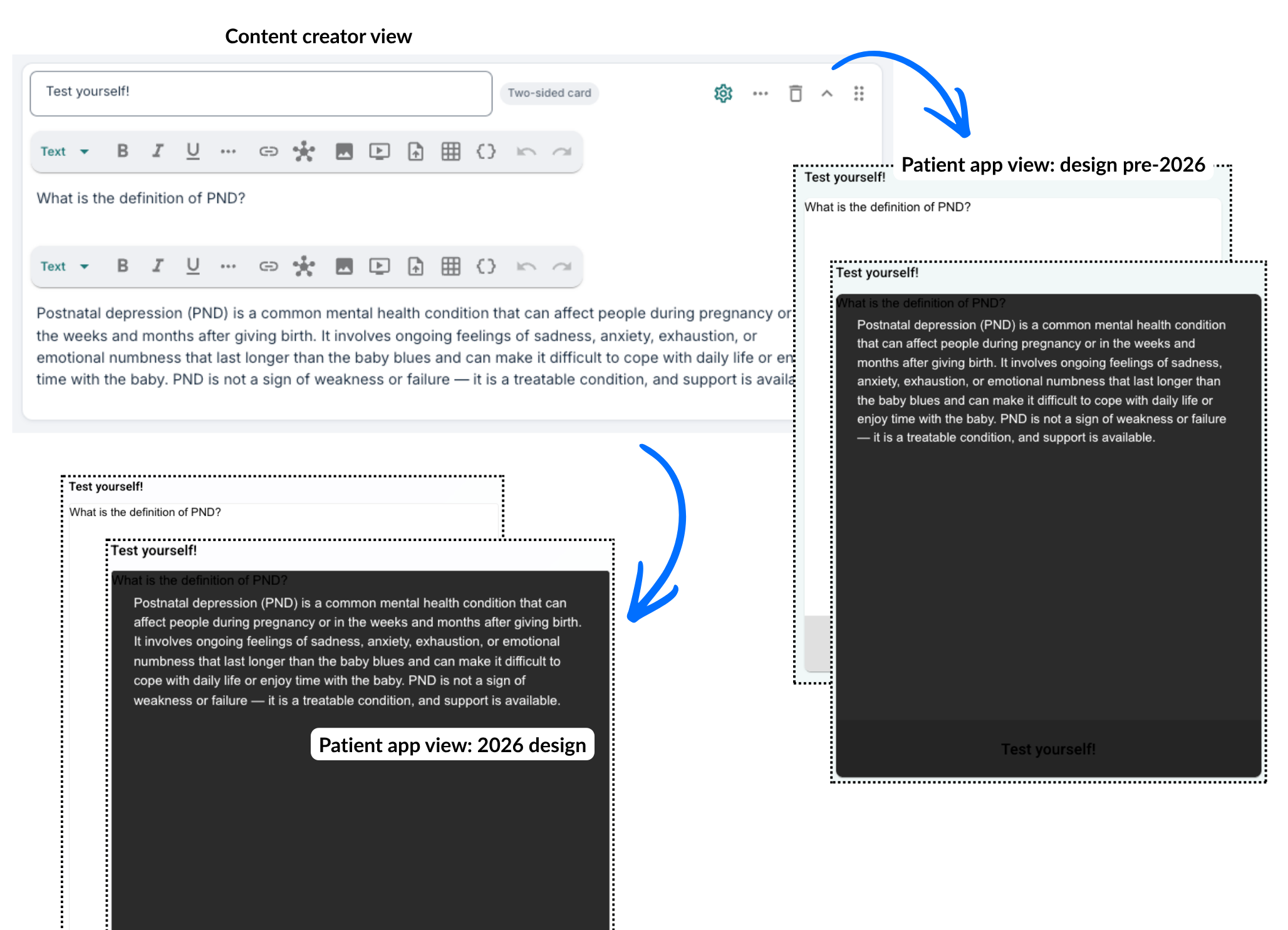
Two-sided card
This provides the possibility to create content on two different “sides” of the same block so that the other part (the lower text field) becomes visible when the patient shows the card.
Media
It is possible to insert videos as part of other default elements, but here you can upload a video file or audio file directly if desired. There can be a descriptive text associated with the video as well.
We suggest using Settings to adjust, for example, thumbnails that will be shown on the content page. To check what files we support, we suggest looking here: File types and size limitations.
Was this article helpful?
That’s Great!
Thank you for your feedback
Sorry! We couldn't be helpful
Thank you for your feedback
Feedback sent
We appreciate your effort and will try to fix the article