If there is a diary or a logging component included in the programme that the patient is following, there is a separate page for this under the Diary section in the patient menu. The tabs found here reflect the health registrations that are enabled on the programme the patient has been assigned.
Typically there are not as many as listed below, only what is relevant for the specific programme.
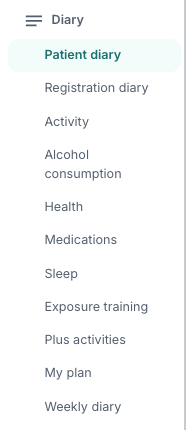
Often the list shown here will be similar to what the patient sees in the menu when the patient is logged in to the patient application, and it provides an insight into how these additional functions and registrations will appear for the patient.
INNHOLDSFORTEGNELSE
Health registrations and additional features
Patient diary
The patient can use the diary function to write notes during the programme. The notes are by default not visible to the practitioner, but the patient can choose to make them visible by using the sharing icon.
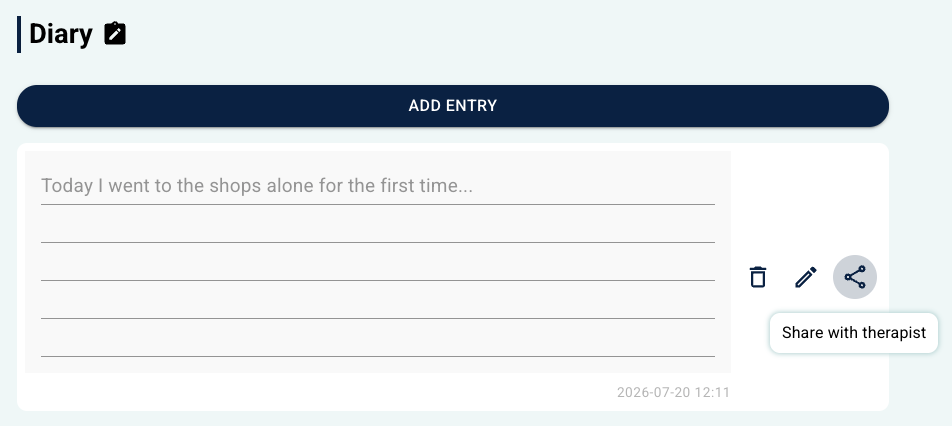
What the patient has chosen to make visible is listed here for the practitioner, sorted by date.
Read more here: Patient diary.
Activity
This page is divided into two: Overview and History. Overview shows a graph with hours on the Y-axis and date on the X-axis illustrating the number of hours of activity the patient has entered per day. History contains a list with the days, what activity was carried out, duration and effort.
Read more here: Activity & Plus activities.
Alcohol consumption
This page is divided into three areas: Consumption during treatment, Development and History. Consumption during treatment shows totals of what the patient has entered under planned units, number of drinking days and more. Development contains a graph with number of units on the Y-axis and week on the X-axis showing both planned and logged units. History provides a graph with day on the X-axis and the ability to see different weeks.
Read more here: Alcohol consumption.
Health
Here the health registrations submitted by the patient under the My health tab in the patient application are shown. Each area that has received an answer has its own collapsible section on the page, and the results and responses are often in table format with date or week for the registration.
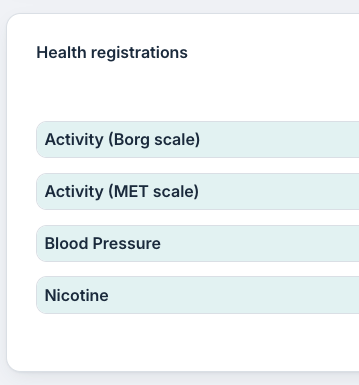
Read more here: My health (health registrations).
Medications
The patient can enter their medications under My health. First a new medicine is added in the form under Medication list, and then it is recorded whether the medicine has been taken as planned or not. These details are shown to the practitioner as a collapsible list with date and time for intake or omission. When a medicine is finished, it is moved to the Discontinued Medicines section.
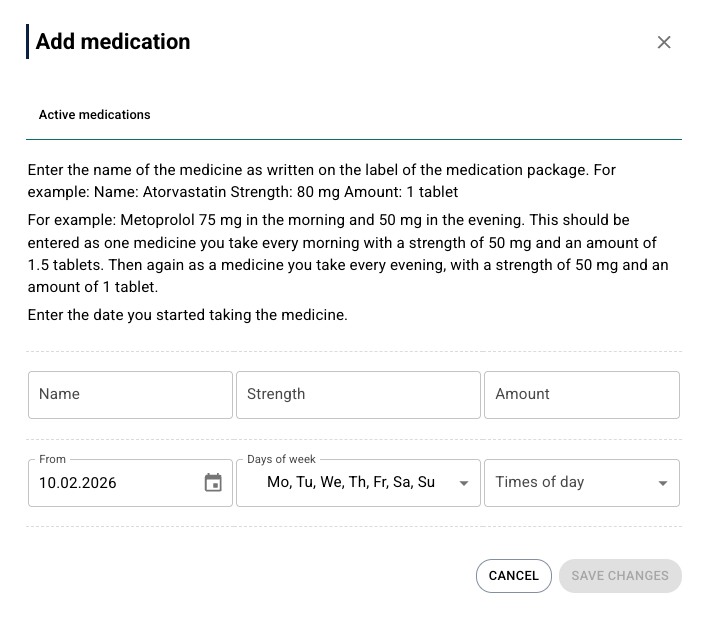
Read more here: Medication.
Sleep
This view corresponds to what the patient sees when sleep is logged in the patient application. It is possible to scroll through the weeks using arrows, and the graph shows sleep efficiency per day. It is possible to show details for each day by selecting Show all details.
Read more here: Sleep diary.
Exposure training
This page is organised according to the situations the patient has entered under External situations. By selecting a specific situation it shows whether the exposure has been carried out or not, the date it was planned, and any details the patient has registered.
Read more here: Eksponeringstrening.
My plan
This page shows the goals the patient has set in the patient application, as well as achievement of the different measures. The practitioner can write comments on the goals and measures and see how the patient has worked towards their goals.
Read more here: Program settings: My Plan.
Plus activities
This page is divided into Treatment summary and Weekly summary. Treatment summary shows a graph with week on the X-axis and number of logged activities for the whole week on the Y-axis. Weekly summary corresponds to what the patient sees when activities are entered, with markers for different types of activities per day.
Read more here: Activity & Plus activities.
INR registration
This view shows the results the patient has entered, as well as an overview of registrations with the ability to enter a new INR registration on behalf of the patient. It shows graphs for INR level and tablets per week, as well as a table with the history of all registrations. At the top of the page is a field for category, diagnosis and recorded hospital value.
Was this article helpful?
That’s Great!
Thank you for your feedback
Sorry! We couldn't be helpful
Thank you for your feedback
Feedback sent
We appreciate your effort and will try to fix the article