CONTENTS
- Getting Started with Progress Graphs
- Creating a Linear Graph
- Creating a Radar Chart
- Creating a Table
- Other Resources
Progress graphs provide an opportunity to follow the patient’s development through a treatment program. They can be made available to both clinicians and patients, and give a visual picture of how the responses to various questionnaires change over time. There are three display forms:
- Linear graph – shows development week by week.
- Radar chart – comparison of several questions or summations.
- Table – overview of scores in table format.
These are often used to show total scores from questionnaires such as PHQ-9 or GAD-7.
Getting Started with Progress Graphs
Progress graphs are created at program level, and therefore apply to all patients in the program. In many cases it gives a tidier display and overview to use summations (total scores) instead of individual questions. Progress graphs work particularly well with questionnaires or questions that are answered several times during a patient programme.
Linear Graph
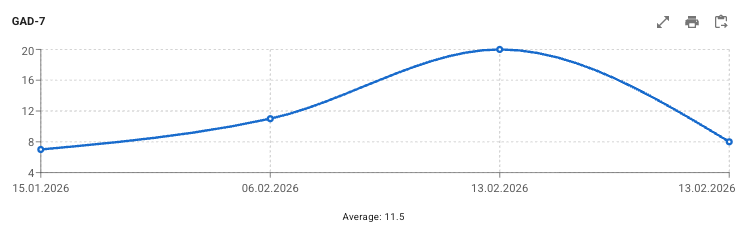
Linear graphs give a clear curve that shows development over time.
Radar Chart
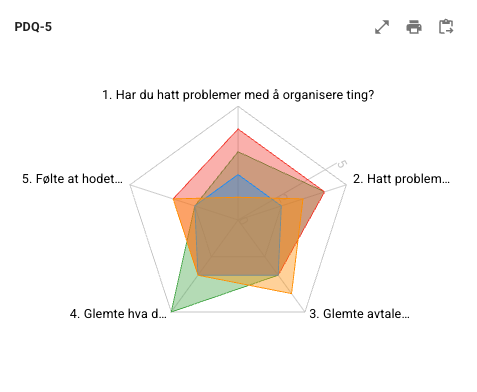
Radar (a form of spider diagram) is used to compare several questions or summations simultaneously. Each axis in the graph represents a category or measurement parameter, and all axes start in the centre and extend outwards. The values are marked on each axis and connected to form a shape.
Table
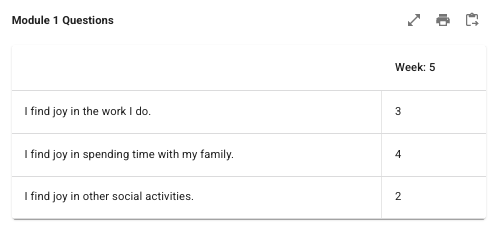
With table display it is possible to present specific questions from various questionnaires week by week. The columns show the weeks in the program, and values can be presented as text or score values. An empty field indicates that the question was not answered in that week.
Creating a Linear Graph
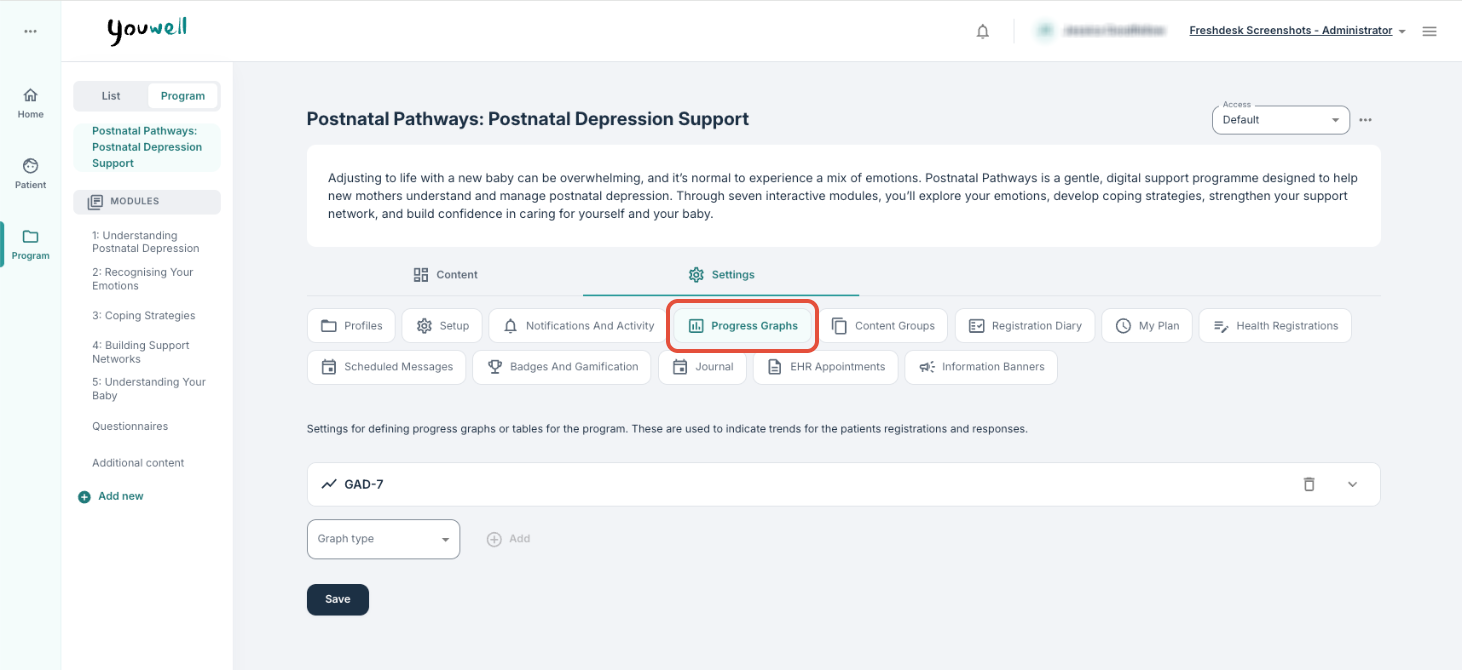
Linear graphs often give a good overview of development week by week. One way to start is by going to Program > Settings > Progress Graphs:
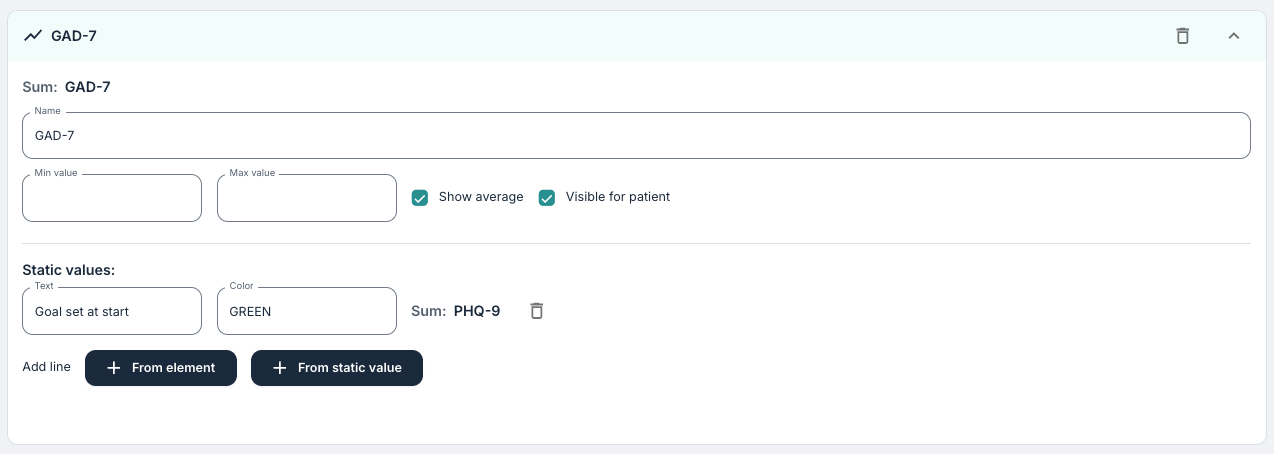
It is possible to:
- Add graph: A new graph can be added in the system.
- Choice of graph type: It is possible to choose between Linear (a common first choice), Radar or Table.
- Elements and questionnaires: Elements or questionnaires can be added to form the basis of the graph. These can be single questions or summations.
- Display settings: The display can be adjusted with settings such as min./max. value on the Y-axis, visibility for the patient, or inclusion of average scores.
- Static values: Static values can be added from an element or as a reference in order to show a starting point or levels for symptoms.
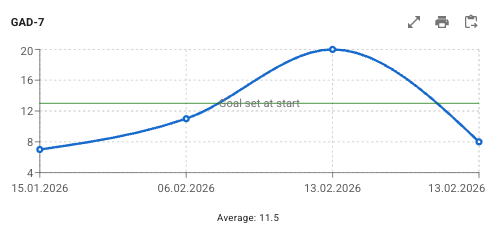
Here is an example where an element from a static value is added to indicate the goal that the patient set at the start of the program:
How a Linear Graph is Displayed
When the patient has several responses, the answers are shown in the graph with date on the X-axis. The clinician will get an overview on the Status page and will find further options on the Trend page. Here there are functions for download, copying and enlarged view.
When the pointer is held over a point, the score and date of submission are shown. The patient can also see a simple view under Progress in the patient application if this is activated via Visible for patient.
Creating a Radar Chart
For radar charts it is usual to include three or more questions or summations in the overview. Radar charts tend to give a most consistent display when all included questions or summations have the same maximum and minimum values.
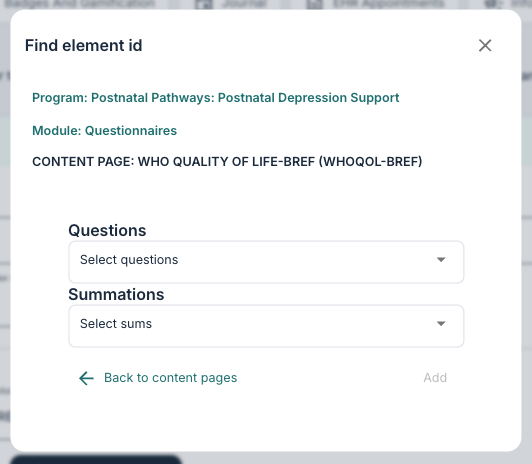
After the questions have been added they will be shown in a list, then it is possible to adjust maximum and minimum values and make the graph visible to the patient if you wish.
Creating a Table
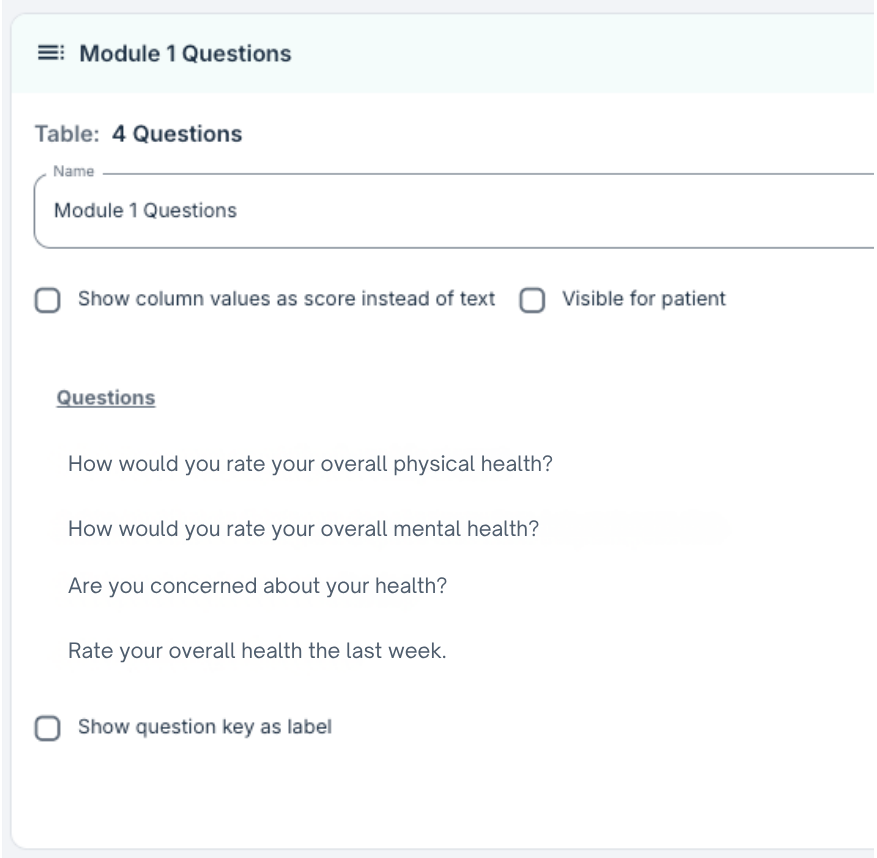
Tables can be created in a manner similar to radar graphs, by selecting different questions. In a table, the questions are shown as rows downwards and responses week by week in columns. It is possible to show either text responses or score values.
Other Resources
It is possible to read more about how progress graphs are displayed for clinicians here: Patient Page: Trend.
Was this article helpful?
That’s Great!
Thank you for your feedback
Sorry! We couldn't be helpful
Thank you for your feedback
Feedback sent
We appreciate your effort and will try to fix the article