If the program that the patient has been assigned has any progress graphs activated, these are displayed under the Trend tab. This provides the clinician with an overview of the patient’s progress, and a visual insight into the responses the patient has submitted.
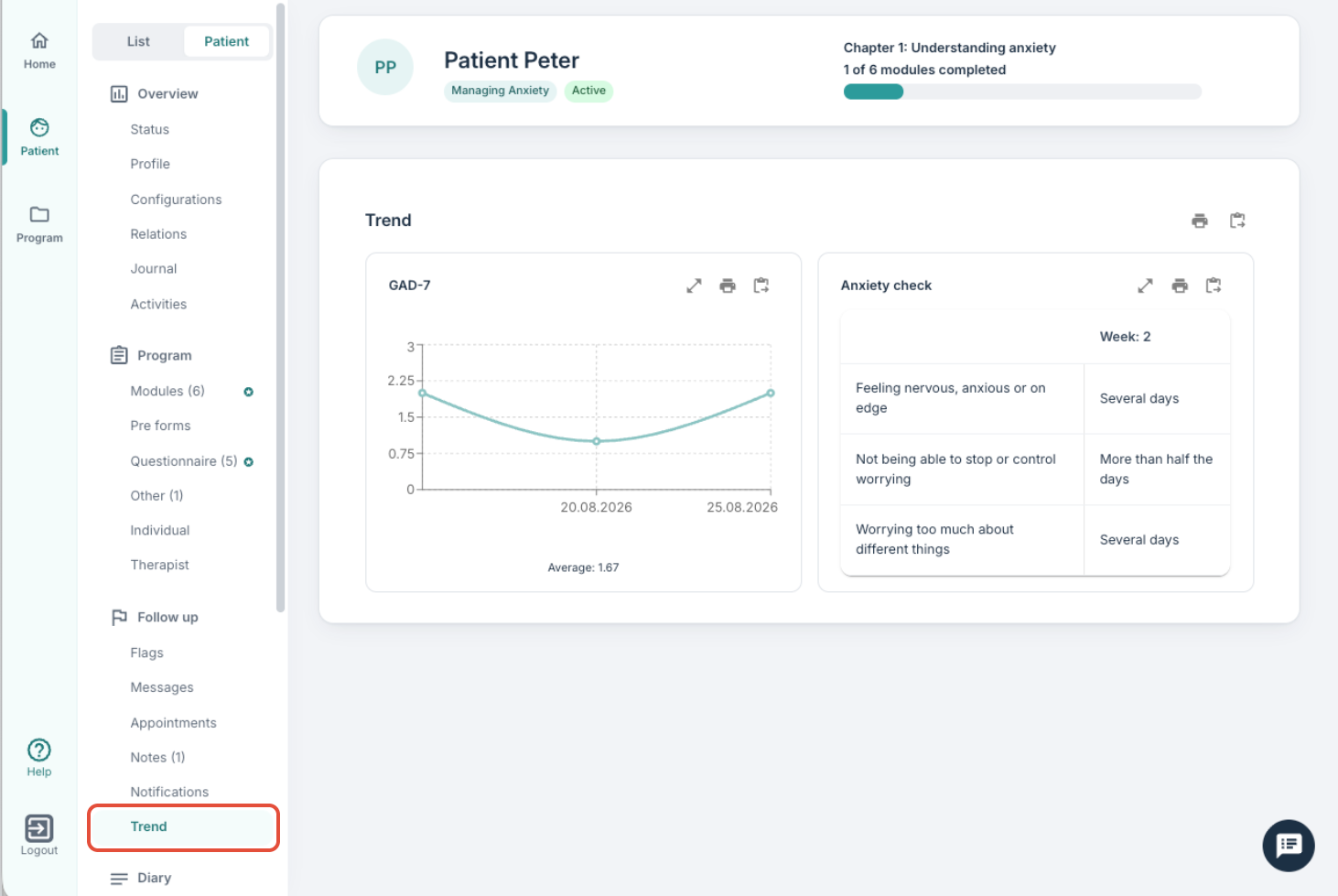
It is also possible to use the link Go to trend overview on the patient's Status page to go directly to this page. Here you will find progress graphs that are generated based on the rules configured under the Program settings. You can find linear graphs, tables or radar views, which are updated as the patient answers the various questionnaires that have been assigned.
The name of the graph (configured under program settings) is shown at the top of each tile/graph. The icons to the right offer the possibility to open the graph in a popup window, download a PDF version of the graph, or copy it to clipboard:
- Open in popup: This shows a larger view of the specific graph.
- Print to PDF: This function provides an option to download or print a PDF version of the graph.
- Copy to clipboard: This option can be used to copy the graph as an image to the clipboard, for example for pasting it into other documents or systems.
It is also possible to obtain a combined print of all the graphs on the page, for example if a discharge report is to be sent to the patient’s general practitioner.
For more information about how progress graphs are created, you can read: Program settings: Progress graphs.
Was this article helpful?
That’s Great!
Thank you for your feedback
Sorry! We couldn't be helpful
Thank you for your feedback
Feedback sent
We appreciate your effort and will try to fix the article