Under Messages on the patient page an overview is displayed of the communication and message dialogue between clinicians and the patient.
Messages Display
The clinician can see if the patient has opened and read the messages. Next to the clinician’s messages a single tick “✓” is shown when the message is confirmed sent and received, and double ticks “✓✓” when the message is read by the patient. It is also shown which clinician sent the message (which is useful when several clinicians follow up the same patient), as well as when the message was opened by the patient.
Using the Show menu beneath the message input box allows the clinician to filter the type of message they wish to see here, for example, if they want to temporarily hide any scheduled messages from the view.
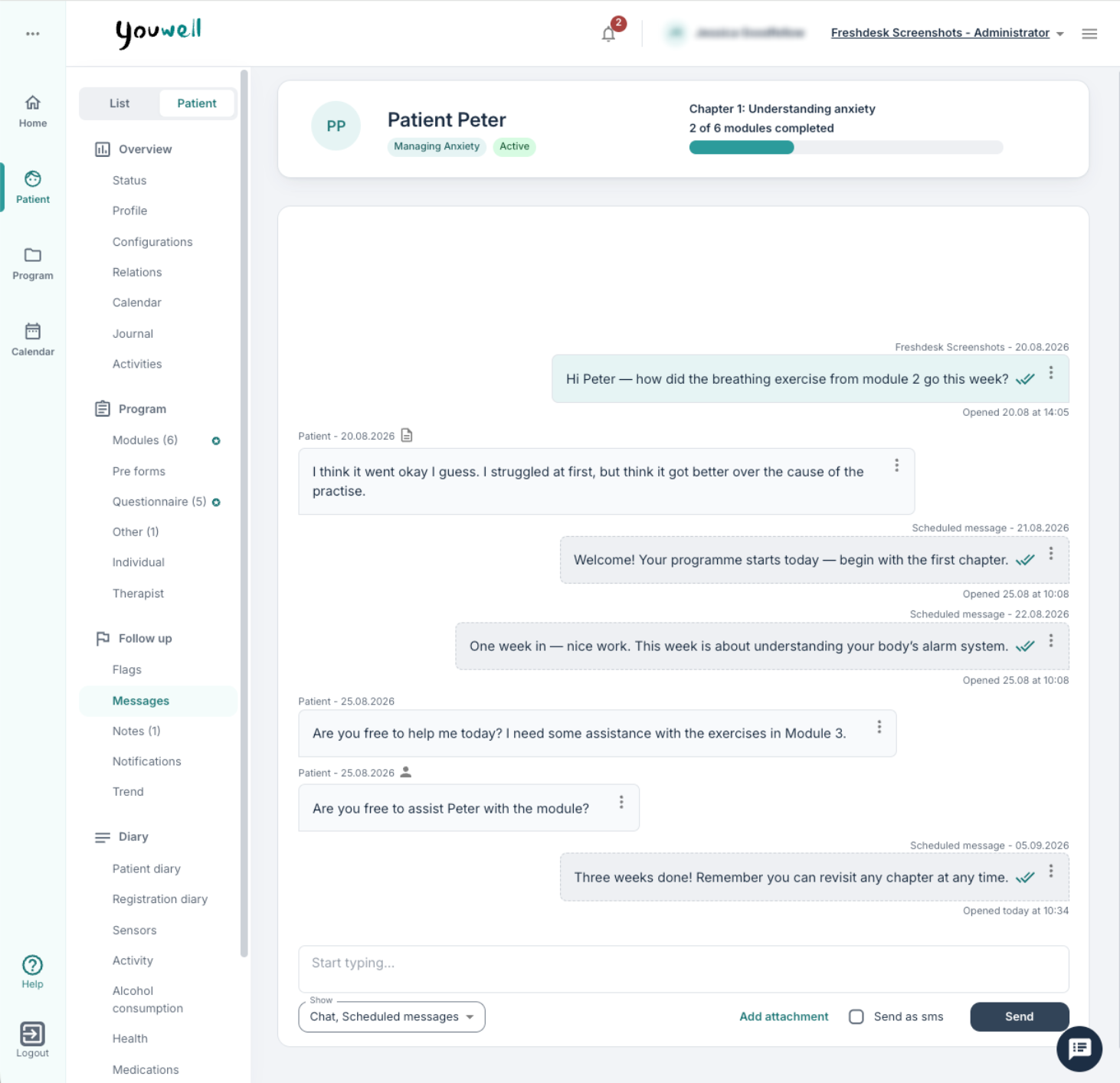
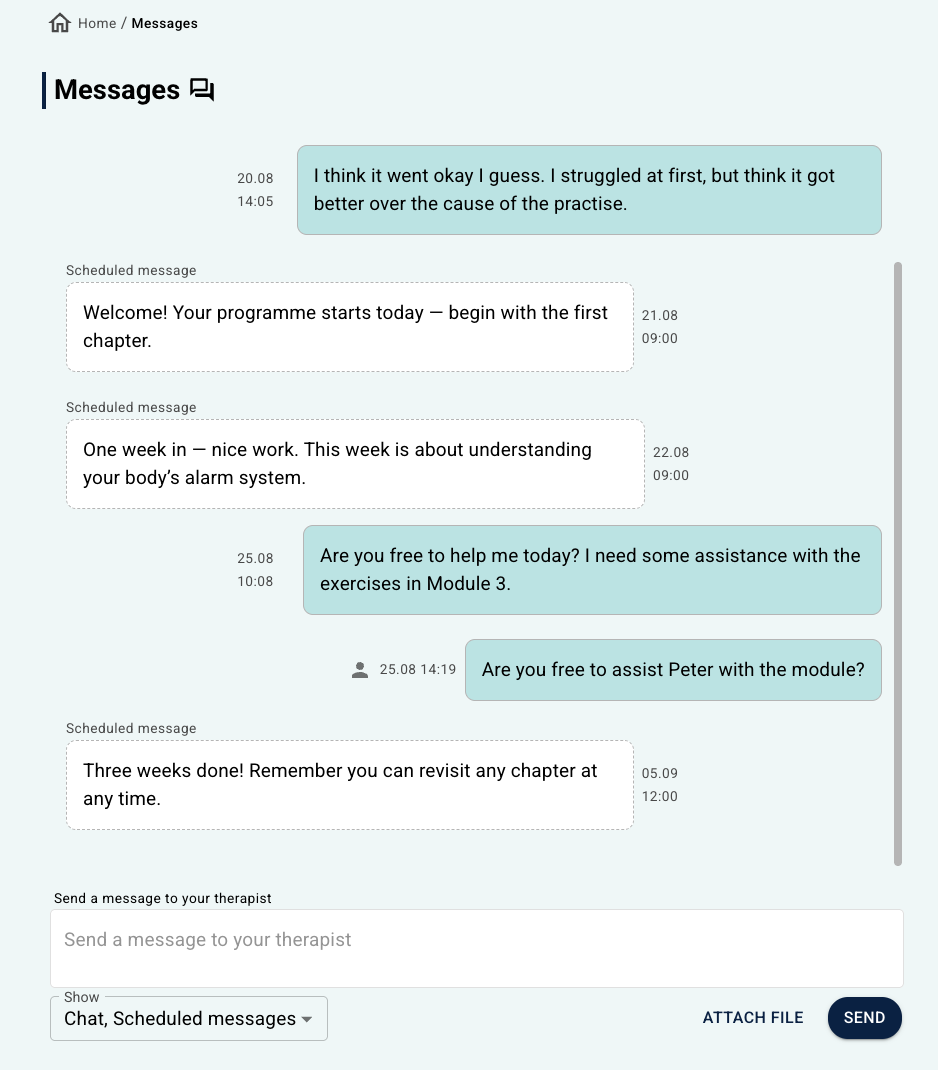 Display of the earlier patient application design, implemented pre-2026 | 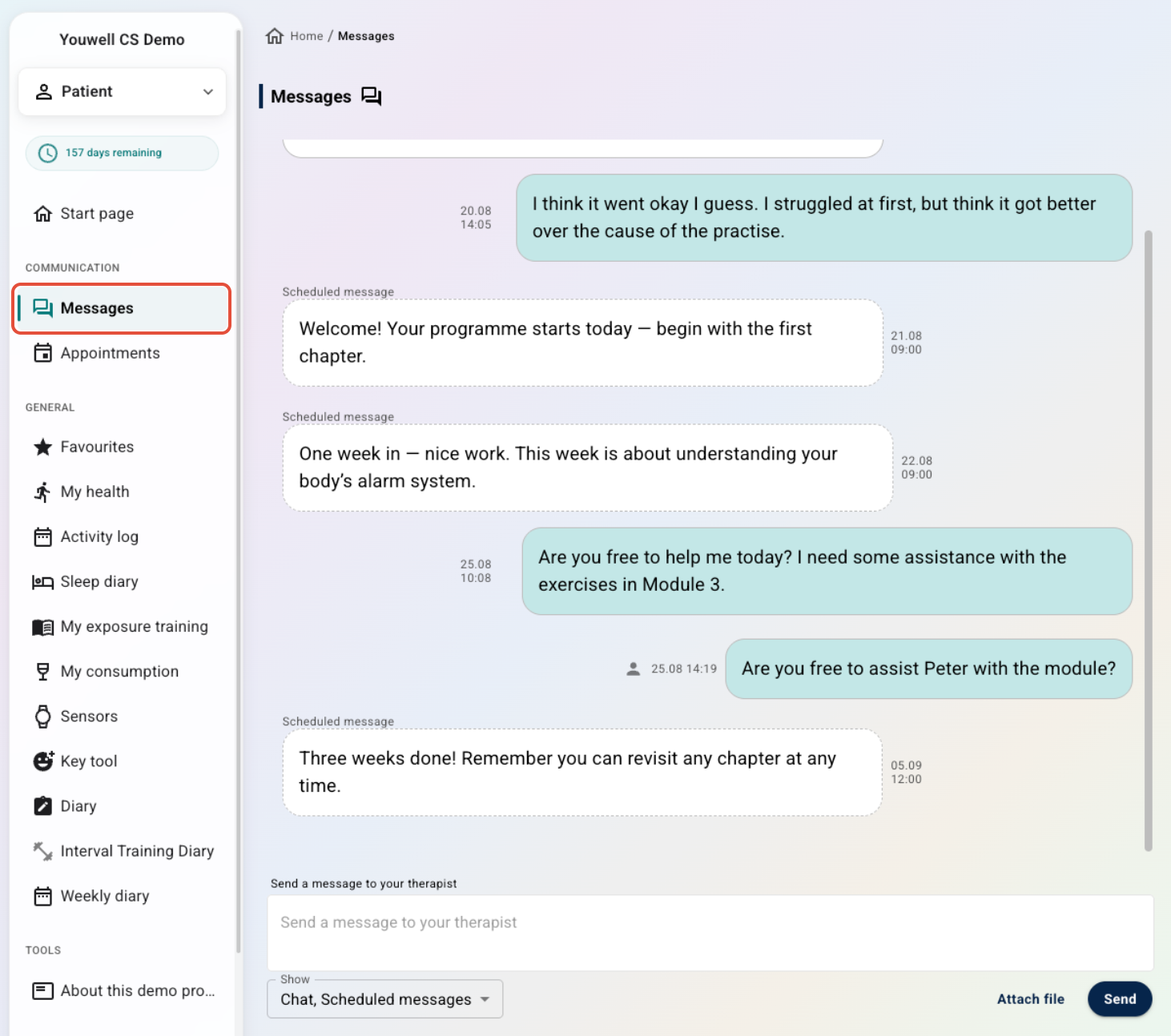 Display of the new patient application design, implemented from 2026 |
The display is almost identical for the patient and for the clinician, as illustrated in the images above. The clinician can enter text with rich formatting, include videos, links, images and attach files.
The patient has a slightly simpler view where they can enter plain text and send attachments. The patient sees the time when messages were sent, and from which clinician. If a relation has written a message, an icon of a person will be shown next to the message.
Actions on Messages
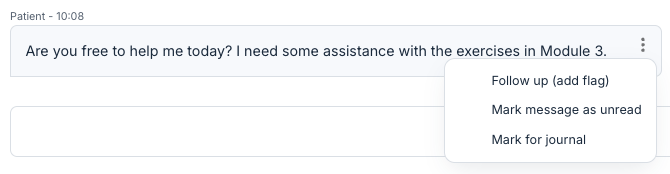
The therapist has the possibility, using the menu next to each patient message, to:
- highlight the message for follow up, which creates a flag that can be used for following up; messages highlighted in this way get a yellow flag on the Flags page.
- mark the message as unread, which changes the status to "not read" so that it is possible to return to it later.
- mark as journal-worthy, relevant if the Journal function is used and it is appropriate to include the message in the PDF summary that is sent to the journal.
- delete their own message, which means that the patient no longer sees the message, but rather a Message has been deleted text.
Chat Popup Window
The message icon bottom right in the platform opens the chat tool where it is possible to see messages from various patients.
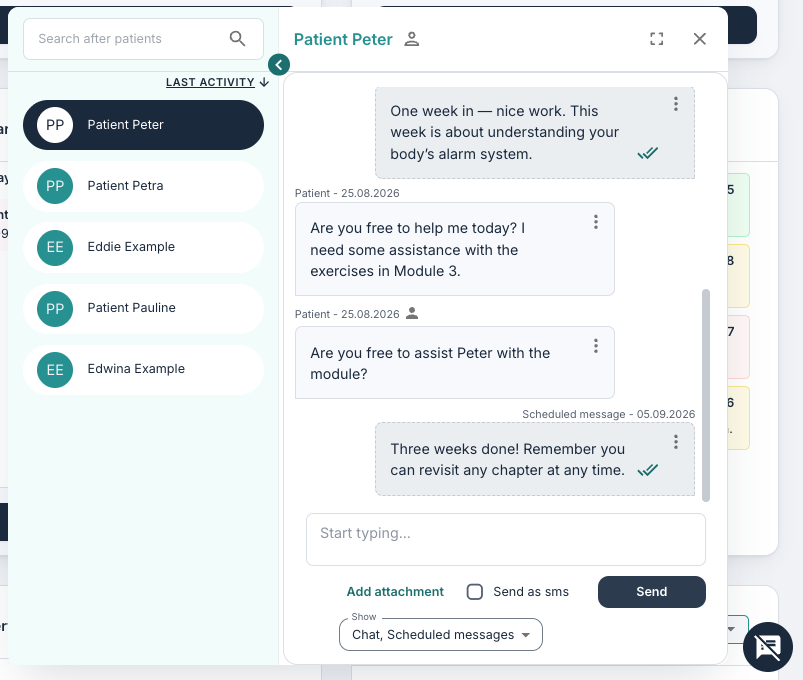
This shortcut gives the clinician access to messages without having to navigate via the patient page each time.
Was this article helpful?
That’s Great!
Thank you for your feedback
Sorry! We couldn't be helpful
Thank you for your feedback
Feedback sent
We appreciate your effort and will try to fix the article