The Journal-functionality provides access to a consolidated PDF summary of the patient’s progress in treatment programmes. The PDF is often used as documentation in the patient record and can be customised so that it contains relevant clinical information.
Providing the summary to the journal system
The clinician can find the PDF summary on the patient page under Overview > Journal.
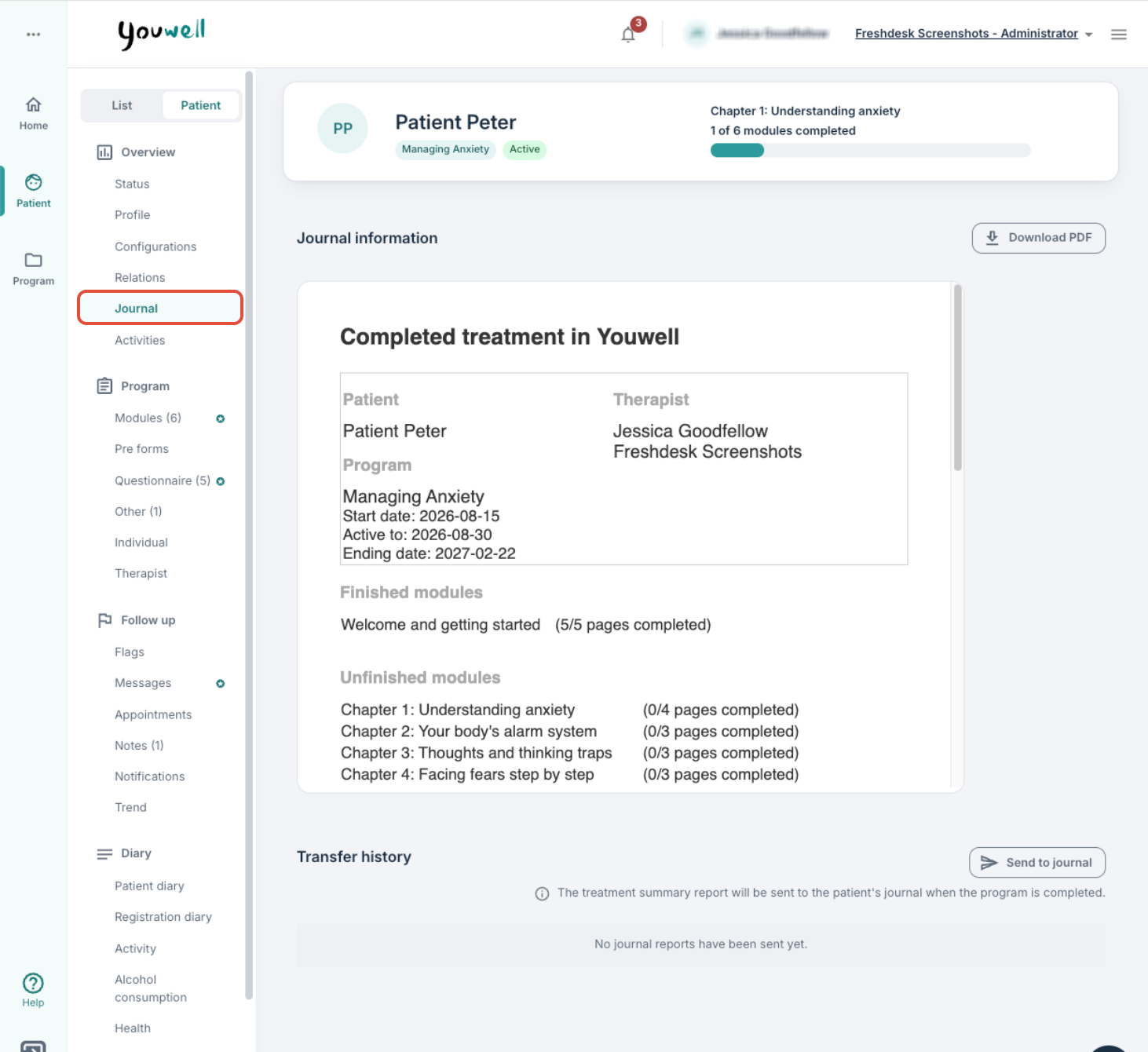
Journal information
This section shows a preview of the PDF, based on the current settings for the programme. Here it is possible to:
- see which content is included in the journal report.
- download the document as a PDF by using Download PDF.
The document may contain personal data, so it is recommended that it is handled in accordance with applicable privacy and record security regulations.
Transfer history
This section shows a history of journal reports that have been sent to the journal system. Here you'll see:
- the time when a report was sent.
- a button, Send to journal, which makes it possible to send the PDF to the journal system.
For organisations with an integrated journal system (for example DIPS) it is possible to transfer the journal report directly into the patient journal system via this functionality. In case of errors in the transfer, such as the patient not existing in the journal system, an error message is displayed.
Customising content and structure
It is possible to customise structure and content included in the PDF. This is set up at programme level, so it is often the content creator or admin user who configures this: Programme settings: Journal.
Marking messages and notes as journal-worthy
The PDF can be configured so that only messages and/or notes marked as journal-worthy are included (instead of all history being included). In such cases only the selected messages and/or notes are shown.
A message or a note can be marked as journal-worthy directly in the interface by opening the menu (three dots) on the message or the note and choosing Mark for journal.
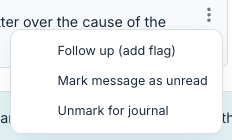
The message will then be marked with a document icon and be included in the PDF.

Was this article helpful?
That’s Great!
Thank you for your feedback
Sorry! We couldn't be helpful
Thank you for your feedback
Feedback sent
We appreciate your effort and will try to fix the article