Flags are triggered automatically, using some preset rules, or manually by the clinician, for example via a message or from a module. This feature can help the clinician gain an overview of patients who may need extra support, assistance or information, and provides an opportunity to see which questionnaire responses fall outside of specific boundaries and should be followed up proactively.
You may navigate directly to the Flags tab to see all flags for the patient, or by selecting Go to flags from the Status page.
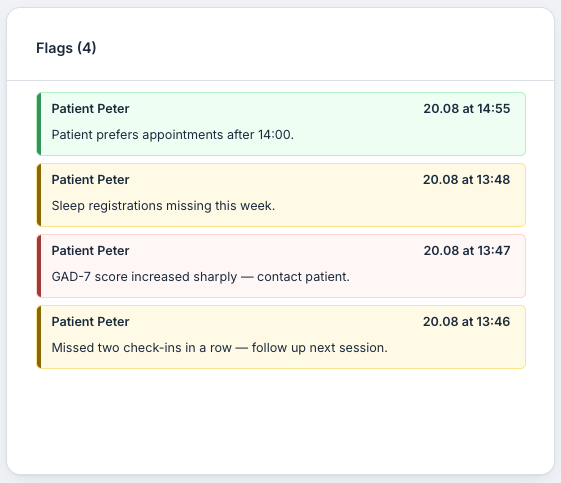
Add a new flag
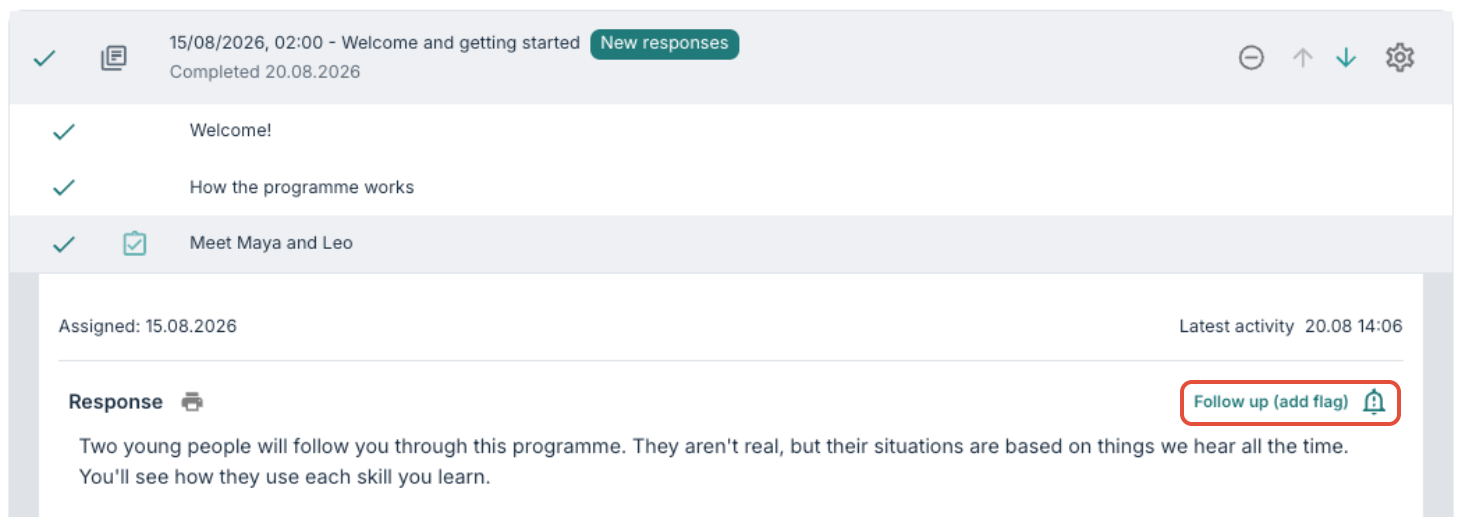
Flags will appear here automatically if they have been triggered by a patient’s response (read more here: Program settings) or from another area of the platform, for example when Follow up (add flag) is used under modules.
Here is an example where the patient has answered a question element, and the clinician can see the response and choose to input a follow-up:
In addition, it is possible to create a custom flag manually by entering text and selecting severity under the Flags tab. It is possible to choose from the following categories: Info, Warning or Critical. Info is shown as a green flag, Warning is shown as yellow, and Critical is shown as red.
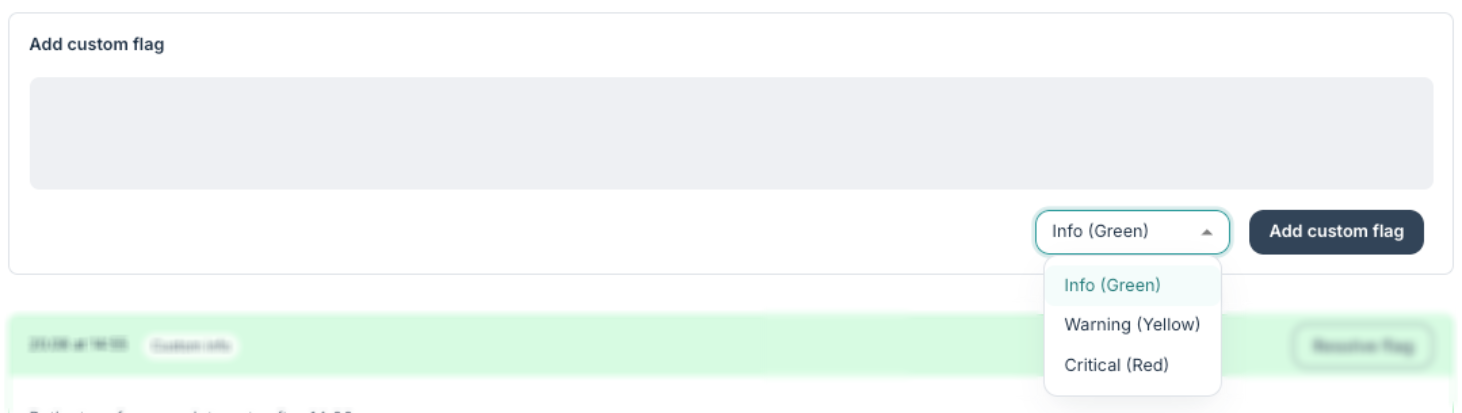
Here you can see how it can look when a new custom flag is added:
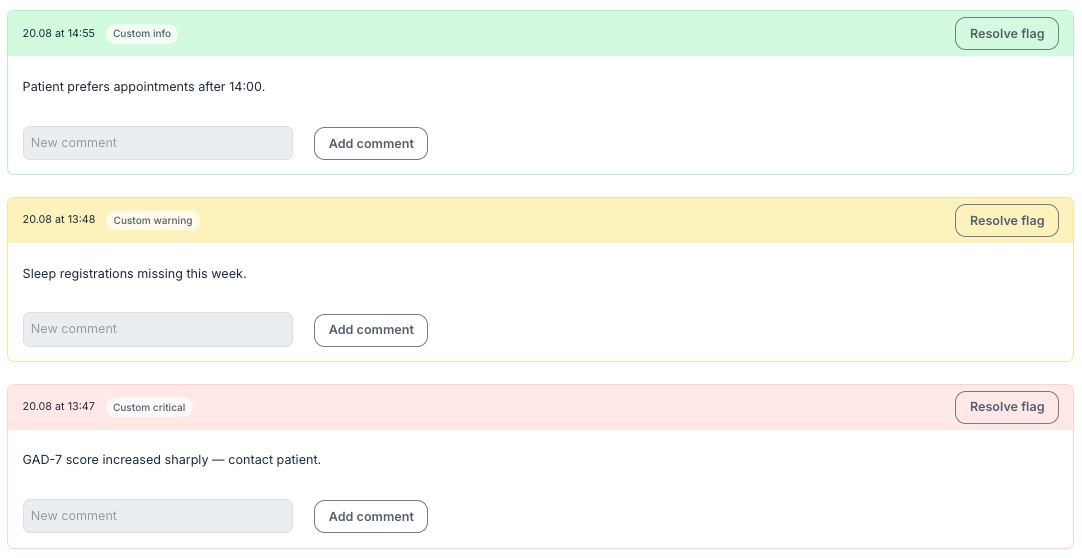
Different types of flags
On each flag, a label is shown that describes what triggered the flag. If it says, for example, Custom info, this indicates that the flag has been added manually.
If the flag is triggered automatically by a patient’s response, you will e.g. see Medium score. The clipboard icon indicates that the flag is linked to a response, and this icon can be clicked to see the relevant response.

It is also possible to see a label with Message follow-up if the flag is added based on a message. In addition, there may be flags that are created from missing login activity, and some other rules that are configured at organisation level.
Resolve a flag
When a flag is marked, it is possible to enter a comment to describe how the matter was handled or whether there are further steps that are relevant for follow-up, and then mark the flag as resolved by selecting Resolve flag. The flag is then shown in a light grey colour and is recorded in the list for the patient so that the history is available.
If you hold your mouse over the flag, it is possible to see a Reopen button that allows for the flag to be opened again. The display also shows when the flag was marked as resolved, and by which user.

Was this article helpful?
That’s Great!
Thank you for your feedback
Sorry! We couldn't be helpful
Thank you for your feedback
Feedback sent
We appreciate your effort and will try to fix the article