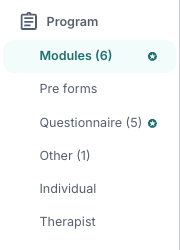
Under the Program category in the patient menu it is possible to browse Modules, Pre forms, Questionnaires, Other, Individual and Therapist. The number behind each category shows the number of content items that have been assigned to the patient.
A blue circle with a star next to some of these tabs indicates that there are some new responses that the clinician can review.
Modules
This page shows the main program assigned to the patient, and indicates which modules the patient has started, and how far they have progressed. At the top is an overview of which program has been assigned to the patient, as well as dates for when the program starts, is active and when it ends. The dates entered here will by default use the settings configured for the program, but it is possible to change these manually by selecting the calendar icons.

Progression through the modules
Below, it will be clearly indicated which modules are completed with a check mark (✓) and timestamp. If the module is in progress you will see how many content pages have been visited, and if it has not been started yet this will also be clearly marked.
It is possible to select a module to view a more detailed overview of the individual content pages the patient has visited.
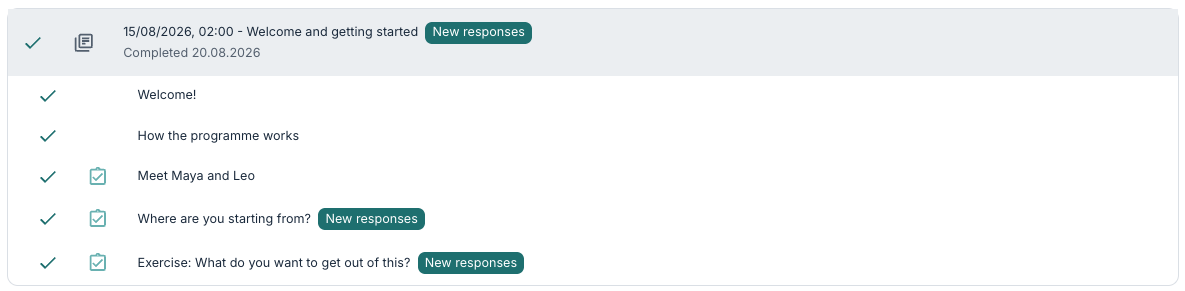
Different icons are shown here that provide information about the activity the patient has had on these pages. A grey page icon indicates that the element is a module with multiple content pages. A green clipboard icon indicates that a task or question has been answered, and if a grey clipboard icon is seen this means that the page contains a question that has not been answered (not all questions are mandatory). A red clipboard icon shows that the question has been seen, but not answered, and is mandatory.
By selecting a content page it is possible to see more details. Here it is also possible to use the Follow up (add flag) function to create a flag/follow-up point on the patient which is added under Flags.

It is also possible to select the printer icon next to Response to download a PDF print-out of the patient’s response.
If some elements are set up with Conditional states, an option will appear to view all hidden elements with a toggle switch activated.
Program settings
By selecting the three dots next to the program information it is possible to adjust some parts of the program for this patient:

Ending
It is possible to end a program for the patient. A closed program is no longer available to the patient. After a program has been ended, it is also possible for the clinician to re-open the program for the patient so that the program becomes active again.
Program profiles
It is possible to view the associated program profile, and assign a new program profile or remove it from the patient.
Program data
It is possible to add extra data or settings for the program if this is desired.
Reload data
It is possible to use the function to manually refresh the page to view the latest updates.
Add new modules
When a program profile has been assigned to a patient all content, including modules, will be assigned to the patient with the set settings. This means that for most pathways it is usually not necessary to adjust settings on a module or to add more modules, but in some pathways it may be relevant, for example if a patient has an additional diagnosis or additional challenges where specially developed content can support them.
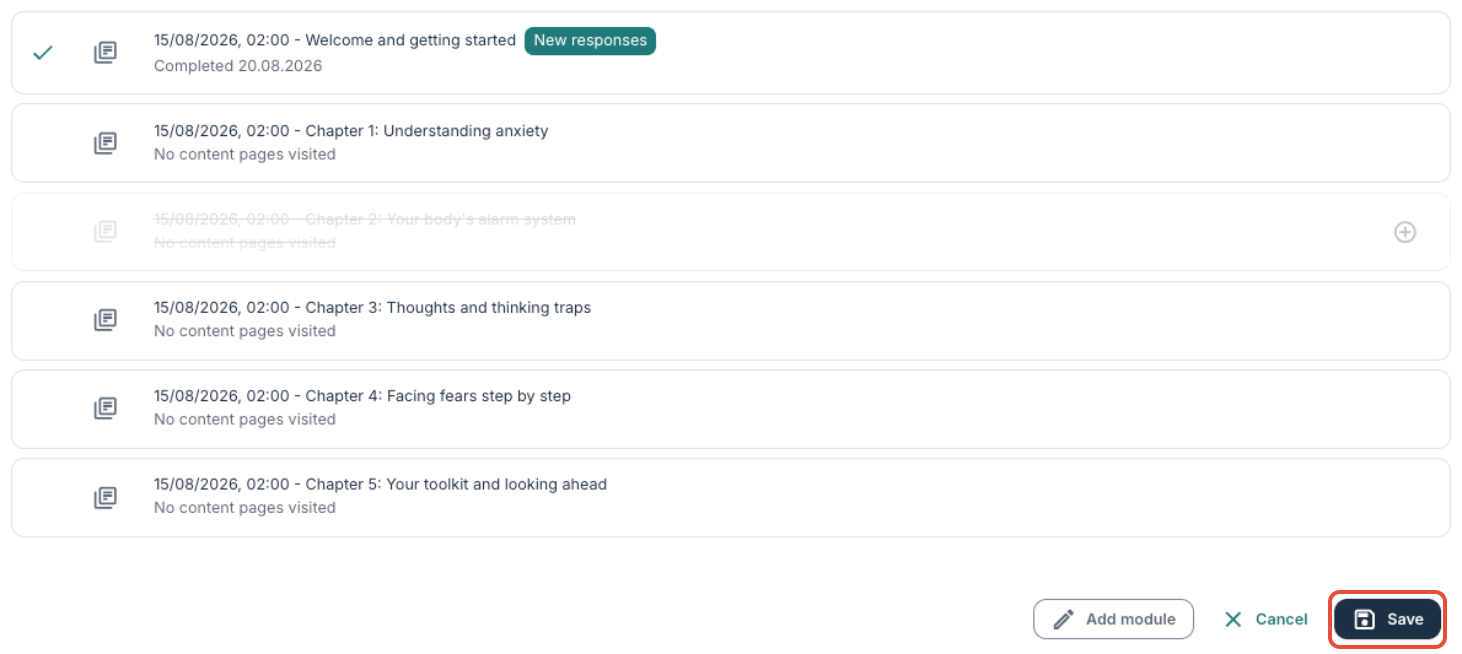
It is possible to use the Add module button to assign more modules to the patient beyond what follows from the program profile. A list of modules that can be assigned will then be displayed, and it is possible to choose the appropriate module and then add it. For all modules it is possible to use the cog icon to adjust some settings.
Here there is the possibility to enter a new display name, labels, change start and end dates, as well as to indicate whether the modules are intended to be completed in order, and override the completion status of the module.
It is also possible to choose arrows next to each module to change the order, and it is possible to use the minus icon to remove a module. Changes can be saved along the way.
Was this article helpful?
That’s Great!
Thank you for your feedback
Sorry! We couldn't be helpful
Thank you for your feedback
Feedback sent
We appreciate your effort and will try to fix the article