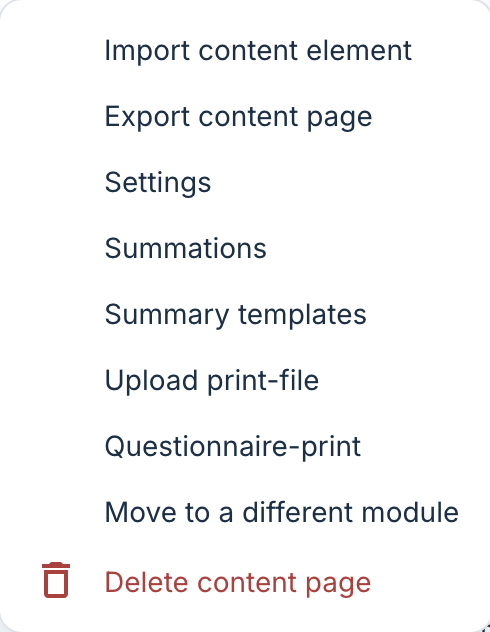
After becoming familiar with modules, content pages and elements, it is possible to find some additional settings that may be useful. It is advisable to be well acquainted with modules, content pages and elements before looking at these other settings. The list of different settings is available via the three dots next to the title of the content page:
CONTENTS
- Import content element
- Export content page
- Assign label
- Settings
- Summations
- Upload print-file
- Questionnaire-print
- Move to a different module
- Delete content page
- Locking and versioning
- Copying of content and modules
Import content element
If you have a JSON file with a content element you have exported previously, it is possible to import it into the content page here.
Export content page
If a page is set up as you wish to use it in other programmes in your organisation, the content may be exported to your local database (your PC) in JSON format, and later uploaded via Import content under the module.
Assign label
Here it is possible to add a label to identify responses from the page afterwards. It is possible to read more about labels here: Labels.
Settings
Under Settings there are some additional options that may be adapted, for example if the content should be hidden from the overview for the patient. You can also choose whether the content page should have a stepper view, which you can read more about here: Stepped content pages.
Summations
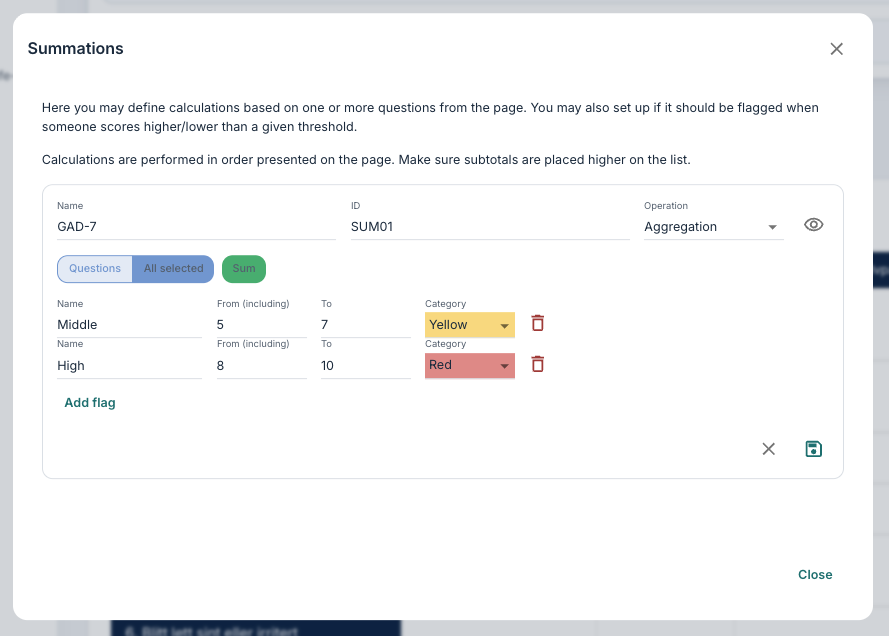
It is possible to add rules based on responses to questions on the page. This is often used to calculate a general score on a form or to flag a patient for the clinician based on a score above or below a certain threshold. The calculations are entered by selecting Add new.
In the example below all the questions on the page are shown, and a sum score is calculated. Participants with a score between 5 and 7 receive a yellow flag, and those with a score between 8 and 10 receive a red flag:
You can read more about this here: Summations.
Upload print-file
If you have a copy of the content in PDF format that can be physically printed, this may be uploaded here.
Questionnaire-print
Here it is possible to retrieve a print out of the questions on the page, including the IDs associated with the questions on the page, as well as the version number and form ID.
Move to a different module
The Move to a different module function gives an option to place the content in another module in the programme.
Delete content page
This option removes the entire page and all elements included on the page. This cannot be reversed, so it is advisable to be cautious with use of this function. It may be useful to export the page as a JSON file before deleting.
Locking and versioning
An overview of the different versions of the page is shown, and it is possible to add comments on the version you are working with to log changes.
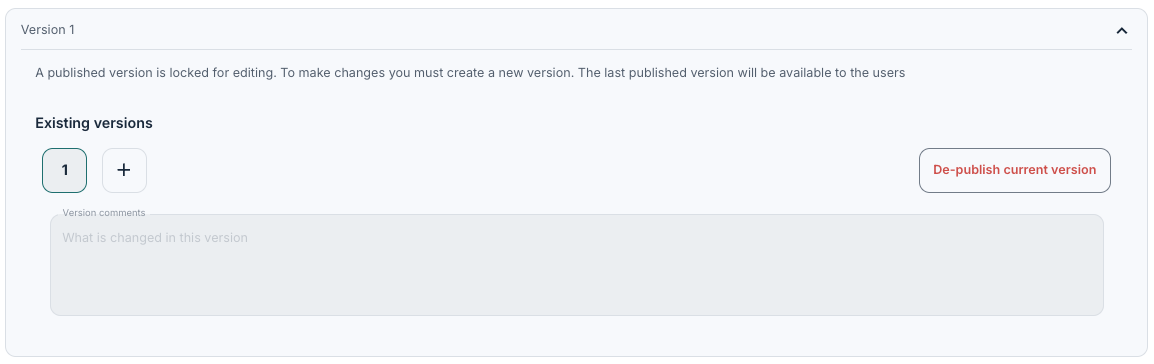
The Publish button may be used when the content is ready and is to be assigned to patients.
Copying of content and modules
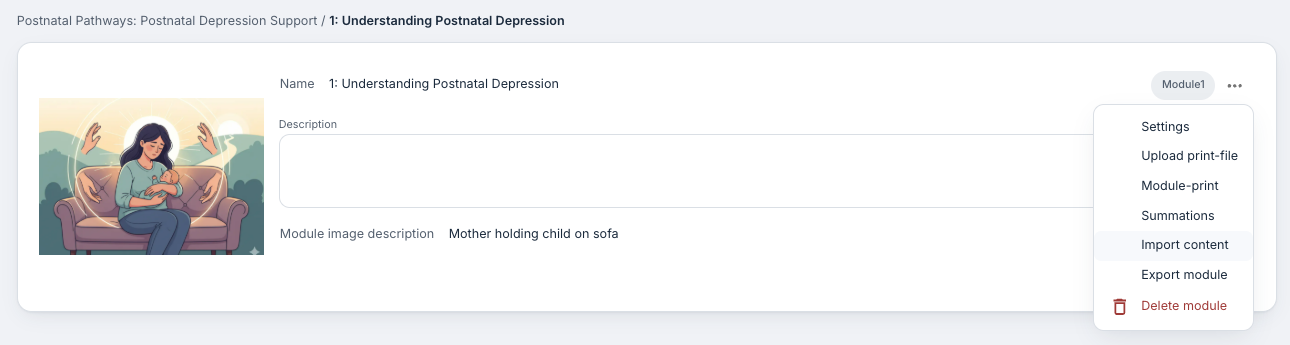
It is possible to copy content pages and move them between modules. It is also possible to copy entire modules by using the tools under the menu on the module:
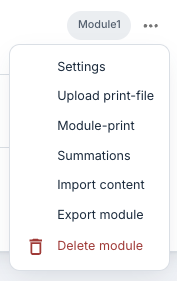
Export module gives a way to download the module to your computer. Then Import content and then From file is used to include the module in another place.
When a module is downloaded and then imported, all elements are included. This allows you to create a copy of an entire module with the possibility for small adaptations. This may be useful if you want to create similar programmes or modules.
Was this article helpful?
That’s Great!
Thank you for your feedback
Sorry! We couldn't be helpful
Thank you for your feedback
Feedback sent
We appreciate your effort and will try to fix the article