You can add labels to questionnaires and other elements when creating the program profile. This can be useful if you later want to group responses according to certain categories. Labels are therefore used to tag or group responses according to the categories that are entered. If you would like to read more generally about Settings and how to create a programme profile, see: Programme settings.
Why add labels?
Labels can help with identifying and grouping responses later when extracting reports and data. The same questionnaire can be presented to patients several times throughout the programme, particularly if it is relevant to compare and assess whether the programme has had an impact on the patient’s symptoms.
Rather than extracting a combined report or graph showing all responses (or some aggregated figures) it may be relevant to extract the results from the same questionnaire grouped by when the questionnaire was completed. Typically, labels will reflect the different modules or steps throughout the programme, for example “Pre-questionnaire”, “Questionnaire for chapter 5”, “Module eight” or “Follow-up”.
How to add labels?
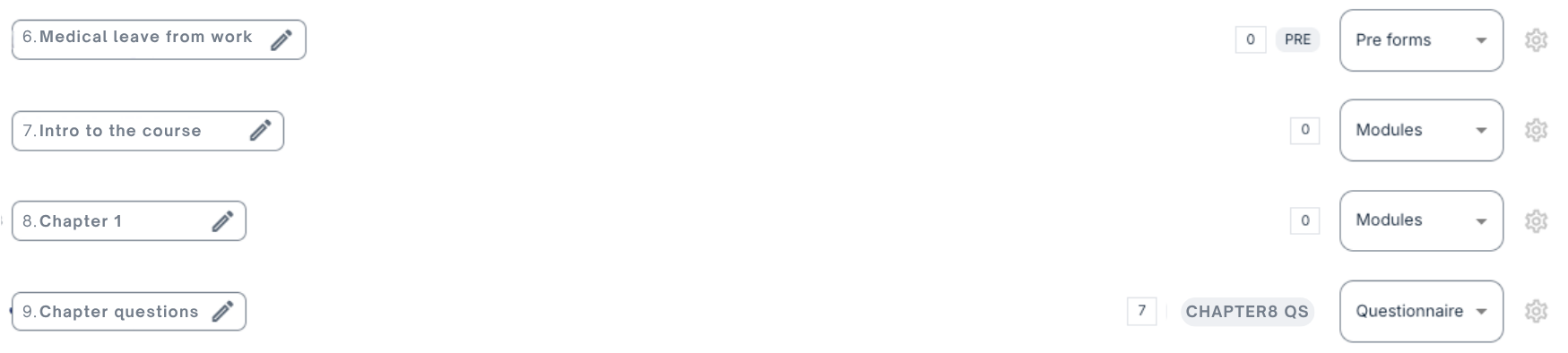
Labels are added to questionnaires when a programme profile is created. In the programme in question you can go to Settings and Profiles. Here an overview of profiles and modules/questionnaires that have been entered is shown, with more details.
In the illustration below, you can see a "PRE" label and "CHAPTER8 QS" label have been added to a couple of the questionnaires.
It is also possible to add labels to individual elements manually on the questionnaires on the patient side.
Can any label be entered?
Which labels are available is determined by Settings for administrators that are configured under Program settings.

If the list is empty, it is possible to use any label by typing in the desired label. If some labels are specified, these are the ones that the content creator can choose among when setting up questionnaires.
Where are labels displayed?
Reports
Labels are not visible to patients, but are useful for administrators and leaders when reports are extracted. Under Responses in Reports, you can view responses for various questionnaires, and it is possible to sort by labels.
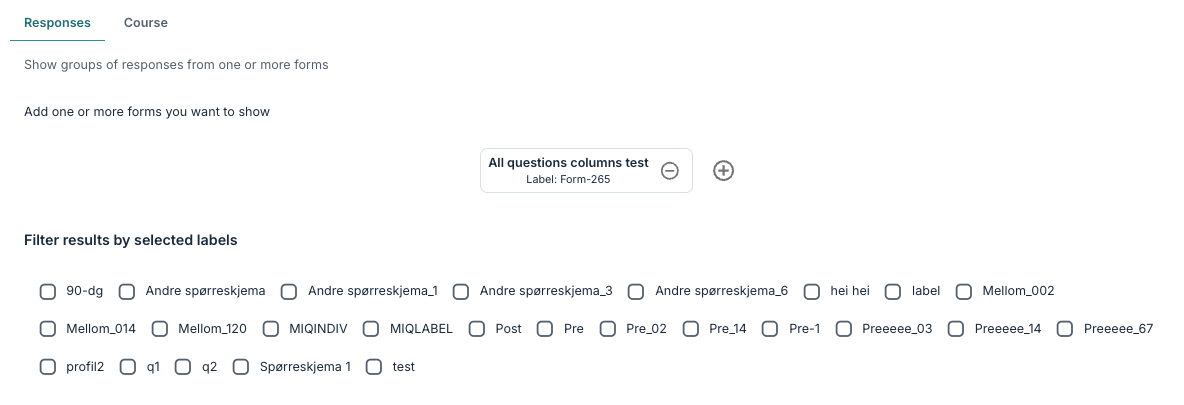
If labels have been added to questionnaires that have been answered, it may be relevant to filter by these on the Responses tab. For sum scores, a visualisation may show the labels on the X-axis, sorted alphabetically.
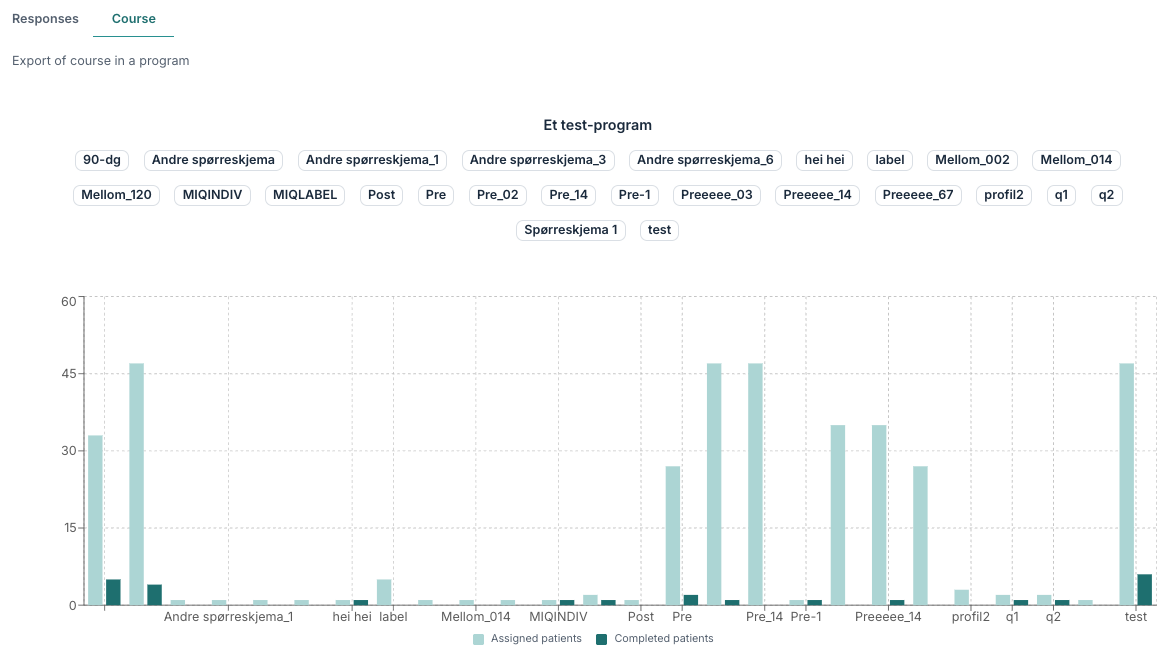
Under Course, the graph shows the number of questionnaires that have been assigned to patients and the number completed, with categorisation based on labels.
Data export
In Data export the extract can be grouped by label or patient programme. When grouped by label, there will be a column called “Label” showing the label of the questionnaire. When grouped by programme, each questionnaire may be labelled with the label in the format “[Label]:Questionnaire-name”.
Was this article helpful?
That’s Great!
Thank you for your feedback
Sorry! We couldn't be helpful
Thank you for your feedback
Feedback sent
We appreciate your effort and will try to fix the article