When signing in as an administrator, the Dashboard page under Overview is shown, which provides some insights into activity in the organisation recently. In this way, it is possible for the administrator to gain insight into how clinicians use the system, whether there are any upcoming appointments or ongoing discussions, and how progress is across the various programmes.
On this page there are some tiles that describe various aspects of system usage, both from the patient side and for clinicians. As an administrator, data is visible for the whole account or organisation (across clinicians and the patient group), while as a clinician only insights for the patients they have been assigned are visible.
Patient status
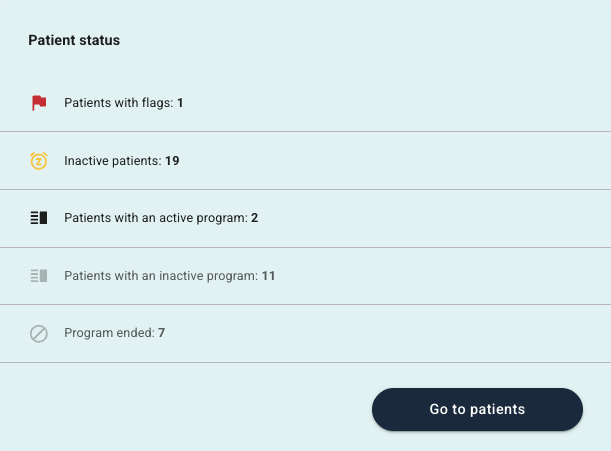
This tile provides a summary of the number of patients in various categories, and it is possible to select the different lines to show the Patient list with the given filter already applied.
Patients with flags show those where a flag has been added. Inactive patients are those who have not been active in the last 7 days. Patients with an active program are those who have an assigned programme and are in an active programme period. Patients with an inactive program have read-only access to the programme, but cannot respond to items or send messages; and Program ended represents patients who no longer have access to the programme.
It is possible to Go to patients to see the Patient list with more details about specific patients.
Unread messages
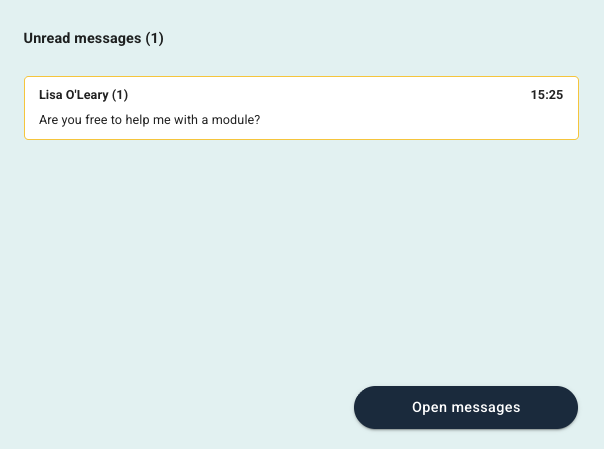
Here a list of unread messages that have been sent to clinicians by patients is shown. The patient’s name, the number of unread messages they have sent, and the date are visible. There is also a preview of the actual message that was sent in.
It is possible to open messages to view them in more detail. More information about messages can be found in Patient page: Messages.
Patient appointments
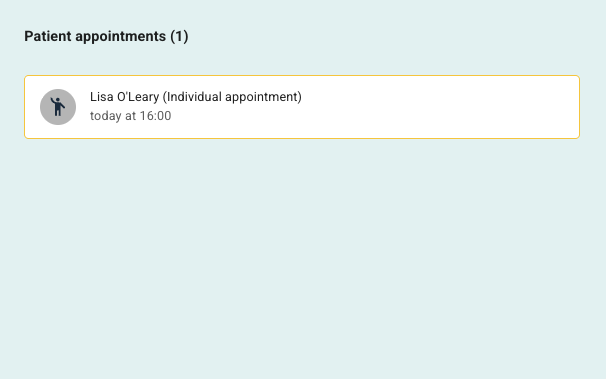
This tile provides an overview of upcoming appointments that have been set up between clinicians and their patients. The number of appointments that are planned is visible, including a list with the patient’s name, the appointment title, date and time. The symbol next to each line indicates the type of appointment (for example video, in person or phone).
It is possible to read more about appointments in Patient page: Appointments.
Flags
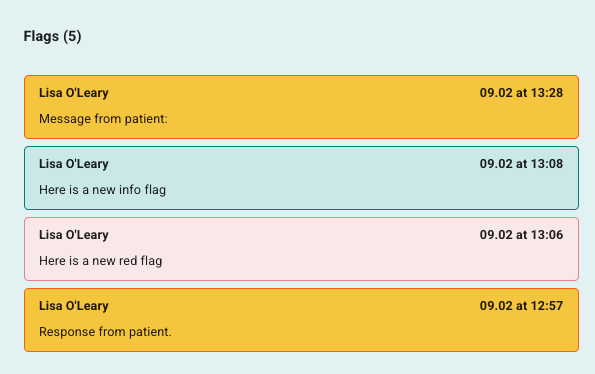
This tile shows all flags that are registered among patients in the organisation. Flags that are registered as a result of a questionnaire or some health registrations are marked in yellow while flags that are set on messages, modules or entered manually are shown here in red or green.
The patient it concerns is visible, the timestamp, and text that has been entered if the flag has been entered manually or a brief explanation of which form or recording triggered the event. More information can be found at Patient page: Flags.
Patient - Activity last week
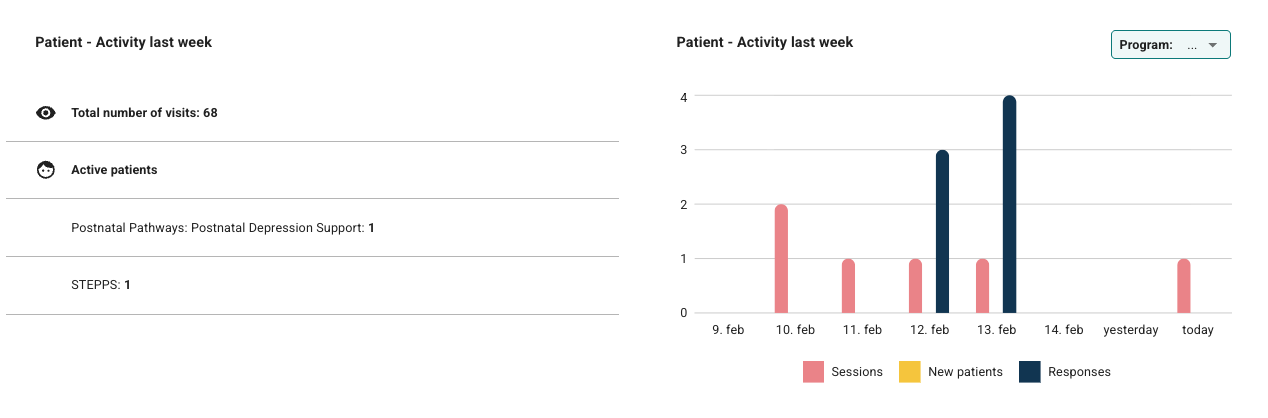
These tiles are visible for administrators on the account, and provide insight into activity from patients over the last week. The table on the left shows the number of visits in the patient application at the top, and a list of the programmes added to the account as well as the number of patients who have been assigned each programme.
The graph on the right shows the number of sessions, new patients and responses in the last week, and it is possible to filter by programme using the Program button at the top right. When hovering over the different days, it is possible to see more information about that day.
Content for review
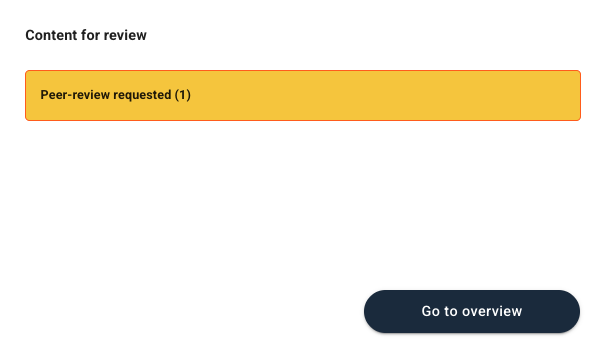
This tile is visible for administrators on the account and shows which content pages need verification and follow-up from the content owner/user working on this. It is associated with Workflow and the status of the content that is set up under Program.
It is possible to Go to overview to see the Review page which contains more details. Read more in Review & Workflow.
Time distribution
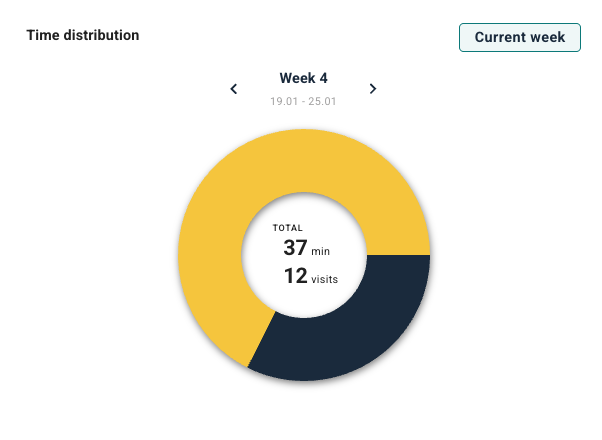
The pie chart provides insight into which patients clinicians spend the most time on. The three patients who have had the most time spent on are registered in the chart here, and then a category for “Other patients” is shown. When hovering over the different segments, it is possible to see who it concerns, how many minutes, and how many visits have been made for this patient.
The chart shows total hours and number of visits in the last week, and the arrows make it possible to show different time periods. There is also a Current week button at the top to easily jump back to the current week.
Work status
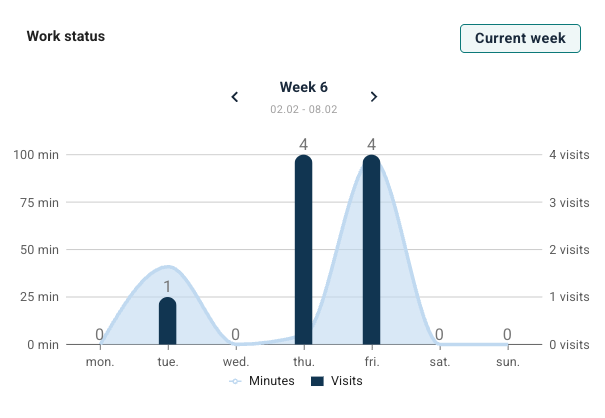
This graph shows activity with information about the number of minutes used in the platform (on the left Y-axis) and the number of visits (on the right Y-axis). This is divided per day (on the X-axis), and it is possible to show different weeks using the arrows.
When hovering over the individual days, information is displayed about how many minutes and number of visits have been recorded per day.
Was this article helpful?
That’s Great!
Thank you for your feedback
Sorry! We couldn't be helpful
Thank you for your feedback
Feedback sent
We appreciate your effort and will try to fix the article