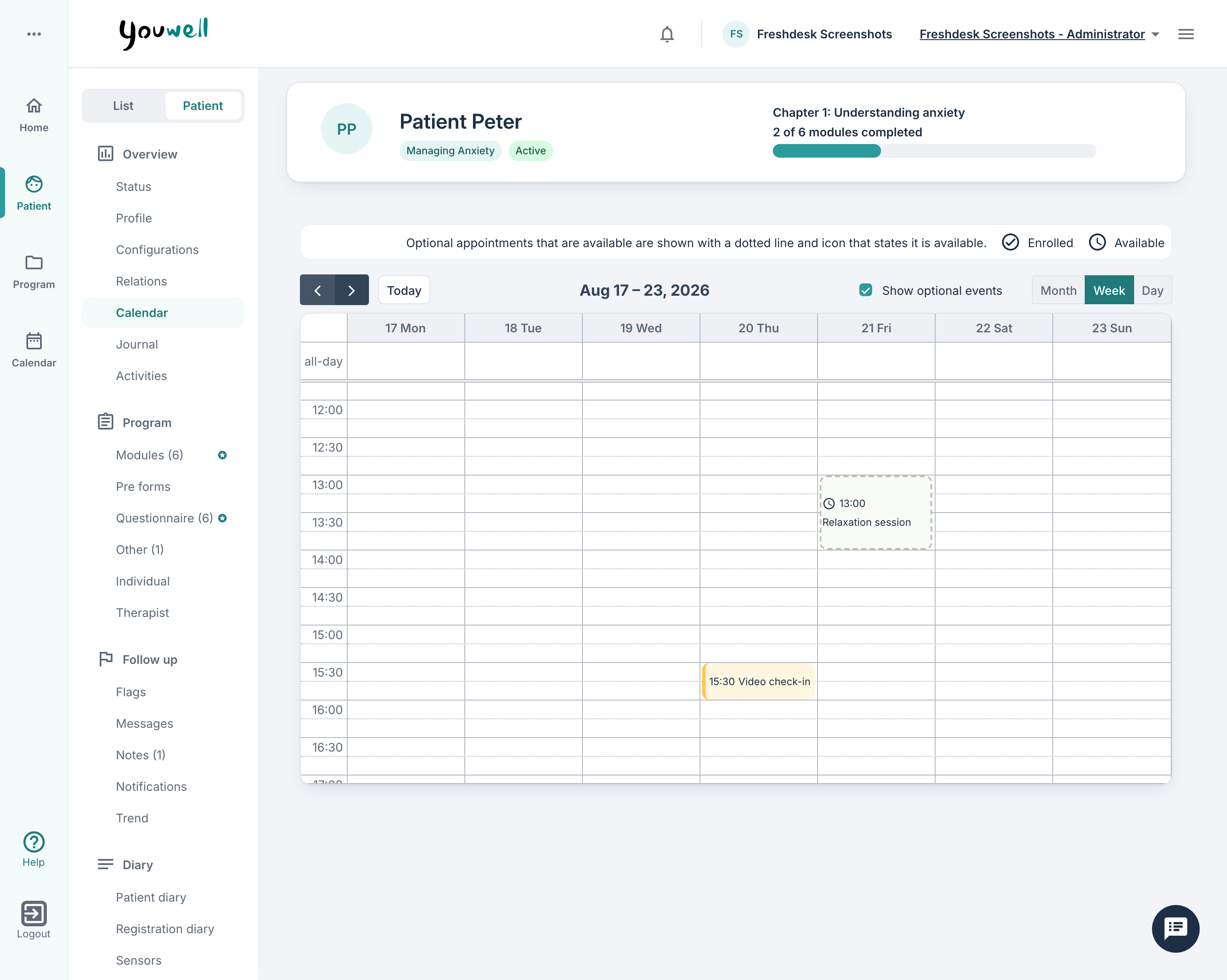
When a patient needs closer follow-up, for example because they are struggling or have asked for extra help, you can plan appointments with them from their patient page. Open the patient and select Calendar under Overview in the patient menu. The Calendar tab shows every appointment that concerns the patient: appointments made with them directly, and those that reach them through a user group, patient group, list, programme, programme profile or custom calendar.
The Calendar tab replaced the Appointments tab in release 2026-R10. If your organisation has switched appointments off (Deactivate all appointment-functionality under Youwell settings), the tab is not shown.
Creating an appointment
Therapists, content creators, administrators and Mercantile users can create appointments here. Click the day or time in the calendar where the appointment should start. The New appointment form opens with the date and time filled in and the patient already added. The most important fields are:
- Name — a descriptive title for the appointment.
- Date, From and To — when the appointment takes place.
- Type — General or Attendance for a physical meeting, Video for a digital meeting through the organisation's video service, or Phone call.
- Location — for Attendance appointments.
- Description — free text shown to the patient.
- Requirement — Mandatory, or Optional if the patient should choose whether to register.
Information entered under Name, Location and Description is visible to the patient in the patient app. All the fields are described in Create an appointment.
When creating from the patient's page, the appointment is for this patient and cannot repeat. To create a recurring appointment, or one for several patients, use the Calendar in the main menu, or edit the appointment afterwards. You can read more in Recurring appointments.
Whether the patient is told about the new appointment, and when they are reminded by SMS, email or push, follows your organisation's calendar settings. You can change this for the appointment in its Notifications section. In addition, while the patient has the app open, short popups remind them of their next appointment today 60, 30, 15, 5, 2 and 1 minute before it starts, and when it has started. You can read more in Notification and reminder settings.
Changing or removing an appointment
Click an appointment to open it. From there you can:
- Edit it. When editing, you can also change who it is for and make it repeat.
- Move it by dragging it to another time, or change its length by dragging its edge.
- Delete it for everyone. For a recurring appointment you choose This event, This and following events or All events.
- Remove from calendar — take this patient off the appointment. The appointment stays active for everyone else who is on it.
The appointment type cannot be changed afterwards. If, for example, a video meeting should become a physical meeting, delete the appointment and create it again with the right type.
Optional appointments
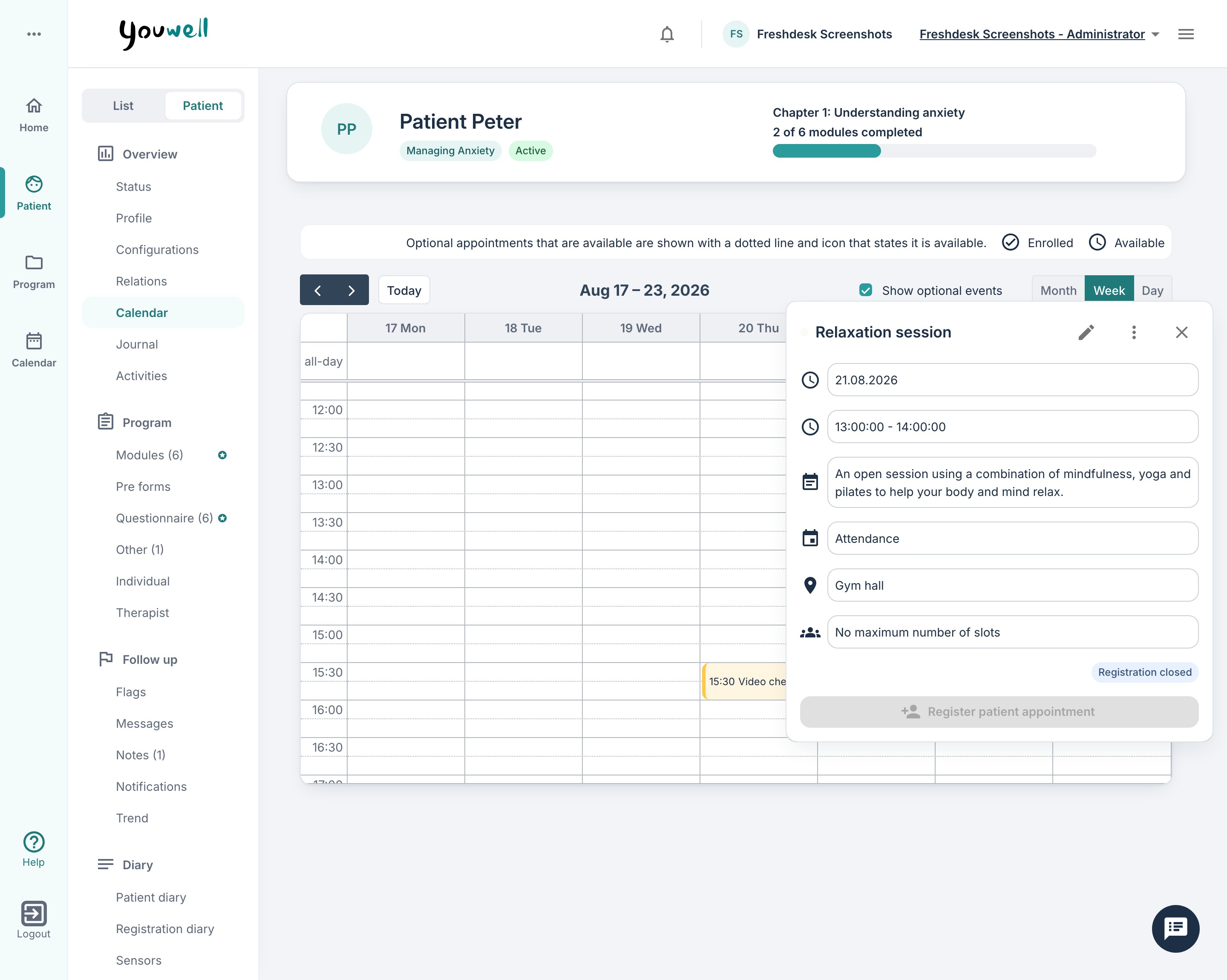
For an optional appointment, such as an open group session, you can book the patient on with Register patient appointment or take them off with Unregister patient. The appointment shows Enrolled when the patient is booked on, and Registration closed once the registration deadline has passed.
Tick or untick Show optional events to show or hide optional appointments the patient has not registered for.
Video meetings
For video appointments, both the clinician and the patient use Join call at the scheduled time to enter the meeting. If the link is used too early, a message may say that the meeting is not available yet. At the scheduled time a new tab opens and the user enters the video meeting without having to log in again.
What the patient sees
Patients find their appointments under Appointments in the patient app. You can read more in The Calendar in the patient app.
Was this article helpful?
That’s Great!
Thank you for your feedback
Sorry! We couldn't be helpful
Thank you for your feedback
Feedback sent
We appreciate your effort and will try to fix the article