An appointment can be set to repeat on a schedule, so a weekly follow-up, a daily check-in or a monthly review only needs to be created once.
CONTENTS
- Setting the repeat pattern
- Editing or deleting a recurring appointment
- Recurring appointments in templates
Setting the repeat pattern
The Repeat control is available in the form when creating a new appointment.
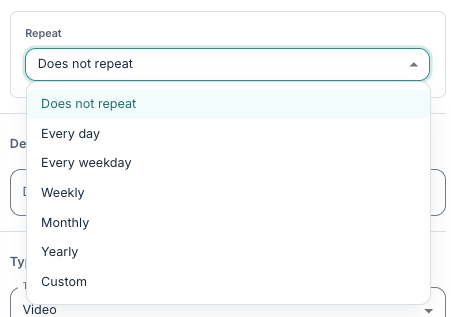
Repeat options
- Does not repeat — this is the default setting, meaning the appointment occurs once.
- Every day — the appointment will repeat at the same time every day, including weekends.
- Every weekday — the appointment will repeat Monday to Friday only.
- Weekly — the appointment will repeat on the same day of the week as the first appointment.
- Monthly — the appointment will repeat on the same day of the month.
- Yearly — the appointment will repeat on the same date each year.
- Custom — this option prompts further choices and allows you to configure the interval and, for weekly repeats, choose which days the appointment runs on.
For every pattern, you may choose when the series Ends: Never, On date (the last appointment occurs on or before this date), or After a set number of occurrences. Note that you should set a valid end date in the future; an end date in the past, or an empty weekday selection, will not be considered a valid series.
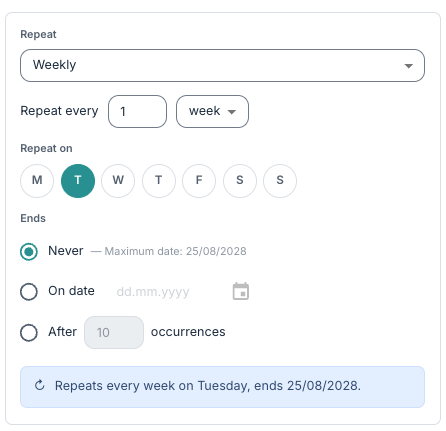
At the bottom of the Ends section, you will see a short summary of the resulting schedule, for example "Every 2 weeks on Monday, Wednesday, ends after 10 occurrences". This helps you to review the pattern before saving.
Custom repeat
Selecting Custom will open up some more options which will allow you to configure the repeating pattern in more detail.
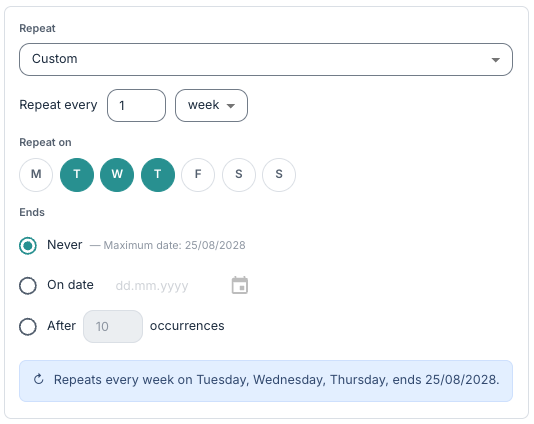
You can, for example, plan that an appointment will repeat every Monday, Wednesday and Friday, after 10 occurrences, or a fortnightly appointment repeating after 4 occurrences.
Editing or deleting a recurring appointment
Opening any occurrence offers the full edit and delete actions. Because a change to one occurrence can affect other appointments in the series, a scope prompt appears before you save any changes.
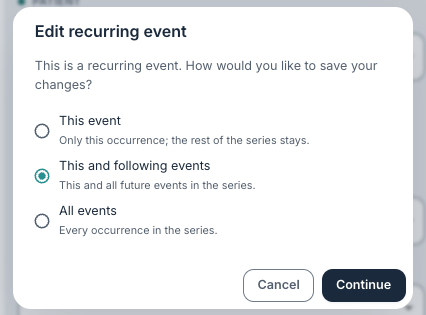
On the Edit recurring event popup, you can select whether you want to save your changes for:
- This appointment — only the selected occurrence changes. It becomes an exception in the series.
- This and following — the selected appointment and every occurrence after it. Earlier occurrences are unaffected.
- All events — every occurrence in the series changes.
The same prompt applies when deleting, or when a recurring appointment is dragged to a new time.
Existing bookings when a series changes
When you modify a recurring appointment that patients have already booked, confirmed places are preserved. You may want to review the series after making changes to confirm dates, times and bookings are as you intend, and let affected patients know if a time has moved.
Recurring appointments in templates
Templates can also contain recurring appointments. Because template events are expressed in days from a start date rather than fixed dates, recurring template events use day-offset ranges. For example "starts on Day 1, repeats every 7 days for 6 occurrences". When the template is applied, the pattern is materialised into concrete appointments.
Was this article helpful?
That’s Great!
Thank you for your feedback
Sorry! We couldn't be helpful
Thank you for your feedback
Feedback sent
We appreciate your effort and will try to fix the article