Patients see their appointments in the Appointments section of the patient app. Every appointment linked to the patient, whether it be mandatory or optional, individual or group, from a manual booking, or a linked programme, appears here in a single view. This article describes what patients see from their view, so you can support them and set up appointments that work well on their side.
CONTENTS
- Finding the calendar
- The appointment list
- The calendar view
- Booking, cancelling and consent
- Reminders and rescheduling
- Helping patients
Finding the calendar
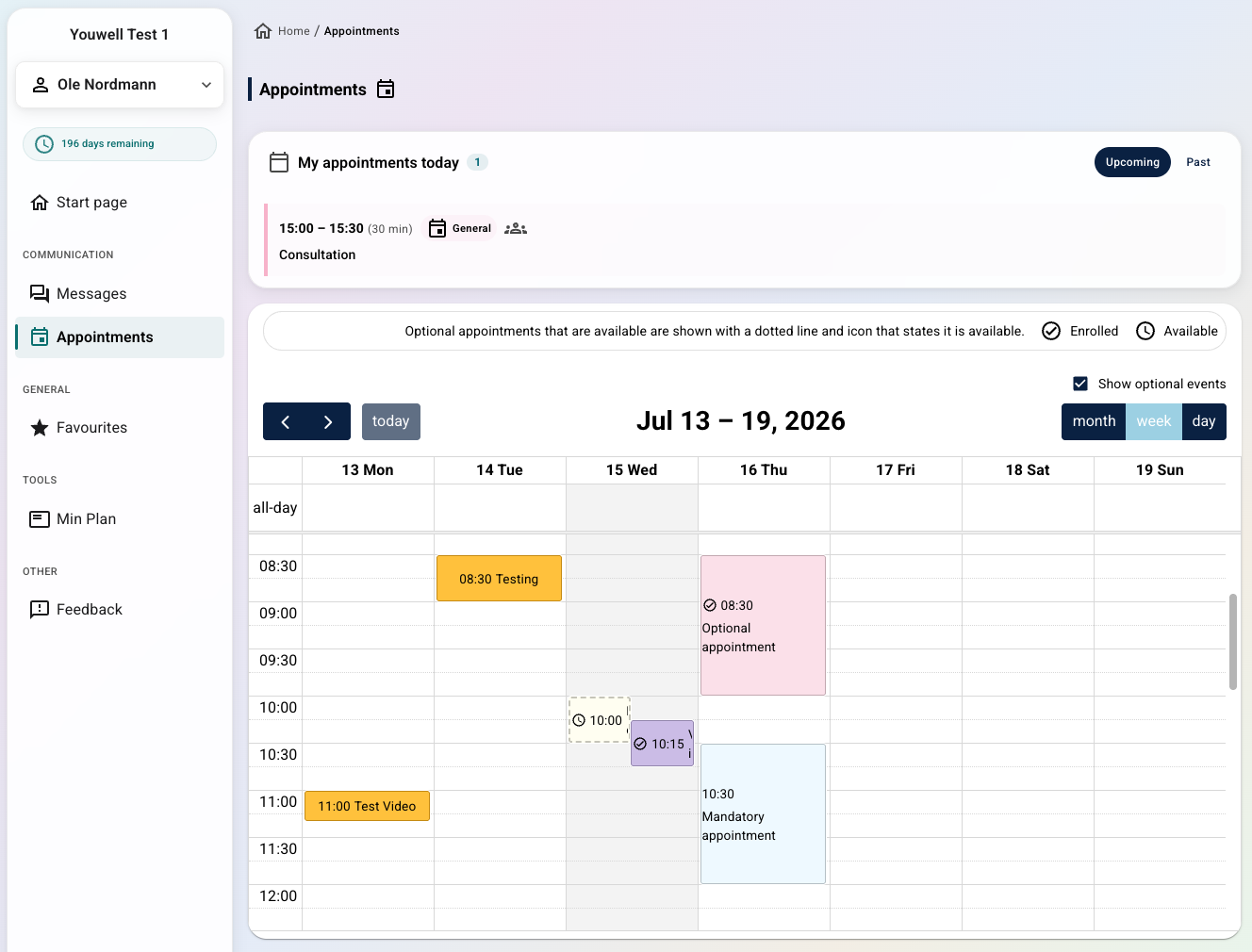
The patient opens the app and uses the menu to select Appointments, which gives an overview of their upcoming and past appointments. The page is shown when the patient has an active programme and the organisation uses appointments.
The appointment list
The upper part of the page shows a My appointments card with two tabs, Upcoming and Past.
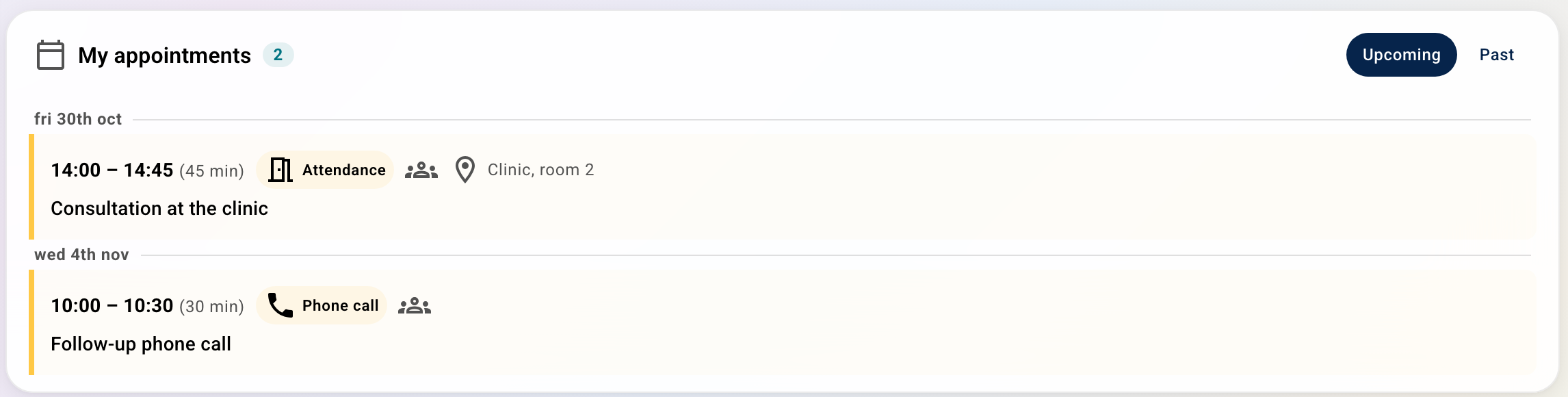
Upcoming lists the appointments the patient is on for the next 90 days: mandatory appointments, and optional ones they have booked. Optional appointments they have not booked are not listed here, but can be found and booked in the calendar view below. If there is nothing in the next 90 days, the card says so.
Upcoming appointments are grouped by day, with today highlighted. Each row shows the appointment title, time, type icon, and any available actions:
- Consent — when the appointment has consent configured and the patient has not yet answered.
- Cancel — for optional appointments the patient has registered for. Mandatory appointments cannot be cancelled from the app.
- Join call — appears close to the start time of a video appointment.
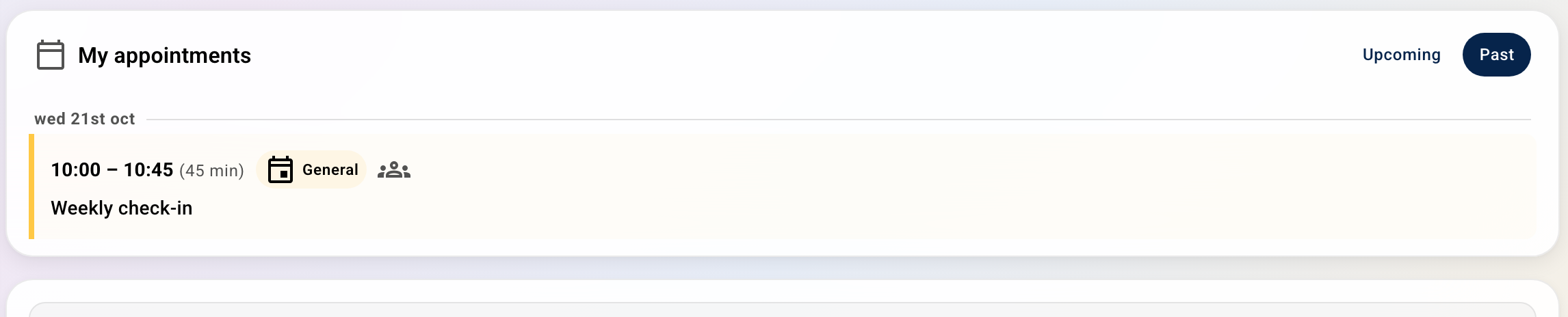
Past shows the patient's recent appointments, going further back as the patient browses back in the calendar view. There are no actions on past appointments.
The calendar view
Below the list, a month / week / day calendar shows the patient's appointments visually, including optional appointments they can book. On a phone the calendar shows a month at a time. The calendar is read-only for the patient, meaning appointments cannot be dragged, resized or edited, but events can be tapped to open a detail popover.
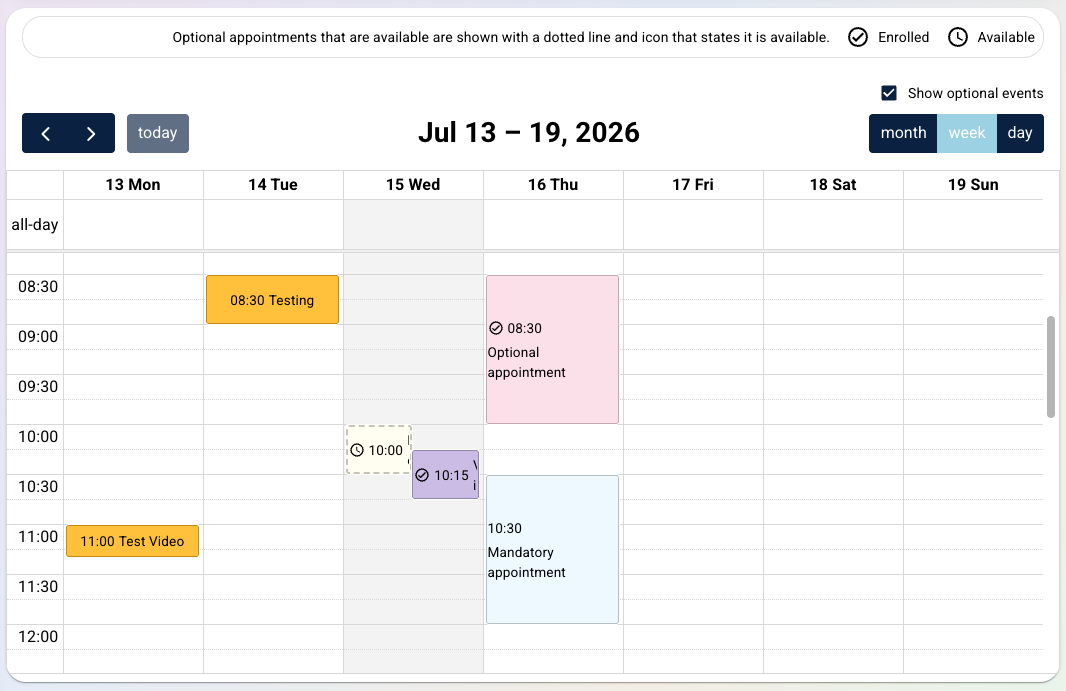
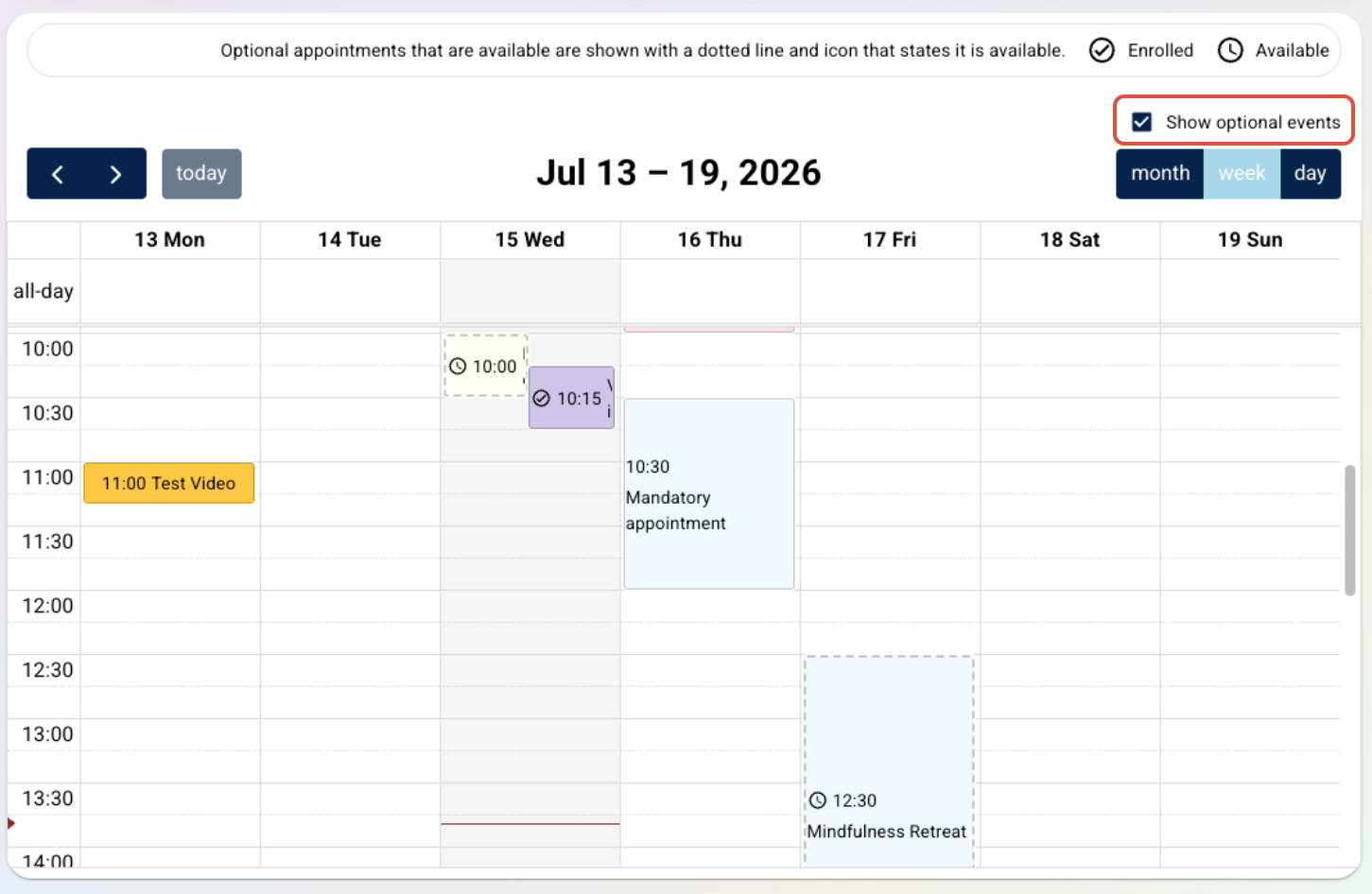
If not otherwise specified, the following colour coding and borders will display on the calendar events:
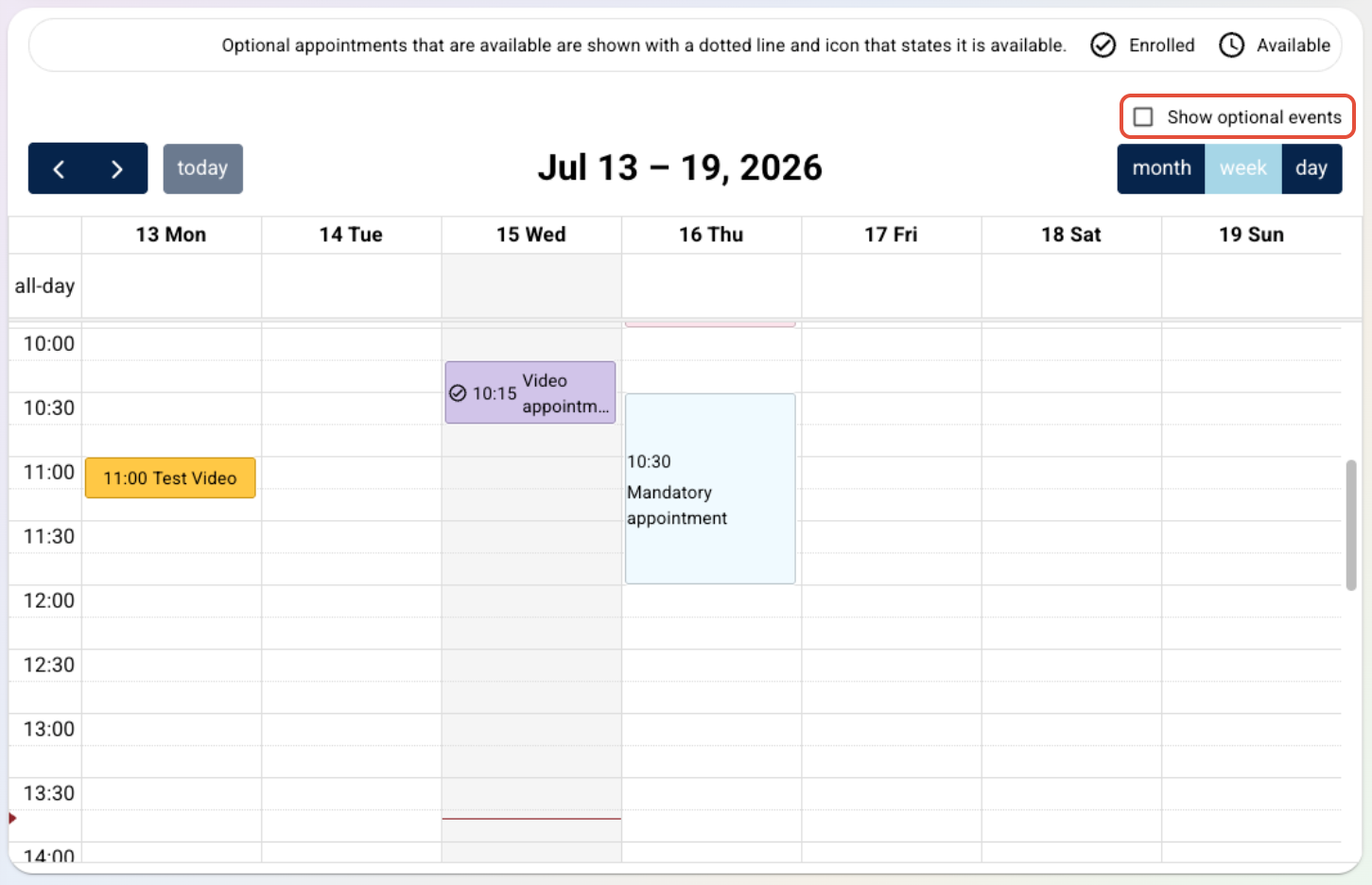
- Enrolled — the appointment is on the patient's schedule (mandatory, or optional the patient has registered for). Shown in the appointment's calendar colour with a solid border.
- Available — optional appointments the patient has not registered for. Shown in muted grey with a dashed border.
Otherwise, the colour of the appointment defined during setup will display instead. Defining certain colours or colour coding appointments can help to visually distinguish different types of appointments from others. You may decide to visually differentiate appointments such as physical exercise classes, compared to individual consultations, compared to group therapy workshops.
The Show optional events filter hides any optional appointments which the patient has not yet signed up to so that they only see what they are enrolled in.
 |  |
Booking, cancelling and consent
Selecting an appointment opens its detail popover. From there the patient can Book an optional appointment or Cancel appointment to cancel their registration, open the consent form, and join a video call once available.
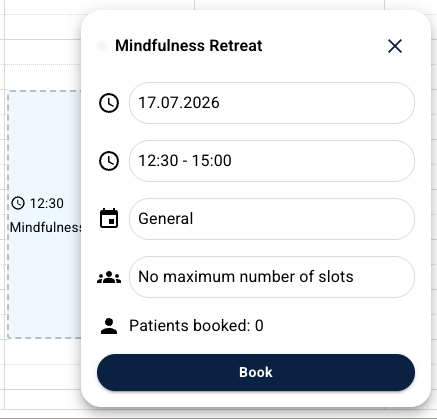
The Book button will be disabled when the appointment is full or the registration deadline has passed; Cancel appointment is disabled once the appointment has started. For a video appointment with required consent, the patient must answer the consent questions before the call can be joined.
Reminders and rescheduling
Patients are reminded of appointments ahead of time, based on the configurations set up in your organisation, or on the reminder times chosen for that appointment. You can read more on this here: Notification and reminder settings.
If you reschedule an appointment, the patient will see the updated time in the app, but it can be good practise to let them know directly if a change occurs close to the appointment start time.
Helping patients
If a patient cannot see an appointment, it is worth checking that it is linked to the correct calendar and that the appointment applies to them (and that any booking window has not closed). If a video call will not start, confirm the appointment is a video type and that the patient is opening it at the scheduled time.
Was this article helpful?
That’s Great!
Thank you for your feedback
Sorry! We couldn't be helpful
Thank you for your feedback
Feedback sent
We appreciate your effort and will try to fix the article