A content page normally shows all of its elements on one long page. With the setting Show one section at a time the same page is instead presented as a series of numbered steps, where the patient works through one element before moving on to the next. This article explains how the function works, how to switch it on, and where it is a good fit.
CONTENTS
- Suggested use cases
- How it looks to the patient
- Switching it on
- Building the page
- Required questions and conditional states
- How the clinician sees the responses
Suggested use cases
The stepped view is most useful when the order of the content matters, or when a page would otherwise be long and heavy. Some examples include:
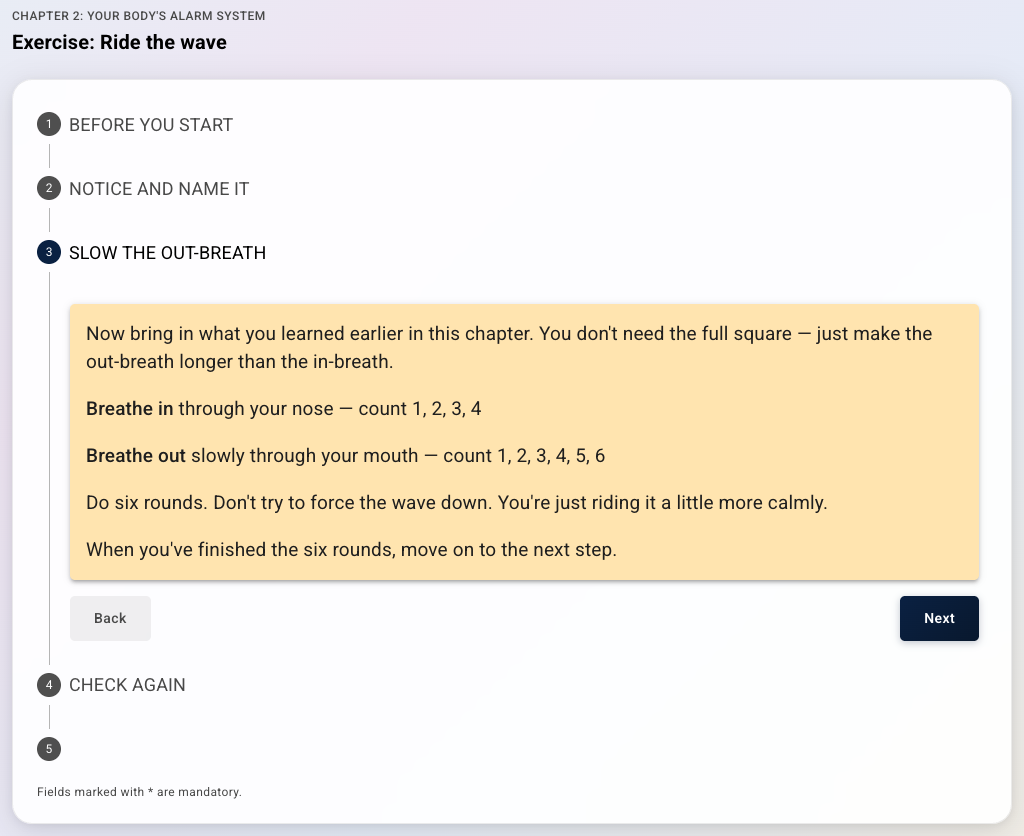
- Guided exercises. A breathing, grounding or relaxation exercise where the patient should do one thing at a time: rate how they feel, follow an instruction, then rate again. The example in the screenshots is a five-step "ride the wave" exercise from an anxiety programme.
- Before-and-after measurements. Placing a rating in the first step and the same rating in a later step gives the patient a clear comparison, and keeps them from filling in the second rating before they have done the exercise in between.
- Step-by-step instructions. Practical guides such as how to prepare for an appointment, how to use a piece of equipment, or what to pack for a stay, where each step should be completed before the next.
- Reflection and planning tools. Pages that build up a plan piece by piece, for example identifying a situation, then the thoughts around it, then an alternative response.
- Longer questionnaires that are not validated instruments. Splitting a long set of questions into themed steps can make them feel shorter. Validated questionnaires should normally keep their standard layout.
The stepped view is less suitable for pure reading material, where the patient benefits from being able to scroll and skim, and for pages with only one or two elements, where the steps add little.
How it looks to the patient
Each element on the page becomes one step. The steps are listed vertically with a number and the element's title, and only the active step is expanded. Steps the patient has not reached yet are shown as numbers only, so they can see how far there is to go without reading ahead.
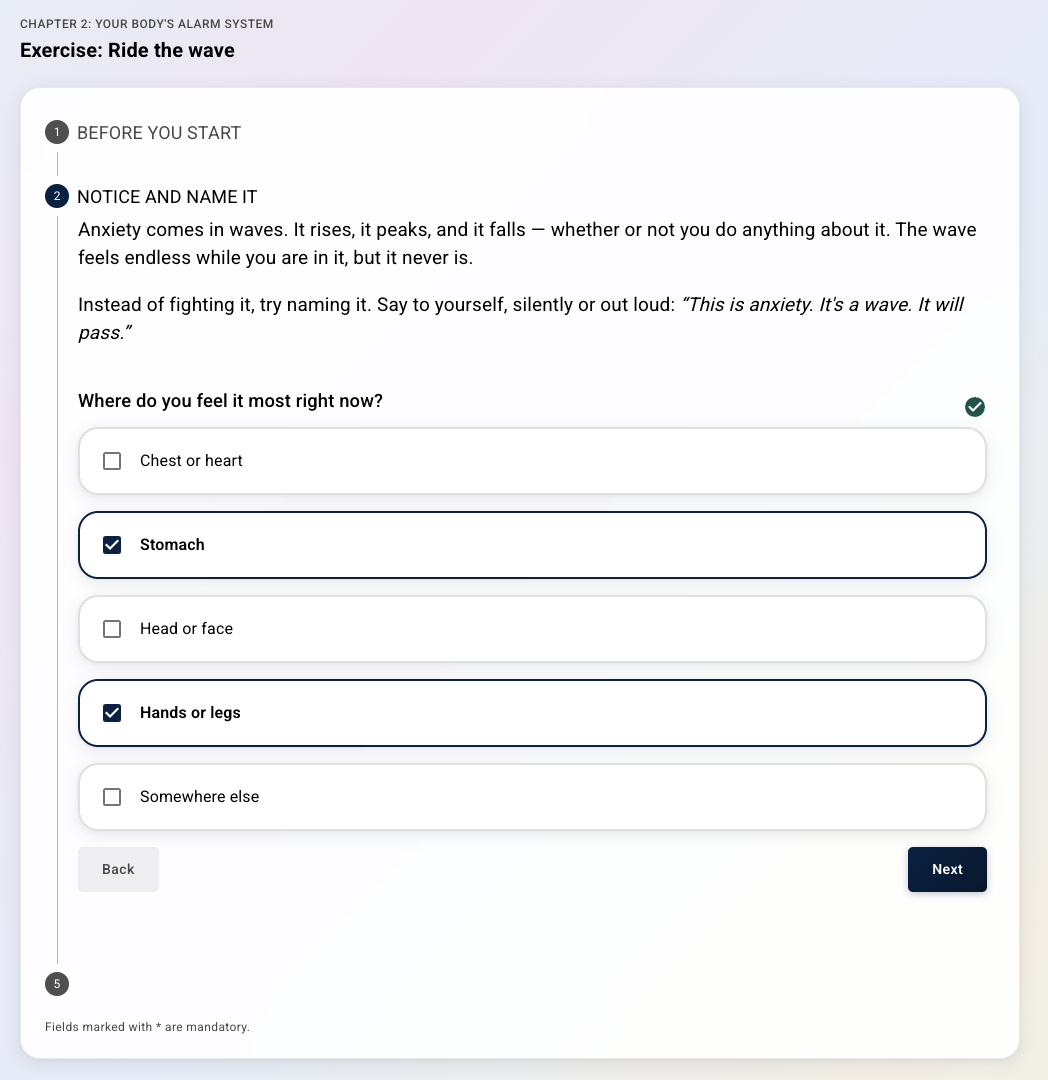 | 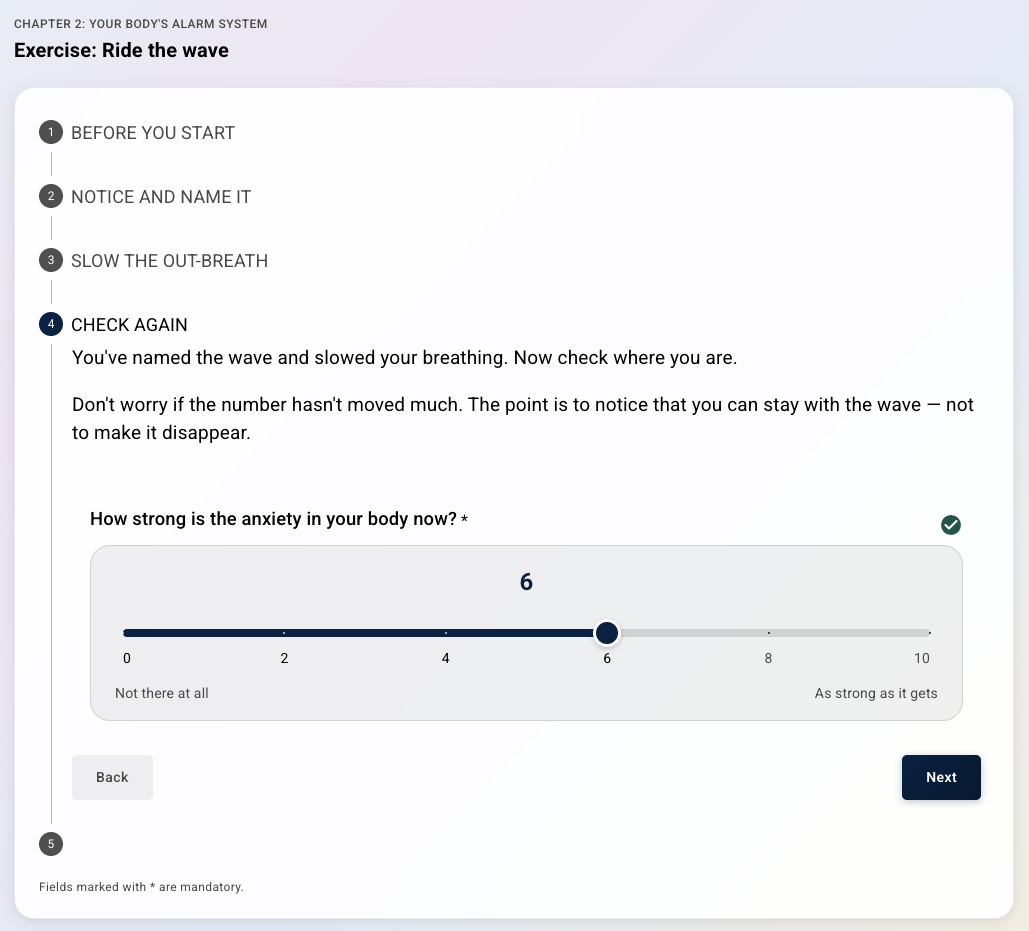 |
The patient uses Next and Back to move between steps. Steps they have already visited can also be opened again by clicking on the title. On the final step the Next button is replaced by Finish, which completes the page in the same way as on an ordinary content page.
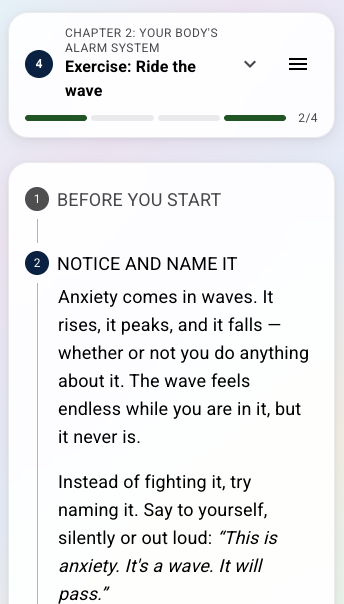
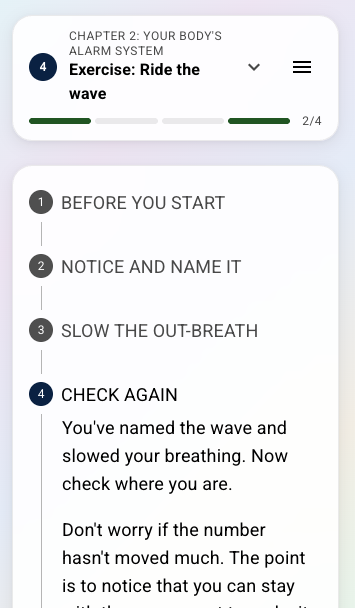
The layout works the same way on a mobile phone, where the stepped view is particularly helpful because a long page would otherwise require a lot of scrolling.
 |  |
Switching it on
The function is set per content page. You can open the three dots next to the title of the content page, choose Settings, and switch on Show one section at a time. When you Save, the page will then use the stepped view for patients.
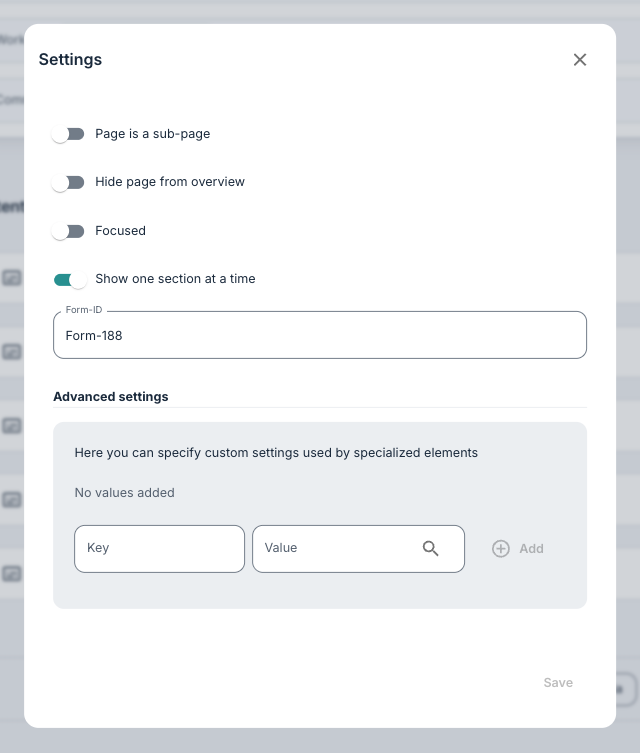
Nothing else about the page needs to change. The elements, questions and settings are exactly the same as on an ordinary content page, and the setting can be switched off again at any time to return to the normal layout. You can read more about the other options in this dialogue in: Further settings on modules and content pages.
Building the page
Because every element becomes a step, the way you structure the elements decides how the page feels for the patient. A few things to keep in mind:
- Element titles. The title is used as the step label, so this helps to guide the patient along the page. An element without a title is shown as "Step 1", "Step 2" and so on.
- One idea per element. We recommend putting the text, image and questions that belong together in the same element, so that each step is self-contained. In the example below, step 3 is a single box element with the breathing instructions and nothing else.
- Keep the number of steps modest. Four to seven steps is usually comfortable. If a page needs many more, consider splitting it into two content pages.
- Order matters. The steps follow the order of the elements on the page, so use the drag handle in the editor to arrange them in the sequence the patient should follow.
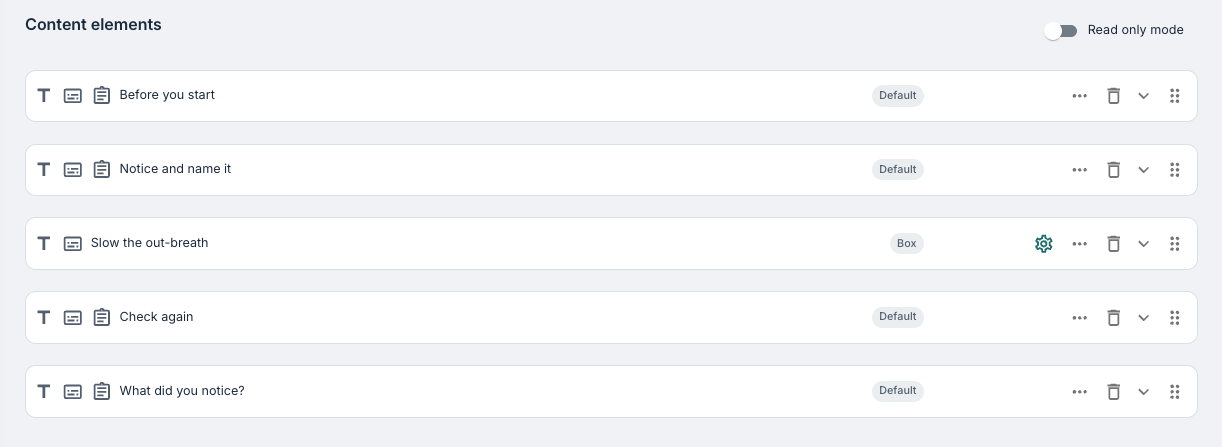
All element types can be used as steps, including box elements, read more, swipe cards and media. See Default elements and Questionnaires & question elements for an overview of what elements are available.
Required questions and conditional states
If a step contains a required question, the patient cannot move on to the next step until it has been answered. The step is highlighted and the patient is taken to the missing answer when they press Next. This makes it possible to be sure that, for example, a rating has been given before an exercise starts.
States with conditions also work as normal. An element that is hidden by a condition is simply left out of the list of steps, and an element that becomes visible after an answer is added as a new step. The patient stays on the step they are working on while this happens.
How the clinician sees the responses
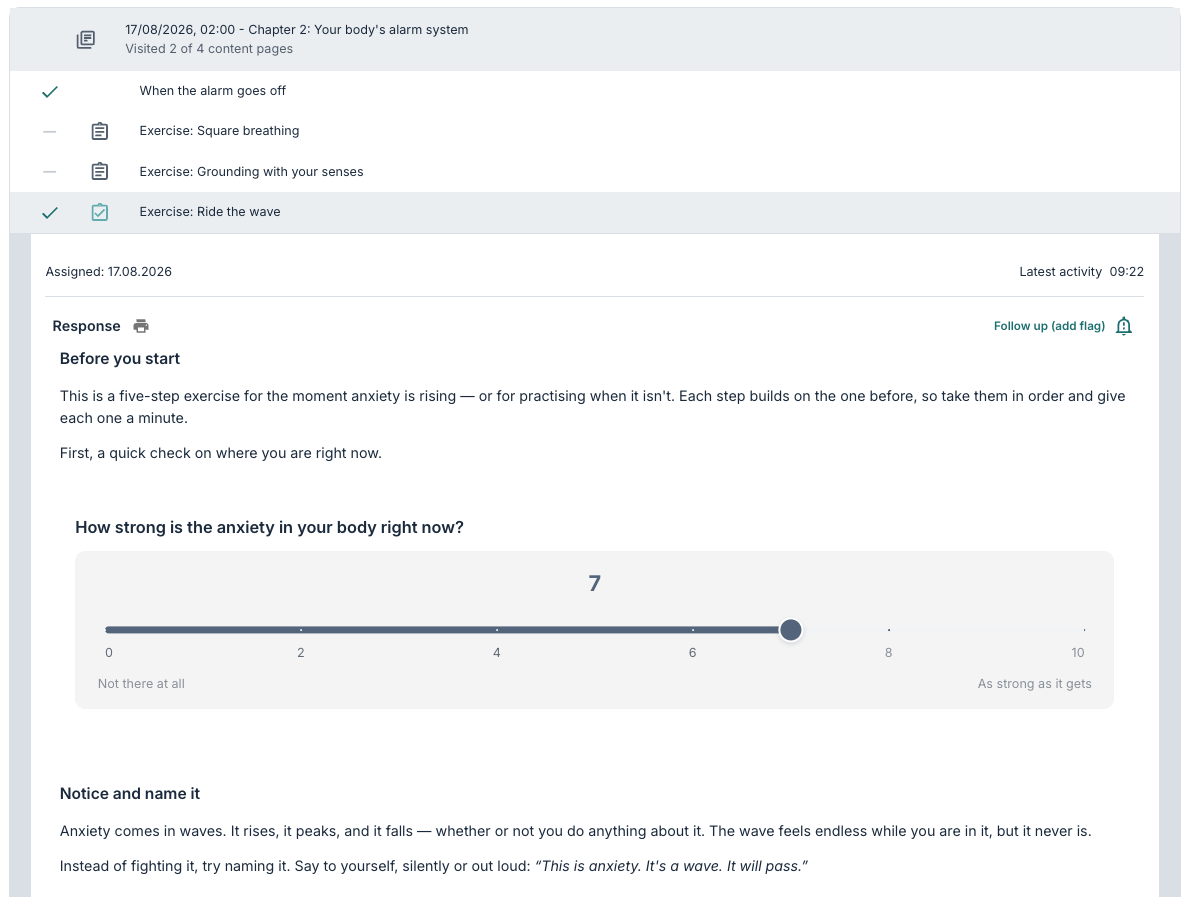
The setting only changes the patient's view in practise. In the portal, the clinician sees the content page and the patient's responses in the normal layout, with all elements listed on one page, and the page appears as completed in the same way as any other content page.
Was this article helpful?
That’s Great!
Thank you for your feedback
Sorry! We couldn't be helpful
Thank you for your feedback
Feedback sent
We appreciate your effort and will try to fix the article