If you have administrator access in the system, you will have access to the Settings tab under Home. Here it is possible to configure various rules and settings for the whole organisation. This page is divided into two: Configurations and Text templates.
CONTENTS
Configurations
Under this tab it is possible to adjust various settings related to treatment, notifications, content, etc. Below follows a list of the different areas that can be customised here:
Patient
The toggles down the list control the settings around the creation of new patients. Here it is possible to choose whether fields for height and weight, as well as gender and age, are to be included in the form when creating a new patient. It is also possible to specify whether the patient has the opportunity to create and delete their own profile (for a self-service program). Finally it is possible to specify whether consent is to be hidden from clinicians/therapists.
Under Available patient dashboard tiles it is possible to activate certain specific tiles that clinicians will see in their overview. If nothing is entered here, all relevant tiles for the patient are shown as default.
Therapist
Here it is possible to choose questionnaires that can be assigned to clinicians, and which will appear under the Therapist sub-page.
The ID of the questionnaire can be entered directly, or the magnifying glass can be used to find the correct questionnaire. It is possible to specify when the questionnaire is active by using the dates Active from and Active to, or by selecting Available all period. It is also possible to specify whether the questionnaire is to be repeated by filling in Date interval and Interval days.
Notifications and flagging
Here it is possible to specify whether notifications are sent out or not (Deactivate sending of notifications). In addition, the message that is sent to the patient for missing medication registration can be customised (Send notification to patients with missing medication-registration).
Under Earliest time for sending notifications and Latest time for sending notifications it is possible to specify when messages are delivered to the patients. This applies to standard notifications, for example when new content or a new questionnaire that can be answered has been published. Time zone can also be chosen, and is by default set to CEST.
Under Notification types for therapists it is possible to choose between Flagged response (critical score) and/or Message. This determines which situations or events lead to clinicians receiving notifications from the system.
Finally it is possible to enter a number under Flag patients that have been inactive for (x) number of days for automatically adding a flag when a patient has been inactive. The field can be left empty if inactive patients are not to be flagged.
Content and data
It is possible to enter a list of available labels in the field List of available labels to create labels that can later be assigned to elements and questionnaires. This can assist with data extraction and sorting in reports.
Link to privacy policy is a field where a link can be entered, and which is shown in the footer of the patient application. Link to universal design report can also be entered here and shown in the footer in the same way.
If it is desired to add custom links in the menu, these can be entered under Custom links in menu. It is possible to contact for further assistance related to this.
Functionality
Here it is possible to control whether certain functions are to be disabled for clinicians and other users in the platform. This relates among other things to the chat window, video meetings, appointment function and note function. This is often used during setup of the account, for example where other systems are used for registration of patient data or communication with patients.
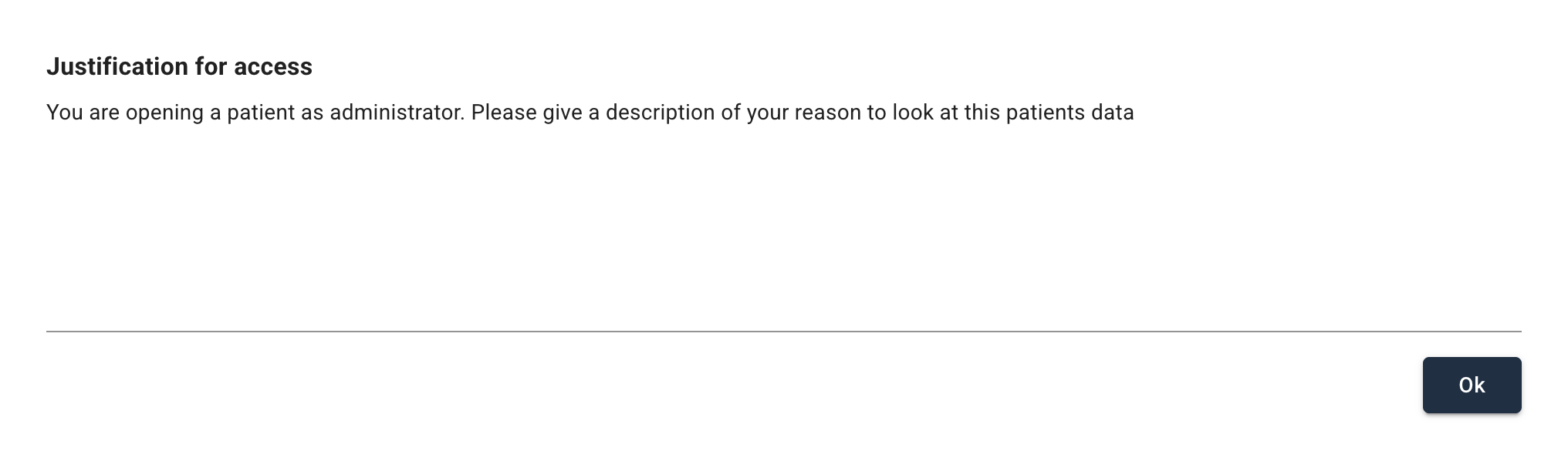
It is also possible to specify whether patients can give anonymous feedback, whether notes can be deleted, and whether the administrator must give a justification for accessing patient data. If Require that the administrator must give reason for viewing patient data is activated, a pop-up similar to the example is shown when the administrator opens a patient.
Under Patient app name it is possible to enter the name that is displayed for patients at the top left when logging in to the patient application.
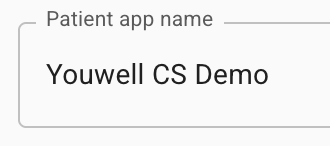 |  Display in the new patient app design (from 2026) Display in the new patient app design (from 2026) Display in the earlier patient app design (pre-2026) Display in the earlier patient app design (pre-2026) |
It is also possible to choose Patient app logo as an alternative to the name in the header. If Patient app name is filled in, this is used as default, but an image can be entered to override this.
In addition, it is possible to specify who is shown as the sender of e-mails from the system (Sender name) and text messages from the system (Sender name short – max 11 chars). It is also possible to specify how long, in minutes, a user remains logged in when inactive (Time before logged in session expires when inactive).
Text templates
Here it is possible to design and customise the messages that are sent out from the platform for various events and activities. By selecting Select text template the desired template can be retrieved. The templates are displayed in a drop-down menu in the format notification.ActivityType. If it is unclear which template is used for a specific need, the support team can be contacted for assistance.
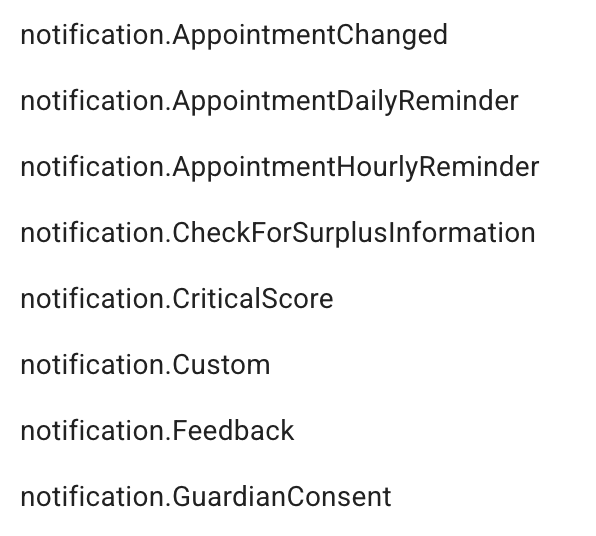
When a notification type is selected, a text corresponding to the example is shown.

The text in the template can be edited, and the same format that is used in the templates should be applied. All dynamic fields are written with {curly brackets} and in the same format as indicated below:
- {appName}
Dynamic field: Name of the patient application. - {appUrl}
Dynamic field: Link to the patient application. - {date}
Dynamic field: Date. (Used for messages about appointments). - {loginLink}
Dynamic field: Link to login page for the patient application. - {password}
Dynamic field: Password. (Used for sending out new temporary passwords). - {pin}
Dynamic field: PIN code for login. (Used for two-step verification). - {programName}
Dynamic field: Name of the program. - {recepientEmail}
Dynamic field: E-mail used for login. (Used for sending out new logins). - {senderName}
Dynamic field: Sender name. - {timestamp}
Dynamic field: Time stamp. (Used for when the password was reset). - {verificationCode}
Dynamic field: Verification code. (Used for sending verification code to the app).
Changes can be saved when you have finished writing the new template.
Was this article helpful?
That’s Great!
Thank you for your feedback
Sorry! We couldn't be helpful
Thank you for your feedback
Feedback sent
We appreciate your effort and will try to fix the article