The pages patients find in the menu, and in the Youwell app's bottom bar, can be set up for each programme. This lets you put the pages that matter most in a programme where patients find them first, rename them to fit the programme, and hide what the programme does not use.
Navigation is set up on the programme's Navigation tab, under the programme's settings. It applies to every patient on the programme.
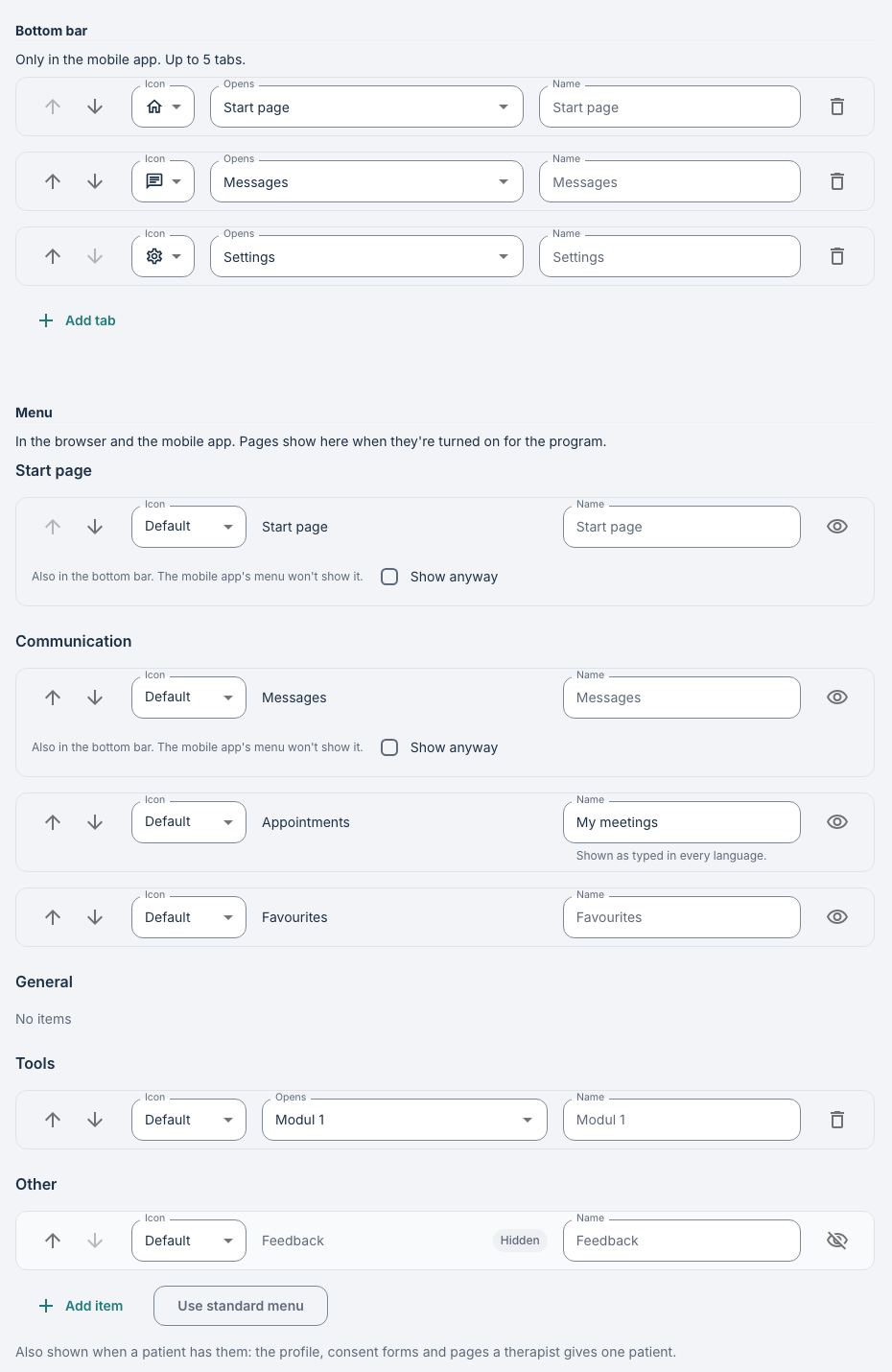 The Navigation tab, with the bottom bar and the menu.
CONTENTS
The bottom bar (Youwell app only)
The bottom bar is only used in the Youwell app for iOS and Android, not in the browser. The Bottom bar section is shown once the mobile-app settings have been switched on for your organisation or programme; contact Youwell support if you would like to start using it.
The bottom bar can have from one to five tabs. For each tab you choose:
- Icon — the icon shown on the tab.
- Opens — which page the tab opens. You can choose from:
- General pages: the start page, messages (if chat is on), appointments, favourites, questionnaires, videos, calendar, printable pages, feedback, achievements and the overview page.
- Content: the programme's own modules and pages.
- Registrations: the diaries and health registrations switched on for the programme, such as My health, Medicine, Sleep diary, My plan and Progress.
- Tools: programme-specific tools, such as Tinnitus, Now what? and WIRUS, where the programme has them.
Only pages that are switched on for the programme are offered, and each page can only be on one tab.
- Name — the name shown under the icon (up to 20 characters).
Settings is always one of the tabs. With only one tab, the app shows no bottom bar. Use standard tabs returns the bottom bar to the standard tabs.
The menu
The menu is used both in the browser and in the Youwell app. It lists the pages that are turned on for the programme, grouped into sections: Start page, Communication, General, Tools and Other.
You can:
- reorder items, and move them between sections,
- rename an item (up to 40 characters),
- give an item a different icon,
- hide an item,
- add new items, up to 30 in all.
A custom name is shown exactly as you type it, in every language. If the programme is used in more than one language, choose a name that works for all of them, or keep the standard name, which is translated automatically.
Use standard menu returns to the standard menu. All your changes to the menu (names, icons, order, sections, hidden items and added items) are lost, so you are asked to confirm.
Some pages are added to the menu automatically, but only when the patient has them: Consent (when the patient has consent forms) and pages a therapist has given that patient individually. They appear in the General section, after its other items. The patient's profile is reached from their name at the top of the menu (in the previous design, it is the first item in the menu).
Pages in both the bottom bar and the menu
A page that is in the bottom bar is not repeated in the Youwell app's menu, so patients do not see it twice. Such items are marked Also in the bottom bar on the Navigation tab. If you want the page in the app's menu as well, tick Show anyway.
In the browser there is no bottom bar, so every page in the menu is shown there.
Was this article helpful?
That’s Great!
Thank you for your feedback
Sorry! We couldn't be helpful
Thank you for your feedback
Feedback sent
We appreciate your effort and will try to fix the article