Programme content should be usable by everyone, including patients who use a screen reader, enlarge the text or have trouble telling colours apart. Check WCAG checks the content you have created in a programme against the WCAG 2.1 AA accessibility guidelines and lists what needs fixing, with a link from each finding straight to the place in the editor where it can be fixed.
CONTENTS
- What is checked
- Running the check
- Reading the report
- Working with the report open
- What an automated check cannot tell you
What is checked
The check covers the content that authors create in the programme:
- text and headings,
- images,
- links,
- tables,
- colours,
- question texts,
- media titles.
Unpublished versions are checked too, so issues can be fixed before the content is published.
Running the check
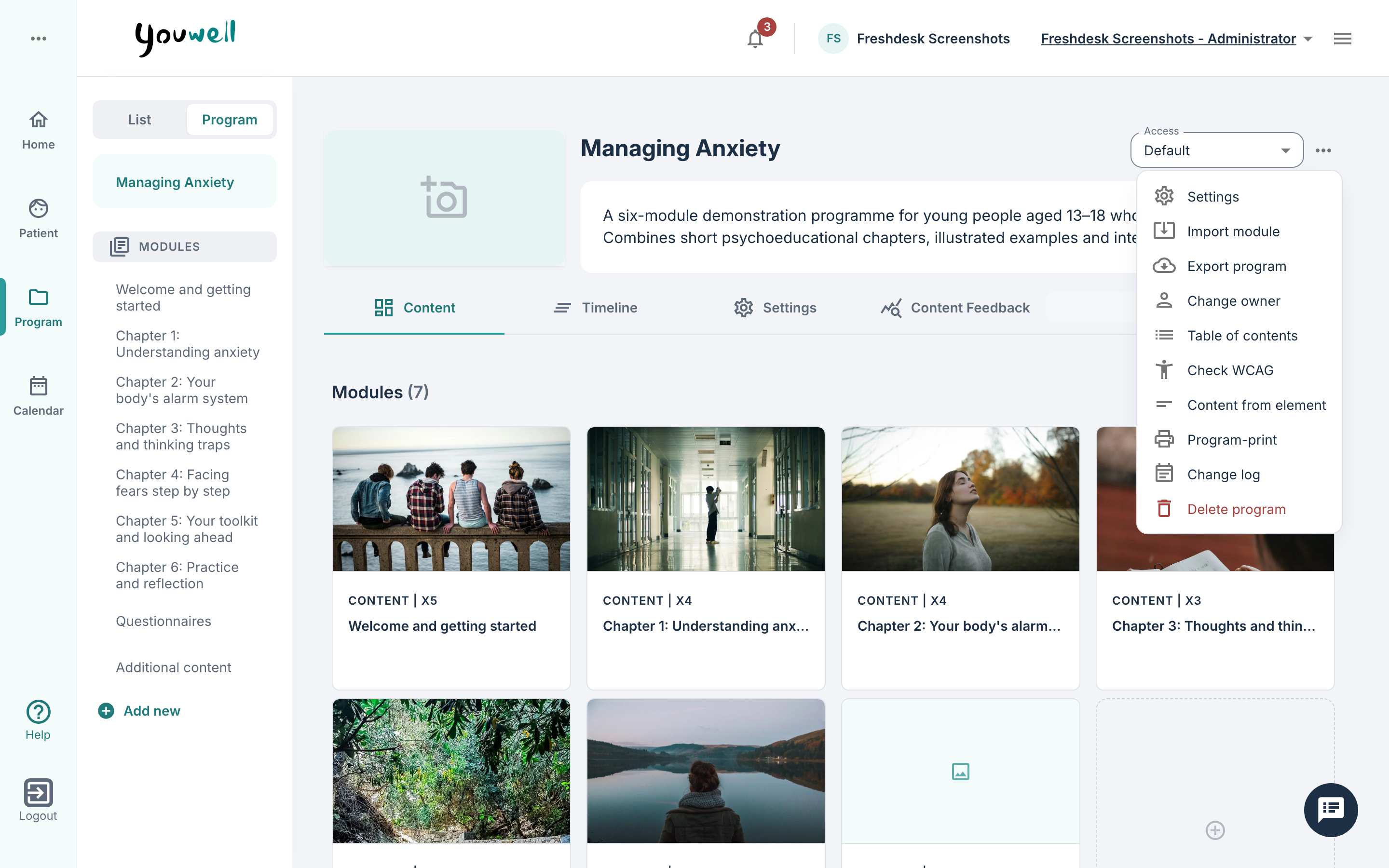
Open the programme and select Check WCAG in the programme menu. The menu, and the check, are available to users who can edit programmes, such as administrators and content creators. A progress indicator shows how the check is going, and the report opens when it is done.
Reading the report
The top of the report shows how many issues were found, for example 12 accessibility issues found. The findings are grouped by module and page, with the number of issues on each.
Each finding is labelled with its WCAG category and has a short description of the issue. The check looks for:
| Category | WCAG | What is flagged |
|---|---|---|
| Non-text content | 1.1.1 | An image with no alternative text; a module image with no description; a video or audio with no title. |
| Info and relationships | 1.3.1 | A heading that skips a level (for example a level 4 heading straight after level 2); a table with no header cells; a table question with no column headers. |
| Contrast (minimum) | 1.4.3 | Text whose colour has too little contrast with its background: at least 4.5:1 for normal text, 3:1 for headings. The same goes for the colours set on an element or a form. |
| Non-text contrast | 1.4.11 | Rating icons whose selected colour has less than 3:1 contrast with the background. |
| Link purpose | 2.4.4 | A link with no text; link text that is just a web address; link text such as "click here" or "read more"; the same link text going to different places in the programme. |
| Headings and labels | 2.4.6 | An empty heading; a question with no text; an answer option with no label; a scale with no label at either end. |
To mark an image as decorative, so that screen readers skip it, select Edit alt text in the image toolbar in the editor, tick Decorative image and select Apply. An image without alt text is marked Alt text missing in the editor and is flagged by the check; a decorative image is not flagged.
Video and audio can be given a Title, which is marked Title missing until it has one, and a Transcript, which patients can open with Show transcript under the player.
When you publish a version that has images without alt text, or video or audio without a title, the portal lists them with Go to element next to each. It is still possible to choose Publish anyway. The question editor also shows a note when a question has no text, or only an image without alt text, since a screen reader would announce it as an untitled question.
Select Open in editor on a finding to go straight to the element that needs fixing.
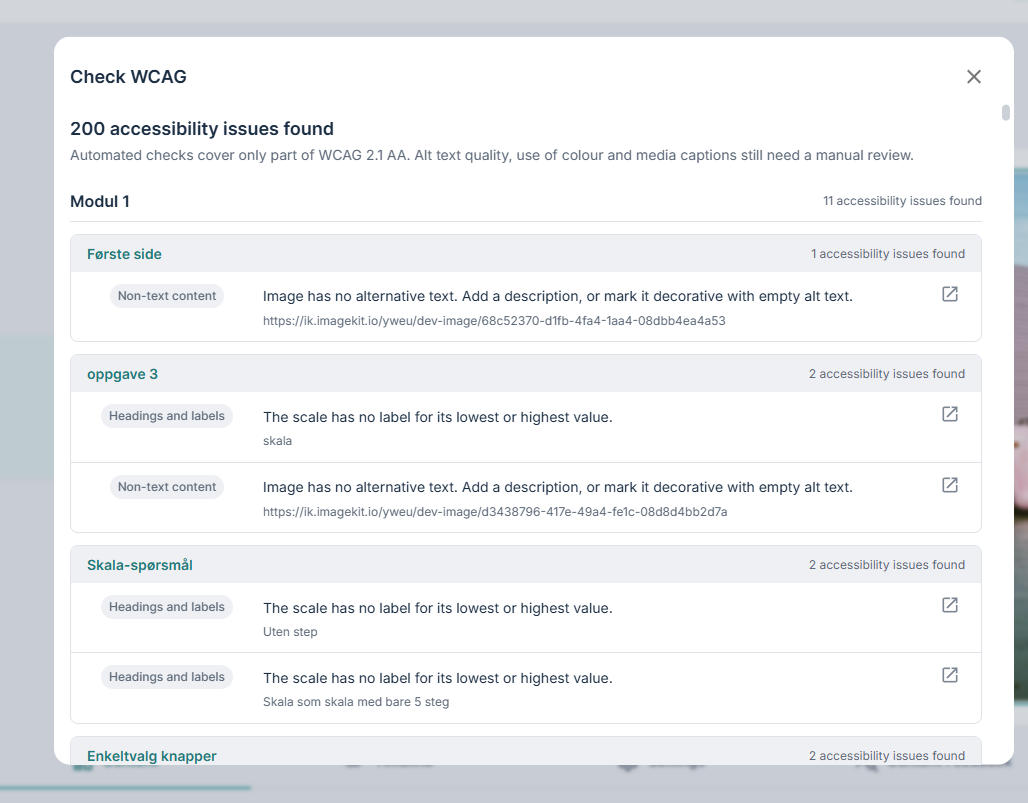 Example of a WCAG report.
Working with the report open
The report opens as a panel beside the editor, so you can fix issues while you read it:
- Keep open beside the editor (the pin icon) keeps the report open as a panel while you move around the programme.
- Minimize folds the panel away. The Check WCAG button at the side of the screen brings it back.
- Check again runs the check again, for example after you have fixed a few issues.
What an automated check cannot tell you
As the report itself points out, automated checks cover only part of WCAG 2.1 AA. A clean report does not mean the content is fully accessible. Some things still need a person to review them, in particular:
- whether alternative text actually describes the image well,
- whether colour is the only way information is conveyed (for example "the questions in red are required"),
- whether videos and audio have captions or a transcript.
Was this article helpful?
That’s Great!
Thank you for your feedback
Sorry! We couldn't be helpful
Thank you for your feedback
Feedback sent
We appreciate your effort and will try to fix the article