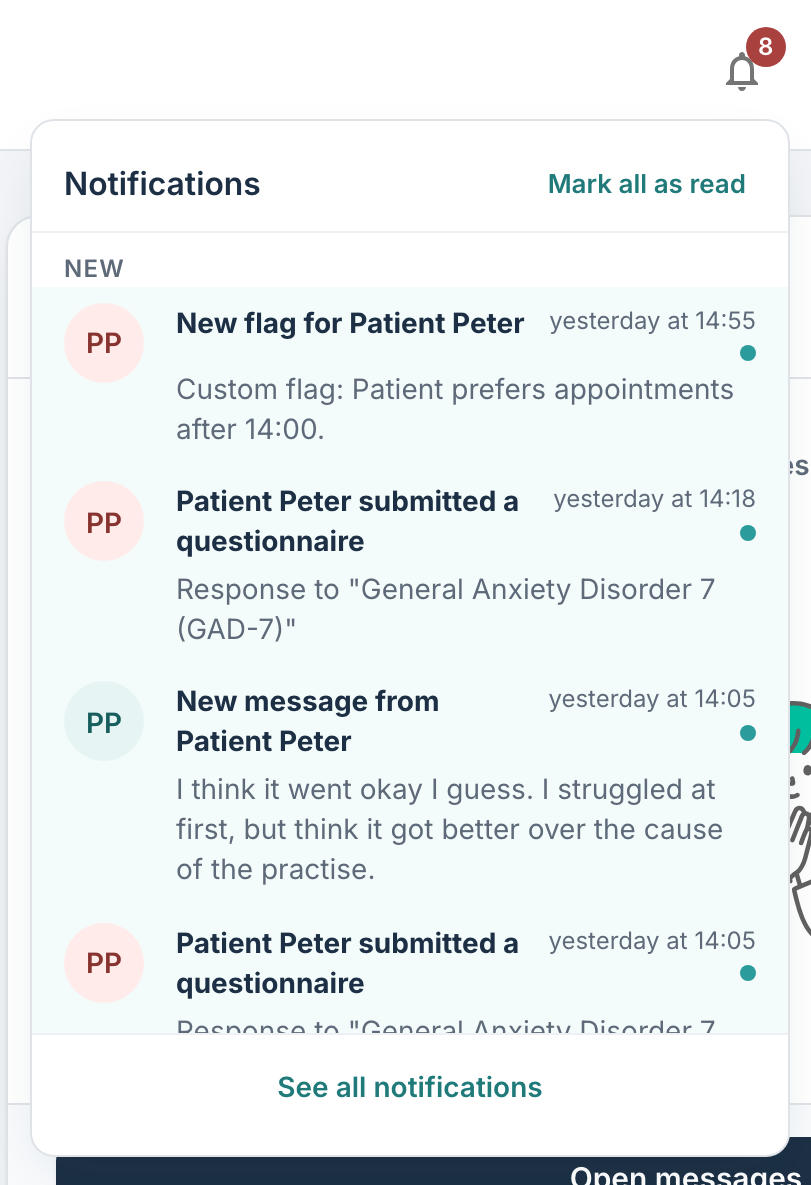
The Notifications Centre keeps you up to date with what's happening across your programs and patients, without you having to go looking for it. A bell icon in the top bar collects recent activity: new messages from patients, submitted questionnaires, upcoming appointments, patient flags, content that needs reviewing, and more; and it shows you a count of anything you haven't seen yet.
Notifications are personal: you only see the activity that is relevant to you, based on the organisation and role you are currently signed in with. Patients do not see this feature, it is part of the therapist/administrator portal only.
CONTENTS
- Where to find your notifications
- What triggers a notification
- Reading notifications and the unread count
- Notification Settings
- Why notifications aren't instant
- What you see depends on your role
- FAQs
- I did something that should have created a notification, but I don't see it yet. Is something wrong?
- Do my patients see these notifications?
- A colleague sees a "content to review" notification and I don't. Why?
- I renamed a task after a notification was created and the notification still shows the old name. Is that a bug?
- Why does the unread number sometimes not match what I expect?
Where to find your notifications
Your notifications can be found under:
- The notification bell in the top bar. You can click it to open a dropdown of your most recent notifications, newest first. A small badge on the bell shows how many unread notifications you have.
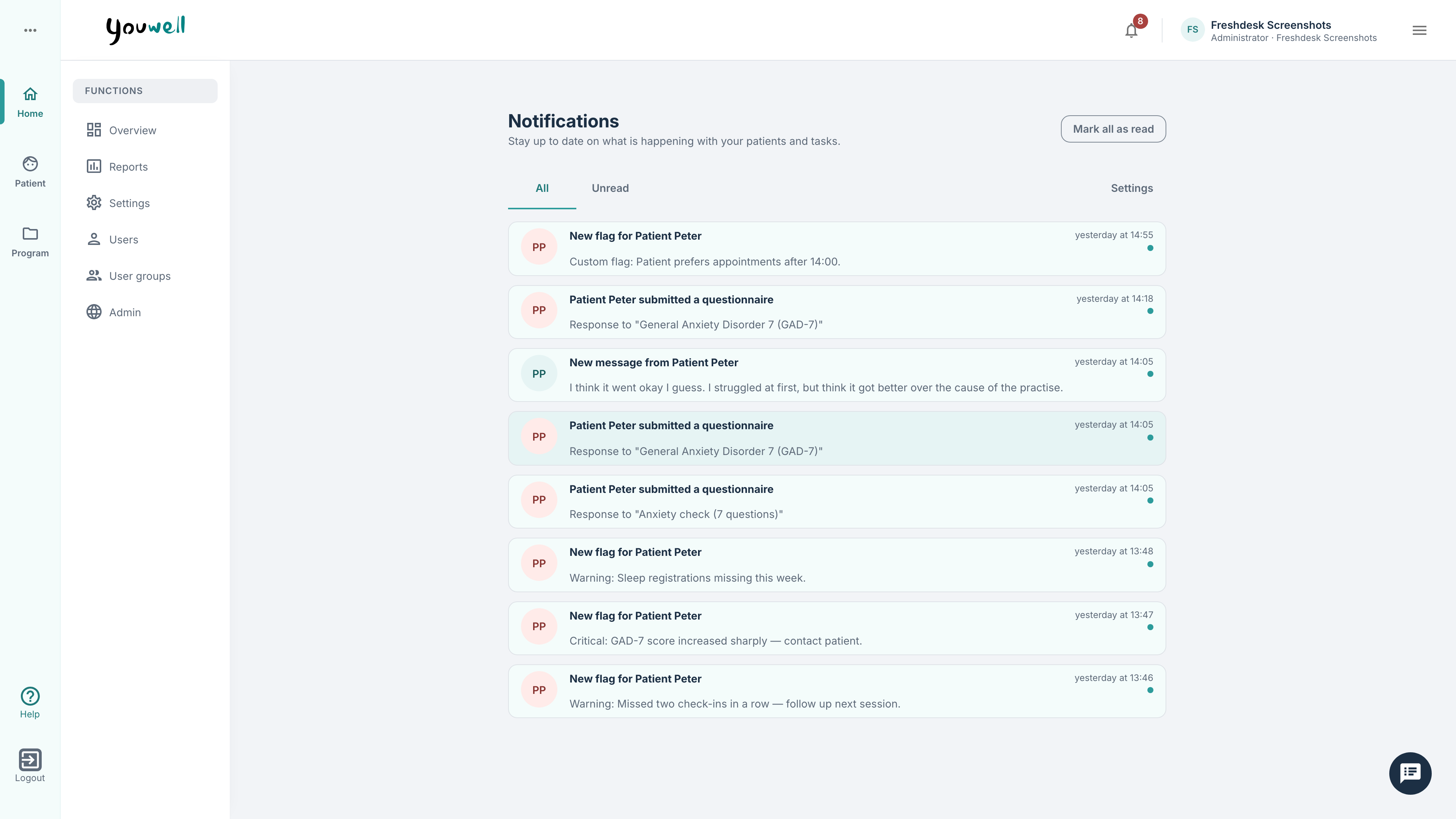
- The Notifications page. For the full history, with paging, you can open the dedicated Notifications page by selecting See all notifications at the bottom of the bell drop-down. This is the place to go when you want to scroll back through older items rather than just the latest few.
What triggers a notification
The Notifications Centre currently covers seven kinds of activity, grouped into four categories (Messages, Patient events, Appointments, and System & tasks):
| Notification | Category | When it appears |
|---|---|---|
| New message from a patient | Messages | A patient sends you a new chat message. The notification shows a preview of the message. |
| Patient flag | Patient events | A new, unresolved flag is raised on one of your patients (for example a critical questionnaire score or warning). |
| New questionnaire response | Patient events | One of your patients submits a questionnaire. |
| Calendar event | Appointments | An appointment for one of your patients, or one that is relevant to you, is created, changed or cancelled. |
| Consent withdrawn | Patient events | One of your patients withdraws a consent they had given (for example "Kari Nordmann withdrew consent"). Not sent where consents are hidden from therapists. |
| Content to review | System & tasks | A task in one of your programs enters a review state (for example In review or soon-to-expire content) and needs a content editor's attention. |
| New therapist questionnaire | System & tasks | A questionnaire aimed at therapists becomes available for you to complete. |
Who receives each notification depends on your relationship to the patient or program. You can read more about this below.
Reading notifications and the unread count
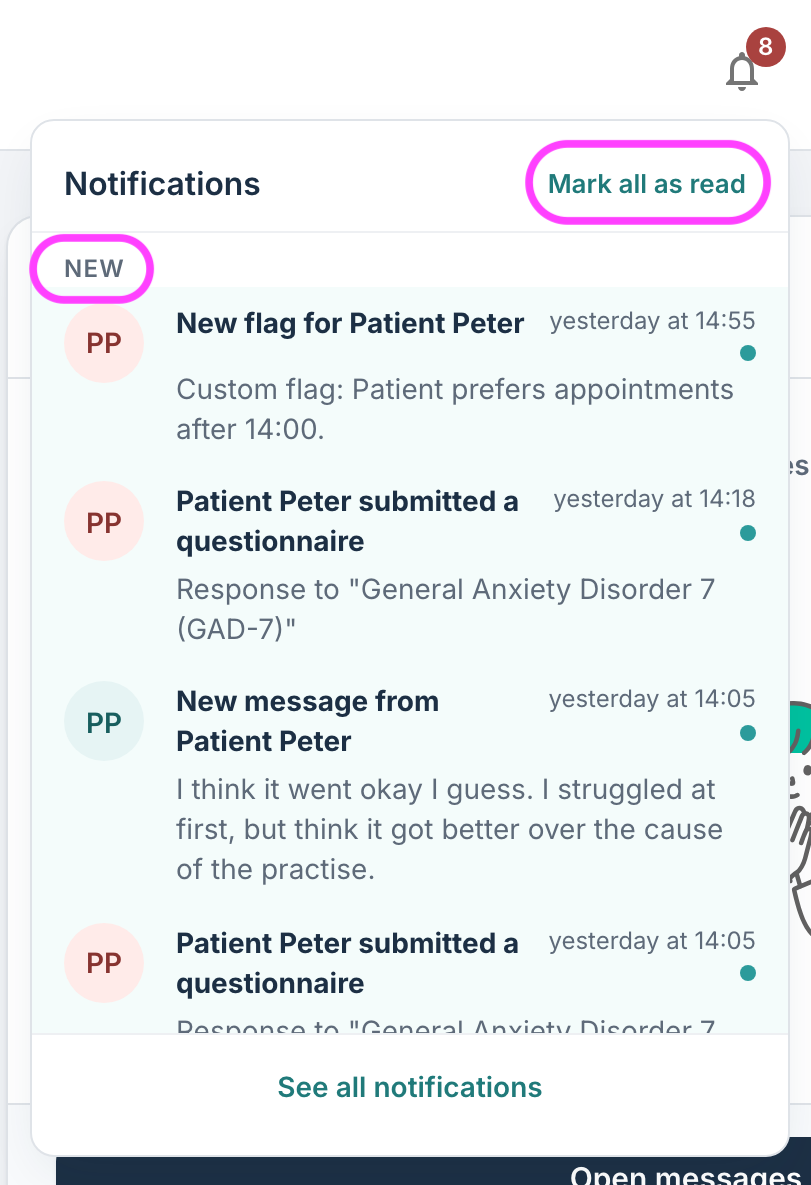
- New notifications arrive as unread and add to the badge count on the bell.
- Opening a notification marks it as read, and the unread count updates straight away.
- Read notifications don't disappear, they stay in your list, just visually distinguished from unread ones, until they are eventually cleaned up.
- You can also mark a single notification as read, or mark all as read at once, to clear the badge.
Clicking a notification takes you straight to the relevant place in the portal and marks it read on the way:
- New message from a patient → opens that patient's chat.
- Patient flag → opens that patient's events tab.
- New questionnaire response → opens the patient's treatment tab and focuses the specific questionnaire that was submitted.
- Calendar event → opens the patient's Calendar tab.
- Consent withdrawn → opens the patient's Profile tab, where Consent from patient shows the withdrawal.
- Content to review → opens the task editor directly on the task that needs reviewing.
- New therapist questionnaire → takes you to your dashboard and highlights the Your questionnaires card.
Notification Settings
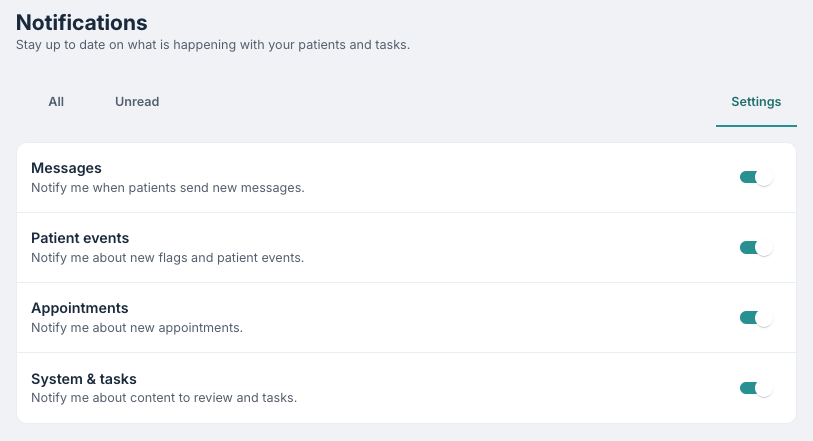
Each of the four categories, Messages, Patient events, Appointments, and System & tasks, can be switched on or off in your notification settings. You can access this page by going to See all notifications in the bell drop-down, and then selecting the Settings tab on the right.
Turning a category off removes those notifications from your feed and from your unread count; turning it back on brings them back. This lets you tune the Notifications Centre to the kinds of activity you actually want to be alerted about.
Why notifications aren't instant
Notifications are produced by a background process that checks for new activity on a regular cycle (roughly every few minutes) rather than the very instant something happens. After you (or a patient) do something that should generate a notification, allow a short while for it to appear. The feed also refreshes itself automatically every so often, so you don't need to reload the page to see new items.
Notifications are tidied up automatically so the feed stays relevant:
- A notification you haven't read is kept for up to 90 days.
- Any notification is removed once it is 180 days old, read or not.
There is nothing you need to do, as older items simply drop off over time.
What you see depends on your role
The Notifications Centre only ever shows you what is relevant to the account, organisation, and role you are currently signed in with:
- You receive message, flag, appointment, calendar, and questionnaire-response notifications only for patients you are connected to as a therapist.
- Content to review notifications only reach users who have permission to edit programs (such as admins and content creators).
- Notifications never cross organisations. If you work in more than one organisation or hold more than one role, switching role or organisation refreshes the feed to show what's relevant there.
FAQs
I did something that should have created a notification, but I don't see it yet. Is something wrong?
Probably not. Notifications are generated on a regular background cycle, not instantly, so give it a few minutes and it should appear.
Do my patients see these notifications?
No. The Notifications Centre is part of the therapist/administrator portal only.
A colleague sees a "content to review" notification and I don't. Why?
Those notifications only go to users whose role allows editing programs. If your current role can't edit programs, you won't receive them, so switching to e.g. a content creator or admin role in the same organisation (if you have one) will show them.
I renamed a task after a notification was created and the notification still shows the old name. Is that a bug?
No. A notification captures the details as they were at the moment it was created, so it keeps the name it had then.
Why does the unread number sometimes not match what I expect?
The badge counts only unread notifications that are visible to your current role. Categories you've switched off, and items your current role can't see, are not counted.
Was this article helpful?
That’s Great!
Thank you for your feedback
Sorry! We couldn't be helpful
Thank you for your feedback
Feedback sent
We appreciate your effort and will try to fix the article