CONTENTS
- What is a custom calendar?
- When to use a custom calendar
- Creating a custom calendar
- Using a custom calendar in an appointment
- Editing or deleting a custom calendar
What is a custom calendar?
A custom calendar is a reusable, named grouping of resources that can be added to appointments in a single step. Instead of selecting the same set of therapists, patient groups and programme profiles every time, a custom calendar holds that combination once and is reused. Unlike a template, a custom calendar does not hold appointments of its own, rather, it holds a specific audience.
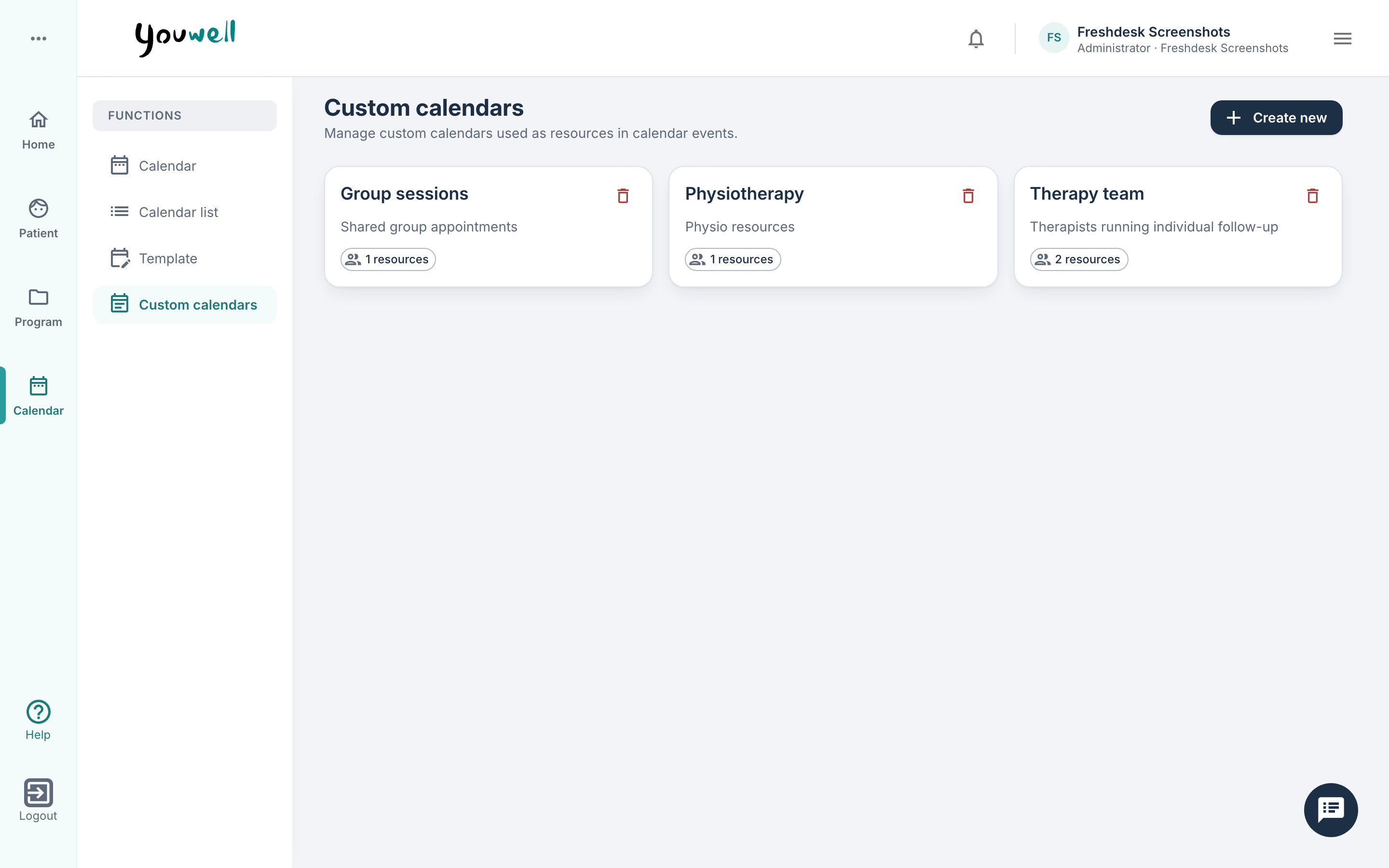
Custom calendars are managed from the Custom calendars sub-area of the Calendar tab. The list shows every custom calendar with its name, description, and a chip indicating how many resources it contains.
When to use a custom calendar
It could be useful to configure a custom calendar in cases where:
- A recurring cohort with a mixed audience (for example three named therapists, a nurse group and a patient list) is used across many appointments.
- A named channel is required, for example "Cardiac rehabilitation cohort, spring" so that clinicians can simply add the group to the Add to calendar panel as a single item.
- A grouping to which patient consent should always apply, as consent can be configured on the custom calendar and inherited by every appointment linked to it.
Creating a custom calendar
Select Create new to open the edit dialogue where you can then specify:
- Calendar name — a descriptive name visible in the resource pickers.
- Description — optional context, shown on the list card.
- Linked resources — the therapists, user groups, patients, patient groups, patient lists, programmes and programme profiles the custom calendar represents.
- Consent — if enabled, patients registering for any appointment linked to this custom calendar must first accept the consent text and answer any required questions.
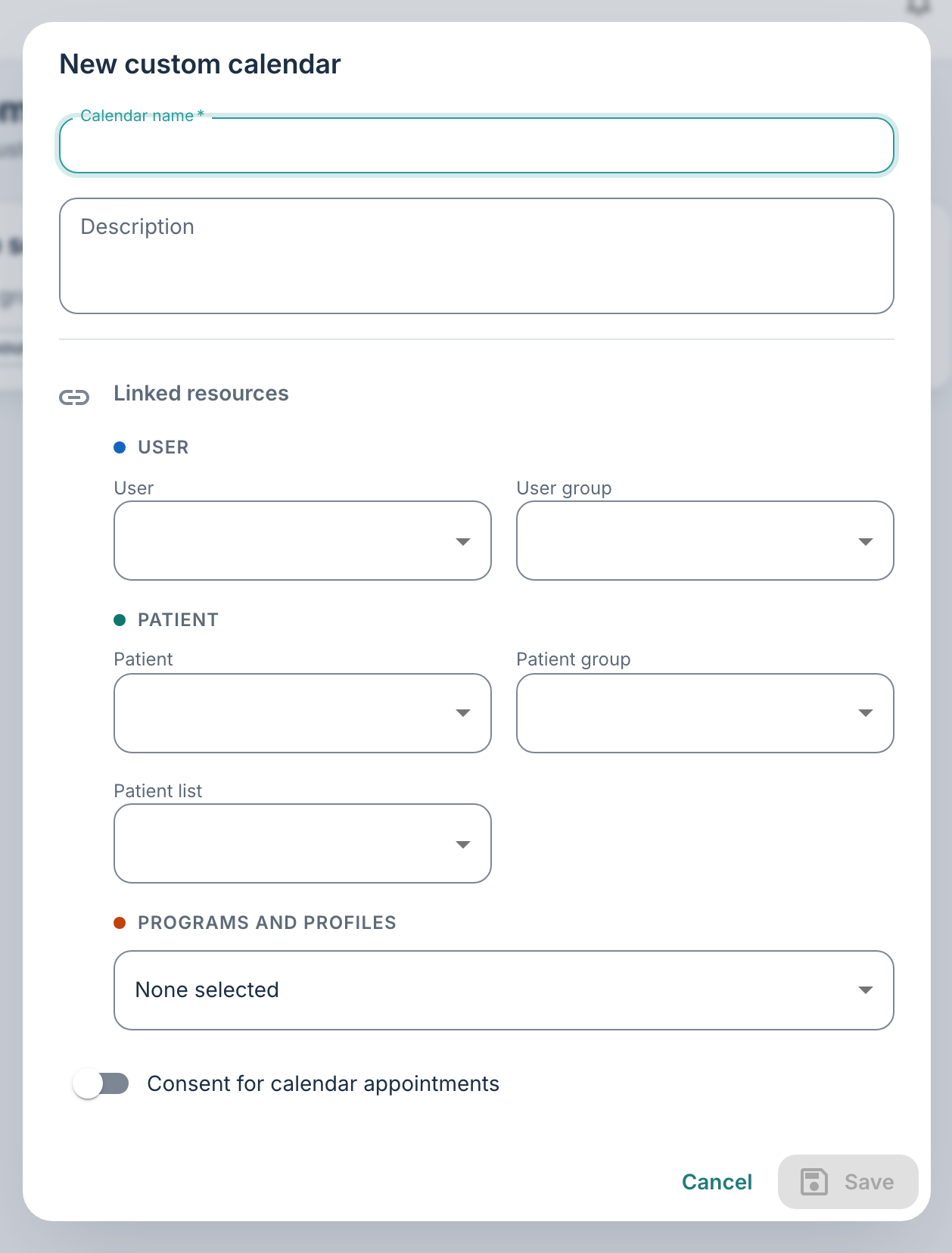
You can then save the calendar to add it to the organisation's resource list.
Using a custom calendar in an appointment
When creating or editing an appointment, you can add the custom calendar in the Linked resources field. The appointment then applies to every resource inside it.
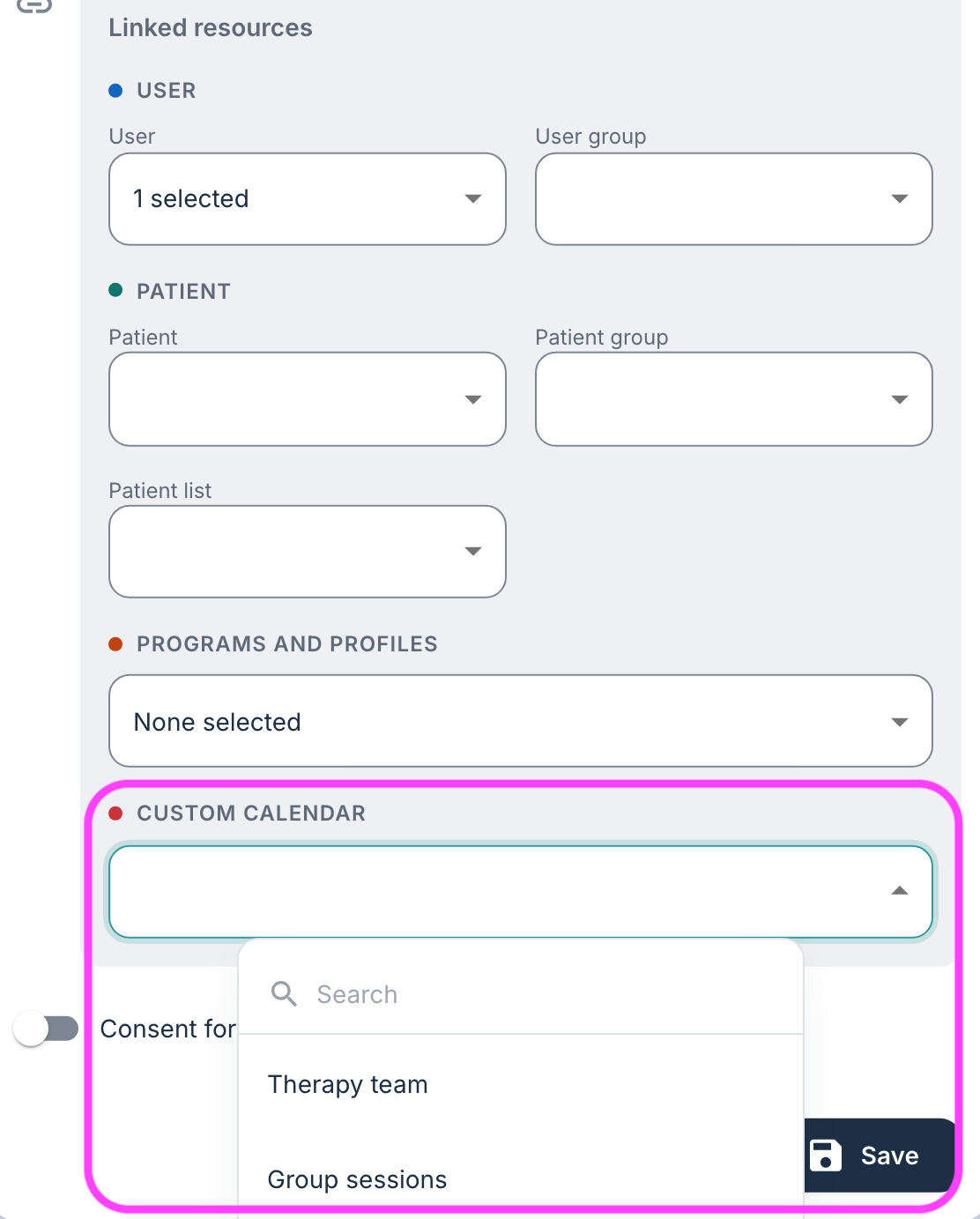
Note that changes to the custom calendar's resource list will only take effect on new appointments; existing appointments will maintain the audience they were initially saved with.
Editing or deleting a custom calendar
You can select a custom calendar from the display in Custom calendars to open the edit popup. You should note that deleting a custom calendar via the trash icon does not delete the appointments already linked to it, it only removes the grouping so that it will no longer be visible under Custom calendars in Linked resources or the Custom calendars tab.
Was this article helpful?
That’s Great!
Thank you for your feedback
Sorry! We couldn't be helpful
Thank you for your feedback
Feedback sent
We appreciate your effort and will try to fix the article