CONTENTS
- What are appointment templates?
- Where templates are found
- Creating a template
- Adding appointments to a template
- Automatic creation from a programme
- Using a template to schedule appointments manually
- Best practices
What are appointment templates?
An appointment template is a reusable set of appointments defined in terms of offset days from a start date rather than fixed dates. Instead of building the same schedule for every patient, you can build it once and apply it whenever needed (manually from the calendar, or automatically when a patient is assigned a linked programme or programme profile). Templates tend to suit structured treatment paths where the same rhythm of sessions repeats for many patients, for example a six-week group programme with weekly follow-ups.
Where templates are found
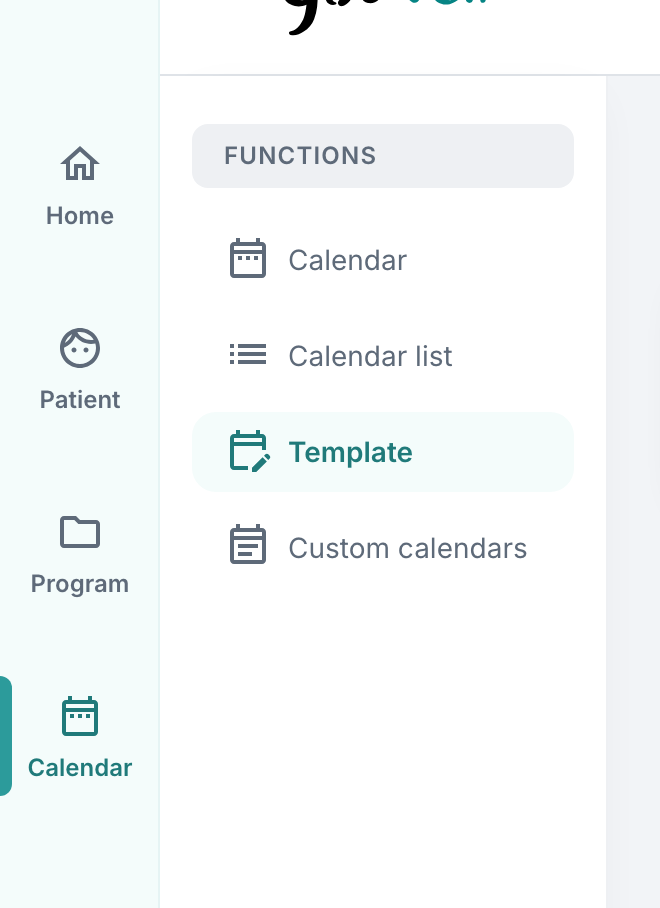
Templates are managed from the Template sub-area of the Calendar tab.
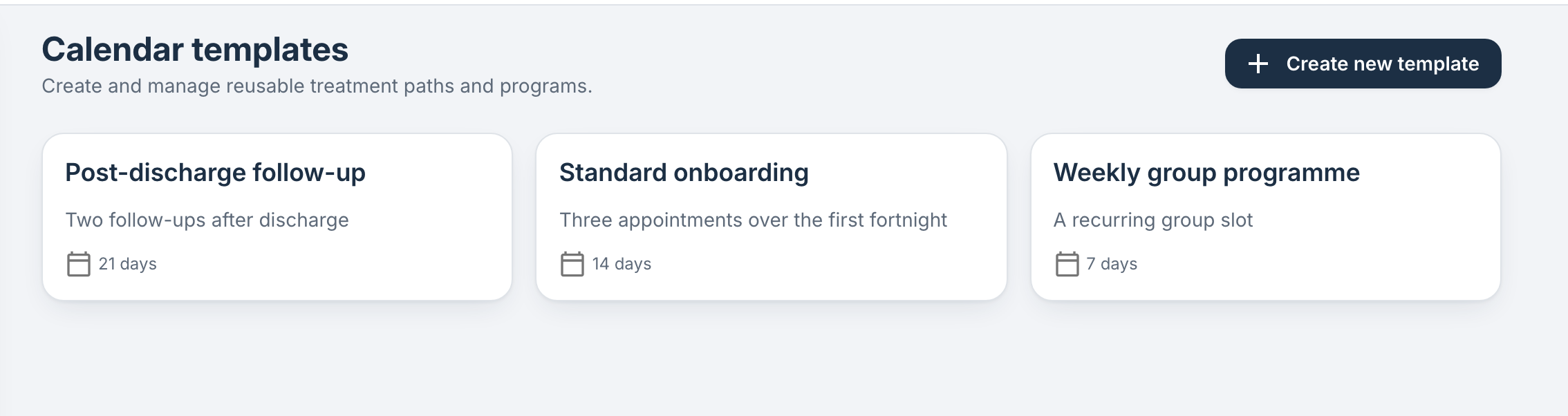
The cards on this page show every template in the organisation with its name, description, the number of days it covers, and any linked programmes or profiles. Select + Create new template to add a new one.
Creating a template
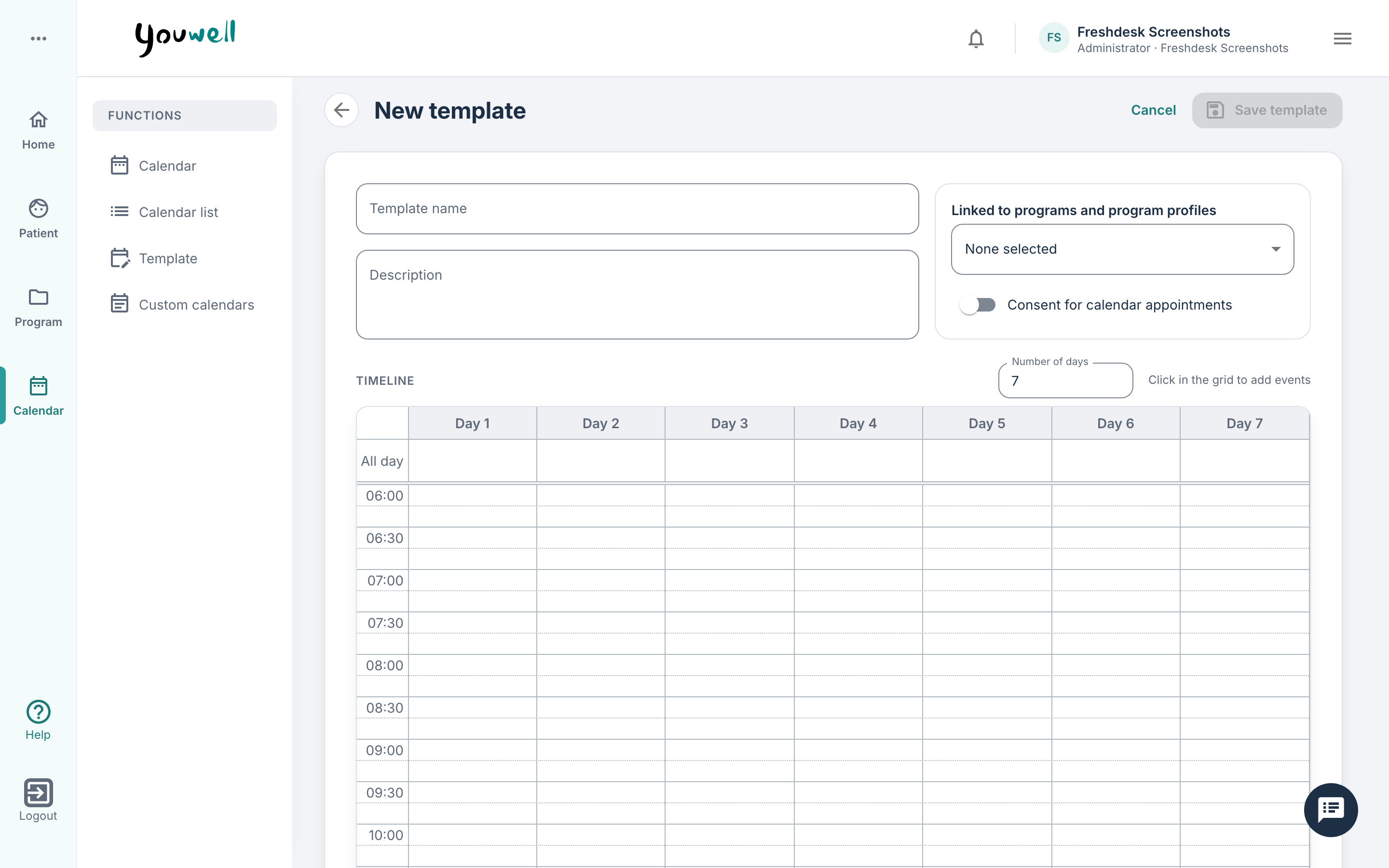
The template creation page consists of two key areas:
- A details card with the template's Name, Description, Duration in days, and Linked programs and program profiles. Consent can also be enabled at template level and is inherited by every appointment created from the template.
- A day-by-day timeline showing Day 1, Day 2 and so on up to the configured duration. Selecting an empty slot on a day opens the New template event dialogue.
You can input the name and description of the template so it is easily identifiable in future.
Selecting programmes and/or profiles on a template will display the following text: "When a program or program profile is linked to this template, the appointments are automatically created in the patient's calendar when the program/profile is assigned to the patient."
Essentially this enables you to create a set routine of events which will be added to patients' calendars upon assignment of the given programme. This is typically used to assign a standard "Welcome" session to new patients, or to provide a plan of follow up sessions for the first few weeks of a new programme. To ensure continuity, it can be sensible to ensure you assign new patients to the programme on the same day, e.g. only on a Monday.
Adding appointments to a template
The template appointment form is almost identical to a regular appointment form. The difference is that instead of a fixed date, the appointment is placed on a relative day (Day 1, Day 2, …). All other fields (name, description, type, location or provider, mandatory/optional, maximum slots, booking closes, colour, linked resources, consent and repeat) behave exactly as for a regular appointment.
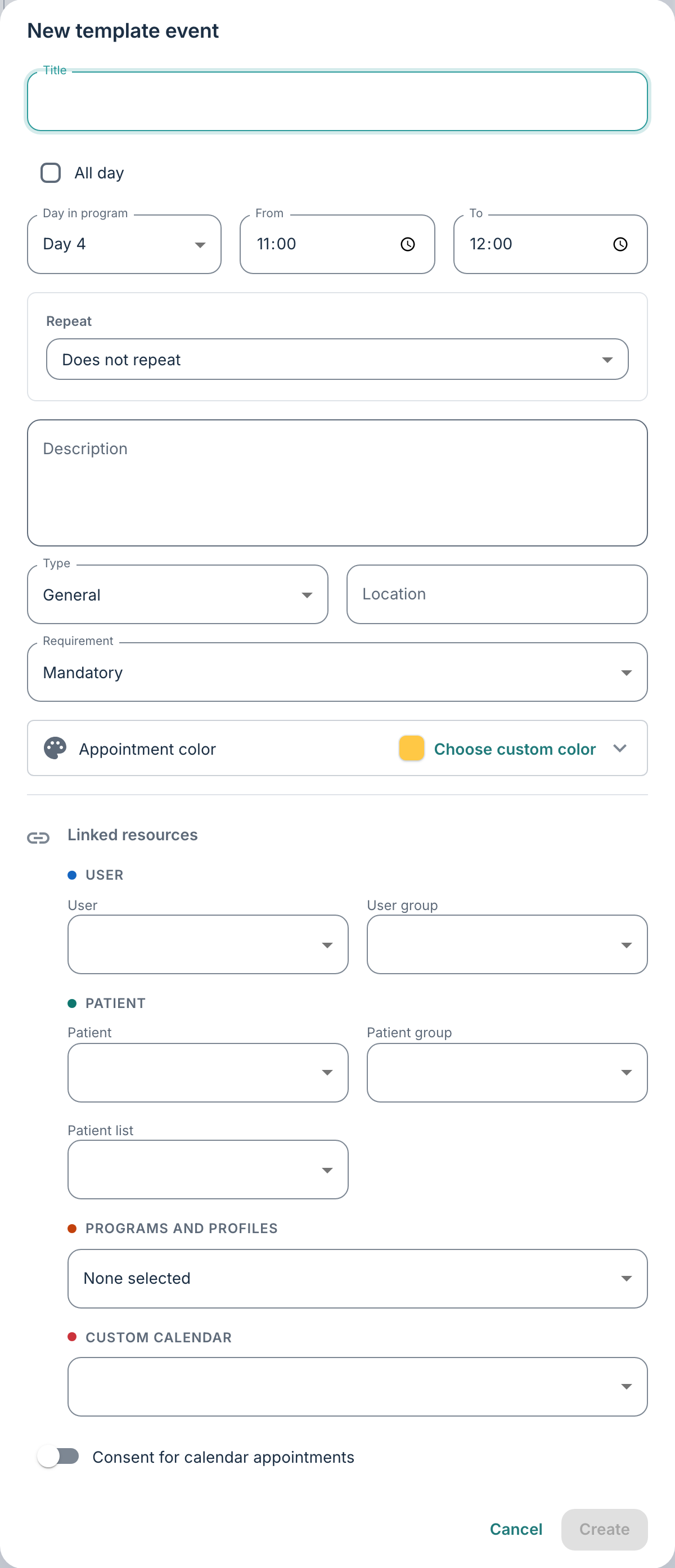
Linked resources are assigned automatically where possible, so appointments are ready to use without linking each resource by hand. Repeat patterns use day offsets, so a template appointment can repeat e.g. "every 7 days for 6 occurrences" and materialise correctly whatever start date is chosen.
Automatic creation from a programme
If a template is linked to a programme or programme profile, its appointments are created automatically in the patient's calendar when the programme or profile is first assigned. This happens once per assignment, and the resulting appointments can be edited or removed like any other.
It can be worth considering your routines for assigning programmes when you are working with templates, so that you e.g. consistently assign new patients to a programme on a Monday, ensuring that your "Welcome" sessions are always on a Tuesday morning.
Using a template to schedule appointments manually
Templates can also be applied on demand for manually-created appointments. From the calendar view, open the New appointment dialog and switch to the Use template tab.
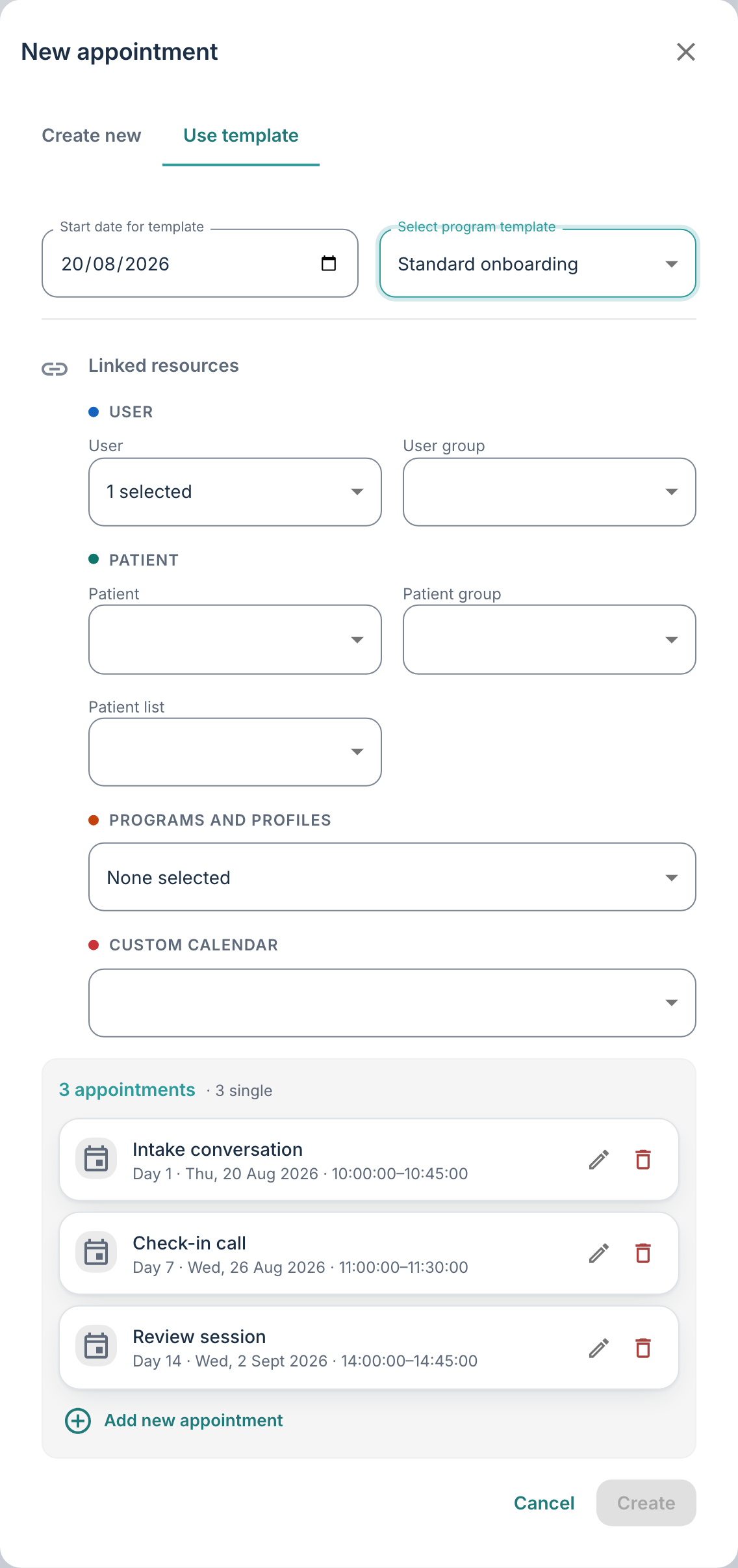
You can now select the Start date for template (note that Day 1 of the template falls on this date). You can then choose a template from Select program template. Templates linked to a currently active programme calendar are listed first.
The dialogue beneath Linked resources shows a preview of every appointment the template will create, with computed real dates.
Adjusting the template
In the area beneath Linked resources, you will see the appointments contained within the template, with each row reflecting an appointment (either an individual appointment or recurring set of appointments). From here, you can edit any appointment in the preview inline by selecting the pen icon.
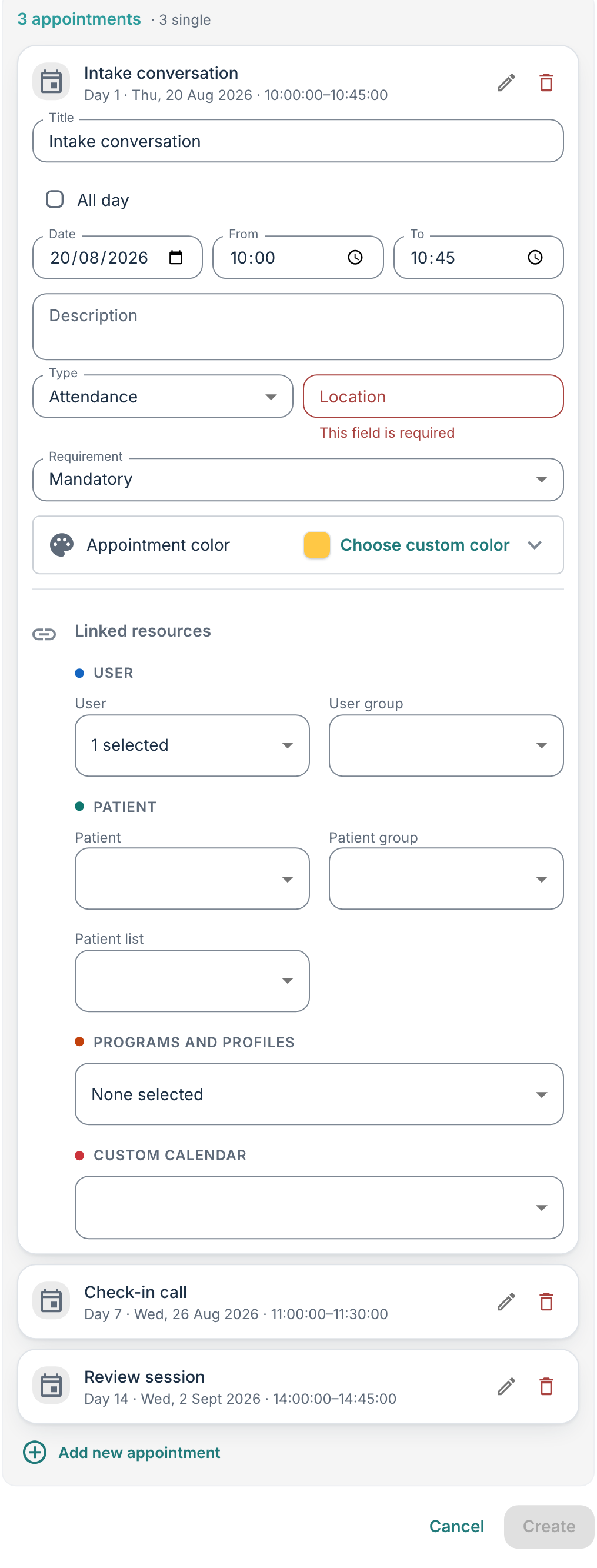
Rows can additionally be removed, and extra appointments added on top with Add new appointment.
Once you are happy with your configuration, you can select Save to create every appointment in one batch. Patients/participants will then receive a single summary notification regarding all appointments created rather than one per appointment.
Best practices
Because a template can affect many appointments at once, we recommend taking extra care when deleting appointments or templates, and ensuring you check what a change will affect before confirming. The platform provides safeguards against accidental mass-deletion of template-generated appointments, but it is worth bearing this in mind too.
Was this article helpful?
That’s Great!
Thank you for your feedback
Sorry! We couldn't be helpful
Thank you for your feedback
Feedback sent
We appreciate your effort and will try to fix the article