CONTENTS
- Resources
- How linked resources drive the calendar view
- Removing an individual from a single appointment
Every appointment in the calendar has one or more Linked resources. These are the therapists, patients, groups and programmes the appointment concerns. Linked resources determine where the appointment appears, who is notified, and, for mandatory appointments, who is automatically enrolled.
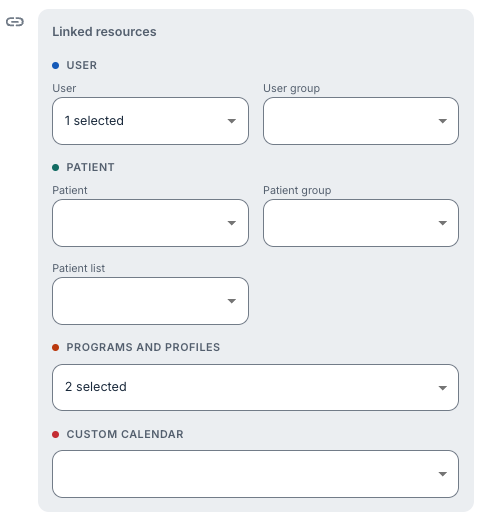
Resources
Any combination of the following can be added to a single appointment in the main Calendar view:
- Therapist — a named clinician. The appointment then appears on their My calendar view.
- User group — a saved group of therapists. Adding a user group is equivalent to adding every member included within the group (see User groups).
- Patient — a named patient. The appointment appears in the patient's calendar view and appointment list in their app.
- Patient group — a saved group of patients. Adding a patient group is equivalent to adding every patient included within the group.
- Patient list — a custom patient list saved from the patient overview. Custom lists are based on filters rather than fixed names, so the appointment reaches every patient who currently matches the list’s criteria.
- Programs and profiles — activating a program from the drop-down here, and/or a specific profile, adds the appointment to every patient currently enrolled in a program and/or profile respectively.
- Custom calendar — you can select your pre-saved resource groups here instead of manually inputting all of the field above if you are likely to select the same combination of resources often (see Custom calendars).
For example, an appointment can be linked to two therapists, a user group of nurses and every patient on a programme profile, all at once.
How linked resources drive the calendar view
Every therapist who is linked (directly or via a user group) sees the appointment on their My calendar view.

Every patient who is linked (directly, or via a patient group, patient list, programme, programme profile or custom calendar) sees it in the patient app. When a calendar is added to the Add to calendar panel, its appointments are drawn in that calendar's colour, so you can tell at a glance whether an appointment belongs to you, a colleague, a group or a programme.
Removing an individual from a single appointment
You can read more about this here: Create an appointment.
You might find it is easier to create a Custom calendar if you have a repeated group you want to apply appointments to, and then simply exclude certain individuals if they cannot attend particular appointments.
Was this article helpful?
That’s Great!
Thank you for your feedback
Sorry! We couldn't be helpful
Thank you for your feedback
Feedback sent
We appreciate your effort and will try to fix the article