This article describes the information banner feature, which makes it possible to publish messages that appear prominently on the home screen of the patient app.
CONTENTS
What is an information banner?
The Information Banners feature allows administrators and content creators to publish messages directly to the start screen of the patient app. When an active banner exists, it is displayed prominently at the top of the page when patients open the application.
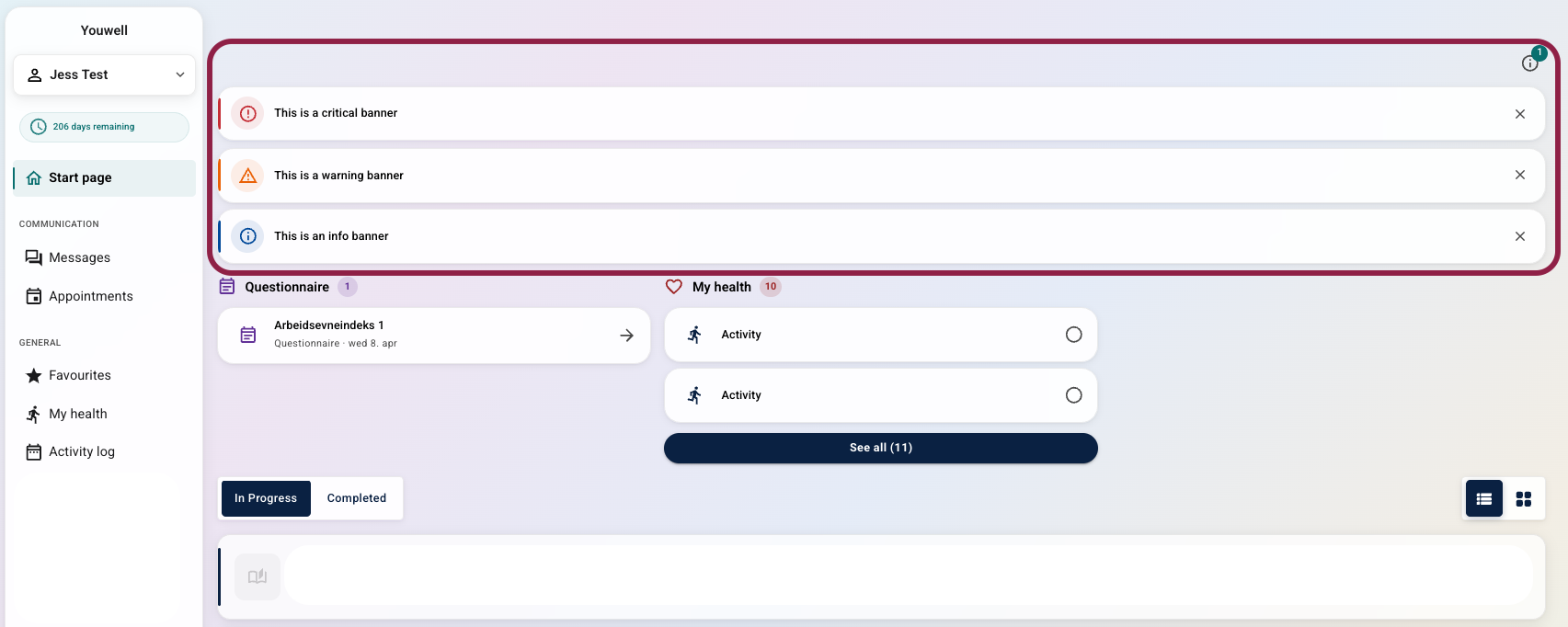
Patients can close the banner, which will collapse it under an info symbol. It can be reopened at any time until the banner is made inactive.
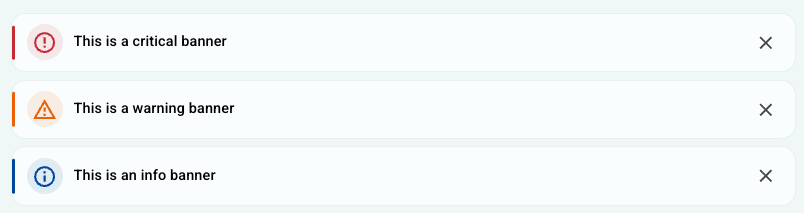 Initial view with multiple banners, before they have been exited by the patient (in previous patient app design). Initial view with multiple banners, before they have been exited by the patient (in previous patient app design). | 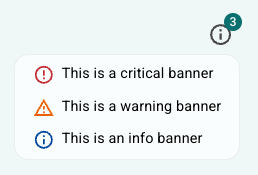 View once banners have been collapsed (in previous patient app design). View once banners have been collapsed (in previous patient app design). |
Each banner consists of a short summary text and the full message content. This makes it possible to share important information with patients, such as upcoming changes to programme content, holidays or absences that may affect follow-up with their therapist, or other relevant resources during certain time periods. An example may be during periods of heightened public health concern when you may want to share specific guidance or articles.
Managing banners
Enabling the feature
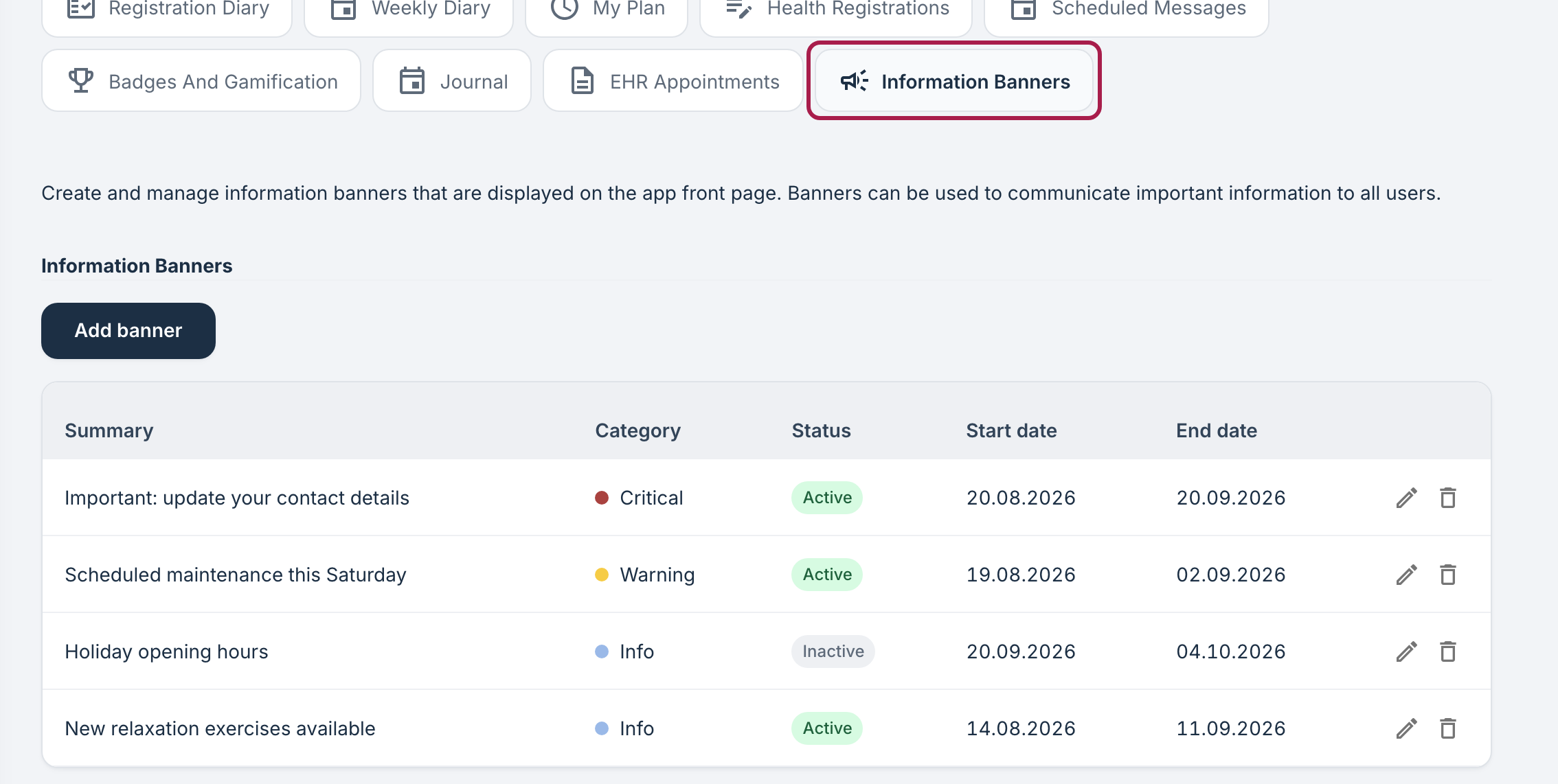
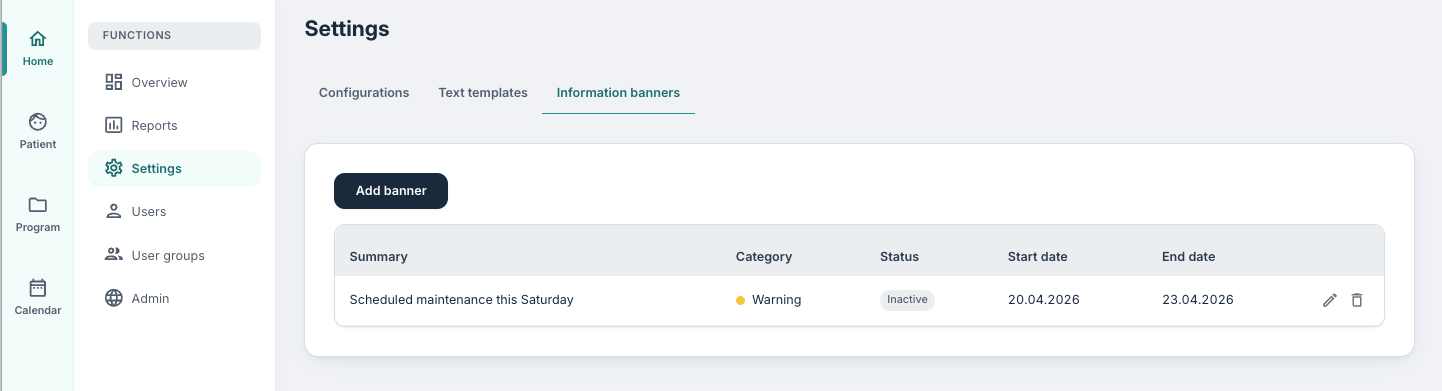
Access to the banner tool can be activated via the Information Banners toggle found under Youwell Settings in the Settings section.
Once activated, an Information Banners tab will be available in two places:
- Under Program settings on a specific programme — banners created here will only apply to that programme.
- Under Settings for admin users — banners created here will apply to all programmes in the organisation.
Creating a banner
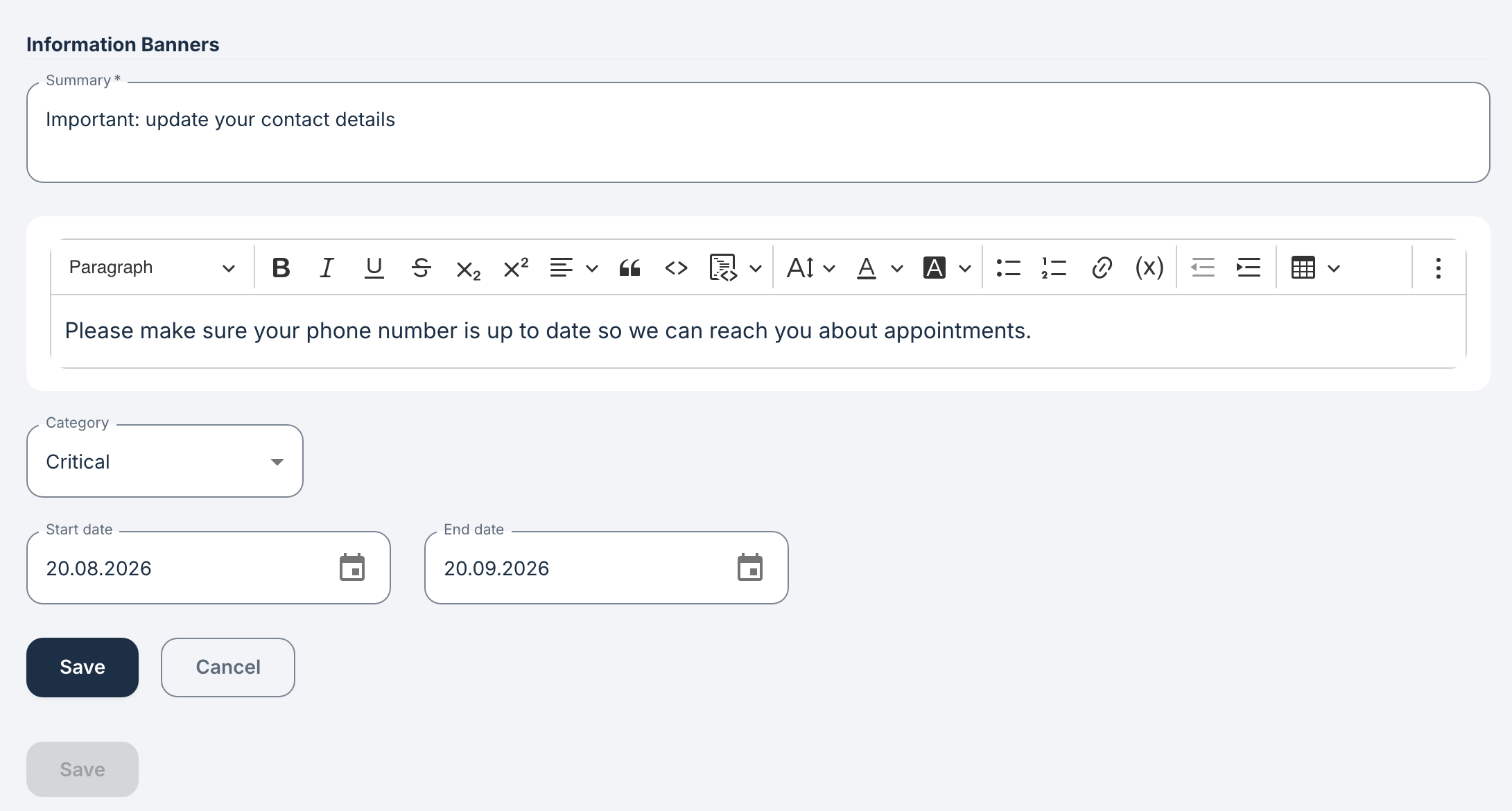
To create a banner, you can select Add banner and fill out the following fields:
- Summary — the text displayed in the banner itself, which the patient sees first.
- Paragraph text — the full content shown in the popup when the banner is opened, which can be rich text formatted.
- Category — choose between Info, Warning, and Critical, which are colour-coded blue, yellow, and red respectively.
- Start and end dates — determines when the banner is active.
As a best practice, we would suggest not having more than two active banners at a time, so as not to overwhelm the patient's dashboard and ensure that patients maintain focus on their programme content and other modules.
Scheduling and activation
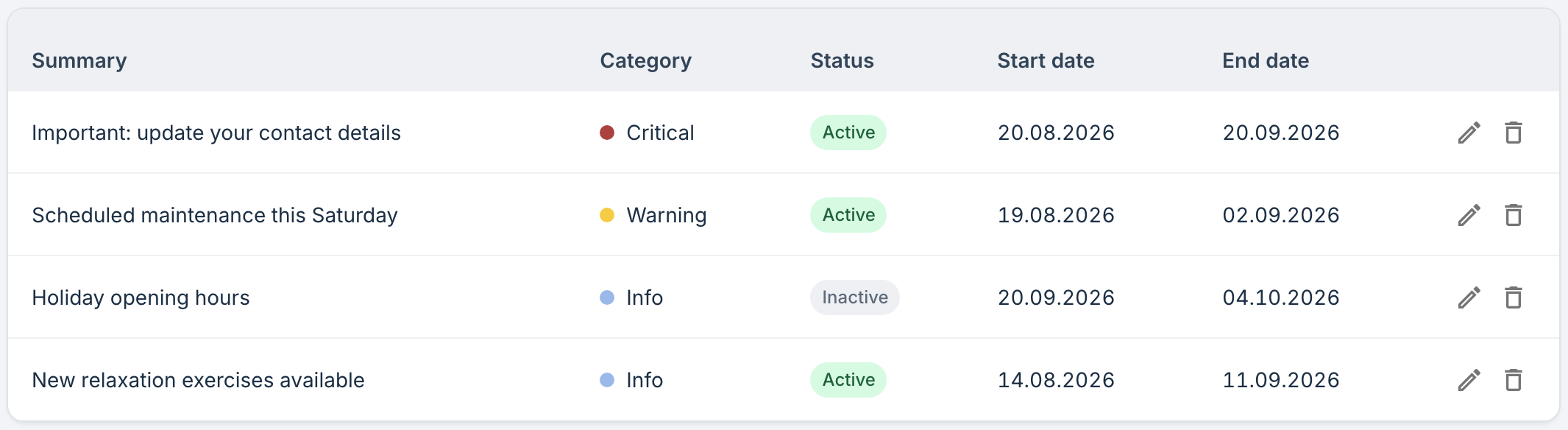
The start and end dates control when a banner is active. Only active banners are displayed to patients.
| Start date | End date | Result |
|---|---|---|
| Not set | Not set | Banner is immediately active and remains active until deleted or made inactive by adding an end date. |
| Set (future) | Not set | Banner activates on the start date and remains active until deleted or made inactive by adding an end date. |
| Not set | Set (future) | Banner is immediately active until the end date, then deactivated. |
| Both set | Both set | Banner is active within the defined date range. |
The current status of each banner is shown in the Status column in the summary view.
How it appears to patients
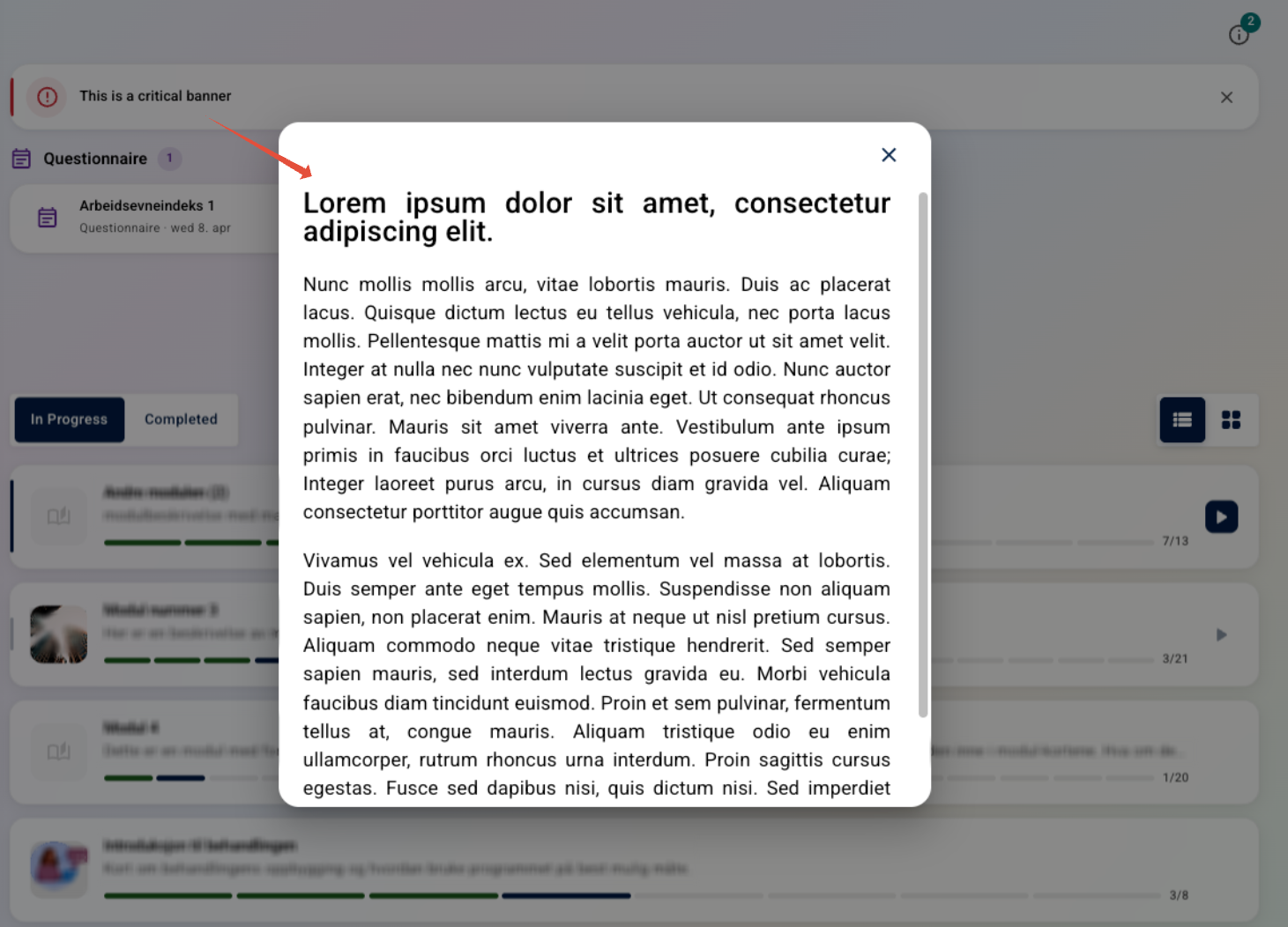
When an active banner exists, it is displayed across the top of the patient app in the colour corresponding to its category (Info, Warning, or Critical).
Tapping or clicking the banner opens a popup containing the full paragraph text. Once read, the banner can be collapsed under an info symbol, where it can be reopened at any time.
Note that patients cannot fully remove or dismiss a banner. It is only fully removed from their view once it becomes inactive based on its settings.
Was this article helpful?
That’s Great!
Thank you for your feedback
Sorry! We couldn't be helpful
Thank you for your feedback
Feedback sent
We appreciate your effort and will try to fix the article