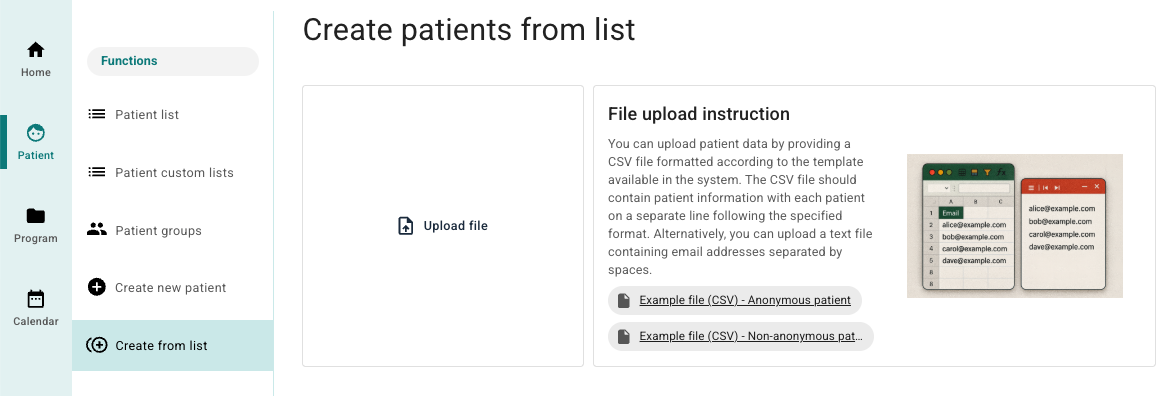
To add several patients at the same time, you may use the Create from list button under Patient. This function provides the possibility to upload a file with patient data so that several patients are created simultaneously.
Download and complete template
Under File upload instruction there are templates that can be used. Download the relevant template, complete the patient information and save the file in CSV or TXT format. There are two types of templates:
- Anonymous patient: only email address and mobile number are imported.
- Non-anonymous patient: name, email, mobile number, national identity number, NPR number and sex can be entered. The column “Sex” is given either “Male” or “Female”.
Note that if the organisation is only activated for anonymous patients, the template for non-anonymous patients will not be shown.
Upload file
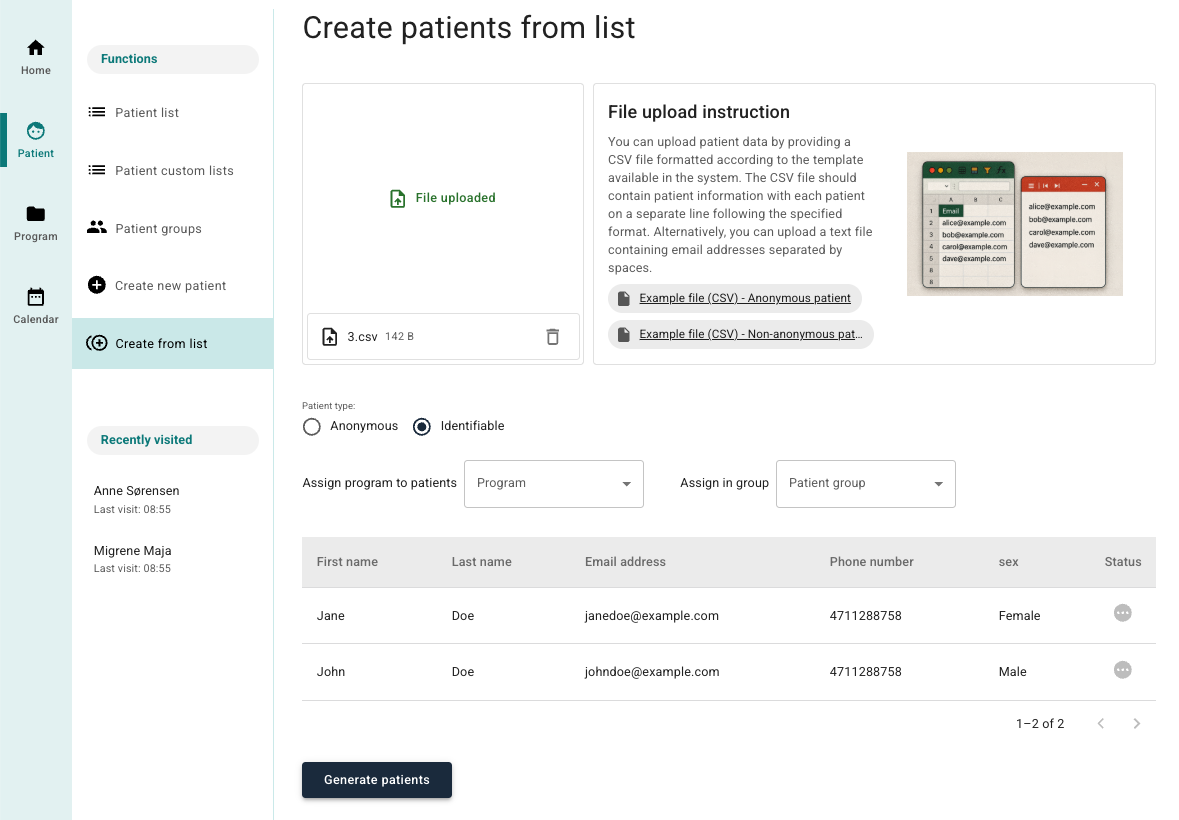
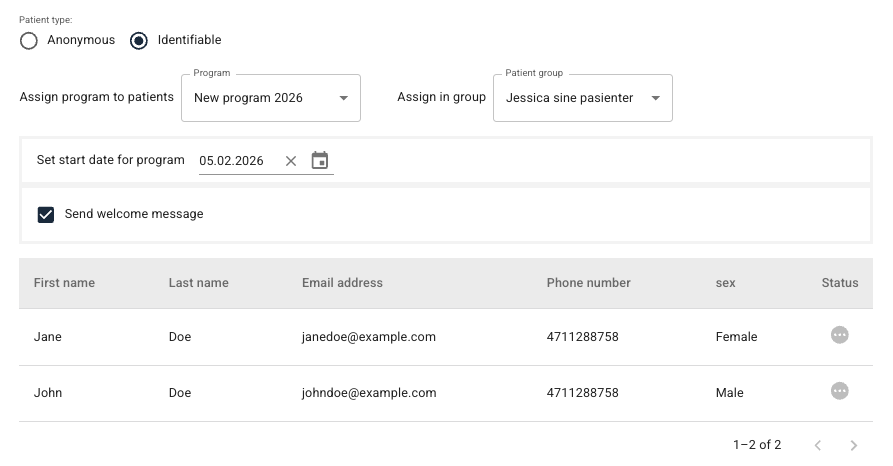
When the file is ready, it can be uploaded under Upload file. After upload, some choices related to how the data is to be processed appear:
- Assignment of program for the patients.
- Specification of patient type (anonymous or non-anonymous).
- Setup of program profile and start date, in the same way as in manual creation.
- Option to select that the patients receive a welcome message.
Preview and creation
After the file has been uploaded, a preview of the patient data is shown.
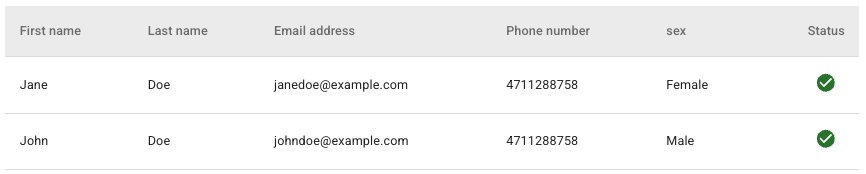
It is possible to start the import by using the button “Generate patients”. When the import has been completed, a green ✔ is shown under Status for records that are imported without errors. When the upload is completed, one can return to the patient list. The new patients then appear as created in the system. It is also possible to open a patient profile to make adjustments or update information manually.
Was this article helpful?
That’s Great!
Thank you for your feedback
Sorry! We couldn't be helpful
Thank you for your feedback
Feedback sent
We appreciate your effort and will try to fix the article