When you offer group appointments in the calendar, it may be important that patients understand and accept certain conditions before they sign up. This can be done by activating consent for the calendar. The consent feature makes it possible both to display information and to ask questions that the patient can respond to before signing up.
Activating consent
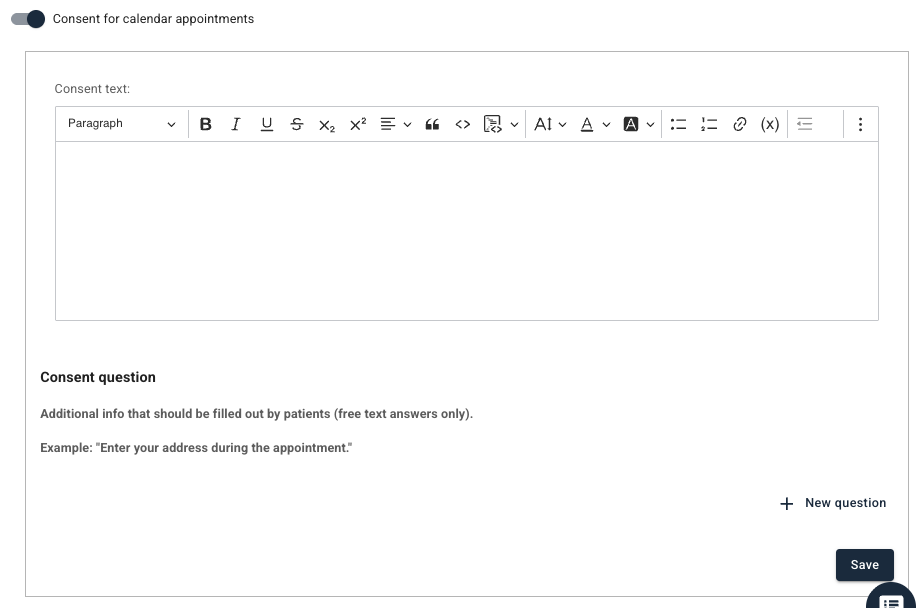
In the settings for the relevant calendar it is possible to activate the feature Consent for calendar appointments. When this feature is activated, a free-text field is made available to enter a consent text. This is the information the patient sees during the sign-up process. Here you can for example display:
- What the session involves.
- That a camera is expected to be on for video meetings.
- Rules for attendance, cancellation or confidentiality.
Below this text a tick box where the text “I accept the terms and conditions” is automatically displayed, which the patient needs to tick in order to be able to sign up.
Adding consent questions
In addition to the consent itself, it is possible to pose questions that the patient can answer when signing up.
- Enter each question in the field for Consent question.
- Select whether the question is mandatory to answer or not.
- It is possible to add multiple questions and remove them again as needed.
It is recommended to keep the questions short and clear, for example “Provide telephone number” or “Provide address”. When the consent text and any questions are inputted, you may Save.
Display for the patient
The next time a patient signs up or tries to open the appointment link on a session in this calendar, the patient can:
- Read and accept the terms.
- Answer any questions.
- Confirm the sign-up.
Was this article helpful?
That’s Great!
Thank you for your feedback
Sorry! We couldn't be helpful
Thank you for your feedback
Feedback sent
We appreciate your effort and will try to fix the article