When the calendar has been made available to patients and they have been assigned the relevant treatment program, the calendar is visible in the patient app.
How the patient can find the calendar
- The patient opens the patient application.
- They then use the hamburger menu (top right corner) to show more options.
- The option Appointments in the menu gives an overview of both available and past appointments.
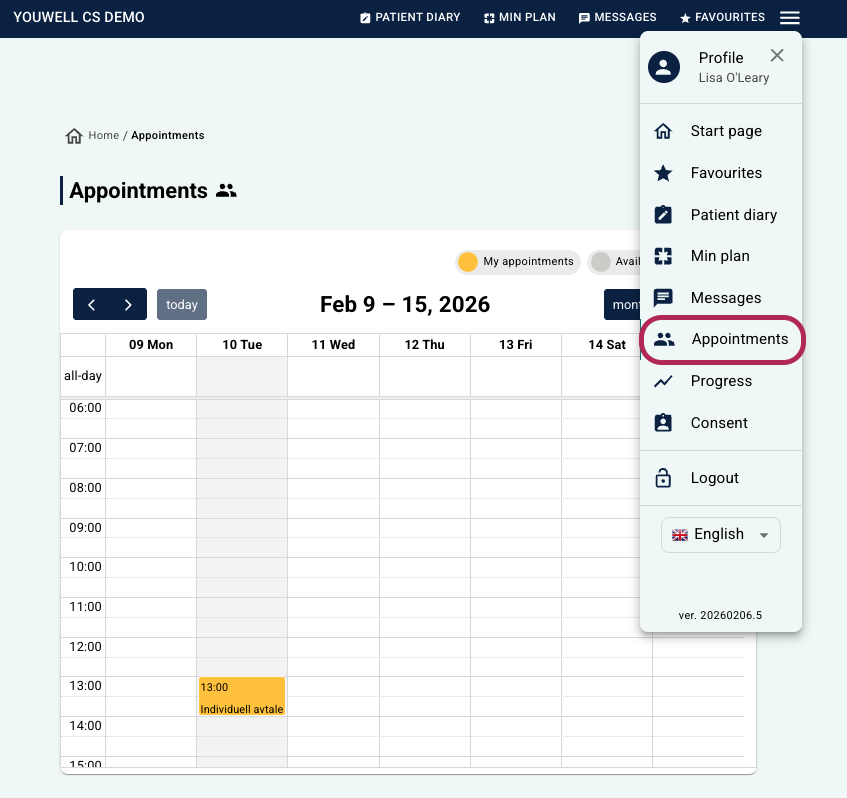 Display in the earlier patient application design (pre-2026). Display in the earlier patient application design (pre-2026). | 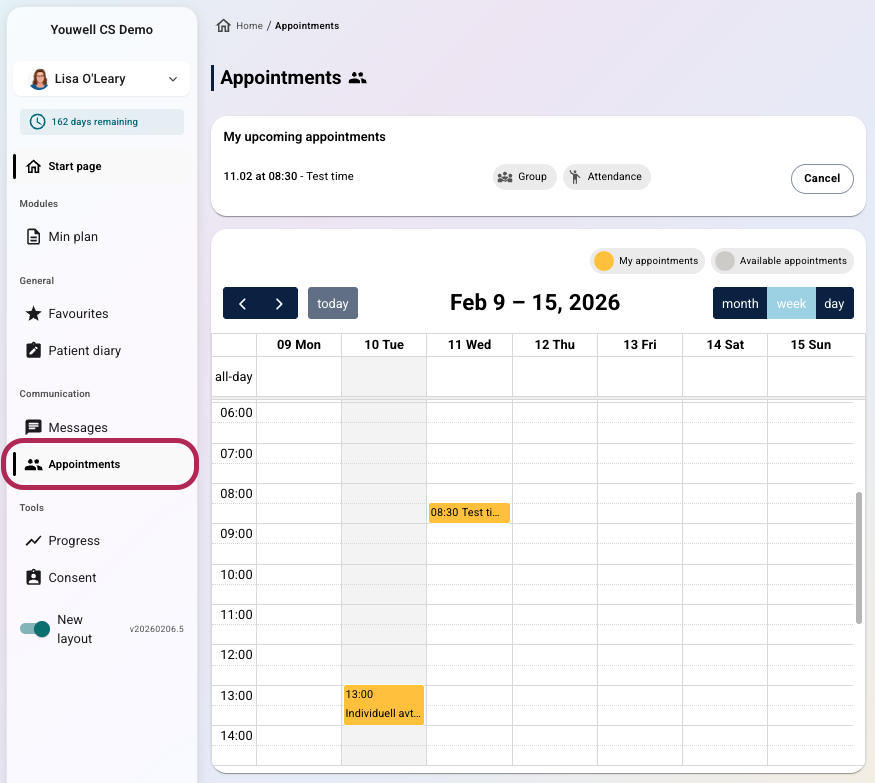 Display in the new patient application design (implemented in 2026). Display in the new patient application design (implemented in 2026). |
Appointments in the patient application
In this view the patient can see upcoming and past appointments that they can attend. Available appointments are shown in grey. When the patient is registered for a session, this is shown in yellow.
Registration
To see details about a group appointment the patient can select it in the calendar. On the detail page, information about the appointment is presented, and it is possible to register for the session.
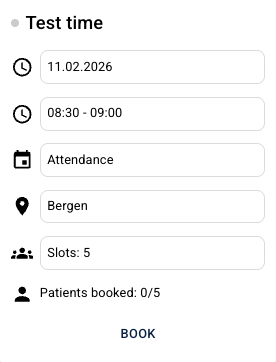
When the patient has registered, the session will be shown in yellow in the calendar and a reminder is shown at the top of the screen.

The icons next to each session indicate what type of appointment it is.
For appointments that are video meetings a button to join the conversation is shown about one hour before the meeting begins. This button gives access to the video meeting via the chosen video provider.
Cancellation
If the patient wants to withdraw from an appointment it is possible to select the appointment in the calendar and cancel from there.
When consent is activated
If consent for the calendar is activated, this is presented as part of the registration process. In such cases, a requirement may be shown informing that e.g. that participants should have their webcams activated, and so the patient can be asked to tick that this is understood. In addition, other mandatory questions can be included in the process before the patient can complete the booking of the session.
Was this article helpful?
That’s Great!
Thank you for your feedback
Sorry! We couldn't be helpful
Thank you for your feedback
Feedback sent
We appreciate your effort and will try to fix the article