The Calendar tab can be enabled for your organisation on request. Contact support@youwell.no if you would like it enabled.
What is the Calendar function?
The calendar provides the ability to offer group sessions or group appointments to your patients. The functionality includes:
- Limiting the number of registrations per session.
- Offering both video meetings and physical meetings.
- Collecting consent and additional information upon registration.
- Linking calendars to one or more treatment programmes.
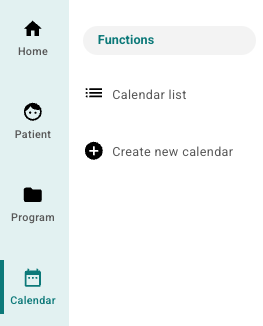
The Calendar tab is found in the main menu in the platform when it is enabled for the organisation. There you will see Calendar list and the option to create new calendars.
Who can create a calendar?
The function to create new calendars is available to users with administrator or content creator access. Therapists can view the calendar after it is created and add appointments if they choose.
How a new calendar is created
In the Calendar tab an overview of existing calendars is shown. It is then possible to add new calendars by selecting the option to Create new calendar. This opens a form with fields for configuration:
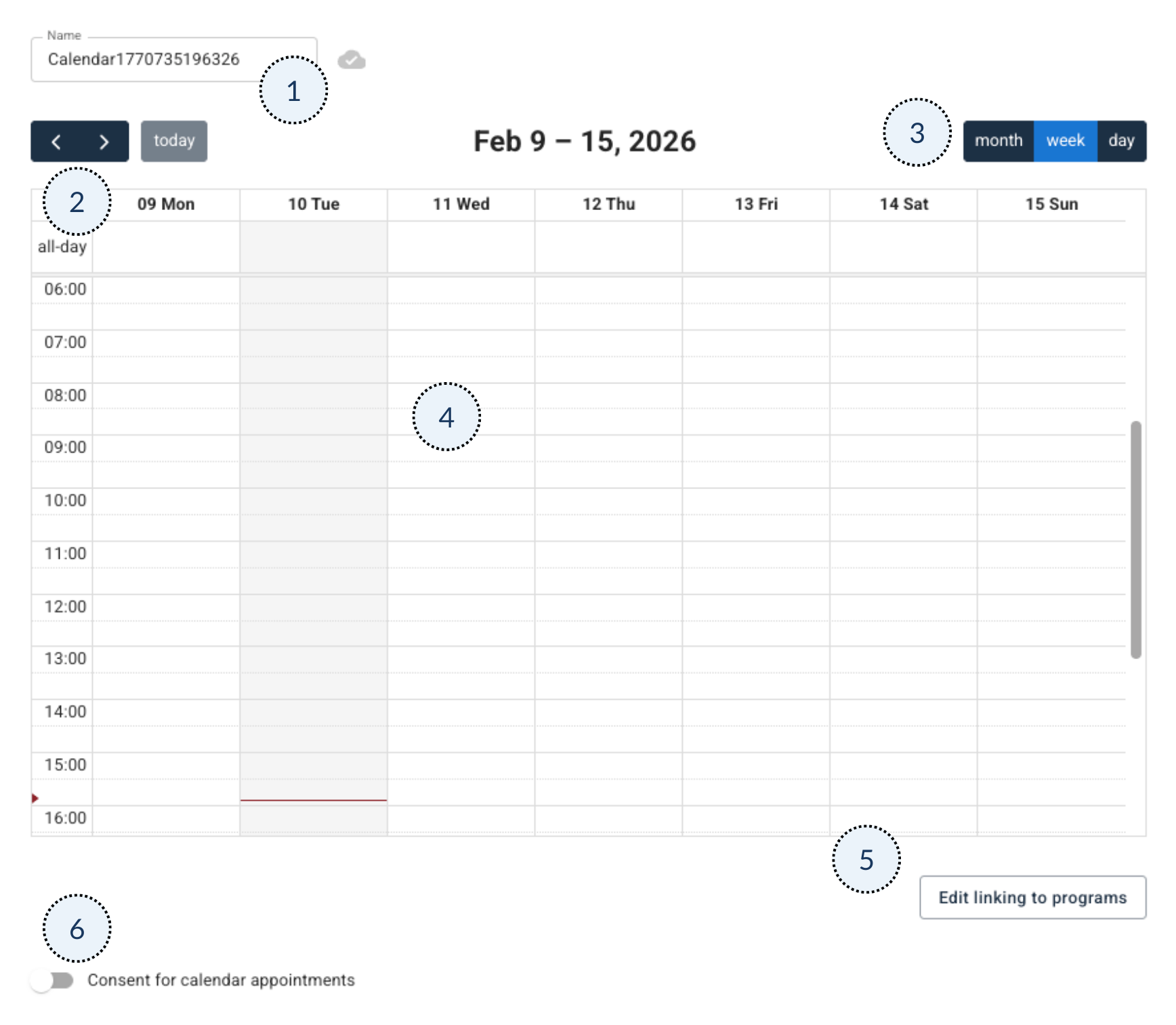
- Name: You can name the calendar with a clear and descriptive name. Multiple calendars can be created, for example by session type (for example group therapy), clinician (for example “John's calendar”) or programme.
- The arrows allow for navigation forwards and backwards through different time periods.
- The calendar can be viewed by month, week (standard view) or day in the calendar.
- Appointments and the current time is reflected in the calendar. A new appointment is created by selecting the relevant time in the view.
- Linking to programmes: Calendars can be linked to one or more treatment programmes via Edit linking to programs.
- Consent: Option to activate consent and add questions that the patient answers before registration. Read more about this here: Consent for calendar appointments.
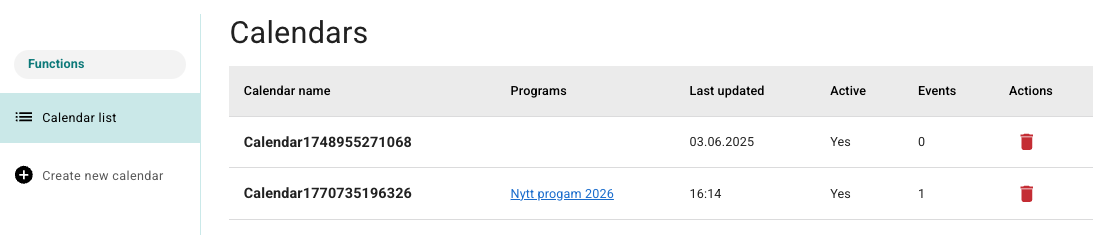
All available calendars are shown under Calendar list with information about calendar name, linked programmes, last update and whether the calendar is active or not. Under Events the number of sessions entered in the calendar is indicated.
Create a new appointment
When selecting a time in the calendar, a form is displayed which provides an overview of the appointment settings:
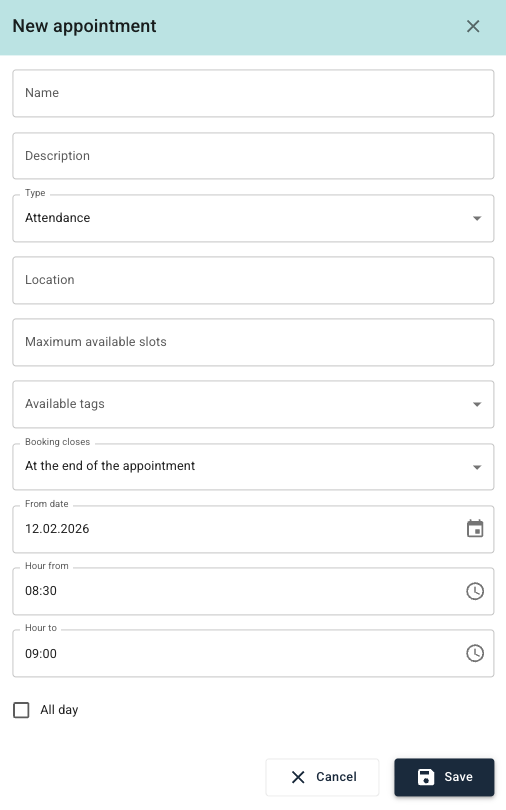
- Name and Description are displayed for both patient and clinician.
- Type of meeting: Choice between Attendance or Video.
- For Attendance: Location is entered in a separate field.
- For Video: The selected video provider is displayed in the provider field.
- Maximum number of places: Indicates how many can register. The registration option closes automatically when the limit is reached.
- Registration closes: Options include At the end of the appointment, When the appointment starts, 1 hour before the appointment starts or 1 day before the appointment starts.
- Time and duration: Adjustments can be made to start and end times. The standard is 30 minutes. The option for All day without specific times is also available.
After saving the appointment is shown in the calendar. It is also possible to make further edits or delete the appointment from the view.
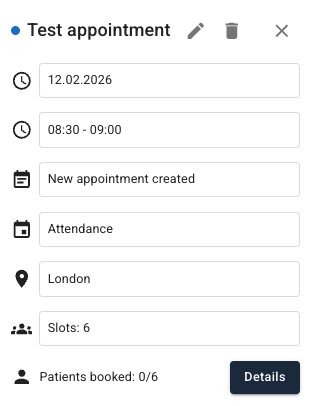
Information about how many patients are registered is shown at the bottom, with the total number of available places. For digital meetings a button to join the conversation is shown and a link that can be shared with other participants.
Linking the calendar to a programme
For patients and clinicians to access the calendar, the calendar can be linked to one or more treatment programmes via Edit linking to programs.
Was this article helpful?
That’s Great!
Thank you for your feedback
Sorry! We couldn't be helpful
Thank you for your feedback
Feedback sent
We appreciate your effort and will try to fix the article