Program profiles are used to set up and plan the programme flow for the patient. In other words, it is the programme profile that describes how different modules, questionnaires and additional content can be shown to the patient, and in this way provides an overview of how the course will work for the patients.
What is a programme profile?
A profile is a standard version of a programme, where it is possible to customise and set rules for when different content types are available to patients, and when questionnaires can be sent out. The rules and settings that are entered on the profile function as the programme’s default settings that apply when the programme is assigned to the patient. The therapist can make small adjustments to the programme for individual patients, but the overall setup and structure of the programme lies in the programme profile.
Why have multiple programme profiles?
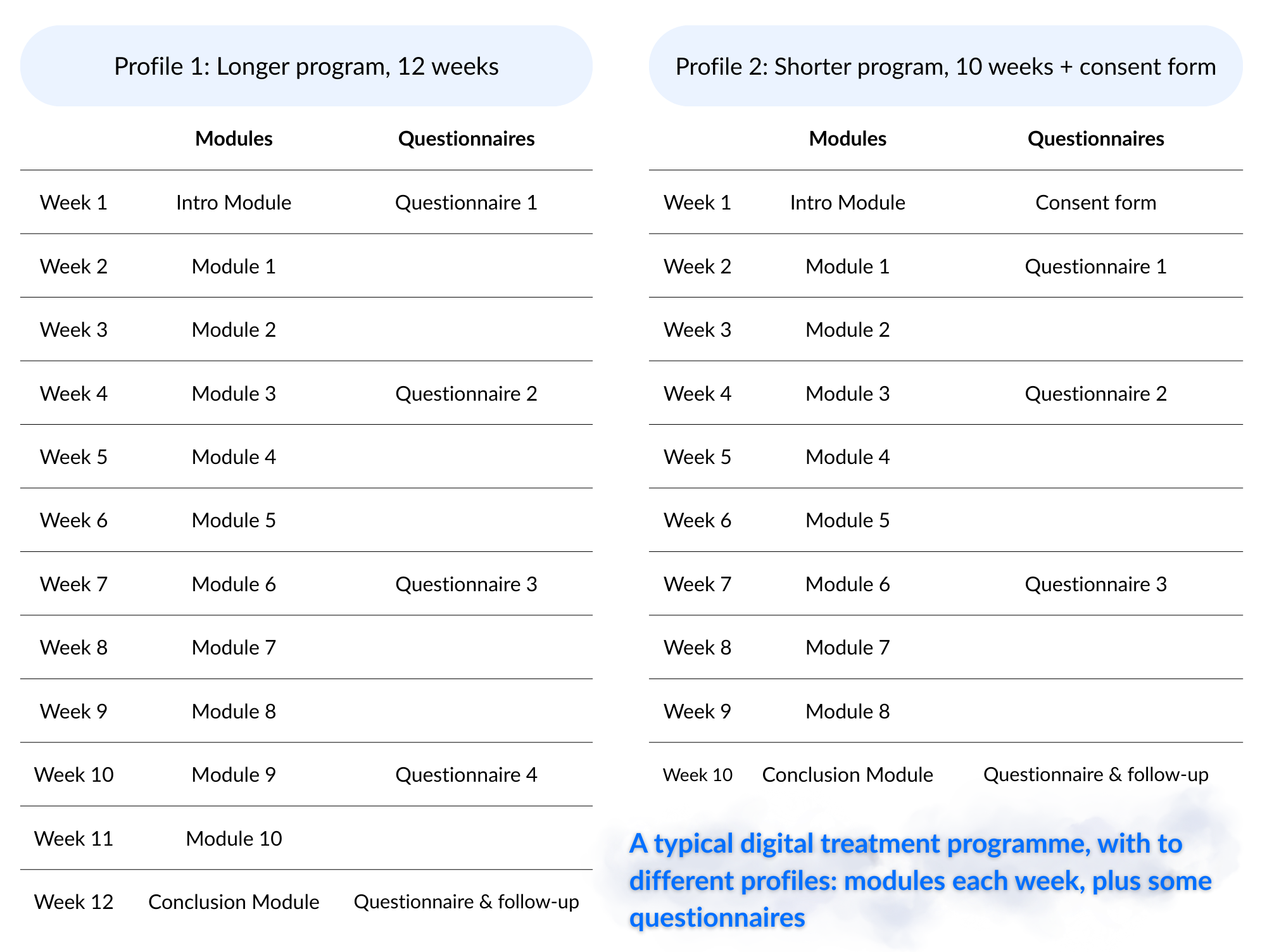
A programme can have several different profiles, for example if there is a version that includes extra questionnaires for research purposes, or if the content is adapted to different patient groups (for example one profile that lasts 15 weeks and another that lasts 20 weeks with more modules).
Below is shown an example where two different profiles are planned for the same programme:
Create new programme profile
In Settings for the programme under Profiles there is an overview of the different profiles on the programme, and a field to name a new profile.
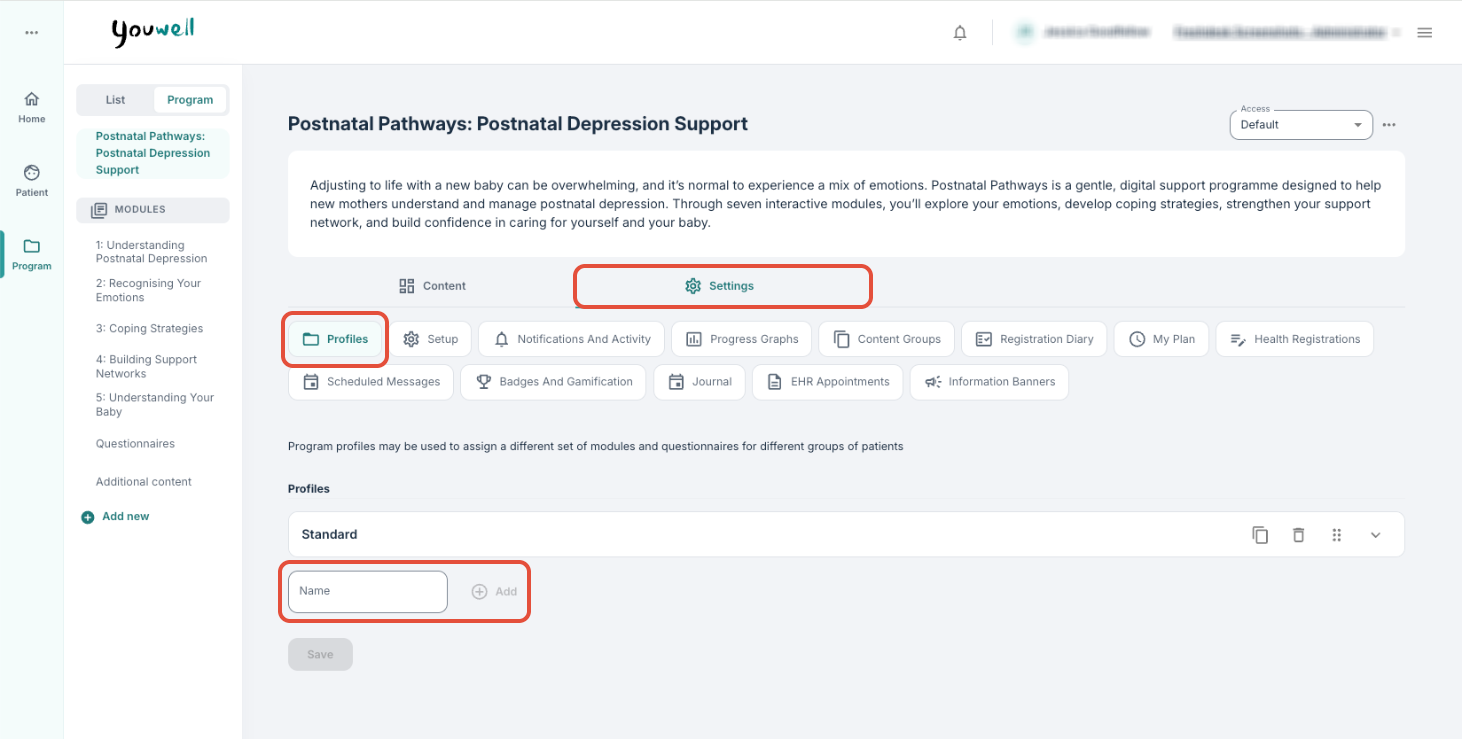
It is also possible to add elements by choosing between modules, content pages and questionnaires so that these are shown in the profile. As new modules and elements are added, they are shown in a list under the profile. Here is an example of a programme profile:
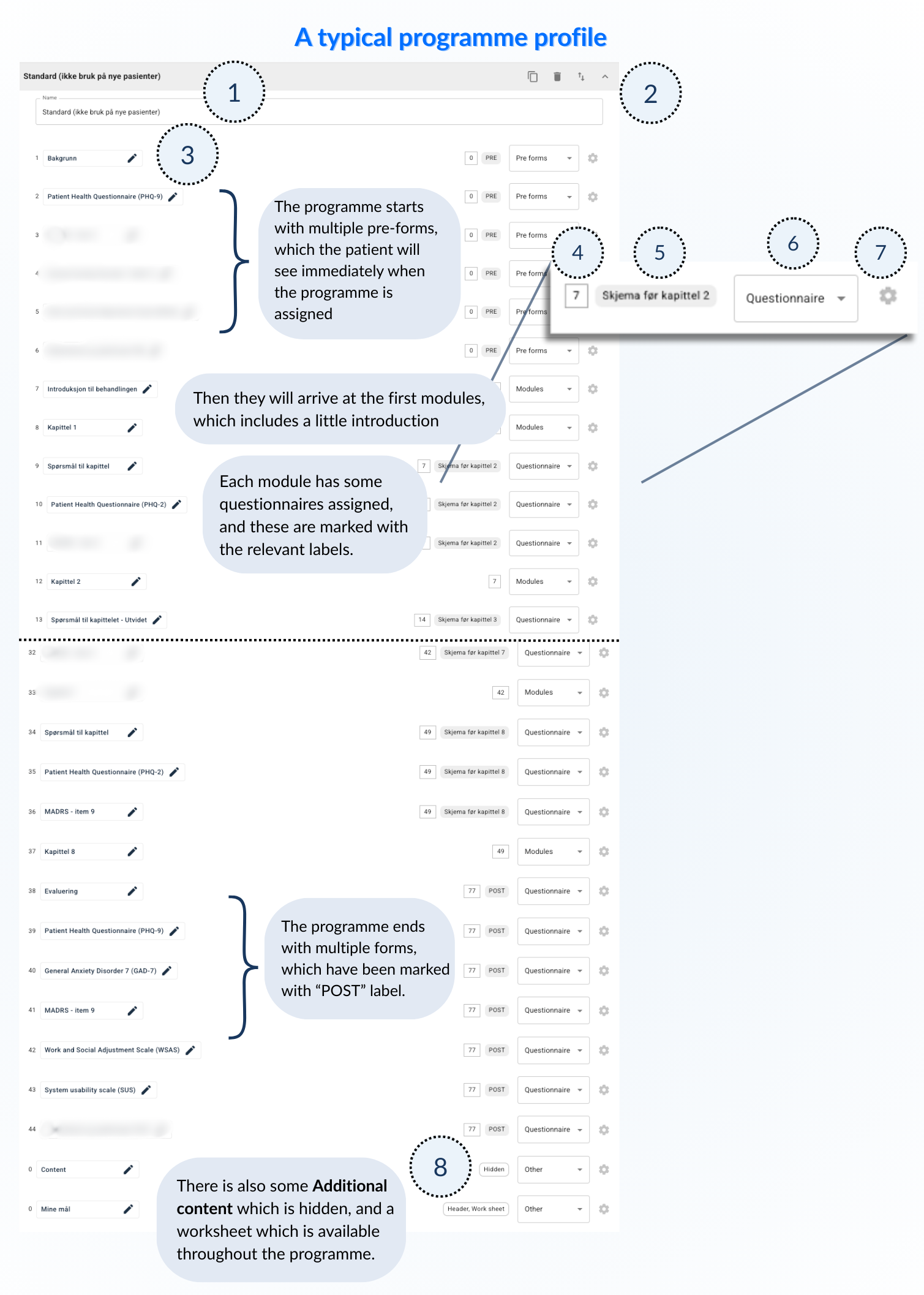
- Profile name – Name of the profile.
- Tools – Functions such as copying a profile, deleting, sorting and showing/hiding profile details.
- Name and placement – Shows the elements that have been added.
- Start-offset days – Shows when the content can be available to the patient after the programme has been assigned.
- Labels – Shows any labels that can help identify forms/questions.
- Content type – Shows type of content such as module, questionnaire, other etc.
- More settings – Settings related to each element.
- Settings for Other – Additional content has some extra settings shown here as a tag.
More settings
Under each page or each questionnaire there is a menu to adjust when the content is available and in which order.
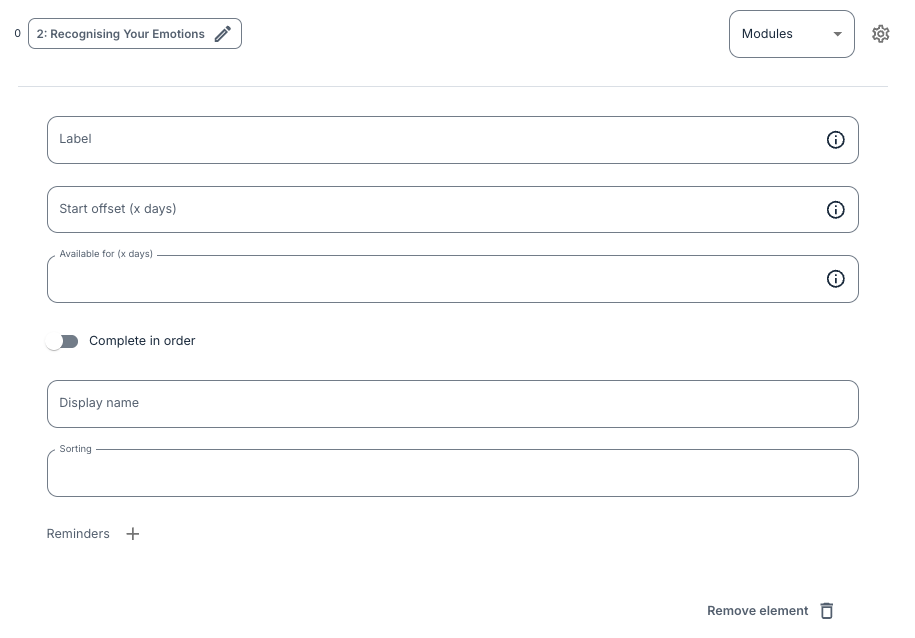
It is possible to specify:
- Label – A label that can be used for later identification of the form/question.
- Start offset (x days) – The number of days after start that the content is available to the patient.
- Available for (x days) – Specify how long the content can be available for the patient.
- Complete in order – Option to indicate that modules or forms can be completed after a given sequence.
- Display name – Alternative name for the content.
- Sorting – Indicates the order for the elements in the profile.
- Reminders – Option to show reminders for the patient if completion is delayed.
Complete in order
It is important to note that if Complete in order is used, the patient will have the possibility to see the content/questionnaire only if they have completed all previous content pages/questionnaires.
This means that the content will not be visible in the patient application until the patient has completed the earlier tasks, so it is recommended to consider where there is need for this setting or not.
Questionnaires
When adding questionnaires to the profile, you can configure the settings in the same way as for Modules, although you can additionally toggle on/off:
- Research only – Indicates that content is marked for research purposes.
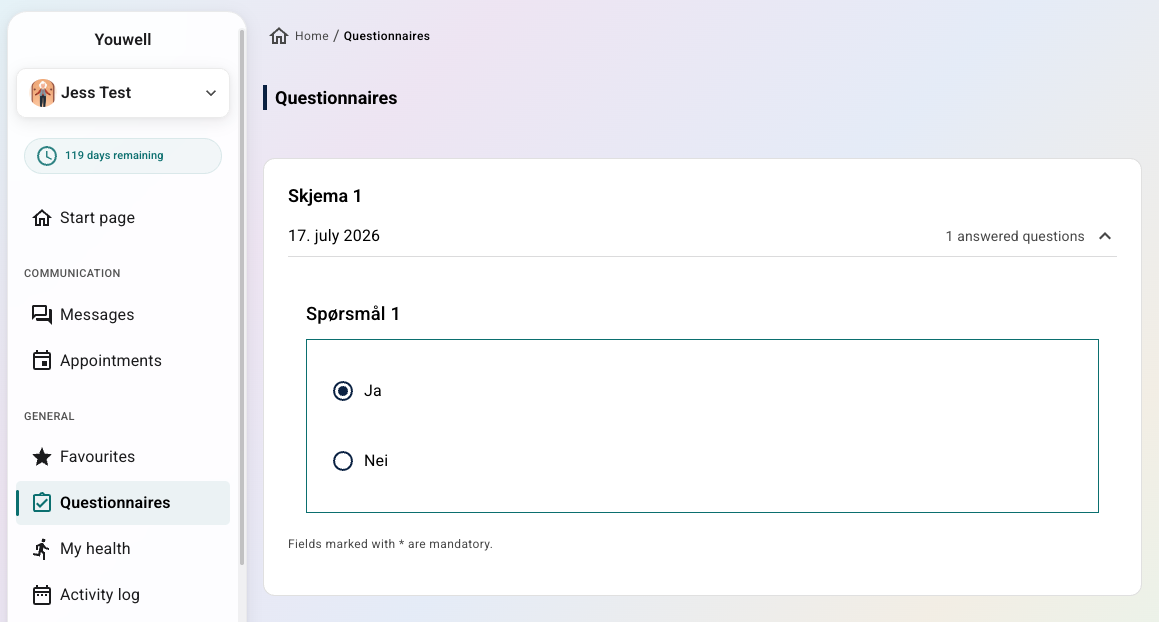
- Answer visible for patient – Allows patients to view their questionnaire response after submitting, by saving the response in a Questionnaires tab in the hamburger menu in the app. Questionnaires where this setting is toggled on will be made available in a list view under Questionnaires in the patient app. This can be useful for cases where patients should have access to previous responses in order to reflect over them and view their progress.
Additional content
For elements of the type Additional content/Other, it is possible to specify extra settings, for example if a form can be filled out multiple times (Worksheet), if it is available in the header of the patient application (Header), or if it is Hidden.
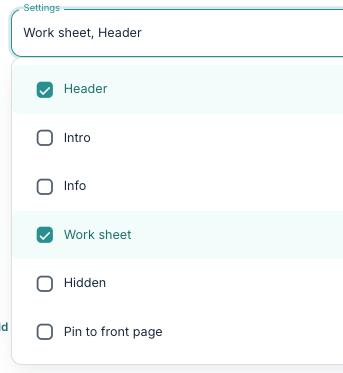
These settings include:
- Header: The page will be displayed as a shortcut in the patient app header (legacy design only).
- Intro: The page will be displayed as a highlighted "Introduction" card at the top of the home page (above the module list) and will disappear once the patient completes it (legacy design only). There may only be one Intro-card per programme.
- Info: The content of the specific page will display directly on the home page, below the module list. You could use this for a permanent block of information such as a welcome message, contact details, or an "about this programme" section - that way patients will see it every time they open the app.
- Work sheet: The patient can submit questions on the page multiple times, and clinicians can see the responses for each submission.
- Hidden: The page will not be displayed in the hamburger menu at all, but can be found through internal links in content pages
- Pin to front page: The page will be displayed as a shortcut widget on the home screen (new 2026 design only).
It can be useful to have a “test patient” available to see how Other content will appear in the patient application, especially if settings such as Info and Header are used.
Was this article helpful?
That’s Great!
Thank you for your feedback
Sorry! We couldn't be helpful
Thank you for your feedback
Feedback sent
We appreciate your effort and will try to fix the article